
Changelog
Get the latest feature updates in Truv
PCS orders document upload: Customization templates now accept a pcs_orders document type under document_upload, configured like every other type — enable it, mark it required or optional, set the title, description, button and submit labels, and the minimum and maximum number of files. PDF, JPEG and PNG uploads are accepted. It is disabled by default, so nothing changes for existing templates until you turn it on. See the Templates object reference and the template update endpoint.
Uploaded orders are parsed and returned by the parsed documents endpoints with a document_type of PCS_ORDERS. Their parsed_data carries the service branch, rank normalized to a pay grade, current and future duty stations, the report no later than date, tour length, dependent information and the active duty service commitment, each when available on the order.
Custom labels for the order landing page buttons: The call-to-action labels on the order landing page are now configurable per template under orders.landing.buttons. Five keys are available, each up to 50 characters: connect, add_account and try_again for the connect button, and review_accounts and submit_accounts for the finish button. Every key is null by default, so the current wording stays in place until you set one. Labels render on one line and longer text is truncated, so keep them short. See the customization guide for which button each key controls.
Hide uncategorized deposits during self-certification: With bank income self-certification, the review screen shows an Uncategorized deposits section listing bank deposits Truv could not attribute to an income source. Set the new orders.self_certification.hide_uncategorized_deposits flag to true on a template to drop that section. Per-employer income sources stay certifiable, each with its own certification and amount. Defaults to false. See the self-certification guide.
A webhook endpoint that returns no successful (2xx/3xx) response over a sustained period while failed deliveries keep accumulating is now switched off instead of retried indefinitely. A brief outage or a few scattered errors does not qualify, and endpoints where only some event types fail are left alone.
We warn first: the account owner, and the alerts email set in the Dashboard when there is one, gets an email naming the failing endpoints, and the endpoint is only disabled if it is still failing several days later. Events that occur while it is disabled are not delivered and are not replayed afterwards, so fetch anything you missed through the API.
You can re-enable an endpoint at any time under Development → Webhooks in the Dashboard, or by sending {"enabled": true} to the Update webhook endpoint. The enabled flag is also returned when listing webhooks.
See the Update a webhook reference.
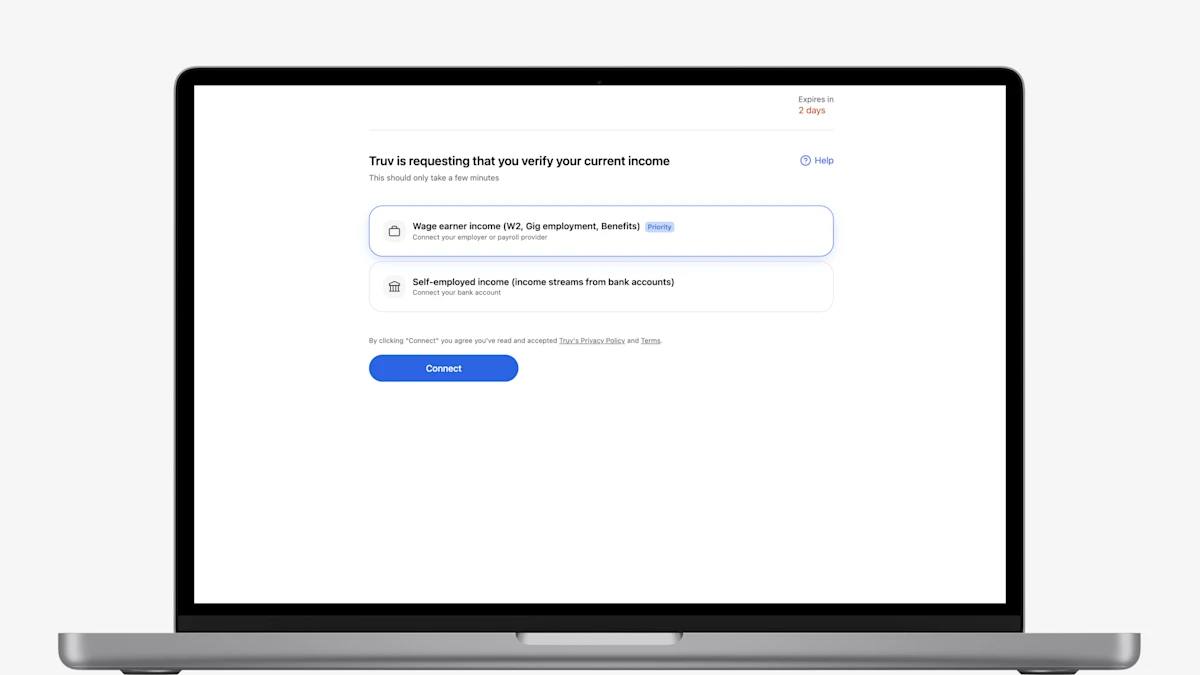
- Redesigned Truv Orders Landing Page: The Truv orders landing page has been refreshed and redesigned to improve conversion and client experience. The updated landing page will be live on September 1, 2026, available to enable upon request for pilot before September.
- Enhanced Reporting Tab in Truv Dashboard: For all Truv clients, in Truv Dashboard > Reporting tab, you can now view breakdowns of orders by time to expiry, filter by multiple data sources at once, and see details on error distribution including the top five error messages by category.
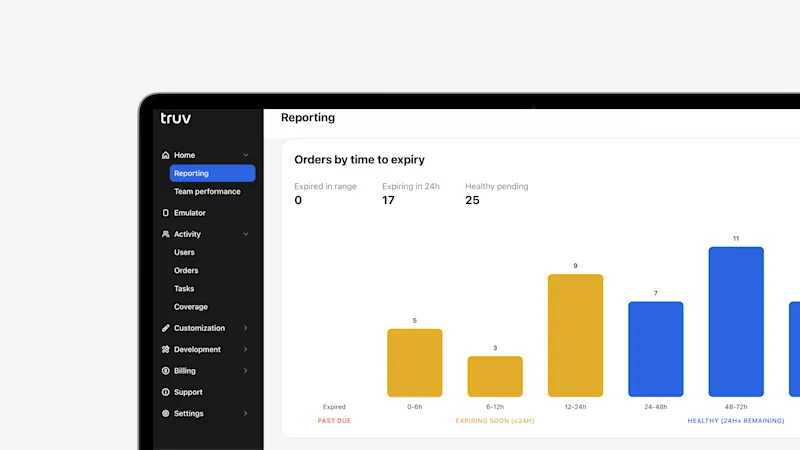
- Expanded Order Expiry Settings in Truv Templates: Clients can now customize how long orders remain active before automatically expiring when at least one employer or account has been completed but the user has not clicked Finish to share their data. The default expiration remains 24 hours, but clients can configure a shorter or longer timeframe based on their workflow.
- Email Title Field in Truv Templates: Truv Templates now include a Title field for first and reminder emails, giving you control over the subject line clients see.
- New Order and Refresh Grouping in Truv Dashboard: In the Orders tab, an initial order and all of its subsequent refreshes are now grouped together, so the full history of a single verification appears in one place.
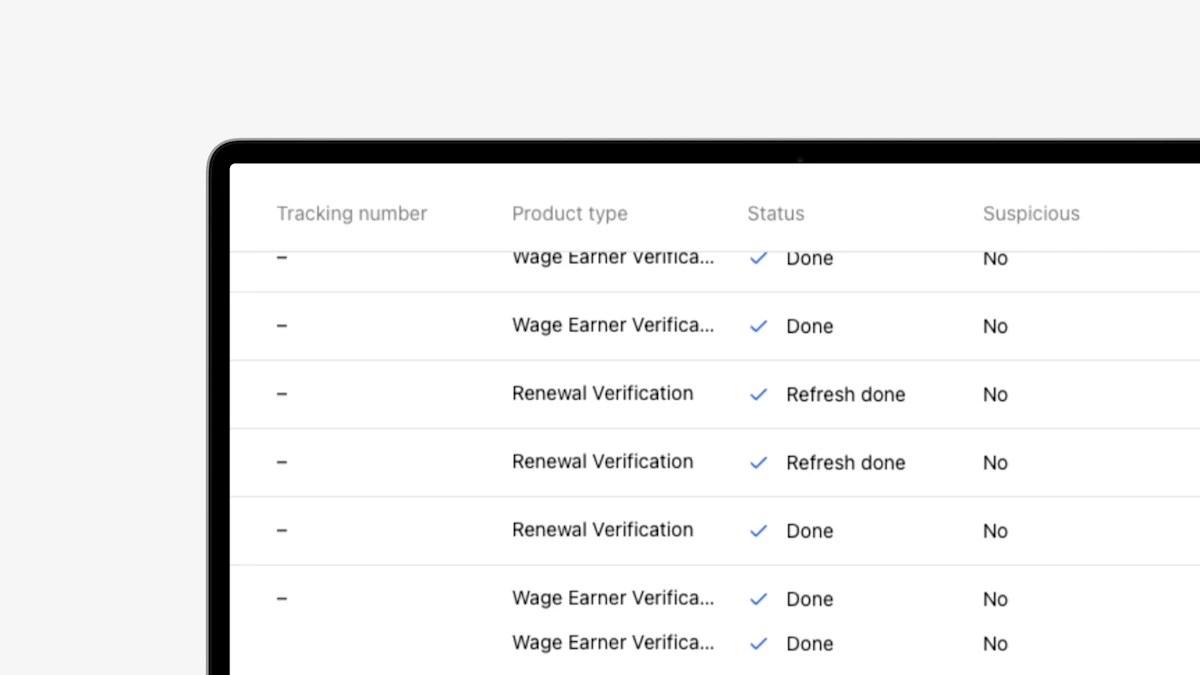
- New Order Status Column Tags in Truv Dashboard: In the Truv Dashboard Orders tab, refreshes and initial orders now display distinct labels in the Status column, making it easier to tell them apart at a glance.
- New Doc Upload Template Settings: To align with the upcoming launch of Truv's new Doc Upload, we updated Truv Template settings for streamlined setup and consistency with the client-facing experience.
- Public Sector Client-Reported Income Section in Truv Dashboard Order Results: For public sector, in Truv Dashboard Orders information, we've added a client-reported income section for caseworker review.
- Enhanced Order Actions in the Orders Table: The Orders table now provides the full set of available order actions directly from the action menu. Users can access reports, invoices, downloads, and other order-specific actions without navigating to the Order Details page, creating a more consistent and efficient workflow.
- Template Filtering by Product Type: In the Truv Templates tab, lists can be filtered by product type, now automatically updating based on the selection(s) in both Sandbox and Production.
- Ability to Manage Truv Changelog Email Notifications: A new notification preference allows Truv Dashboard users to opt in or out of Changelog emails. To update your preference, navigate to Settings > Notifications.
- Redesigned Returned Documents Limits Form in Truv Templates: The Returned Documents Limits form has been redesigned with a more compact, streamlined layout, making it easier for mortgage lenders to navigate and configure document return settings while maintaining the same functionality.
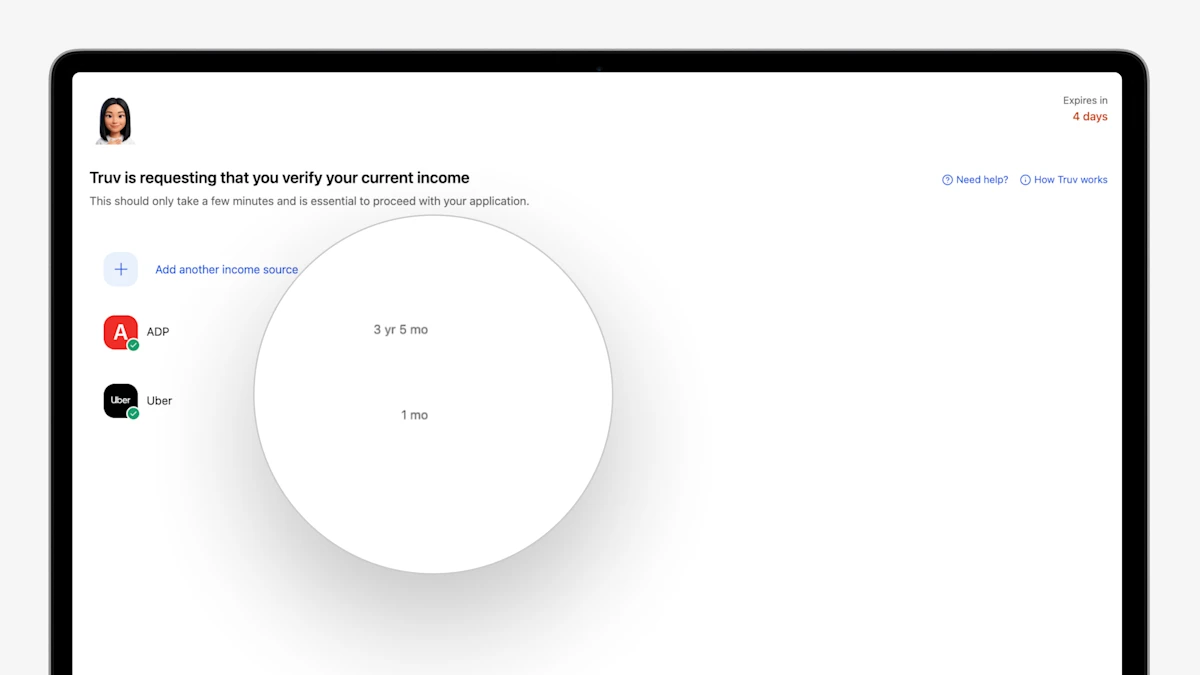
- Show Connected Employment Duration to End User: In the order landing page, when an end user connects to an employer or payroll provider, Truv now shows a summary of the employment history to the end user. Minimum requirements can be set in Truv Templates.
- Auto-Prompt Client to Connect Additional Required Data: In the order landing page, when an end user connects to an employer, provider, or financial institution, Truv now flags next steps to add additional sources if employment duration requirements were not met.
- Auto-Open Controls for Combination Products: For orders that have combination products, you can now select one product to auto-open for the end user, guiding the borrower and improving conversion.
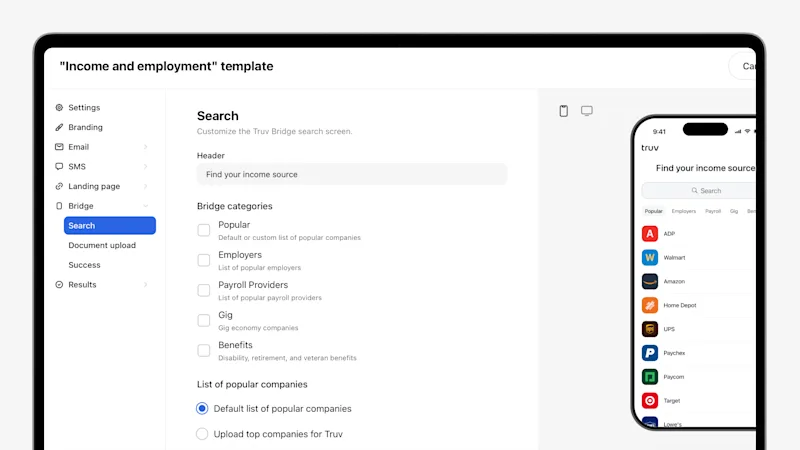
- Enhanced Truv Template Design: Truv Templates have been redesigned with a new layout, additional fields, expanded customization, and updated field grouping for all Truv customers. Setting up and managing templates for Truv clients is faster, more flexible, more intuitive, and easier to use.
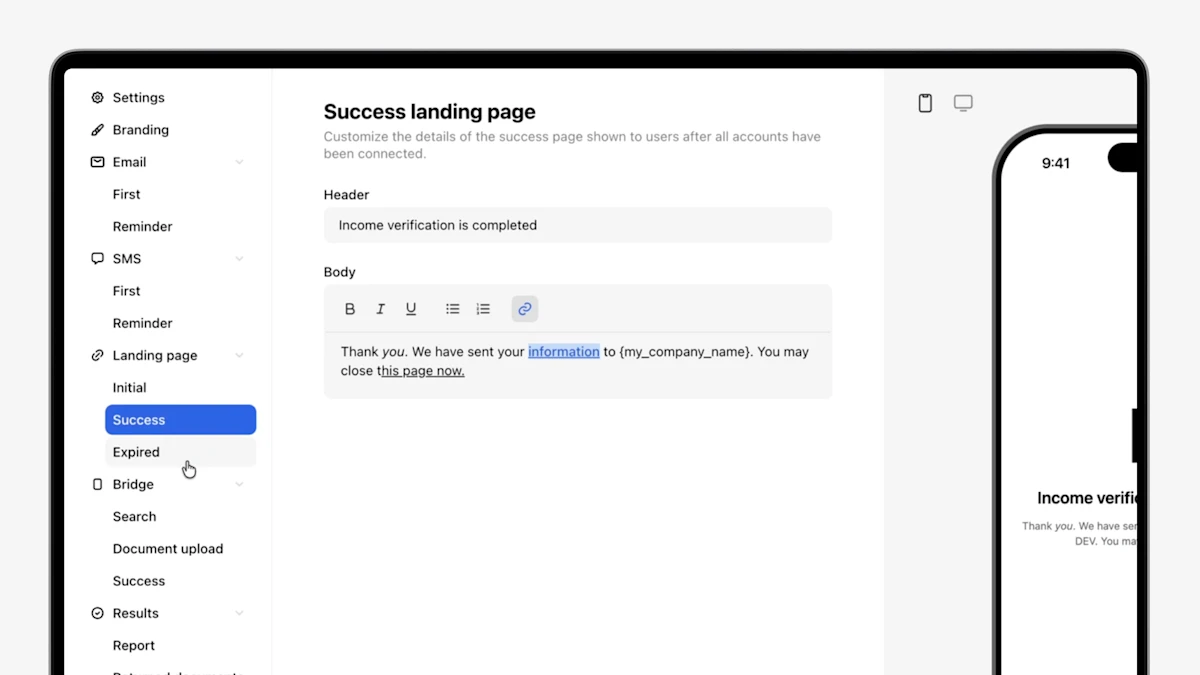
- Rich Text Support in Orders Landing Page: The orders landing page now supports rich text formatting, giving you more granular control over how your end-user experience looks so you can tailor every detail to your brand and preference. Use bold, italics, links, and other styling options to craft clearer, more compelling messaging that drives stronger conversion.
- Auto-Completed Orders for Partial Connections: To improve conversion by capturing partial connections that would otherwise be at risk of drop-off, now when an end user connects one employer, provider, or financial institution in an order but not the others, Truv auto-completes the order in 24 hours. If you need to verify additional sources that were not connected, create a new order with the same
external_user_idand Truv will recognize that the connections belong to the same end user. Configuration available by request.
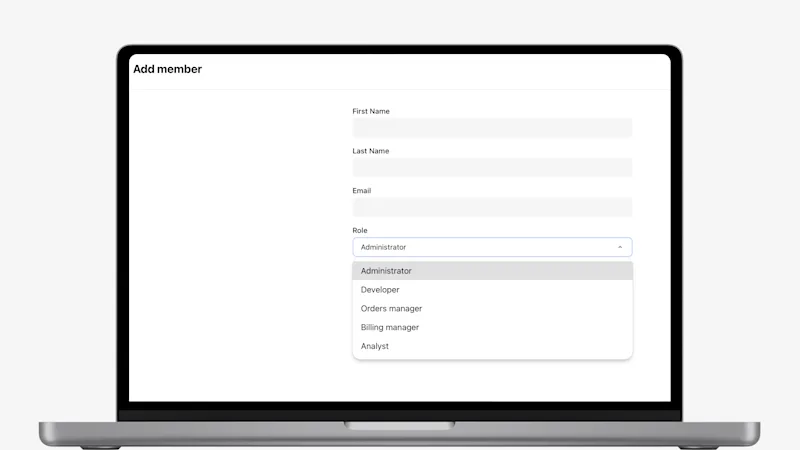
- New Analyst Role Available to Assign to Team Members: In Truv Dashboard, under Settings > Team, your admins now have the option to assign team members to a dedicated role with access to Truv reporting and insights.
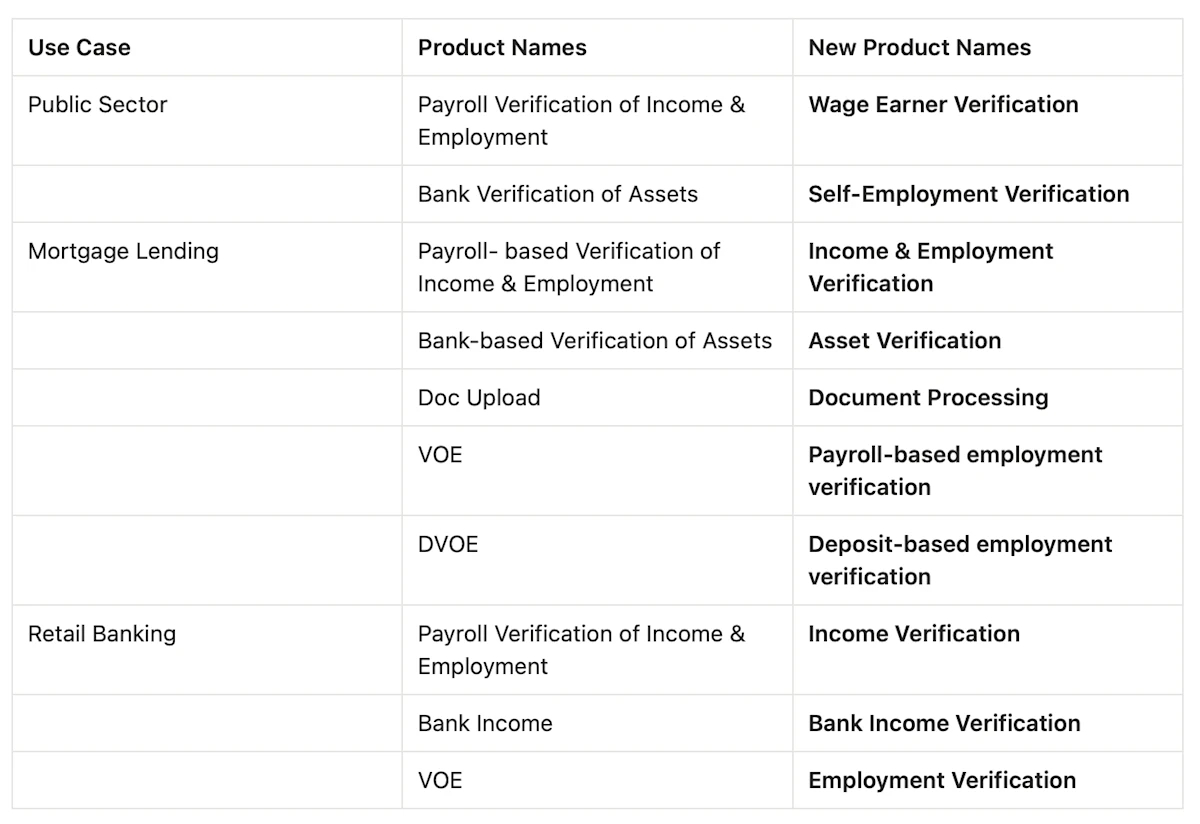
- Introduced new product names for Truv’s verification suite: Truv has introduced new product names for our suite of verifications that will display in Truv Dashboard, Truv templates, Truv Create order form, Truv orders, and integrated systems.
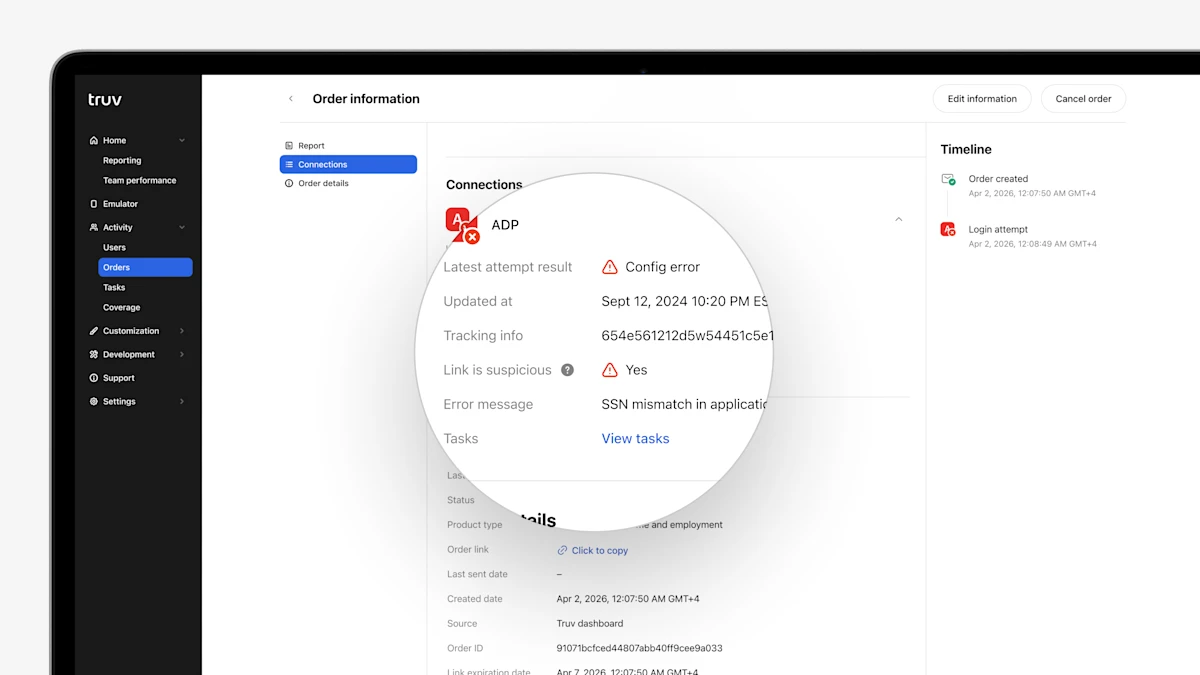
- Link is suspicious column in Orders and Users tables: To provide quick reference for suspicious links in Truv Dashboard, we have added a 'Suspicious' column to the Orders and Users tables, showing if the latest task for each provider is suspicious.
- Latest error message in 'Connections' for Orders and Users: To make troubleshooting unsuccessful connections easier, we have added the Error Message for the latest attempt for each provider to the 'Connections' section in Orders and Users.
- Performance per Template in Reporting: To improve visibility into verification volume and performance, we have added a table to show volume and conversion by template and initial vs. refresh order to the Dashboard Reporting tab.
- Self-Employed Income report template customizations: For public sector customers who want to control which account or transaction categories are included in the Self-Employed Income report JSON and PDF, we have added the ability to filter categories in Truv templates. Additionally, templates also support customizing which categories are visually labeled in the report PDF.
- Bulk upload orders enhancements for Public Sector: In Truv Dashboard, public sector teams can now upload a CSV file to bulk create up to 100 orders at a time, instead of one-by-one. We have enhanced this feature to support additional Truv products, including Self-Employed Income, Wage Earner Income + Self-Employed Income, and fields (status updates), as well as clarified instructions.
- Improved Dashboard date filtering: We updated the Truv Dashboard date filters across tables to a single date selector with dedicated historic date ranges, preventing users from bookmarking static date ranges.
- Fixed an issue where a user with multi-tenancy is deleted from 1 company and deleted in all companies
- Support Volunteer letter as a document upload option in Templates: For benefits providers who want users to upload a volunteer letter if payroll provider login fails, this can now be configured in templates. Navigate to Customization → Templates, then select the 'Document upload' tab and configure the 'Volunteer letter' option.
- Clarify user data deleted in Truv Dashboard: We have clarified when user data or credentials have been deleted to support customers with a consumer data retention policy. "User data has been deleted upon your request" will be shown under the connected User's name when credentials are deleted, and in place of the Report when all data has been deleted.
- Add NPS surveys in Dashboard: We will begin periodically asking for user feedback directly from the Truv Dashboard to continue to drive improvements in the product.
- Added Tidalwave Filter Options in Truv Dashboard: Tidalwave POS now passes a ‘Tidalwave’ source value for orders created in their system, which can be used as a filter in the Reporting and Orders tabs of the Truv Dashboard.
- Fixed an issue in Truv Dashboard Customization → Templates where the Truv bridge preview was not rendering.
- Updated VOE Template Default Verbiage: To improve alignment between default templates and most common use-cases, we updated the VOE template default verbiage to reference employment verification as opposed to an employment history verification from a prospective employer.
- MFA Login Access: Truv Dashboard now requires MFA setup and authentication during login for users who have access to Truv Production API Keys. See our MFA FAQ for more details.
- Enhanced Dashboard Email Sign-Up: We improved handling for public emails that try to sign-up through Google or Microsoft social pathways by immediately detecting these and requesting users to sign-up with a work email address.
- [ETA December 30th] Truv will soon require MFA setup and authentication for Truv Dashboard users who have access to a production API key in the
Development→API Keystab to ensure user and company data security. If you are affected by this change, you will receive an email with further instructions.
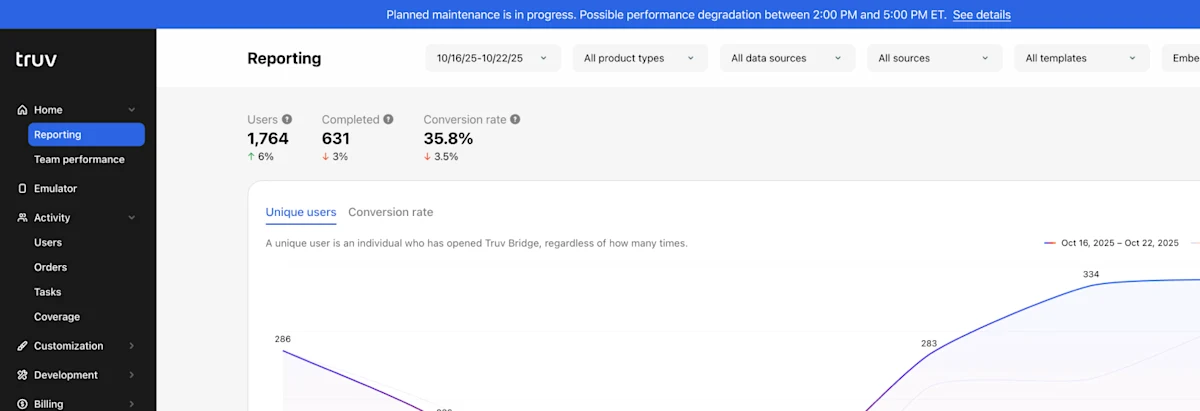
- We have added a banner to the top of the Login page and Truv Dashboard that appears when there is an incident investigation in progress or planned maintenance.
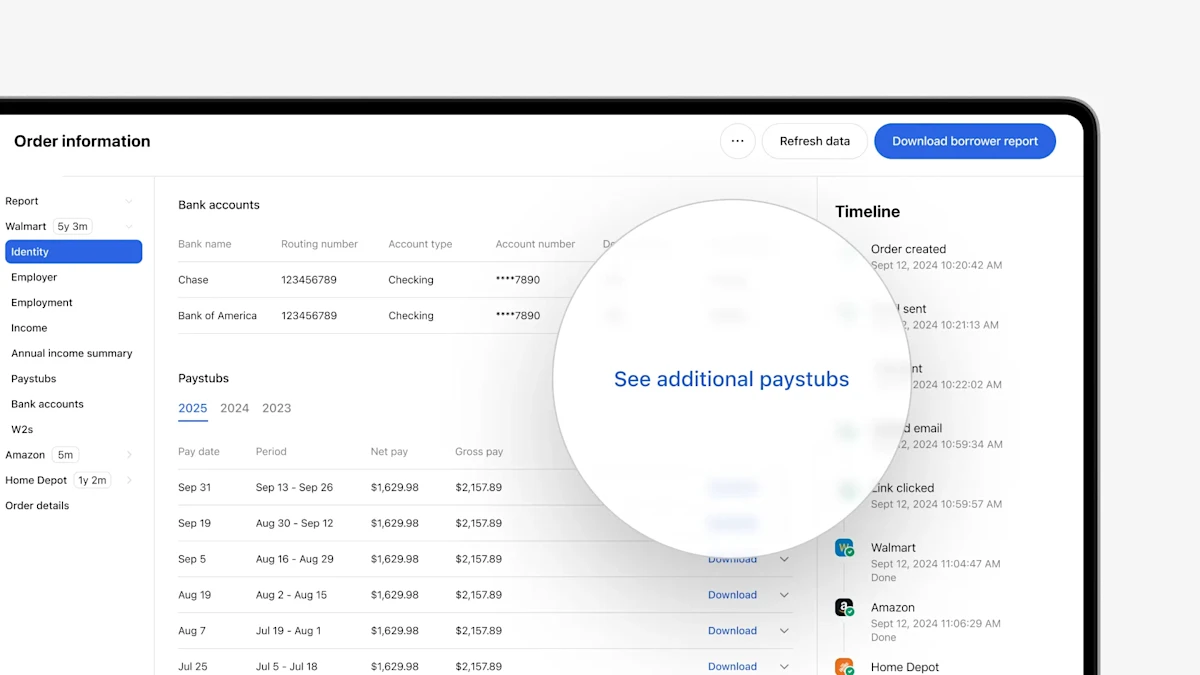
- For cases where Dashboard users need access to additional paystubs, Truv now allows viewing and downloading all available paystubs for an employer by clicking
See additional paystubs. Also, the Paystubs table UI has been improved with addition of a‘Pay date’column, tabs for each year, and removal of redundant text.
- Fixed an issue in
Dashboard→ Create order page, where financial institution search would return payroll providers if the order had the ‘Income and employment’ and then ‘Assets’ product type added.
- To improve navigation in the
Truv Dashboard→Users tab, we have added the ability to search across Providers in the dropdown and select. - To improve coordination and order tracking, we have added the tracking number submitted during order creation to the employer report (
link-level). - Truv has added two new fields in Templates to allow sending delayed reminders. For customers who use Truv embedded in a point-of-sale solution, this can improve order conversion.
Send notifications to the end-userwill enable/disable order notifications from being sent to the applicantNotifications startwill allow setting how soon after order creation notifications should be sent.
- We now support custom session timeouts in Truv Dashboard for large enterprise customers that want session expiration after a specific period for compliance.
- Removed
bank_infofields (account_type,bank_address,account_number,routing_number) in Create Template, Update Template, Retrieve Template, and List Templates.
- We removed misleading icons and dates from the Verification of Assets report
- In the Asset summary section, we removed
xfromSame owner as requestedandDirect deposit from employercolumns and changedNSF alertsto a number value. - For the
Transactionssection, we removed the available data date range from the top right of the table, since this could suggest an incorrect date range was requested. - In the
Same owner as requestedcolumn, a matching owner could be marked asxif the account relationship was Joint or Secondary, which has been fixed.
- In the Asset summary section, we removed
We migrated the Activity → Tasks tab and Task information pages to public List all Tasks and Retrieve a Task endpoints and removed some non-useful fields from Task information, allowing us to speed up performance.
- In Truv templates for Direct deposit switch (DDS) and Paycheck linked loans (PLL) products, there was a mandatory bank info section with
Bank name,Bank address,Target account number,Target routing number,Target account type. We moved Bank name toBrandingsection and removed other fields since they are applicant-specific. - In Dashboard order creation for DDS and PLL products, we removed the bank address field since it’s not used in the order.
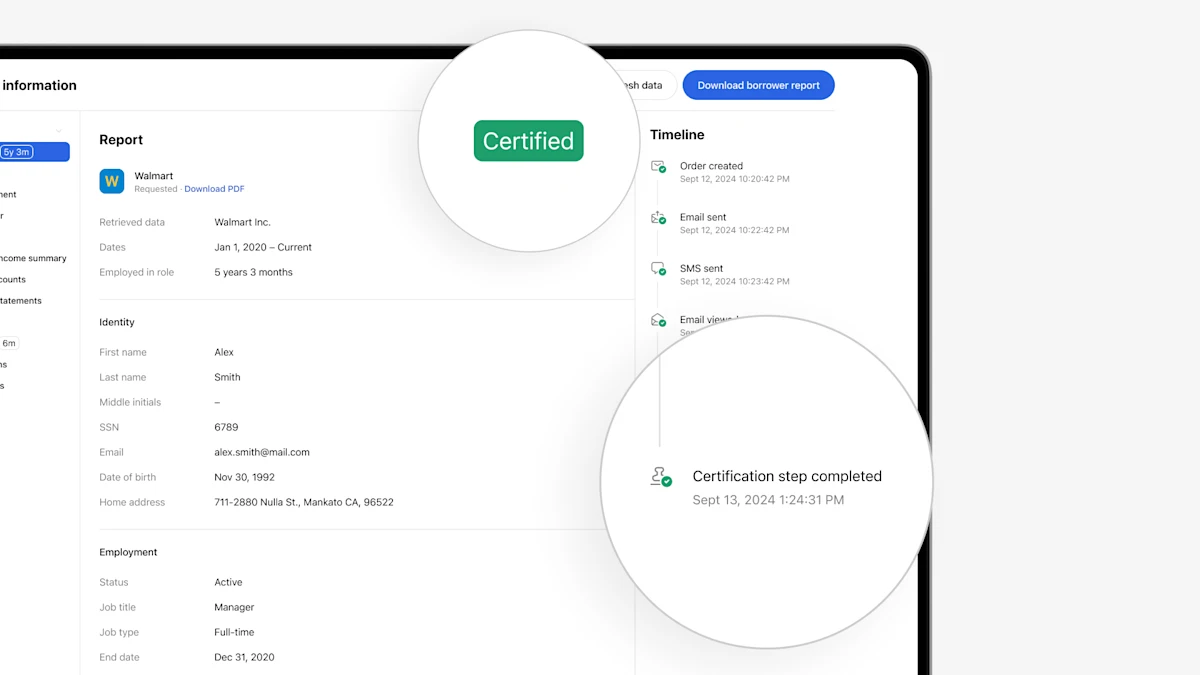
- Certification labels and events: For customers that need applicants to certify the results of the verification, we have added a workflow for them to review connected data. If review is enabled, in the Dashboard and PDF reports we will show a tag with the outcome of the review, with potential values of
CertifiedorIssue reported. - Additionally, there will be a
Certification step completedevent in the timeline once the review is complete.
- We’re updating our payroll sandbox data to use a new company name: “Acme Corporation.” This change only affects sandbox scenarios. Your production data will not be impacted.
- Effective Date: November 17th, 2025
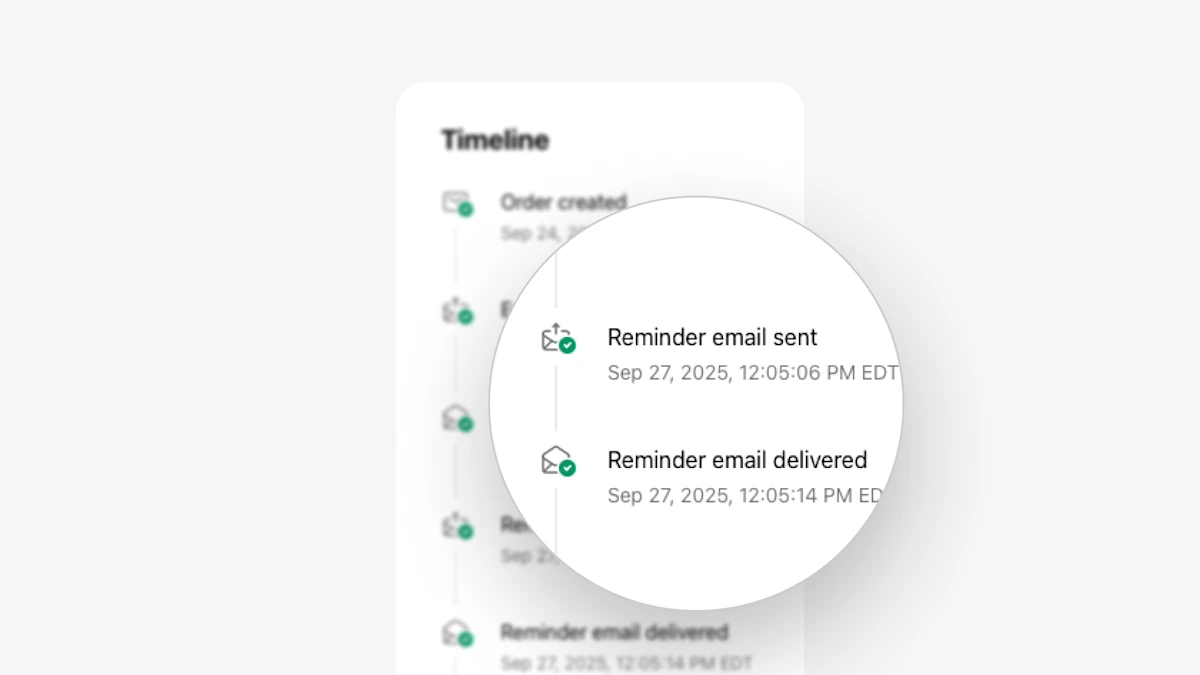
- In Truv Dashboard Orders, we have migrated the Timeline to our Retrieve events for an order public endpoint and made the following UI improvements:
- Timeline now shows when reminder notifications are sent, delivered, and opened by the end user via email and/or SMS.
- Showing terminal order statuses at the employer or provider-level, to clarify exactly what part of the order was completed, expired, canceled, etc.
- Created a consistent formatting for events to include the employer/provider, timestamp and outcome in each case where available. Previously some key events like ‘Login attempt’ were missing timestamps.
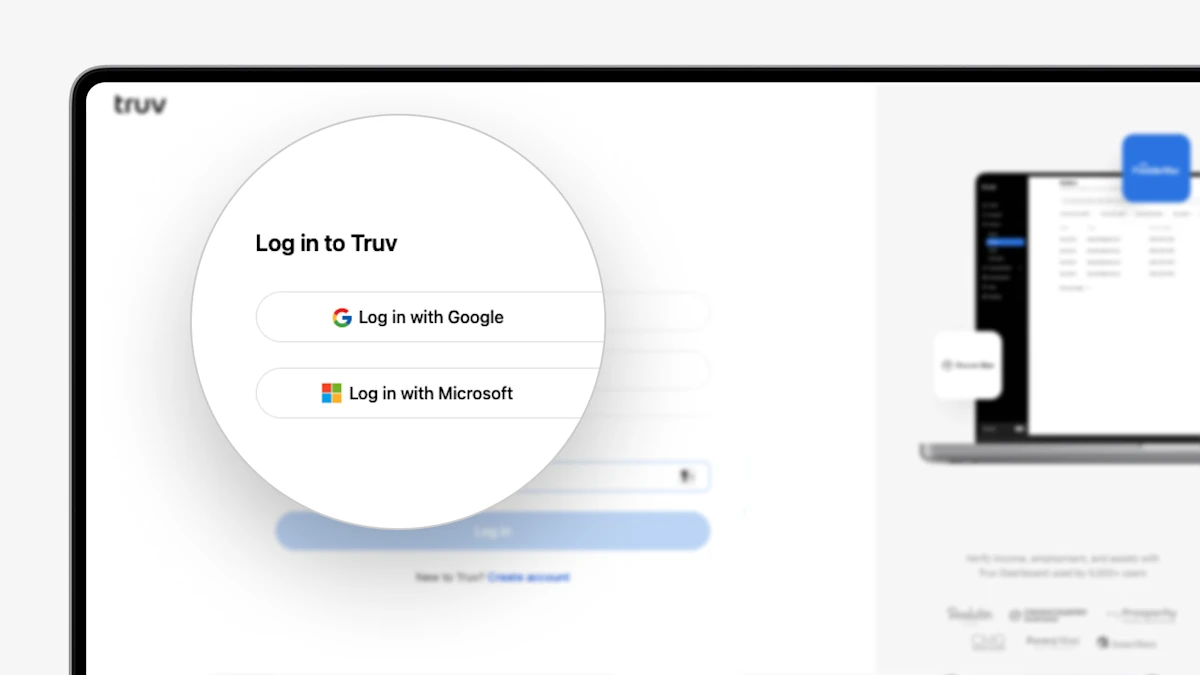
- Updated Truv Dashboard login and signup experience:
- Users can now signup directly to Truv Dashboard using either Google social, Microsoft social or Email+Password. If an active company exists, the user will be invited to that company pending Account Owner approval. If no active company exists, a new company will be created for the user.
- If users activate multiple login methods, for example Google social and Email+Password, they can use either of the methods to login.
- Search by custom field in order form: To help customers who use a custom field during order creation, we have added the ability to search by the custom field value and add the custom field as a column in the Activity → Orders tab in Truv Dashboard. To add custom field as a column, click Edit columns and select Custom field at the bottom of the list.
- Improved CSV exporting: For some large customers with >10k orders per month, exporting csv files from the Activity → Orders tab could timeout. We have removed some unneeded columns (report url, parsed company name) to speed up csv generation and prevent timeouts.
- Link-level Bank Income report: Following up on the user-level bank income report, we have released a link-level version that summarizes detected income sources per connected financial institution, as opposed to at the user level. We will return the user-level report by default when available, but the new link-level report can still be downloaded in Truv Dashboard or via API.
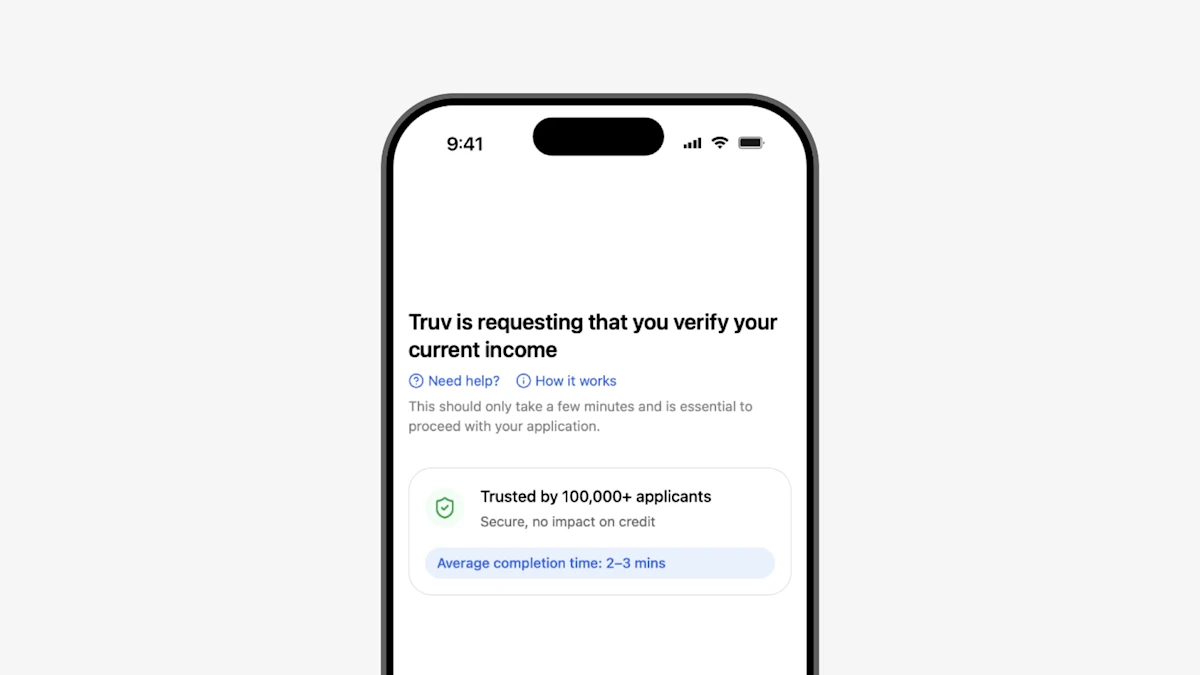
- Improved order preview: The order preview during Dashboard order creation shows what the end-user will receive when they receive and open a Truv order. We updated the landing page preview to show a new version of the landing page that includes an expiration, trust points, and expected completion time.
- We fixed an issue where the Billing Manager role couldn’t see the Templates filters in the Home → Reporting tab
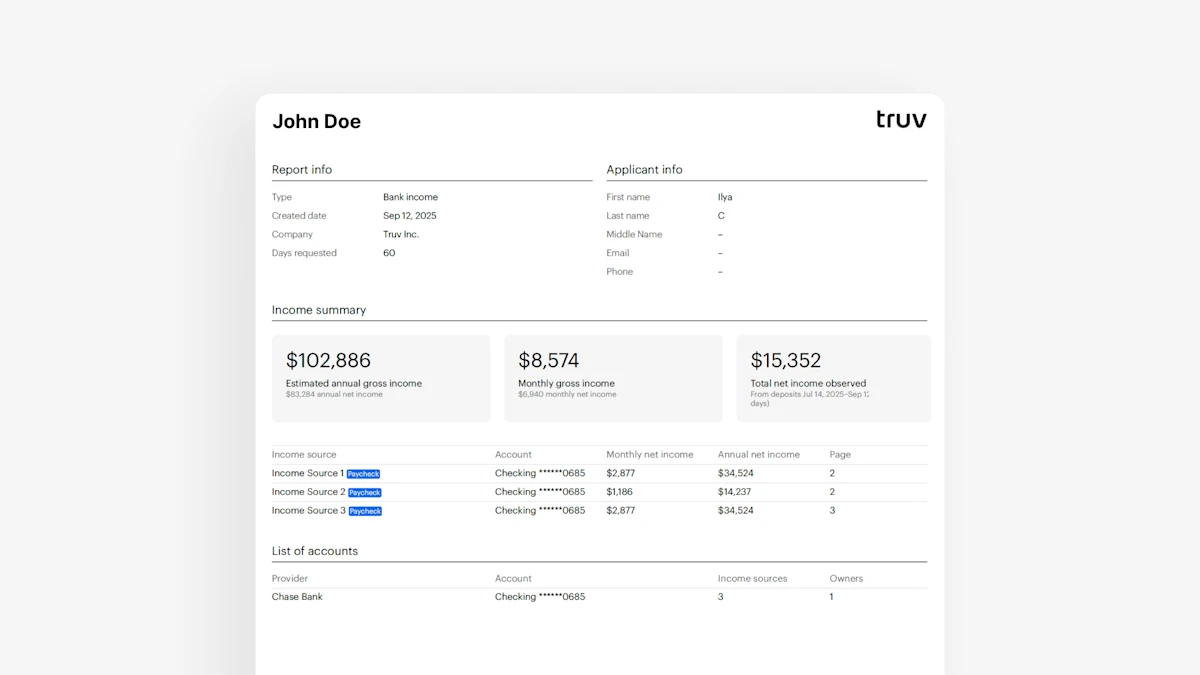
- New Bank Income report: For customers who want detailed income insights for an applicant using bank data, we have introduced a new user-level bank income report to the Truv Dashboard. If an Income and employment verification is requested and the user connects financial institutions, the new report summarizes the net and estimated gross income across income sources identified in the transaction data. This report is returned in the UI and isdownloadable as a PDF in Truv Dashboard → Orders and Users tabs.
- Reach out to Customer Success to start using this solution.
- Improved visibility: We have updated the Truv Dashboard login page and subsequent pages such as ‘Verify your email’ and ‘Account pending approval’ to increase the size of the login fields and buttons, align the verbiage, more clearly explain next steps, add a log out button, and add a resend email action (for ‘Verify your email’).
- Expanded export functionality: To give customers easier access to their data, we have improved the ‘Export csv’ function in the Activity → Orders and Activity → Users tables to allow exporting the first 50,000 rows as a csv file, instead of just the first page of results.
- Added re-authentication email notification on refresh orders: For customers that create an order and need to refresh the data later, Truv tries to retrieve new data using existing credentials first, then reaches out to the applicant for re-authentication if that fails. Truv has added an email notification to notify the Order Manager and other status update recipients when the re-authentication request has been sent to the applicant, to create transparency and enable better coordination for these cases.
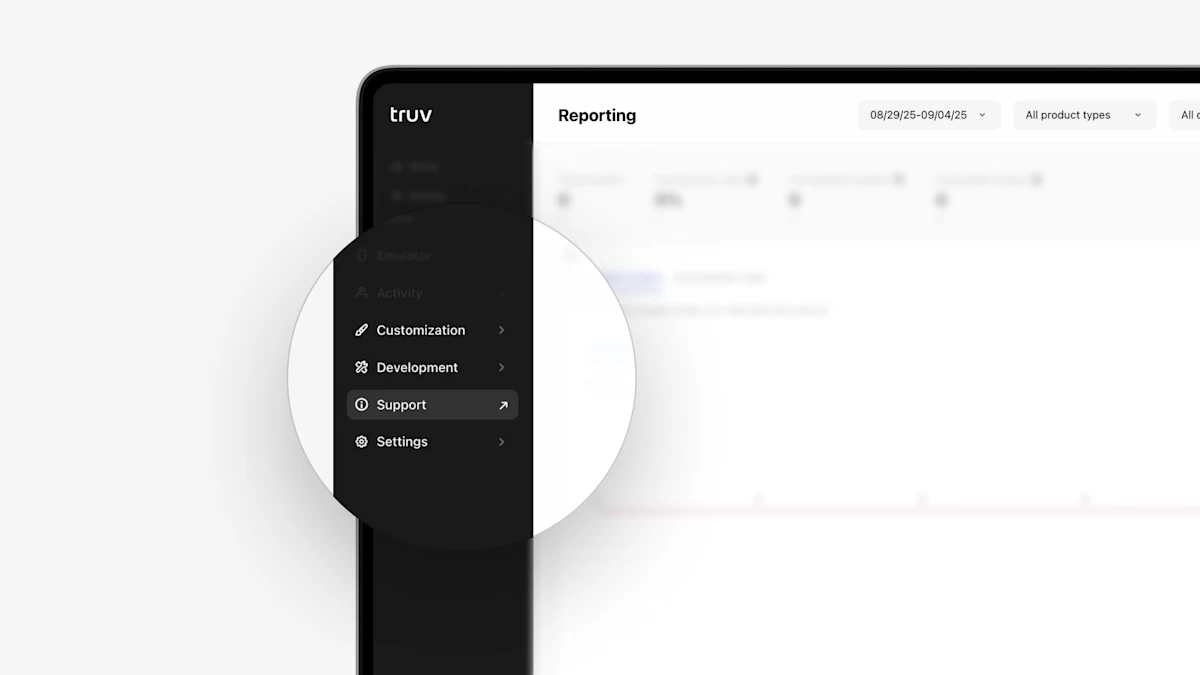
- Improved navigation to Truv Support in Truv Dashboard: To make accessing the Truv Dashboard support portal easier, we have replaced the Help tab with the Support tab and moved the Docs tab to Development. This eliminates the need through menu items to access Support.
- Moved employer & financial institution fields to top of Order Form: Many customers who create orders from Truv Dashboard first enter the employer and/or financial institution to check the success rate before filling in the rest of the order details. To streamline this, we moved the Employer and Financial Institution fields to the top of the create order form.
- Updated Dashboard access revoked notification pages: To help guide Dashboard users who have their access revoked, we have updated the pages after they login to better explain if their account is under review or if it has been declined and who they should reach out to for support. Additionally, if a user still has access to other companies, they are now able to switch to a company they have access in from this page.
- Ability to export Usage and Tasks tabs: To give customers easier access to their data, we have improved the ‘Export csv’ function in the Activity → Tasks and Billing → Usage tables to allow exporting the first 50,000 rows as a csv file, instead of just the first page of results. In the future, this will be added to Users and Orders tab.
- Improved search bar functionality in Orders table: To make finding specific orders easier in the Activity → Orders table, we have made some improvements to the Search bar. We added support for searching orders by refresh order id, VOIE report id, VOA report id. Additionally, we no longer search the ‘created by’ column since there is a dedicated filter and it dilutes the results.
- Show task status in Activity tab: For task statuses in the Activity → Tasks table, we now label tasks that are processing as ‘Pending’ instead of ‘Unavailable’, to more accurately reflect what is happening in the background.
- Ability to cancel refresh orders in ‘Pending’ status: For customers who create orders via Truv Dashboard, we have added the ability to cancel refresh orders that are pending. When a refresh order is canceled, it will also stop additional reminders from being sent to the applicant.
- Updated Coverage Indicators for financial institutions: We have added financial institution coverage indicators to improve visibility into likelihood of successfully connecting. In the Dashboard → Coverage tab under ‘Financial accounts’, users can now search and see the success rate for any financial institution. Additionally, in the Dashboard → Orders tab, when adding financial institutions to an Assets or Transactions order, we show the success rate.
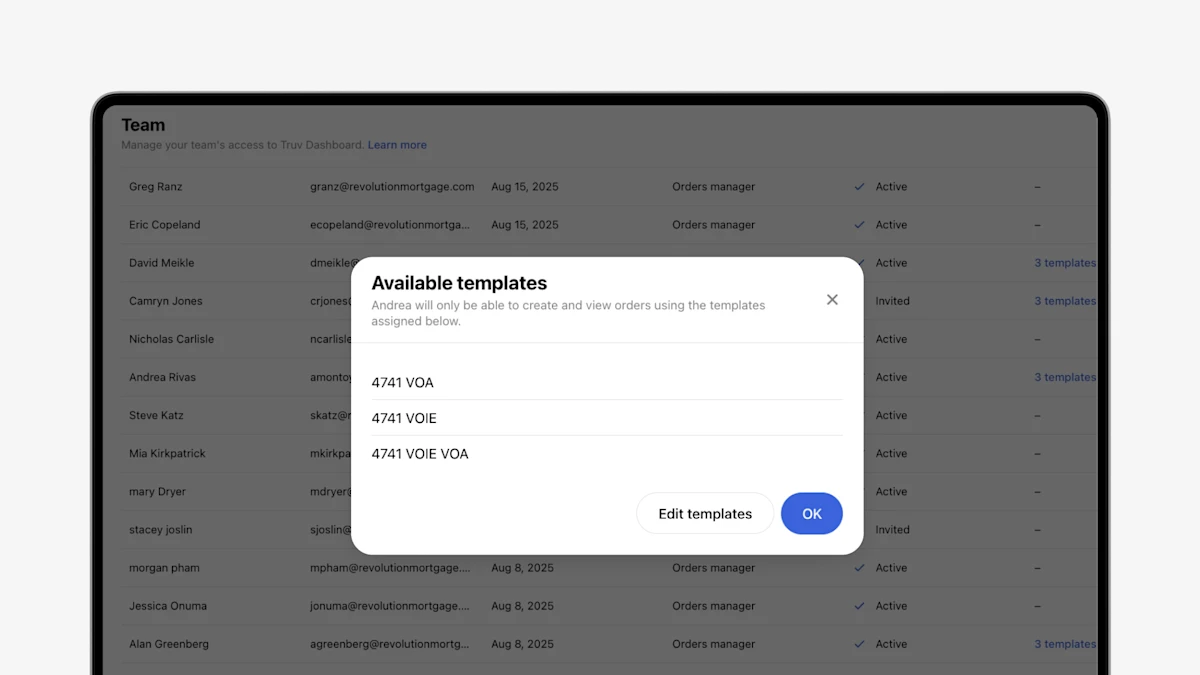
- Enhanced filtering and viewing team member templates:To help customers with a large number of team members and branches, we have added the ability to filter the ‘Team Members’ table by assigned templates. Selecting templates in the ‘All templates’ filter in Settings → Team, will return a list of team members with those assigned. Additionally, clicking in the ‘Available templates’ column will show the currently assigned templates for that user.
- Custom Notes field in orders: For customers with multiple team members working on an order in Truv Dashboard, we have added a ‘Notes’ field as a sortable column in the Orders table and in Order information. Text can be added to record action items, findings, unique statuses, or next steps for other team members.
- Increased load time for ‘Users’ tab: We have sped up the Dashboard → Users tab to make it load faster and easier to use for customers with a high volume of Tasks.
- Hide ‘Credits’ tab when applicable: To make Dashboard → Billing easier to understand, we hide the ‘Credits’ tab if a customer has no credits to display.
- An issue was resolved for newly invited users to Truv Dashboard where they would receive two ‘Welcome’ emails.
- Introduced June 13th → Fixed June 28th
- ‘Days requested’ and Financial accounts specification added for VOA Reports: For users who create orders via Truv Dashboard, we have added the ability to specify days requested and financial institutions that should be connected.
- ‘Pending’ state added for Truv invoices: For customers who have enabled Truv order invoices, we have added a pending state to the Dashboard to show when an order invoice is in the process of being generated. Previously, nothing was shown, making it unclear while the invoice was loading.
- Fixed an issue with multi-tenancy where new users weren’t approved once they logged into any new companies they were invited to.
- Introduced June 2, 2025 → Fixed June 20, 2025
- VOA and DVOE report disclaimers: To provide clarity to loan teams while reviewing the VOA and DVOE reports, we added disclaimers to the Large deposits, Account owner information, and Transactions sections. The disclaimers clarify that no data for the corresponding section was available for the period requested.
- Added pending transactions to assets reports: To give clients additional visibility into deposits and withdraws, we have included pending transactions in the VOA and DVOE report, with a ‘pending’ label under the date field.
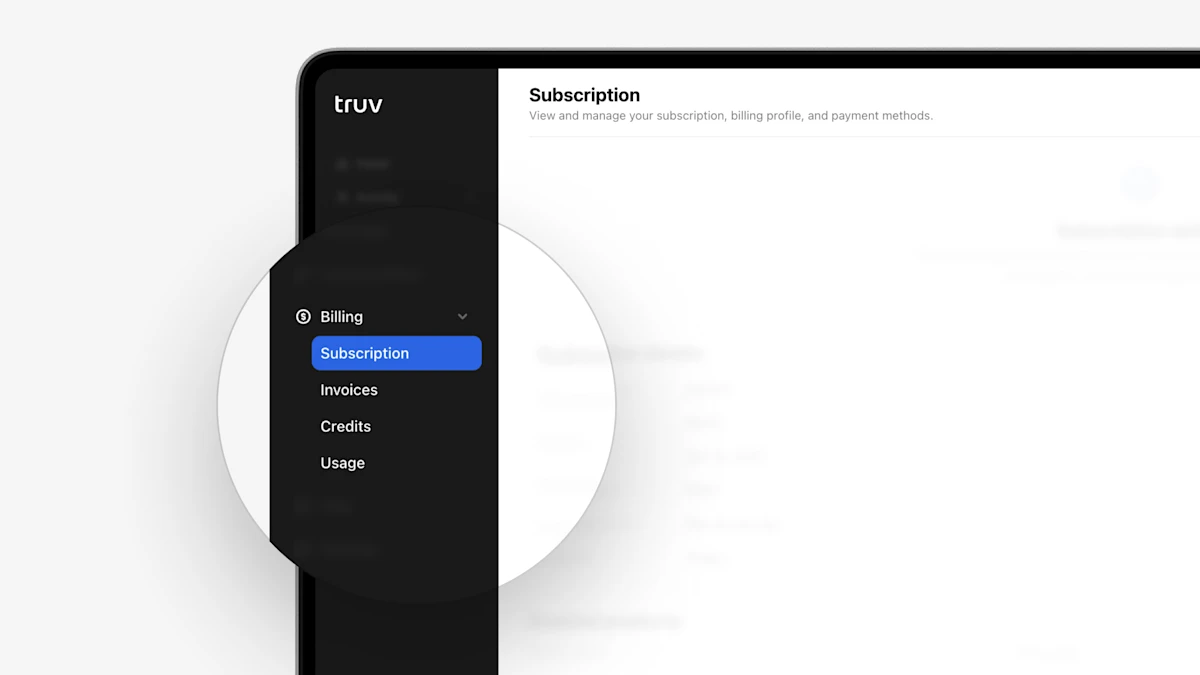
- New Billing tab: To help clients understand their billing, we have introduced a new ‘Billing’ tab to the Truv Dashboard with the following sections: Subscription, Invoices, Credits, Usage, and Monthly report. Only applicable tabs will be shown. See below for a summary of each tab
- ‘Subscription’ tab allows you to view contract dates, term, and enabled products.
- ‘Invoices’ provides access to billed monthly invoices, with the ability to open and pay recent invoices.
- ‘Credits’ shows starting credits, ending credits and usage for the selected period.
- ‘Usage’ shows a table of all billed tasks for the selected period.
- ‘Monthly report’ allows downloading the monthly usage CSV file, which was previously labeled ‘Usage’ in the Home tab.
- Renamed ‘Identity’ section in Truv VOA/DVOE reports: Since this section includes data submitted during order creation instead of returned from the provider, we renamed the section from ‘Identity’ to ‘Borrower/Applicant info’.
- Hide large deposits section in templates for verification of assets report: For clients that don’t want to see the large deposits section of the VOA report, we have added a toggle in Truv Dashboard Customization → Templates. If a template has Assets product type, there will be a ‘Large deposits’ toggle in the ‘Report’ section to control whether this section is included in the VOA report or not. If the section is disabled, the field will also be hidden from Dashboard and Encompass order pages.
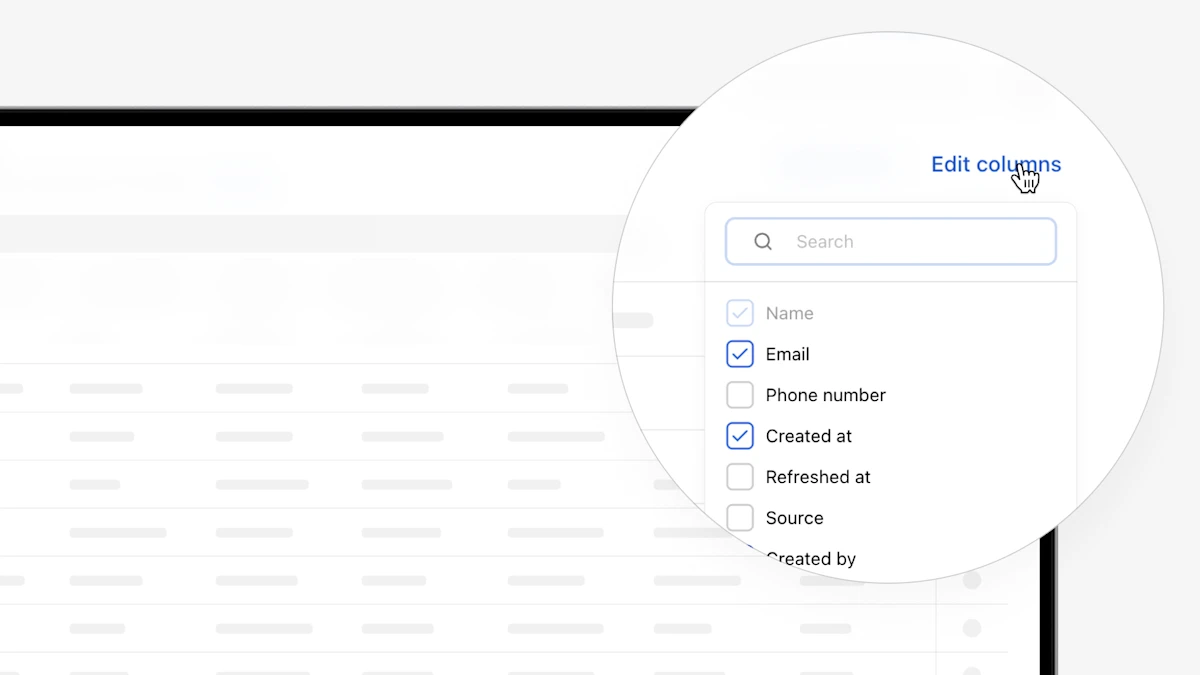
- Customizable columns in Dashboard Orders and Users tables: Clients can now customize columns in the Orders and Users tables by selecting which columns to display, resizing and reordering them, and exporting results to CSV. Settings are saved per user to maintain the preferred view.
- Hide large deposits section in templates for Verification of assets report: For clients that don’t want to see the large deposits section of the VOA report, we have added a toggle in Truv Dashboard Customization → Templates. If a template has Assets product type, there will be a ‘Large deposits’ toggle in the ‘Report’ section to control whether this section is included in the VOA report or not. If the section is disabled, the field will also be hidden from Dashboard and Encompass order pages.
- Added report type and account selection for Assets in Truv Dashboard: For lenders who use the VOA product in Truv Dashboard, we have added the ability to select report (VOA or DVOE), selected accounts, and days requested during refresh.
- Resolved an issue where team members that belonged to multiple companies wouldn’t be shown in the Team page.
- Introduced June 3, 2025 → Fixed June 18, 2025
- Fixed an issue where orders email notifications had line breaks in the middle of a word.
Dashboard
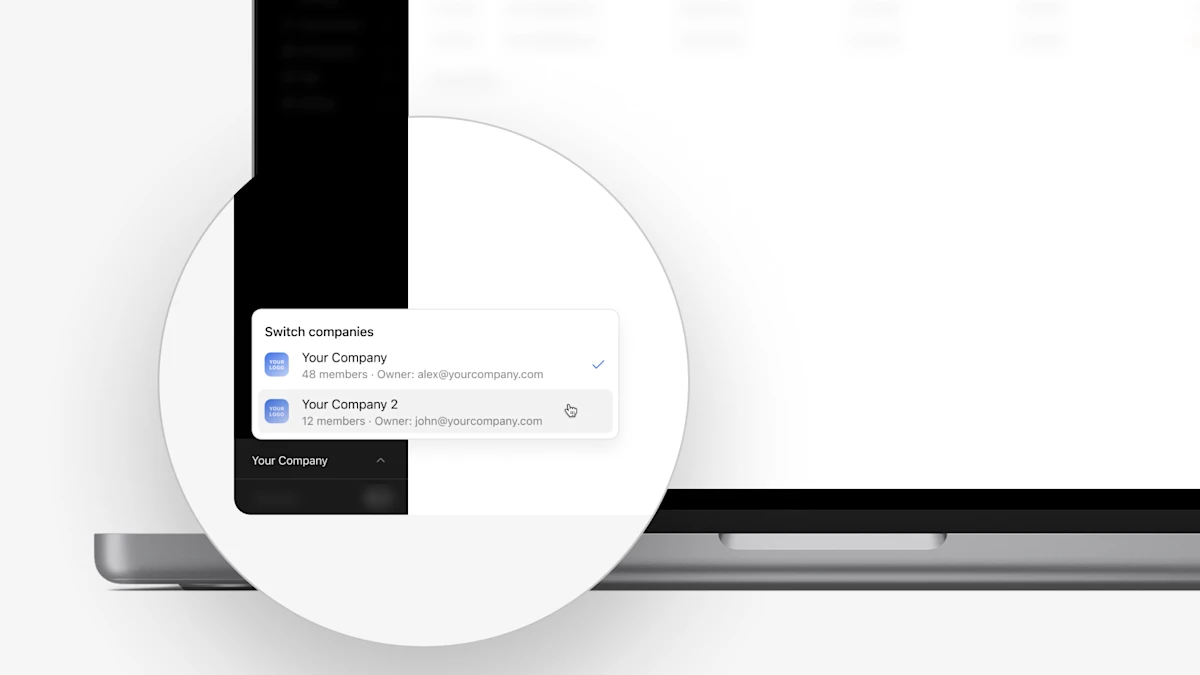
- Multi-tenancy in Truv Dashboard:
- We have introduced multi-tenancy in the Truv Dashboard to support clients who want separate Truv Dashboard instances for business units or testing environments. Previously, users were associated with one company in Truv Dashboard. Now, multi-tenancy removes the one-company limit per user: users can now belong to several companies and switch between them via a new company toggle on Dashboard > Home (bottom-left). On other pages of the Truv Dashboard (ie. order creation, team member invite, template creation, etc), there is a tile in the center of the header to indicate the current company that the user is currently logged into.
- To setup multi-tenancy, reach out to Customer Success at Truv for assistance creating additional companies.
Dashboard
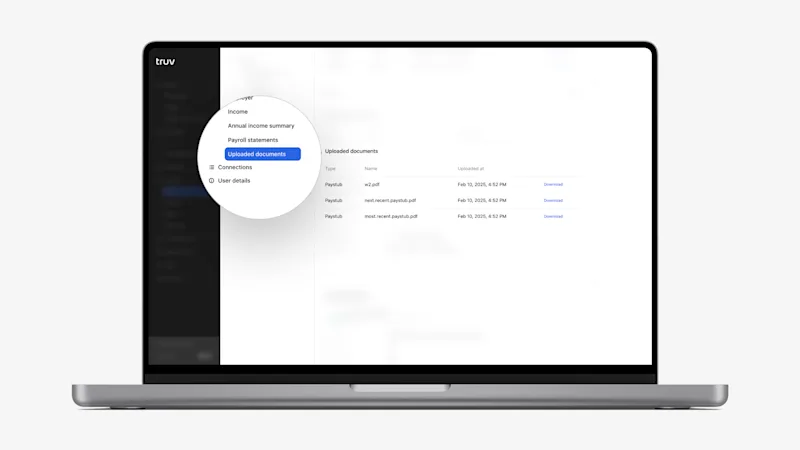
- Improved access to uploaded documents in Dashboard:
- Previously in Truv Dashboard → Orders tab and Users tab, if documents were uploaded, but no report was generated, we only showed “No reports yet” empty state and the uploaded documents couldn’t be downloaded.
- To fix this case and make accessing uploaded documents easier, we have moved the uploaded documents to a dedicated section in the Order or User information page where they will always be available, whether a report was generated or not. Additionally, we have added a “Uploaded documents” submenu item to make navigating to this section easier.
Dashboard
- Added auto-approval functionality for new Truv Dashboard users:
- To help large clients with hundreds or thousands of users who need to join Truv Dashboard, we have added the ability to enable auto-approval for new self-registered users. Clients who enable this option can have users self-register via single sign-on (SSO) and be automatically approved, eliminating the manual invite and approval process.
- Reach out to Customer Success or support@truv.com for assistance enabling.
Dashboard
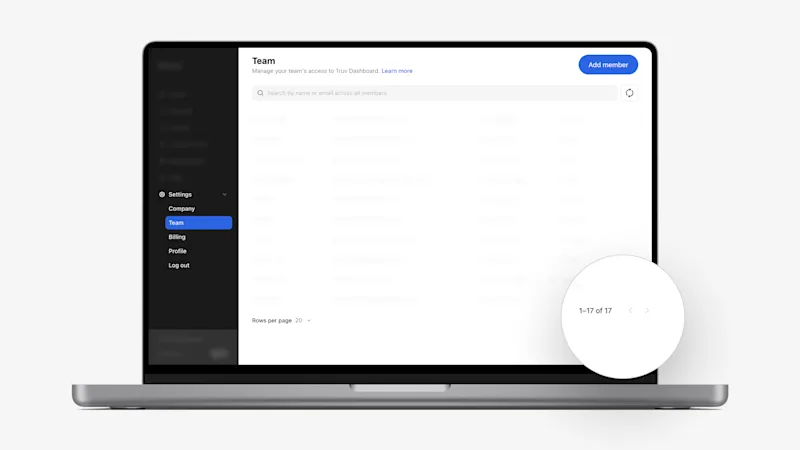
- Pagination and filters to Team Members table:

- The Team page in the Truv Dashboard under Settings → Team tab previously didn’t have pagination, so all users were shown in a single long list. If a client had hundreds or thousands of users, the page could take a long time to load. To reduce load times, we added pagination so users will be returned with 10, 20, or 50 per page (depending on the rows per page setting).
Dashboard Orders
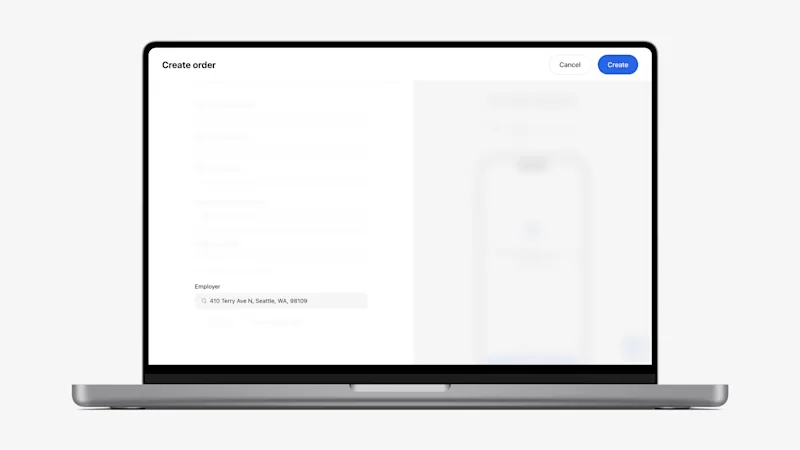
- Remove google search results from order creation:
- To prevent 3rd party issues that impact order creation from the Truv Dashboard, we have removed the google search results from the “Employer” field in the Create order form (Activity → Orders → Create order). Now if a physical address is entered into the “Employer” field, the corresponding employer at that address based on google search will not be returned.
Dashboard Orders
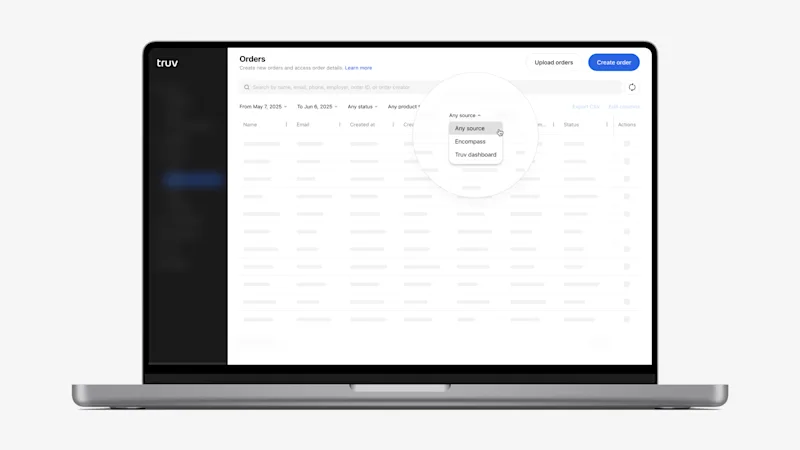
- Add ‘Source’ filter for orders in Reporting and Orders tabs
- To support clients who create Orders, we have introduced a ‘Source’ filter in both the Home → Reportingand Activity → Orders tabs. By default the filter will have the value ‘Any source’ and show orders from all sources in the results. Upon opening the filter, it will show a list of unique order sources that the client has in the currently displayed results. This will allow filtering and reviewing either reporting metrics or orders from specific sources, such as Truv dashboard, Encompass, SimpleNexus, etc.
Dashboard
- Corrected sorting in Verification of assets (VOA) reports:
- To improve navigability of the VOA report, we have aligned ordering of the ‘Transactions’ and ‘Large deposits’ sections in the Truv Dashboard and PDF Report. Now the ‘Transactions’ section is ordered from newest to oldest transactions for each account. The ‘Large deposits’ section is grouped by Financial Institution and Account, then ordered from newest to oldest deposits.
Dashboard Orders
- Clarify order invoice access by displaying a ‘pending’ state in the UI
- Truv order invoices can be enabled for clients who want an invoice PDF to be generated for each order that itemizes all the charges, typically for passing along the order cost to the Applicant or Borrower. Previously, in the Truv Dashboard → Orders → Order information, once the order was complete, a ‘Download latest invoice’ button would appear. Order invoices are usually available for download ~1 min after an order is completed, so in some cases this button would appear and do nothing if clicked. Now, we show the button as loading if the invoice isn’t available for download yet.
Dashboard Orders
- Changed order emails from noreply@truv.com to notifications@truv.com
- Previously order emails sent to end-users and clients were sent from a noreply@truv.com email address. We have updated this to notifications@truv.com, which is an unmonitored address that includes support guidance for users who reply to it.
Dashboard Orders
- Users can see orders created with ‘default’ template
- For clients who use Truv customization templates to create branch-level access control, there were some edge cases where a user could create orders without selecting a template, preventing them from being able to see their order. To address all these cases, we have updated the access control logic in Truv Dashboard so Order Managers can see orders created without any template and orders created with the primary template, in addition to orders created with their assigned templates.
Dashboard
Dashboard bug fixes
- Fixed a bug where an invited team member’s role couldn’t be changed until they were approved in the Dashboard. If a user self-registered in the Dashboard, they would be assigned the Order Manager role. In some cases clients wanted to upgrade this user’s role to Admin, but couldn’t until they were approved.
- Discovered Apr 18 → Fixed May 2nd
- Fixed the search bar in the Truv Dashboard → Customization → Templates tab. Previously the results would re-load and block updating the search after each character was entered, creating an inefficient search experience. Now the search can be updated freely and only the results below will reload.
- Discovered Mar 26th → Fixed May 2nd
- Truv Support Migration to HubSpot: Live
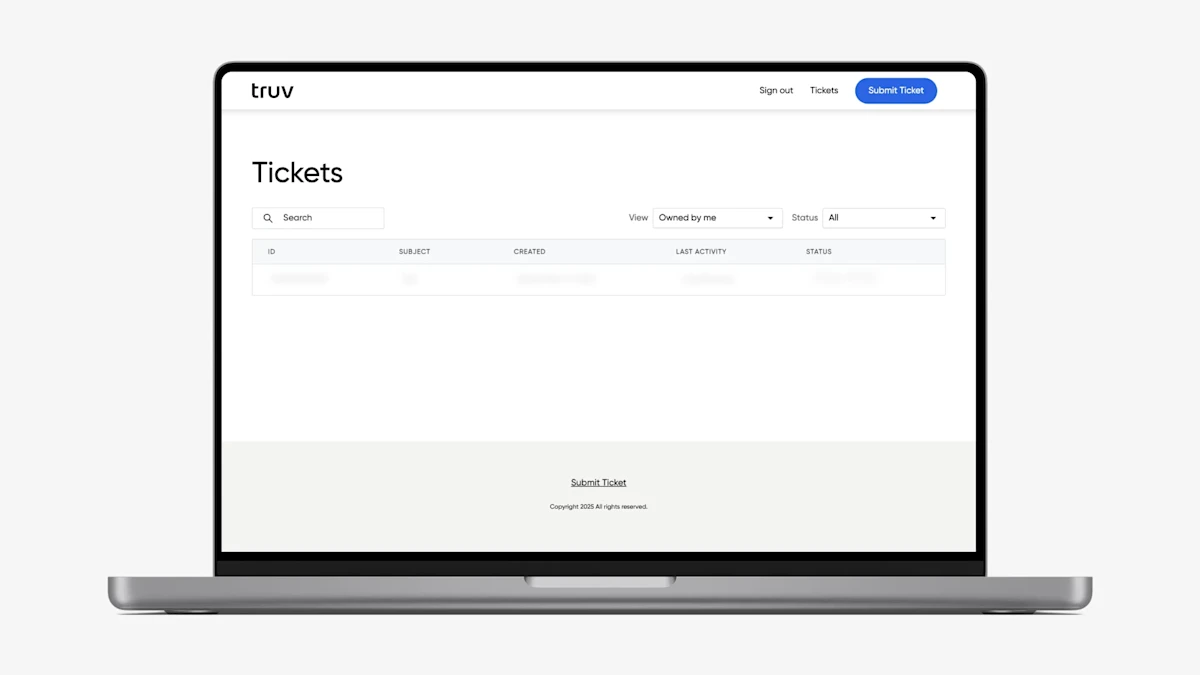
- We have officially completed the migration of Truv’s support experience to Hubspot. All clients can now access the new HubSpot Customer Portal via the Help → Support tab in the Truv Dashboard to submit and track tickets. We will continue to provide read and reply access to previous support tickets created in Zendesk via the tooltip in the Truv Dashboard → Support tab until the end of the month.
- In addition to the new Customer Portal, all users should now have access to our new AI-powered chat in the bottom-right corner of the Dashboard. This offers instant help to user questions, provides easy access to Help Center content, and connects users to our Support team if no resolution is achieved.
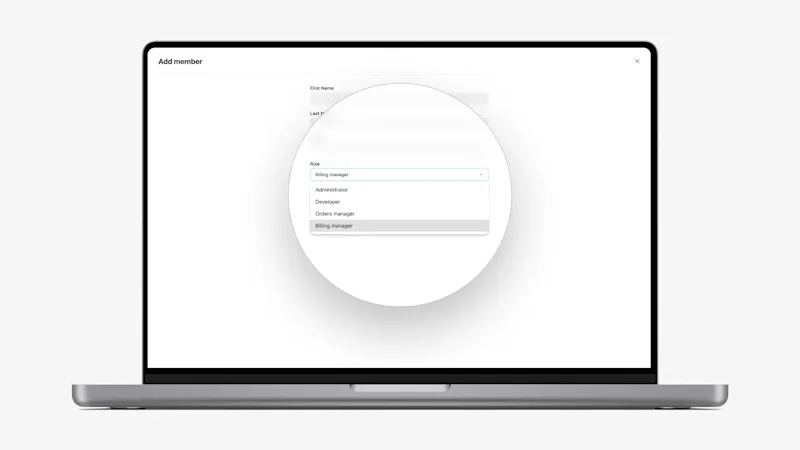
- New Billing Manager Role for Dashboard Access: Some clients have with team members that need access to billing and invoicing, but not verification data or order functionality. To support this need, we’ve introduced a new Billing Manager role. This role can be assigned to newly invited or existing users by Owner or Admins via the Dashboard → Team page. The new role provides access to the following pages: Reporting, Usage, Coverage, Support, Docs, Company, Billing, and Profile.
- Add Truv template name to Usage CSV file: To support clients who have the branch name specified in the template and need to accurately track and bill back this usage to the branch, we have added the Template name to the Usage CSV file, downloadable in Home → Usage by Owner, Admins, and Billing Managers. Now large lenders can easily determine how much Truv was used and the associated cost at the branch-level via this field name.
- Remove the ‘Created by’ column in Templates: We removed the ‘Created by’ column in Templates since it wasn’t supported for template creation via API and didn’t add much value from a Template management perspective.
Dashboard bug fixes
- Remove connections in different environments from the Users tab: Previously the ‘Users with attempts’ filter included users with tasks from any Truv environment. We have fixed this to ensure only users with tasks in the current environment are included.
- Truv Support Migration to HubSpot:
Planned to go-live by Mar 31- We are transitioning from Zendesk to HubSpot for support and chat, providing Sales, Customer Success, and Support teams with a unified account view and unlocking new client-facing features. Full migration is expected by the end of the month.
- HubSpot Customer Portal: Clients migrated to HubSpot will now access support through the Help → Support tab in the Truv Dashboard, where they can submit and track tickets. Previous Zendesk tickets are not migrated but remain accessible via a link in the Support button tooltip.
- AI-Powered HubSpot Chat: The support request form has been replaced with an AI-driven chat at the bottom right of the Truv Dashboard, allowing users to get instant help, search Help Center content, and escalate issues to the Support team when needed. Continuous improvements will enhance the chatbot’s accuracy and efficiency.
- Dashboard bug fixes
- Template access fix: Order managers were unable to access the default VOIE template, causing errors in the interface and making the Landing Page preview unavailable. We have fixed backend permissions to allow order managers to retrieve settings without errors. This ensures a seamless order creation experience with preview functionality restored.
- Introduced Feb 28, 2025 → Fixed By Mar 11, 2025
- Template access fix: Order managers were unable to access the default VOIE template, causing errors in the interface and making the Landing Page preview unavailable. We have fixed backend permissions to allow order managers to retrieve settings without errors. This ensures a seamless order creation experience with preview functionality restored.
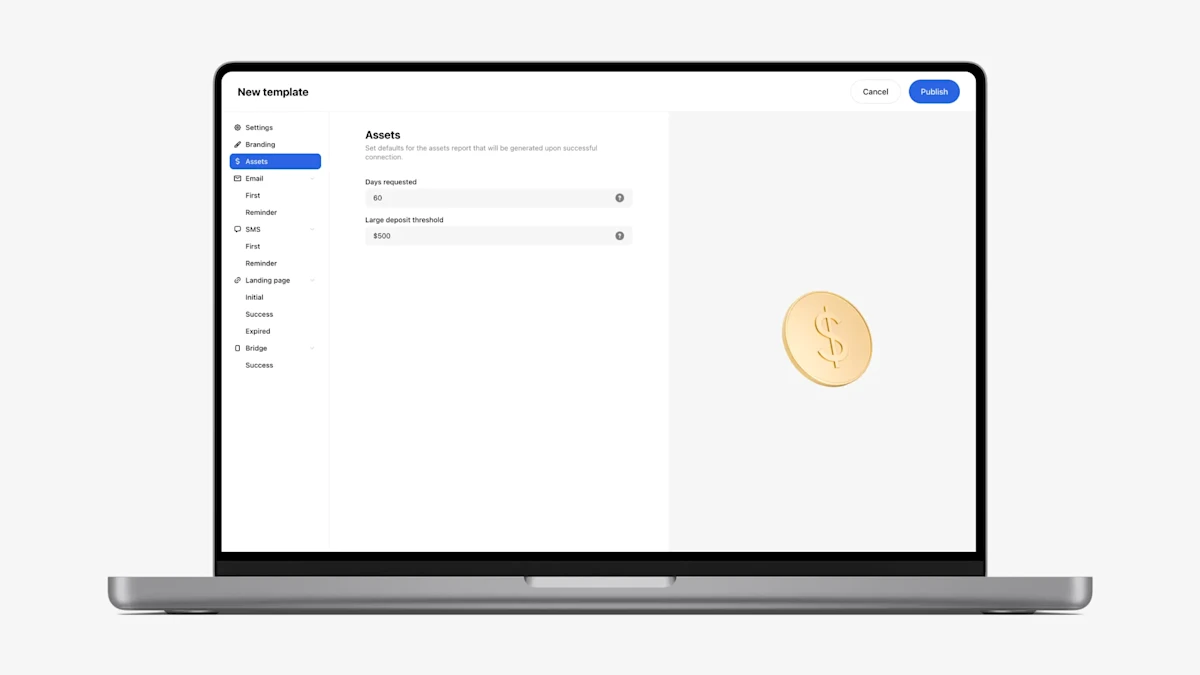
- Customization of Assets parameters from Templates: For clients who use our Verification of Assets product, we have added the ability to customize the ‘Days requested’ and ‘Large deposit threshold’ for the returned assets report in Templates. Navigate to Truv Dashboard → Customization → Templates → Assets tab in the template menu. The values specified in the template for these two fields will be reflected in the Assets report.
- Dashboard bug fixes
- Creating a new order fix: We identified and resolved a UI issue where sometimes the user couldn’t select an employer in the company search form in the order creation pop-up. The incorrect state has been fixed.
- Introduced Feb 21, 2025 → Fixed By Feb 28, 2025
- Impacted clients: Clients who use Orders in Truv Dashboard
- Creating a new order fix: We identified and resolved a UI issue where sometimes the user couldn’t select an employer in the company search form in the order creation pop-up. The incorrect state has been fixed.
- Template configuration options and text clarification:
- Within Truv Dashboard → Customization → Templates, we corrected misleading text, aligned submenu verbiage, and provided links to documentation to make setup easier. The following changes were made:
- Moved expiry dropdown options (
1 day,2 days,3 days,1 week,2 weeks,3 weeks,4 weeks) to the template page, along with the support email address. Users can select one of these options, with3 daysset as the default. - Added Learn more about expiration link under ‘Link expiration’ on the first page to clarify how link and order expiration works exactly.
- Moved expiry dropdown options (
- Within Truv Dashboard → Customization → Templates, we corrected misleading text, aligned submenu verbiage, and provided links to documentation to make setup easier. The following changes were made:
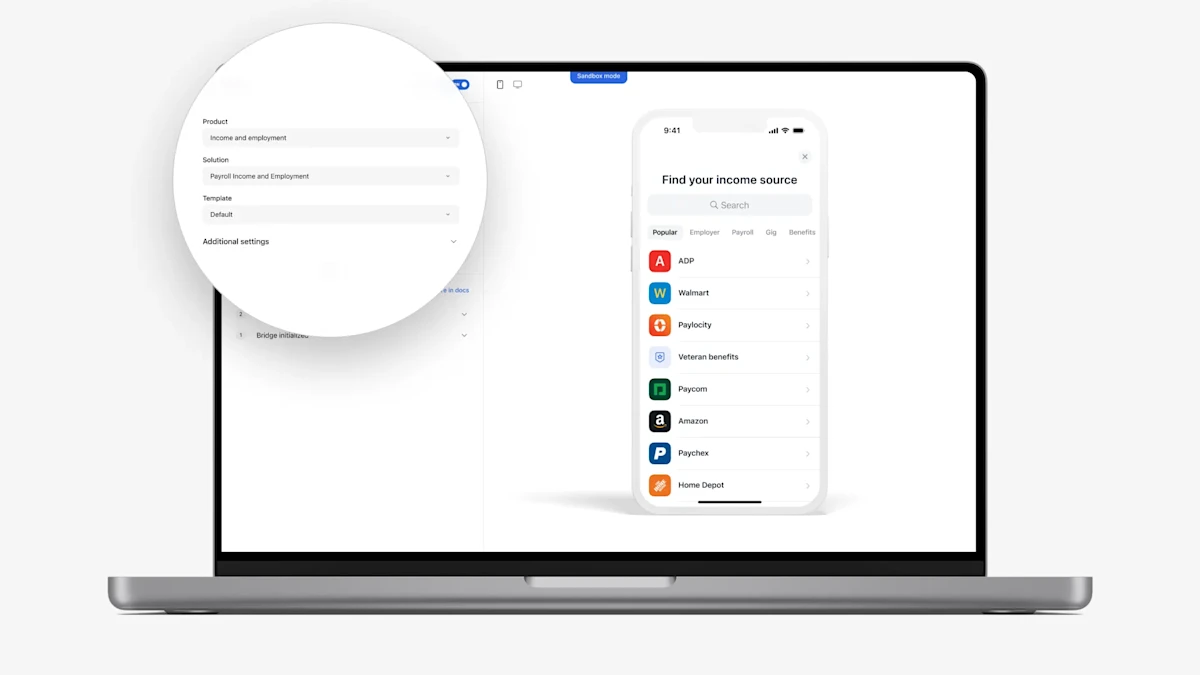
- Emulator settings:
- We have updated the Emulator in Truv Dashboard to align available products to the selected use-case and show additional solutions that can be used. See below for a full summary of changes:
- Removed Bridge and Orders
- Switched the name of ‘Solution’ and ‘Product’ fields to correctly align these
- In Sandbox mode, under ‘Additional settings’ we added a dropdown to select a use case. We will filter the list of available products based on the selected use-case. In Production mode, the account’s use-case is automatically applied.
- Clarified how the ‘Payroll Income and Employment’ and ‘Payroll Employment History’ options work. Now when these ‘Solutions’ are selected we open a payroll only solution in the Truv Bridge, with no fallback if the user is unable to login or exits.
- Added two additional Solutions: “Smart Routing” and “Fallback”, which are designated with a ‘Workflow’ tag. In Sandbox mode, Smart Routing will open financial accounts connection to complete the verification if the selected employer has a low success rate. In Sandbox mode, Fallback will offer Truv’s Document Upload solution if the user is unable to login or tries to exit. In Production mode, these solutions only appear and work as configured at the account-level.
- We have updated the Emulator in Truv Dashboard to align available products to the selected use-case and show additional solutions that can be used. See below for a full summary of changes:
- Dashboard bug fixes
- Assets report UI improvements for Users (beta) tab: In the Truv Dashboard for Assets reports, we have resolved an issue where users who completed Assets verification encountered an error when switching to the Assets tab. Notably, the Assets report PDF remained downloadable before switching tabs. Additionally, we have fixed the behavior of the Report submenu to ensure it no longer collapses when a report is available.
- Introduced Jan 31, 2025 → Fixed Feb 05, 2025
- Impacted clients: Clients with Assets product
- Usage reports count fix: We identified and resolved an issue where only 10 reports were displayed on the page by default, which cut off the months of January and February. Now, all available reports are properly displayed, ensuring full visibility and access.
- Assets report UI improvements for Users (beta) tab: In the Truv Dashboard for Assets reports, we have resolved an issue where users who completed Assets verification encountered an error when switching to the Assets tab. Notably, the Assets report PDF remained downloadable before switching tabs. Additionally, we have fixed the behavior of the Report submenu to ensure it no longer collapses when a report is available.
- Emulator Updates in Sandbox Mode:
Planned to go-live Feb 14- Since Truv supports multiple use cases, we plan to update our emulator to better align our products with specific use-case requirements.
- Show applicable products per each use-case. For instance, a mortgage client would not see a cashflow underwriting product.
- Remove
BridgeandOrderstab as you have the ability create Orders in Truv Dashboard → Orders in Sandbox mode and replicate the order workflow as in production. - Add
Income and Employment Fallback&Employment Fallbackas fallback options in Emulator so you can see the experience of Truv Bridge with and without Fallback. - NOTE: This release will not change any product behavior or response data. It is solely a realignment of Truv’s use cases and products to enhance clarity and reduce confusion.
- Since Truv supports multiple use cases, we plan to update our emulator to better align our products with specific use-case requirements.
- Empower: In Truv Dashboard → Platform Keys, we have added a page for the configuration of Empower Party IDs. Previously clients planning to go-live on Empower needed to request Truv to manually configure their Empower Party IDs to unblock testing. Now, once clients have received their Client Implementation Guide (CIG) from the Empower implementation team, they can add Sandbox and Production Party IDs directly in Truv Dashboard and begin the testing process required for approval. Check our docs for more information (link)
- Templates: In Truv Dashboard → Templates, we have moved some key settings to the first page to make them easier to find and configurations more intuitive. This includes the following: Add your end-user agreement or privacy policy, Link expiration, Notify order creator, Customer support email address, and Custom field.
- Usage: To add transparency to billing and invoicing, we have added a “Price” column to the Usage report .csv files that are downloadable by Owners and Admins in the Truv Dashboard → Usage tab. Additionally, we have backfilled this price data in Usage reports back to October 2024, the oldest period we can extract this data from our 3rd partner billing platform.
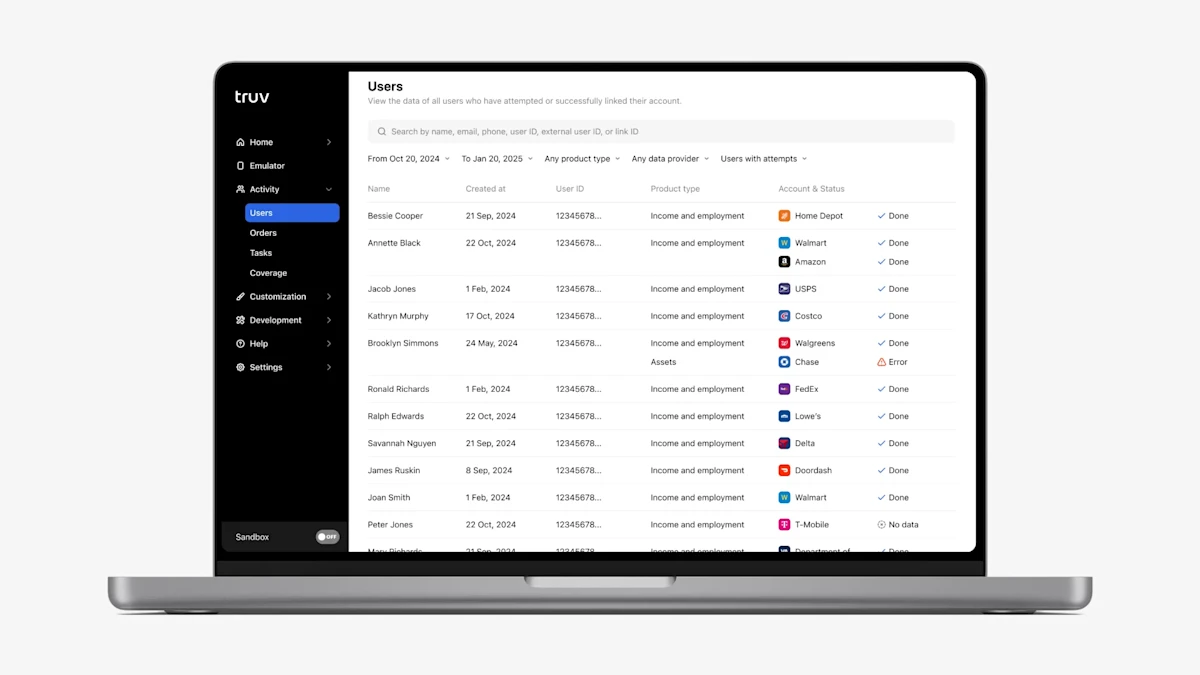
- User Tab (Beta Tab): We have introduced two additional enhancements to the new Users Tab to give clients more visibility into progress and make it easier to use.
- On the User Information page, once you click on a user row. There is now a timeline sidebar on the right side of the page. This timeline shows login attempts with provider, timestamp, and attempt outcome information, giving clients a full view into user progress that can help to determine the next best action for users who were unable to login successfully.
- On the Users table, we added a filter with the following values: Any user, Users with attempts, Users without attempts. By default, the filter is set to “Users with attempts”, showing only users who at least attempted to complete the Truv verification.
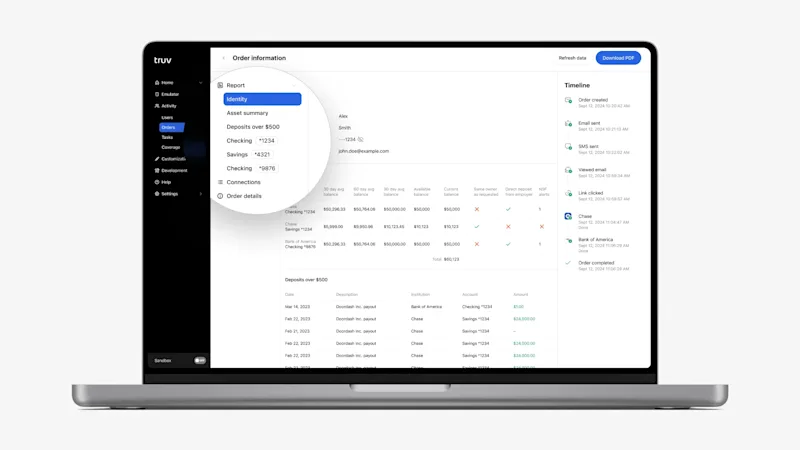
- Assets product in Truv Dashboard → Users, Orders: In the Truv Dashboard for Assets reports, we previously showed “Bank accounts” in the submenu and connected financial institutions as tabs, which was easy for users to overlook in cases multiple institutions were connected. To make the connected accounts more obvious and easier to navigate, we replaced the “Bank accounts” submenu item with placeholders for each connected account. Also, we now list all connected financial institutions, so there is no need to switch tabs in the report to see all the data.
- Reporting filters improvement: In the Dashboard → Reporting & Team Performance tabs, the predefined date filter options (Last 7 days, This week, Last 30 days, Last 90 days) excluded Today, which is unintuitive and confused some users. The filtering logic has now been updated to include Today for these predefined periods, ensuring a more accurate and user-friendly reporting experience. Available by Feb 3rd.
Dashboard bug fixes
- Status update notifications: There was a change rolled out that caused us to accidentally attach the report PDF to the order status update email for completed orders.
- Introduced Jan 22, 2025 → Fixed Jan 29, 2025
- Impacted clients: Clients using Truv orders (Dashboard, Orders API or custom LOS, Encompass, Byte, Empower)
- Truv Dashboard → Coverage: We identified and fixed an issue in the Truv Dashboard → Coverage → Financial accounts tab where we were showing a list of supported payroll providers instead of supported financial institutions.
- Truv Dashboard → Missing Orders due to Timezone issue: Due to an issue with timezone conversion, newly created orders would not appear in the Truv Dashboard during some parts of the day because their converted created date was in the future.
- Impacted clients: Clients creating order from Truv Dashboard late in the day
- Users Beta: In Truv Dashboard → Users Beta tab, there were some cases where Assets reports wouldn’t be available in the Dashboard for users who successfully connected a financial institution. Additionally, for clients using the Transactions product, in some cases loading the report took longer than usual. This has been resolved and reports are available and loading normally for both cases.
- Impacted clients: Embedded Clients with Assets or Transactions product and using Truv Dashboard Users Beta tab
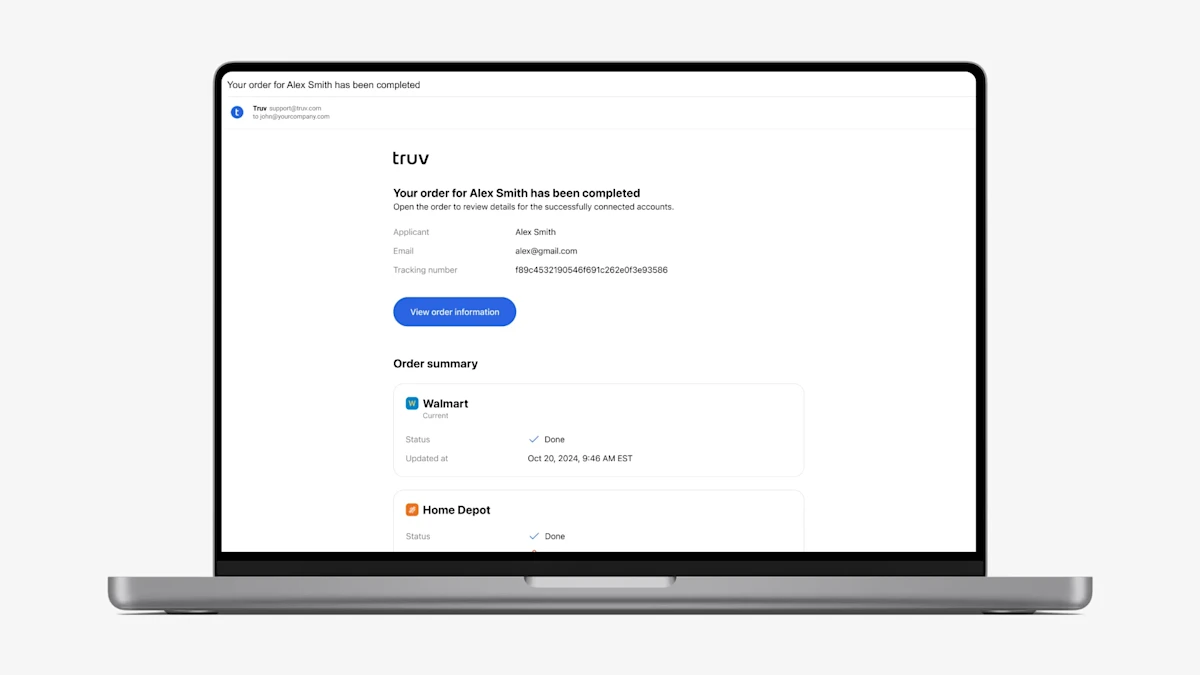
- Order-level status update emails: For Truv Orders clients, we previously sent a status update email to the Order Manager and any other CC’d roles whenever a suborder was moved to a terminal status (Completed, Expired, Canceled, Skipped by user, No data). This created a large volume of status update emails, since one order with three employers would have three separate status update emails. Additionally, if part of an order was completed, no information was shared about the remaining parts of the order, leaving Order Managers in the dark. To solve these problems, we introduced order-level status update emails.
- Now, if part of an order is moved to a terminal status (Completed, Expired, Canceled, Skipped by user, No data), we will wait 2 minutes to check if updates happen on the rest of the order. Once we detect no further updates, we will send a single email summarizing the status of the entire order.
- To make status updates more actionable, we include the last task status and number of attempts for the corresponding employer or providers in the order that are still in Pending, Sent, or Skipped status. With this information, Order Managers can decide whether to help the user complete the remaining parts of the order or pursue an alternative solution.
- Lastly, to provide more context and make the emails more searchable in your inbox, we added the following fields: End-user email, Loan number or Tracking number, Order ID, Source, Order expiration time
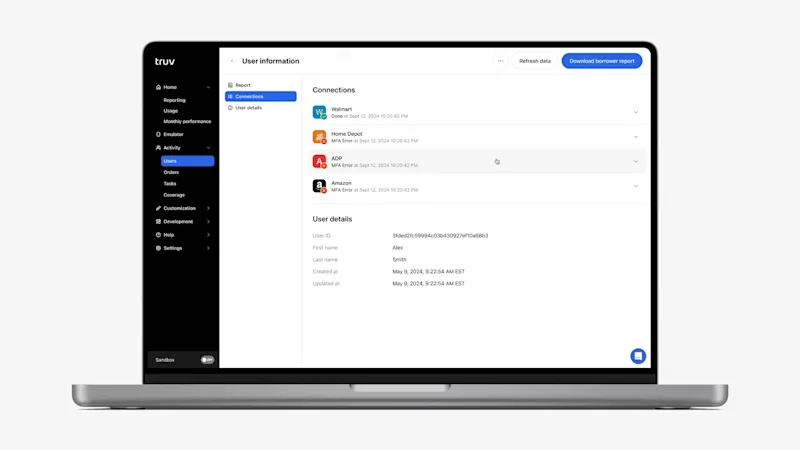
- New ‘Connections’ section added to Orders tab and Users tab (beta release): To increase transparency on progress and connection attempts for Orders and Embedded clients, we have added a ‘Connections’ section to the Truv Dashboard in the results. Open the Orders tab or Users tab (beta release only) in the Truv Dashboard, click a row, then navigate to the Connections section by either selecting the submenu or scrolling to below the Report. The section will show all attempts grouped by company or provider for the current product type. For each attempt, we show the company or provider, latest attempt result, updated at, tracking info, and a link to the corresponding attempt tasks. With this information, Truv Dashboard users can get visibility into login attempts that have not been successful. Previously this information was missing, making it hard understand the customers progress and help them through the process.
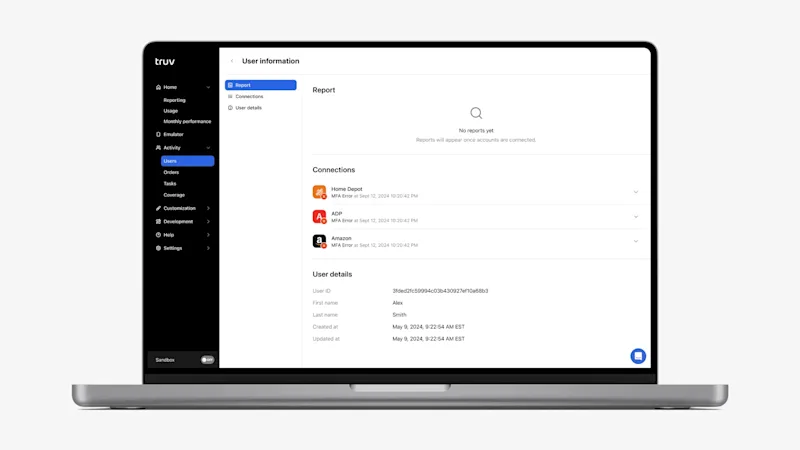
- Added Report and Connections placeholders to Orders tab and Users tab (beta release): Previously we only showed Order details or Users details for end-users that did not have any successful connections or reports. This made it unclear what should be returned where once a Truv request was completed. To solve this problem, we added a placeholders for the Report and Connections sections on the submenu and results section for both Orders and Users (beta release). Once results are available to show, we replace the empty states with the returned results.
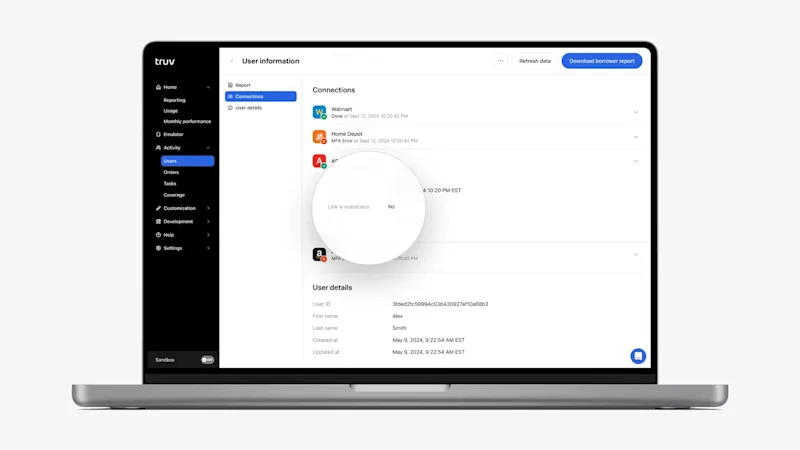
- Moved Link is suspicious field to the Connections level: To help identify fraud cases, we moved the ‘Link is suspicious’ field to the Connections level. Previously we showed a ‘Link is suspicious’ field in Truv Dashboard under Order details or User details. This field shows a Yes / No value depending on whether the SSN submitted to Truv matches the SSN returned from the connected provider. Since there can be multiple providers per order or user, it didn’t indicate which one exactly had the mismatch. To solve this we moved this field to each employer or provider under in the Connections section, so it indicates which exactly has the mismatch.
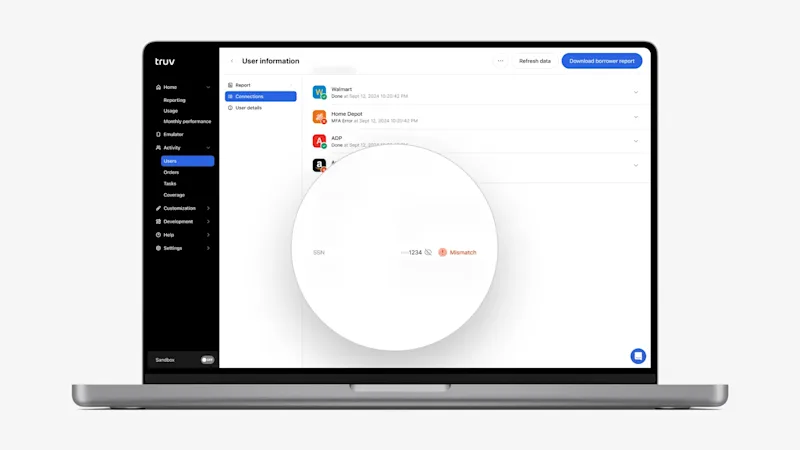
- SSN Mismatch indicator if a Link is suspicious: To further help identify fraud or suspicious cases, we added a red ‘Mismatch’ indicator next to the SSN field in Order details and User details in the Truv Dashboard. For the connections in the User or Order, if any have ‘Link is suspicious: Yes’, then a red ‘Mismatch’ indicator will be added next to the SSN field
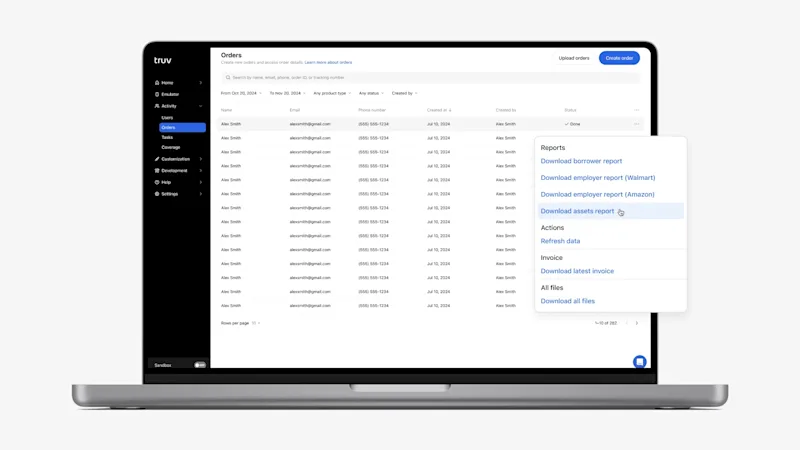
- Transformed action buttons into an ‘Actions’ dropdown: Previously we showed a variety of icons across tables in the Truv Dashboard for available actions. This created inconsistency in the experience and limited the number of actions that could be shown for each row. To create a consistent experience and make the Dashboard more intuitive, we have added a three dots ‘Action’ column to the end of tables (Orders, Templates, Webhooks). Once clicked, it opens up a dropdown with available actions grouped and summarized in plain text. Additionally, this column is now fixed in the tables, which can be horizontally scrolled to show additional columns.
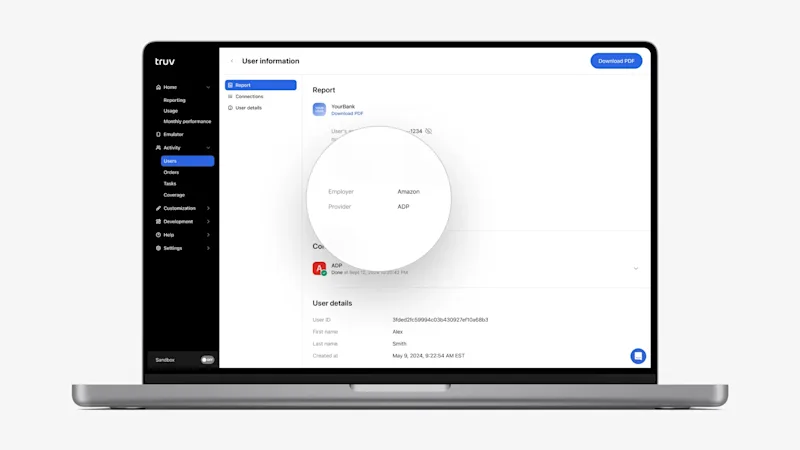
- Added Employer and Provider to the Report and for DDS and PLL products: For clients that used Direct Deposit Switch (DDS) and Paycheck Linked Loans (PLL) products in the Truv Dashboard, we previously only showed the connected bank and account information. There was no information about the employer or payroll provider that was connected to initiate the deposit switch or payment. Now in the Truv Dashboard in Orders and Users and in the Downloadable Reports (Download PDF), we include the connected Provider and Employer (if available).
- The corresponding changes have been implemented for the Direct Deposit and PLL Reports API. For details, refer to the API updates – December 2024
- Additional Error Distribution statuses in Dashboard Reporting: In Truv Dashboard in Home → Reporting tab, there is an Error distribution chart that shows a breakdown of login errors by type. We have added four additional error types that were previously missing: Account locked, Not supported, Session expired, Unable to reset.
Dashboard bug fixes
- For Orders clients, we previously showed both the Orders and Users tab in the Truv Dashboard. Since these tabs showed essentially the same information, we removed ‘Users’ tab access for companies with this workflow type to prevent confusion.
- There were some cases where suborders could be set to Error while the corresponding tasks were set to Done. These cases have been resolved so the suborder has the right status based on its task.
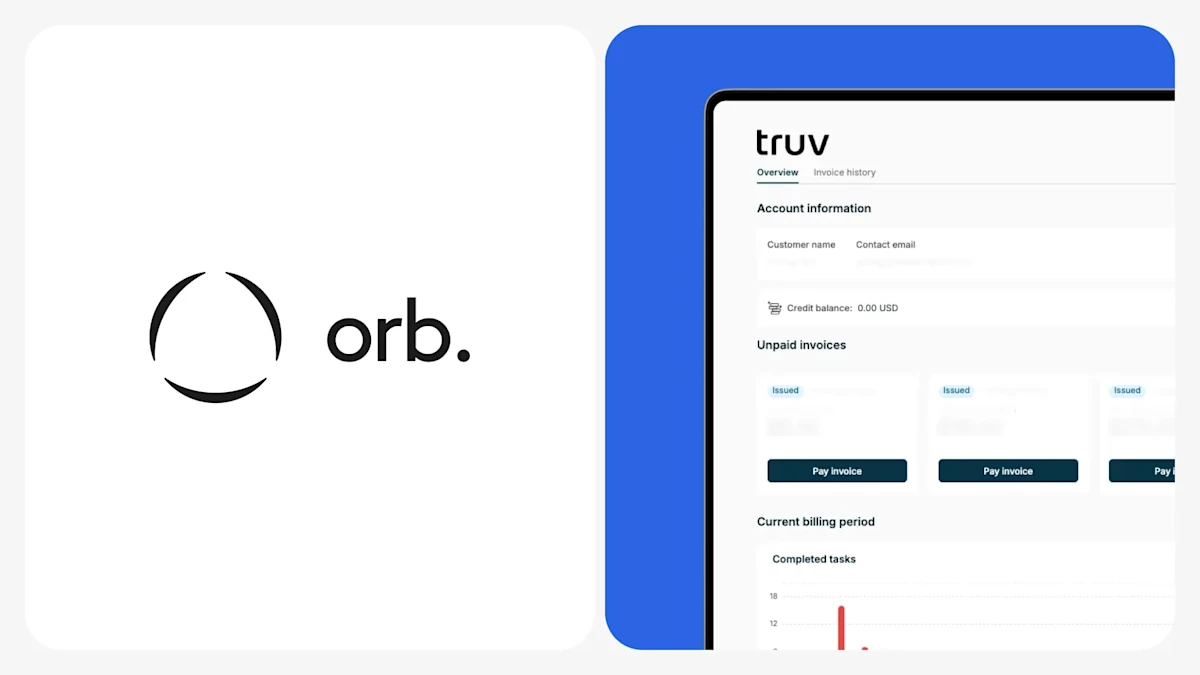
- Switch Billing to Orb: To better support Truv’s billing plans and create more accurate invoices that align with usage, we have migrated to tracking billable usage and issuing invoices through a 3rd party platform, Orb. Client billing contacts should begin to receive monthly invoices from Orb instead of Stripe and users with access to the ‘Billing’ tab (Truv Dashboard → Settings → Billing) should begin to be redirected to their Orb Customer Portal instead of Stripe. In the Orb Customer Portal, users have access to the following data, which aligns with the monthly usage data downloadable in Truv Dashboard → Home → Usage
- Showing all attempts in Users tab (beta release): For embedded clients that complete transactions from point-of-sale platforms, we previously only showed successfully connected accounts in the Truv Dashboard → Activity → Users tab. For clients that wanted to take alternative actions for unsuccessful attempts, there was no way for them to find these Users. To solve this problem, we have added the ability to view both successful connections and attempts in the Users tab. This feature is in beta release for select clients that have requested access to all data, and will be rolled out broadly for all clients mid January. If you want access to the Beta release, please reach out to Customer Success Manager or support@truv.com.
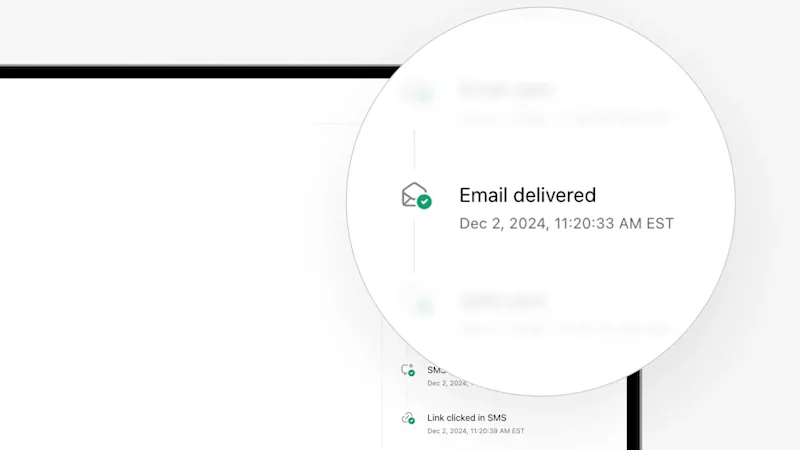
- Fix incorrect ‘Email viewed’ Timeline event: The Truv Dashboard Timeline for Orders (Truv Dashboard → Orders → Order information) previously labeled the ‘Email Delivered’ event as ‘Email Opened’. This event happens a few seconds after ‘Email Sent’ event, which incorrectly created the impression that end-users had opened and viewed the order email right after it was sent. We have fixed this for new and previous orders so the event will be correctly labeled as ‘Email Delivered’ in the Truv Dashboard. This issue did not impact Encompass since there was no corresponding event in the Encompass order Timeline
- Dashboard bug fixes:
- Fixed a rare issue where new orders would show up as created 1 day in the future. Now all orders should show up in the correct date based on the users timezone.
- Fixed a small inconsistency between the default order SMS text that was shown in Dashboard → Templates compared to what was actually sent. These are now aligned.
- Fixed a display issue in the Dashboard → Reporting → Created Orders / Conversion Rate graph, where dates outside the filter dates were displayed. Now graph displayed dates should match filtered dates explicitly.
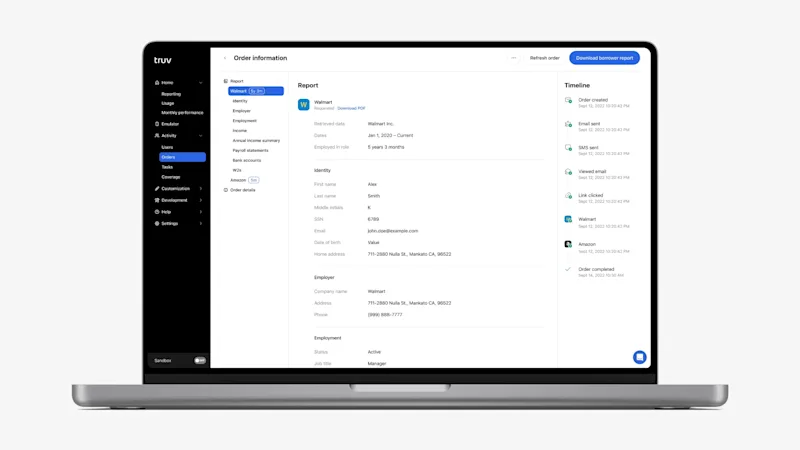
- UI Design system change fully rolled out in Truv Dashboard: As a follow-up to the work completed earlier in November, we have finished rolling out the standardized design system in the Truv Dashboard. As a reminder, this will create a standardized User Interface and reduce variation that can cause confusion for users. Since the last release, there has been standardization of the following components across the Dashboard: tables, pages, menus, headers, indicators, no results states, accordions, key numbers, informational tables, company lists and code blocks.
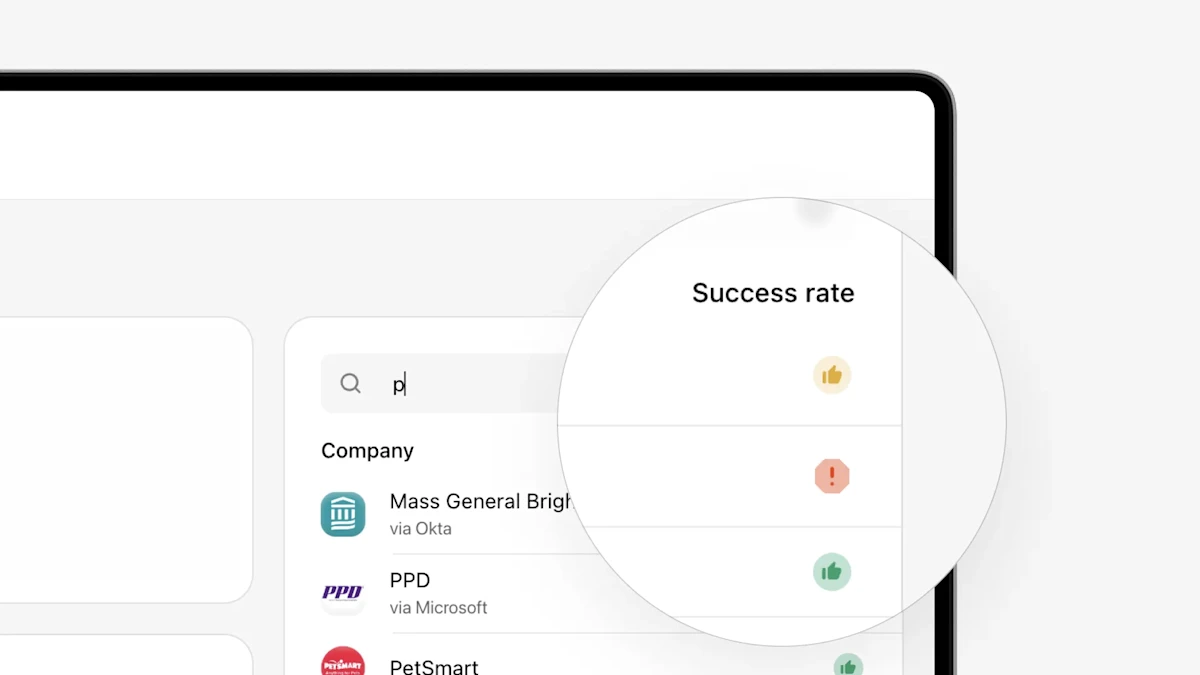
- Coverage updates in Truv Dashboard: In the Truv Dashboard, in the Company search feature on the right of the ‘Coverage’ tab and Employer search feature on the ‘Order Creation’ form, we showed coverage indicators that were small colored dots (green/yellow/gray) with explanation tooltips. These weren’t very visible and there was no context to explain what they meant unless users hovered over them. We have now updated these from green/yellow/gray dots to a green “thumbs up”, yellow “thumbs up” and red “warning sign” to make them more visible and better convey the meaning. When searching, we also added a Company and Success rate header over each column in the results to explain what is being shown if the user doesn’t hover over the tooltip. Lastly, we updated the tooltip descriptions to more clearly explain the success rate and provide a suggested action. These clearer indicators and suggested actions can help order managers improve their conversion with Truv by focusing on high success transactions and using alternatives where success isn’t likely. This is also accessible via Search compaines API.
- UI Design system change in Truv Dashboard: To create a standardized experience across the Truv Dashboard, we have rolled out the first part of a new standardized UI. Previously, there was a lot of variety in the placement of buttons, available actions, usage of fonts, size of pop-ups, etc, which could be confusing to users. In this release, there has been standardization in the usage of the following components across the Dashboard: checkboxes, buttons, dashboard cards, links, loading screens, text headers, pop-ups, switch buttons, tabs, tooltips and search fields.
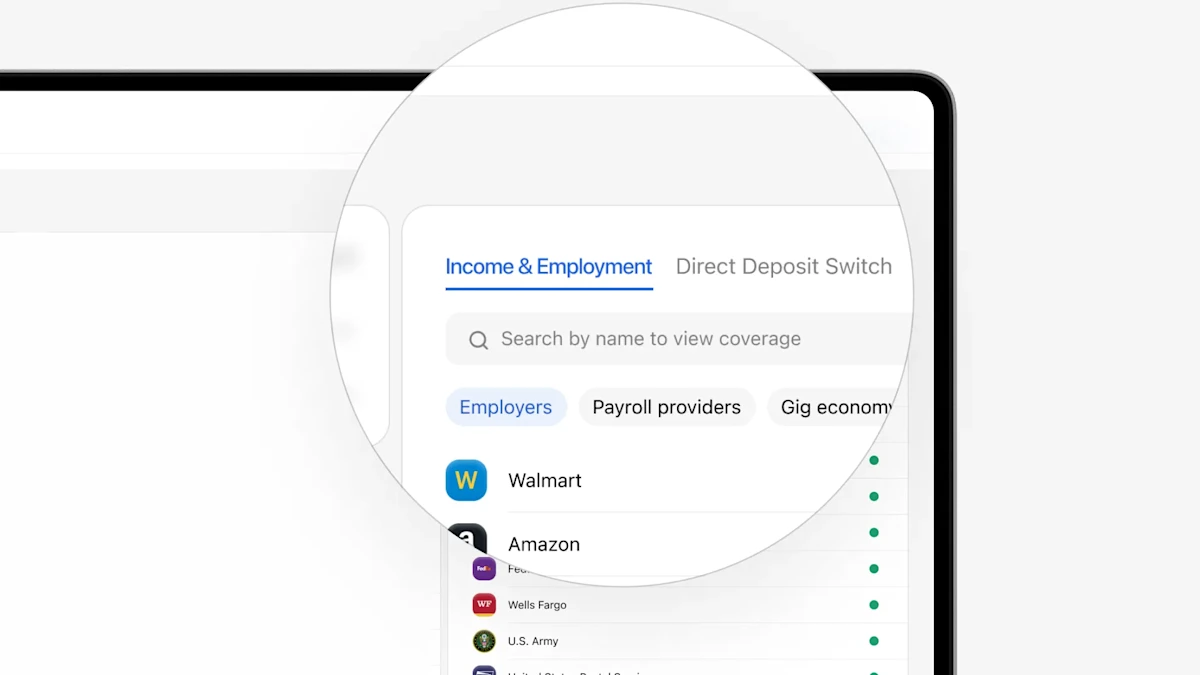
- On the right side of the ‘Coverage’ tab in the Truv Dashboard, we previously only showed company success rate for Income and Employment products (VOIE, VOE). This helps inform order creators when income and/or employment verification is feasible via payroll connection. For users with Direct Deposit Switch (DDS) and Paycheck-Linked Loans (PLL) products, we now also show the success rate for each employer based on historical transactions. If you only have VOIE/VOE or DDS or PLL products enabled, we will automatically show the success rate for that product. If you have multiple products enabled, we will show a product toggle to allow selection of which success rates you want to see.
- Previously in the Truv Dashboard on all tabs with a date selection (Reporting, Team Performance, Users, Orders, Tasks, Logs) we showed ‘From’ and ‘To’ date filters for results that included years from 1900 to 2099. Since there couldn’t be Truv results in these ranges, we updated it to make ‘From’ filter range from 2021 to present year and ‘To’ filter range from 2021 to present year.
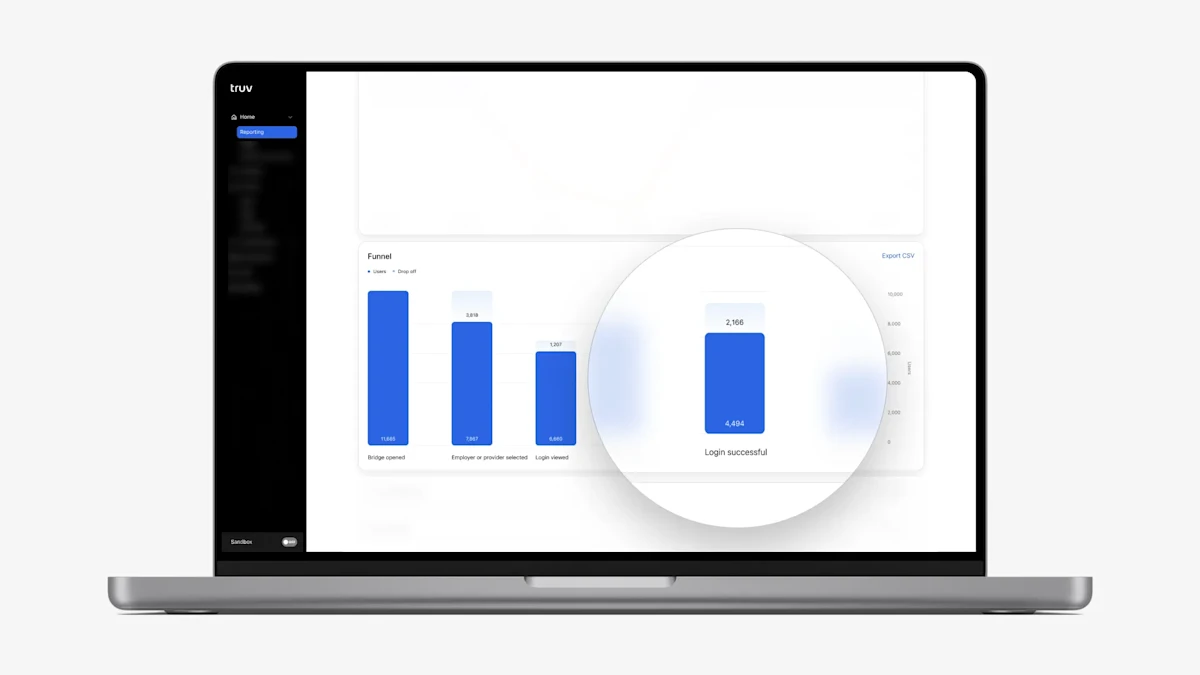
- To increase transparency into conversion, we added a ‘Login successful’ step on the Funnel chart in the Home → Reporting **tab of the dashboard. This allows clients who use Truv via both Orders and Embedded flows to see the count, conversion and drop-off associated with this step.
- We added an ‘Export CSV’ button on the Home → Team Performance tab in the Truv Dashboard to allow users to download the current table as a csv file. This allows users to use the presented data for operations optimization and training efforts.
- In the Truv Dashboard → Orders tab, we always showed the option to ‘Download all PDFs’ for a completed order regardless of how many files were available for download. To eliminate confusion around what documents are available, in cases where there is only one PDF file available we removed this option and only show the download link for the file.
- For clients using the Truv Embedded workflow, we have improved the formatting of the results returned in the Activity → Users tab. Clicking into a User row will now show:
- a submenu on the side to organize the task details and information
- a dropdown list on the top right (shown with three dots ”…”) to allow download of all available documents
- consolidated user information and task details at the bottom of the page
- We added support for Single Sign-on (SSO) to the Truv Dashboard using a Microsoft account. Once you navigate to Truv.com and click Log in, an option to ‘Continue with Microsoft Account’ should appear as a sign in method.
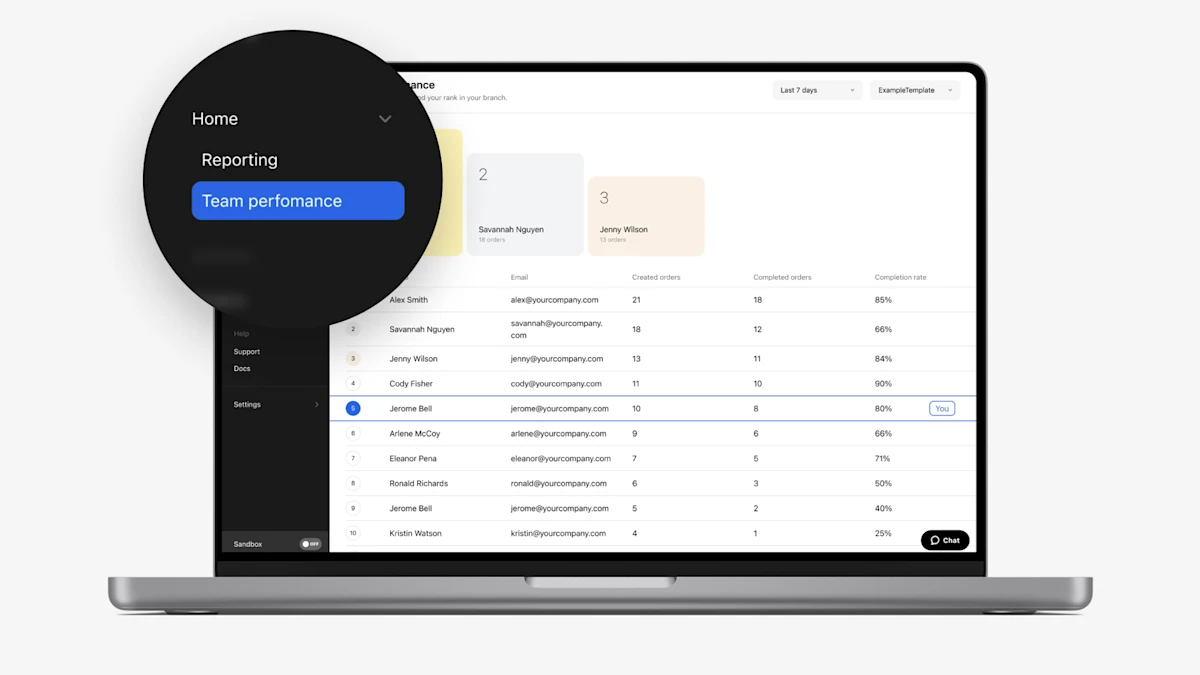
- To better enable clients to optimize Order Manager performance, we created a dedicated Team Performance tab under the Dashboard Home menu. This tab shows orders created, orders completed and completion rate for active Order Managers, with a leader podium for the top 3 performers by created orders. Additionally, the leaderboard highlights the logged in user’s place so they can see where they stack up against peers. This is made available for all roles in Truv dashboard including Owners, Admins, Developer and Order Managers.
- For clients who utilize Truv in both point-of-sale (POS) and loan origination system (LOS) OR implemented Truv’s embedded solution and utilize Order workflow.
- We have added an enhancement to streamline consumption of performance data that is shown on the Home (Reporting) tab in the dashboard, we now automatically pre-select a filter value for ‘Embedded’ or ‘Orders’ depending on consumption.
- For order clients for the Completed order turnaround time chart (for Orders only), we preselect the notification method with more created orders (Email and SMS, Email Only, SMS Only).
- To improve ease of navigation within the Dashboard, we show a small arrow icon next to menu items that have submenus. Clicking the menu item, will expand the submenu, clicking again will collapse the submenu.
- Previously, we limited webhook creation in the Truv Dashboard to 10 across all environments. This limit has now been increased to 100 webhooks. Accessible to Owners, Administrators and Developers, by logging in to the dashboard and navigating to the Webhooks menu item under Development.
- Add transactions with a ‘Generic error’ to the Truv Dashboard → Tasks tab in the dashboard and a corresponding filter option, which were both previously missing.
- For clients with embedded implementation or using Truv via point-of-sale integrations. We’ve added a enhancements to include all completed tasks to the Truv Dashboard →Users tab in the Truv Dashboard. Previously this tab just showed the most recent successful task for a user, but now it show all successful tasks as unique rows
- For clients using products type: Verification of Assets (VOA), Paycheck linked loans (PLL), and Direct deposit switch (DDS) we were previously missing report details for transactions on the Truv Dashboard → Users tab in the Truv Dashboard. These have now been added for past and future transactions. When clicking into a user row, the reports should automatically appear and be downloadable via the ‘Download report’ button under the product name.
- We updated the ‘Last 28 days’ filter option to ‘Last 30 days’ across the Truv Dashboard to align it closer to one month of data.
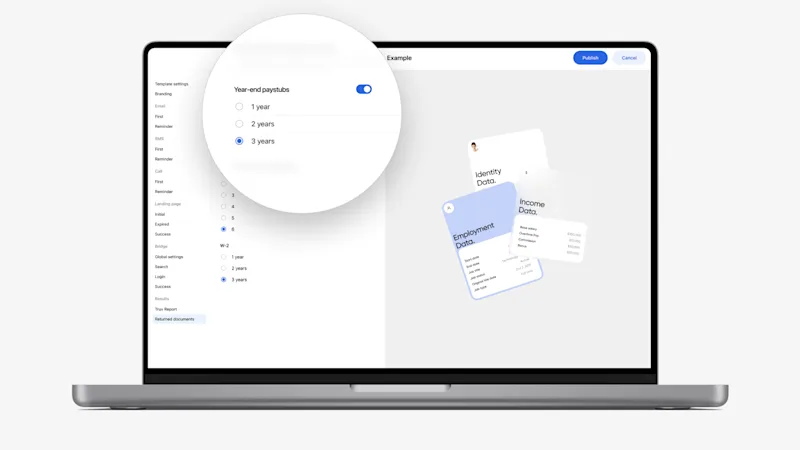
- In Truv templates, for the Income and Employment (VOIE) product we added the option to configure the number of Year-end paystubs that should be retrieved. Previously we would always try to return the year-end paystub for the last 3 years, but now lenders can reduce the number. For Owners or Admins, navigate to Templates and check Returned documents on any Income and Employment template.
- For users that have access to both Truv Employer-level and Borrower-level Report, we reduced the size of the Employer-level Report PDF download button and moved it directly under the corresponding employer to reduce confusion.
- We added Social Security Benefits and Veteran Benefits sandbox scenarios and to enable lenders and 3rd party integrations to test the results and benefit letters returned by Truv either via a sandbox order, emulator or API request. To test, open Emulator in the Truv dashboard and search for social security or veteran benefits and connect.
- To improve ease of navigation within the Dashboard, we removed the secondary sidebar menu and made those options nested under the sidebar main menu.
- Order Managers were granted access to the Coverage tab, which can be found in the Truv Dashboard on the main menu under ‘Activity’. This allows them to check Truv’s coverage across Payroll, Insurance and Financial Accounts providers. Previously this was restricted to only Owner and Administrator roles.
- Within the dashboard, the UX Guides tab has been removed since these will be move to Truv Docs. The Feedback tab has also been removed, please submit issues through Support and product feedback to the Truv team.
- In the spirit of transparency, for instances with partial data we have added disclaimers into the Truv Reports in addition to Truv dashboard (Orders and Users) to provide clients with any sections of the report that was not present in the payroll source.
- Coverage Search Visibility: Within the Coverage Tab in Truv Dashboard, when a company name is searched, we’ve added indicators to give loan officers/assistants heightened visibility into the likelihood of successful connections, based on recent Truv traffic.
- Green – Indicates a history of high success
- Yellow – Indicates a history of moderate success
- Grey – Indicates a history of low success
- For Bank aggregation product, for the responses in Truv Dashboard, we have now added ability to unhide account information via an “eye” icon next to each account. Additional fields such as Routing number, Account holders, and Account type, will be revealed on click of this eye icon.
- For Income and Employment product for retired and disabled borrowers, we are now able to retrieve their Benefits letter. In addition, we have updated the specific sections in Truv Dashboard responses and menu items to reflect the Benefits received.
- The Benchmark tab within Truv Dashboard → Home Reporting, displaying client conversion rates compared against benchmarks, has been enhanced. Currently in Reporting you can now see the top 20 industries for your traffic against aggregated benchmarks with other Truv Mortgage Clients to provide more insight into your traffic and success rates.
- We’ve expanded the configuration available in Truv templates to allow users to hide/show the ‘Deposit data’ and ‘Historical pay period summary’ sections of the Borrower Report.
- For the Verification of Assets product, we’ve added the option for users to configure the number of days of transaction history requested in templates.
- To simplify document management and reduce repetitive tasks, we’ve added an option in dashboard orders to ‘Download all PDFs’. This will download a zipped file that contains all the order documents. The file name has applicant name, order ID and download date.
- In orders with multiple employers, we now return the Borrower Report and GSE Report ID once we have received at least one completed employer verification. As additional employers are completed we update the PDF report and Report ID to reflect the additional data. Previously this was only available once all verifications were completed.
- We resolved a bug where the ‘Download PDF’ button was visible despite no files being available for download.
- For Verification of Income and Employment orders that are refreshed in the dashboard, we now preselect the ‘Employment’ option, to make pre-closing reverifications of employment easier for lenders.
- We’ve updated our dashboard and PDF reports to correctly classify Social Security Benefits as benefits and not employments.
- The Orders page filtering has been updated. Now, with the “Created by” filter, users can filter the results by users who were declined or had their access revoked.
- Order managers (OM) now have access to the Home page (aka Native reporting charts) where they can view metrics regarding order volume, conversion rate, turnaround times (TAT), and error histograms.
- We added a warning after 30 minutes of inactivity in the Truv Dashboard. Users can now press a confirmation button to extend their session and avoid an automatic logout.
- For orders workflow we’ve added a histogram with order turnaround time (TAT), which can be viewed by order notification method (Email and SMS, Email, SMS).
- Export functionality for reporting: users can now download any native report from the dashboard to a CSV file, allowing for easy data filtering and one-click export.
- Partial order canceling: now, after placing an order, one or more selected employers can be canceled for a borrower without canceling the entire order, providing greater flexibility in functionality.
- We’ve introduced the option to obtain the borrower report with the latest task details for users. Now, users can access the download button on Truv Users -> User page for this purpose.
- Templates update: users can now customize all returned documents for payroll income and employment, selecting the most recent paystub from the last 6 and obtaining any of 3 years for W2 form, to reduce unnecessary data retrieval.
- As we scale to more clients, lenders, we know we need to cater to more customization to meet your needs. To this end we have added the customization via Truv Dashboard → Templates. You can customize the product name changing default “Auto pay” value by accessing the Branding tab and utilizing the Paycheck linked loans (PLL) section.
- Resend feature now available for all canceled orders, expired orders and orders with errors. With re-send functionality, clients are able to easily populate Orders with borrowers information based on the prior orders that was in STATUS: COMPLETED, EXPIRED OR ERRORS. LO’s and LOA’s can now easily populate the orders, edit or update any order details and send in 1 click.
- We noticed the issue with our invoice functionality. We heard your feedback and made enhancements across all clients who encountered issues.
- Enabled the ability to copy short order links directly from the dashboard, enhancing user safety and convenience when sharing order details. This feature is also available in Encompass.
Please find the guidelines and information about support of Freddie Mac’s AIM for VOIE with Truv in the documentation.
- New Help Center is live!
- Released usage reports in the dashboard, allowing clients to access monthly usage reports effortlessly.
- Refined the demo experience by aligning UX guides closer with Truv’s product offerings, making it easier to navigate and integrate products.
- Optimized the reporting for the order manager performance, which will help lenders to better manage and track the performance of their teams.
- Incorporated new product types in PDF reports to reflect the wide range of services we offer accurately.
We’ve been hard at work over the past few weeks, focusing on enhancing our product to better serve your needs. Here are the key updates we’re excited to share with you:
- Enhanced search functionality on the dashboard, allowing you to find provider information more easily.
- Updated product selectors to include an assets product type, enabling more comprehensive order and template creation.
- Implemented error display for Encompass orders when notifications fail to send, improving communication and troubleshooting.
- Enabled the ability to download VOA PDFs directly from the dashboard, streamlining the documentation process.
- Streamlined support with added search and filter capabilities, making it easier for you to view and manage your tickets.
Our commitment to elevating your experience extends to our support ticket system. Users are able to report missing data and incorrect information now. We’ve streamlined the process with a user-friendly dropdown menu that allows users to select the product, providing specific reporting options. In addition, there’s a new section where users can view available resources.
In our quest for user-friendly interactions, we’ve replaced the automatic logout after five minutes of inactivity with an informative modal. Now, a clear notification informs them of their session timeout, which prompts them to log in again. This update reduces confusion and improves transparency in your Truv dashboard experience.
Tailoring your Truv orders is now a breeze. Our customers can create templates for unique customizations tailored to their clients or products. When creating an order, selecting from a vast array of hundreds of templates has never been more accessible.
We’re enhancing the clarity and efficiency of our order form with some thoughtful updates.
- Introducing new labels, including a
Requestedlabel positioned directly beneath the requesting company’s name in the responses. This improves readability for Loan Officers especially in scenarios involving multiple employers requesting data for a single connected account or requests that lead to multiple jobs being returned with user authenticating once to the provider. - Additionally, we’ve refined the timeline within the order form to accommodate multiple job entries.
Underwriters using the Truv dashboard need to find information quickly so that they can do their jobs effectively. In order to make navigating Truv webhook information easier, we’ve added the ability to search and filter results.
- Clients will be able to search by bridge token and filter by
dateandstatus. - The
searchandfilterfeature will allow clients to more effectively use the Truv dashboard to underwrite loans. Try out webhook filters here
Truv lives and breathes customer feedback. We are constantly updating our platform to provide a better experience to consumers and to our clients. In order to streamline the feedback loop, we’ve created a support ticket functionality in the Truv dashboard. Clients can now create, track, and reply to tickets directly in the dashboard.
We hope this addition allows us to better serve you! Submit a ticket here
Truv is constantly improving coverage of the US workforce. With over 90% of working American’s covered we lead the industry in coverage. But we realize there may be some sources that we’re missing.
- In order to give our clients a voice in where we focus our coverage efforts, we’ve created a coverage request form on the coverage dashboard page. This form will allow clients to submit
employers,payroll providers, andfinancial institutionsthat they would like to see incorporated in the Truv platform. - You’ll be helping us on our mission to reach 100% coverage of the US workforce!
Request coverage sources here
Truv has the best overall coverage and conversion in the industry, but we realize its important for you to see and measure the results of our claims. To achieve this goal and help you realize the impact Truv is having on your business, we’ve redesigned the reporting metrics you see on the home screen to give you a better sense of your Truv usage.
- The new design includes updated charts and the ability to filter by
period,sub companies,product types, andflow. - The new charts show data points for
unique users,order status,conversion rates,funnel analysis,error distribution, andbenchmark charts. - This new design will help users measure the impact Truv has on lending.
View Reporting Page
Accessing the Truv dashboard is a fundamental part of most workflows for our customers to kick-off individual orders, access verified data, see analytics, and other key business outcomes. Several of Truv’s customers have asked for single sign-on support within the Truv dashboard to enable all of their team members with seamless access.
We’re happy to announce that Truv is now able to support single sign-on integrations for accessing the Truv dashboard as a paid and premium feature. To enable this for your organization, feel free to reach out your Truv customer success representative today. Reach out to Truv today
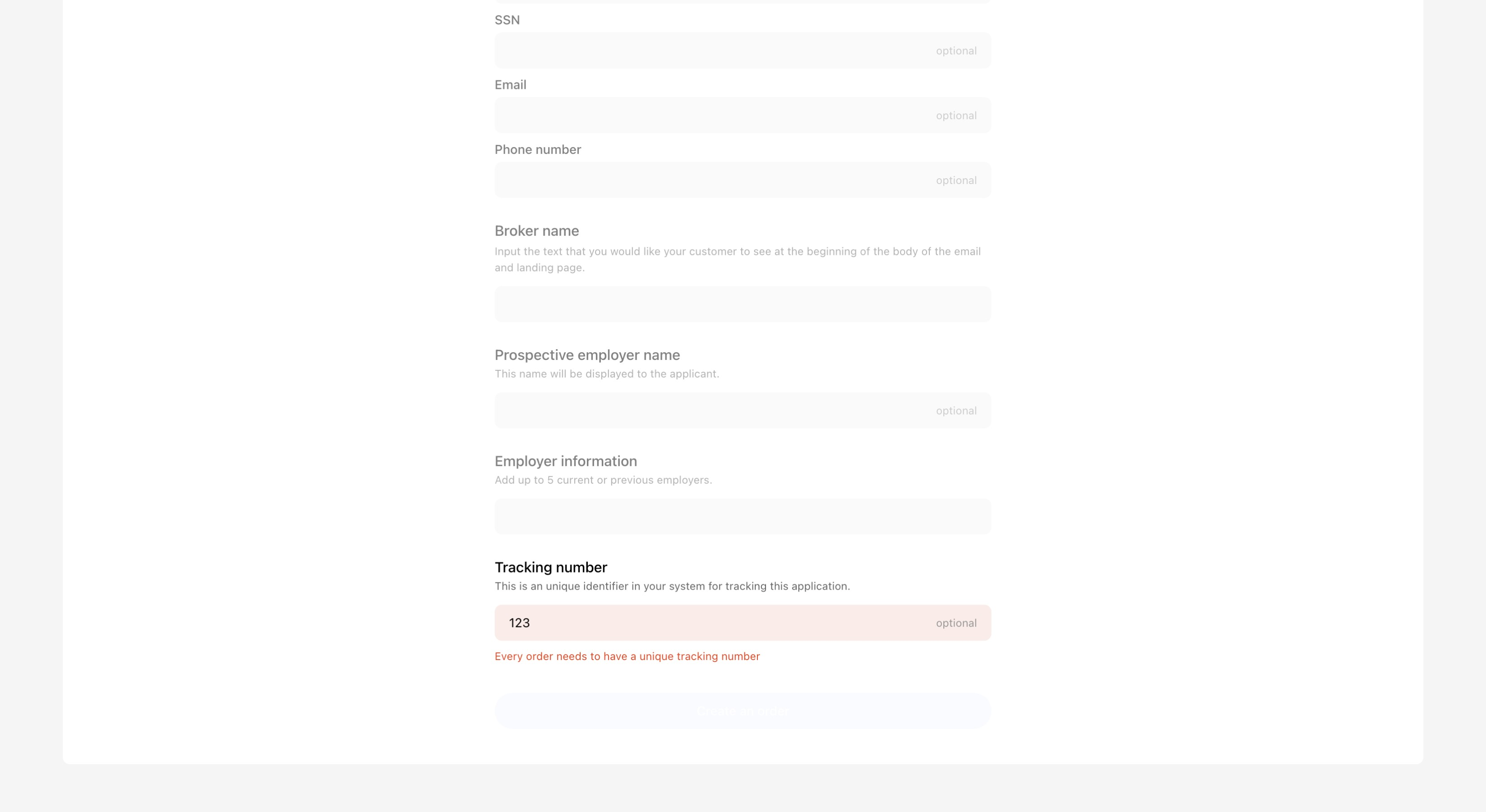
Truv customers work fast and efficiently while underwriting loans. To prevent potential errors in the underwriting process, Truv has made the order tracking number a unique field.
- If a user tries to create an order using an
existing tracking number, Truv will prompt the user to select anew number. - If a user is creating a new order for an
existing applicant, then Truv will allow the user to continue using thesame tracking number.
This adjustment will help underwriters work faster without worrying about duplicating important fields.
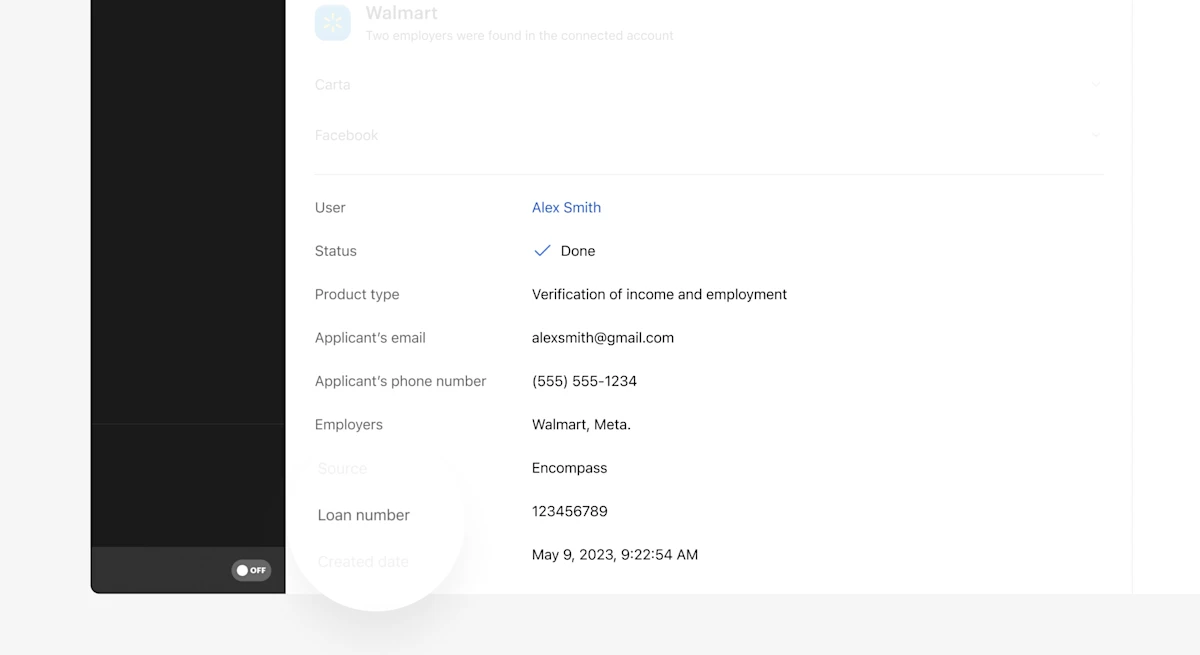
To further improve our Encompass integration, we’ve taken the loan number from inside Encompass and put that information in the Truv dashboard.
This will make it easier for you to reconcile verifications between the Truv Dashboard and your Encompass instance to find the information necessary to underwrite a loan.
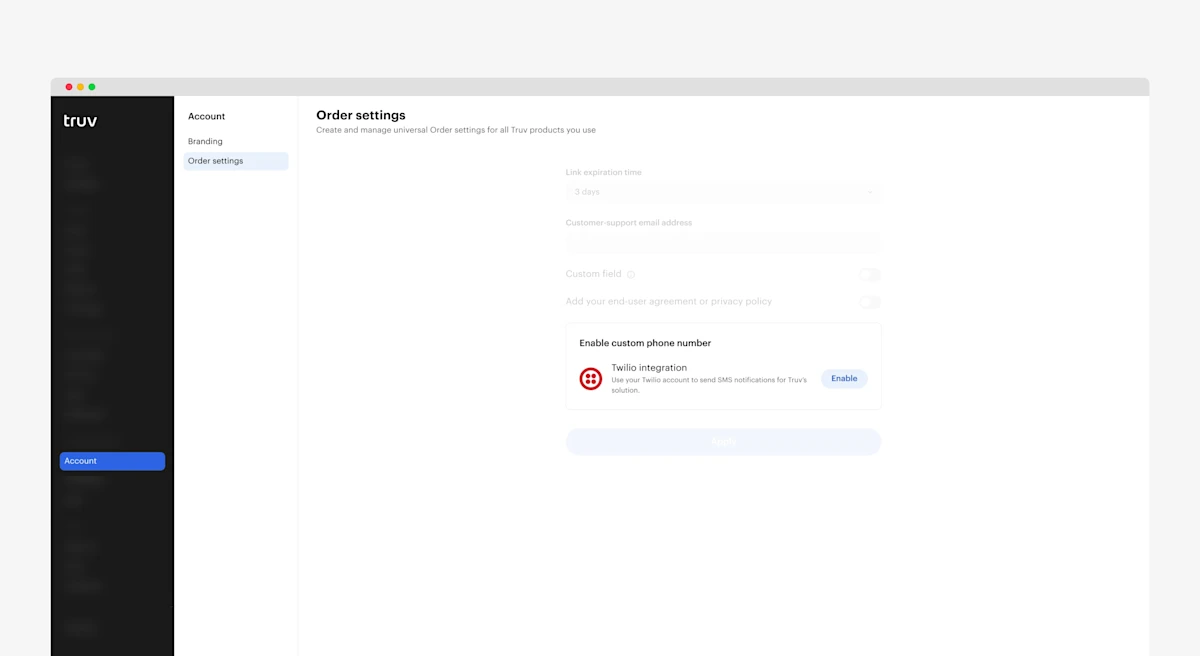
Providing a trustworthy experience to applicant’s creates higher conversion rates. In order to increase applicant trust, we now give Truv customers the ability to leverage their own Twilio keys.
- Previously order text mesages sent from Truv were sent via a separate Truv phone number.
- This change allows lenders to leverage their phone numbers so that the applicant is being sent information and requests via different sources.
- This will help lenders increase conversion rates and drive more trust in the application process.
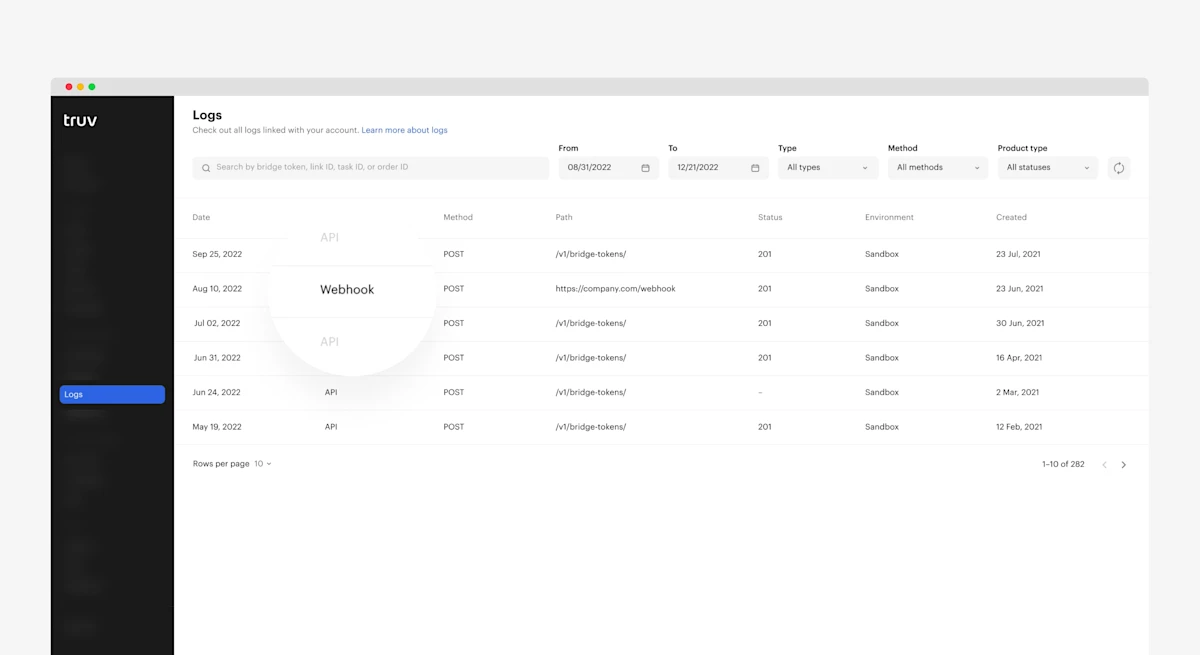
Truv customers need to easily find data during their underwriting process to maintain efficiency and reduce wasted effort. In support of this, we’ve updated the logs in our dashboard to now include webhooks.
When opening the log, users will see API events and webhook events. Clicking on a webhook log will give users access to the event that is using the webhook, header information, and body information. This dashboard adjustment will make it easier for users to find webhook information and should help them work more efficiently.
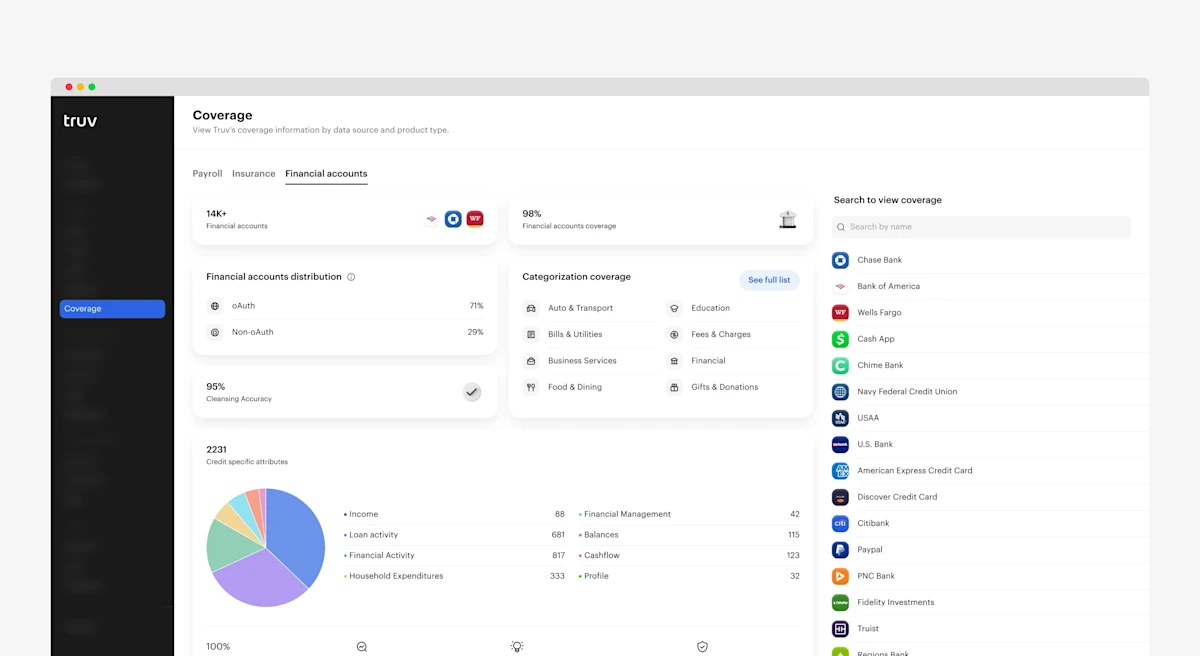
Truv has the best coverage in the industry, but its equally important to provide transparency into our coverage claims. This sprint we’ve added a detailed overview of our Financial Accounts coverage.
Users can find this information under the coverage section in the left side menu. The information in the Financial Accounts page directly relates to Truv’s Financial Accounts product used to verify income and employment. We will continue to provide transparency into our product coverage so that our customers can make informed decisions.
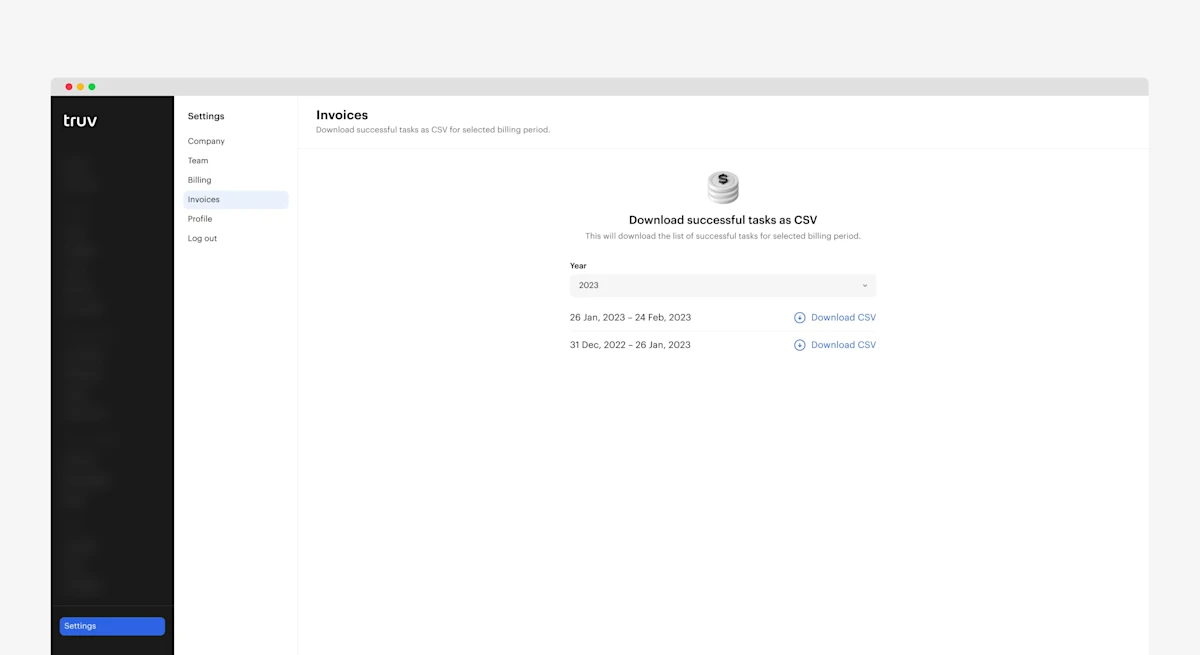
Truv is making it much easier to find and download invoices. In the Truv Dashboard we have added a new section dedicated to making it faster and simpler to find your Truv billing information.
Paying users will need to login to their Truv dashboard, navigate to the invoices tab on the left side bar, and the select the invoice they wish to view from the drop down list. This new invoice search process will provide transparency into Truv billing and help us better serve our customers!
Log into your dashboard today to try it out!
Summer is officially here…and Truv is bringing the heat! Our product team has been busy the past two weeks pushing product improvements to production. We’re happy to report the following feature changes…
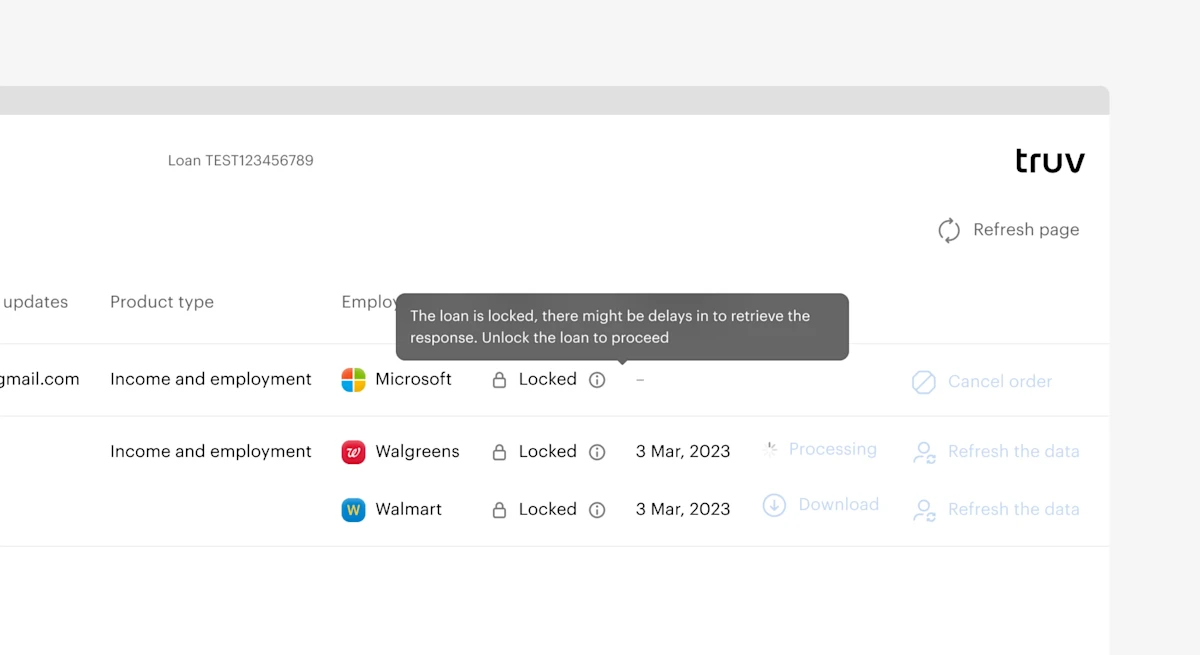
Encompass is where many of you choose to operationalize your lending business, which is why Truv is committed to providing you with the best user experience possible. This past sprint we’ve added visibility into the order status of an existing order.
- This gives someone working on the loan the ability to see if the order is locked before trying to take new actions.
- This feature will help reduce redundant work and keep Encompass orders in check.
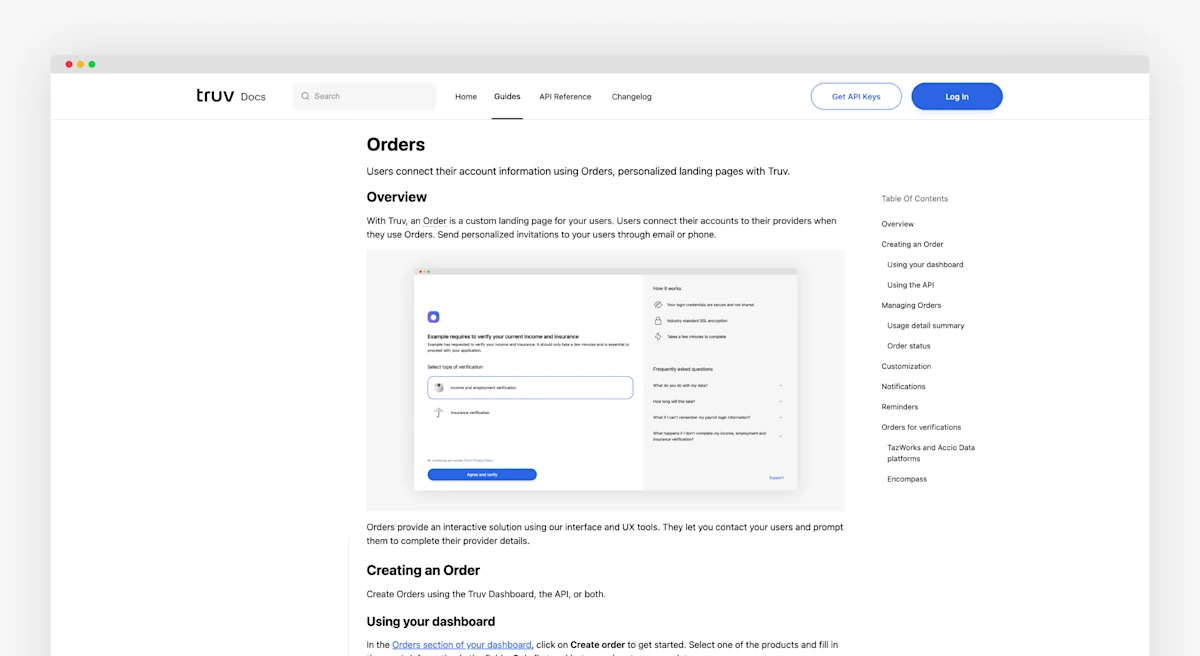
We’ve created a custom documentation link for Order Managers. When an assigned Order Manager clicks the docs button of the Truv Dashboard, they proceed to a dedicated docs page for Order management. This helps Order Managers find the right content more easily.
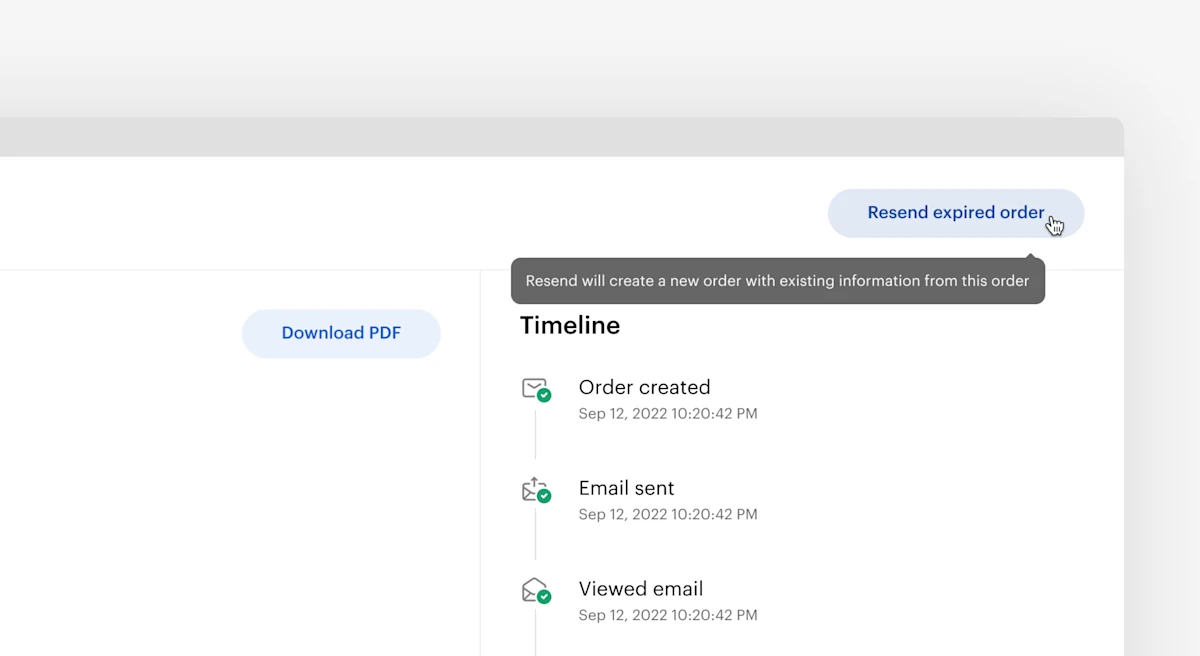
Truv has created a seamless way to resend previously expired Orders without having to start the order creation process from scratch. In the Truv Dashboard, users can click the envelope icon next to an expired Order. They can also click the Resend Order button after clicking into the Order details. When using the resend functionality, data from the previous Order including First Name, Last Name, Phone Number, and Email are automatically ported in. This helps create a more efficient workflow.
Our UI update for the Encompass Orders page adds a new field called Status Update. This field allows users to enter additional email contacts. This can be different managers needing notifications about updates to a specific Order status. This process now allows all relevant parties to stay informed on an Order status.
Encompass previously only displayed an overview of new Orders for Truv. We have now added tabs and let users to switch views between new Orders and Order status. We’ve also added new functionality to the Order status tab.
Encompass users can now cancel an order, download an Order report, or refresh Order data directly in the table. These buttons on the right of the table reduce the workload for Encompass users and allow them to create a more efficient workflow.
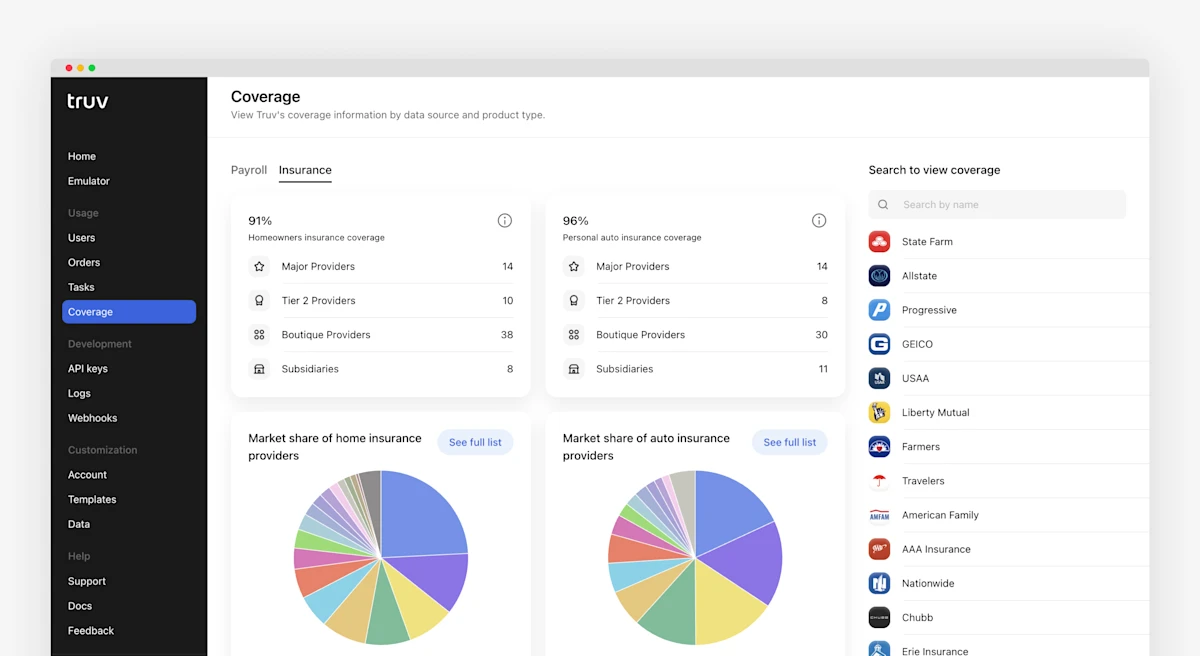
In the coverage section of the Truv Dashboard, we’ve added a new tab for coverage metrics for our home and auto insurance products. This view allows clients to easily verify the top insurance provider needed to verify insurance for their borrowers.
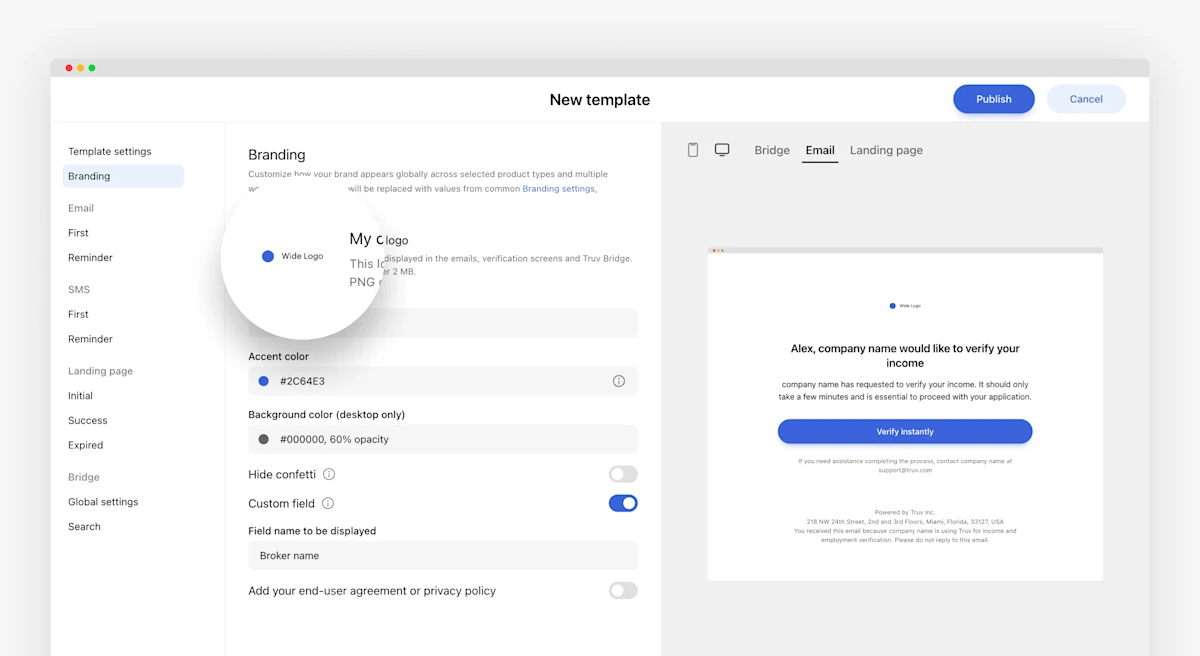
We’ve added Link ID to the Tasks tab of the Truv Dashboard. This provides users with a higher level view of the tasks and workflows.
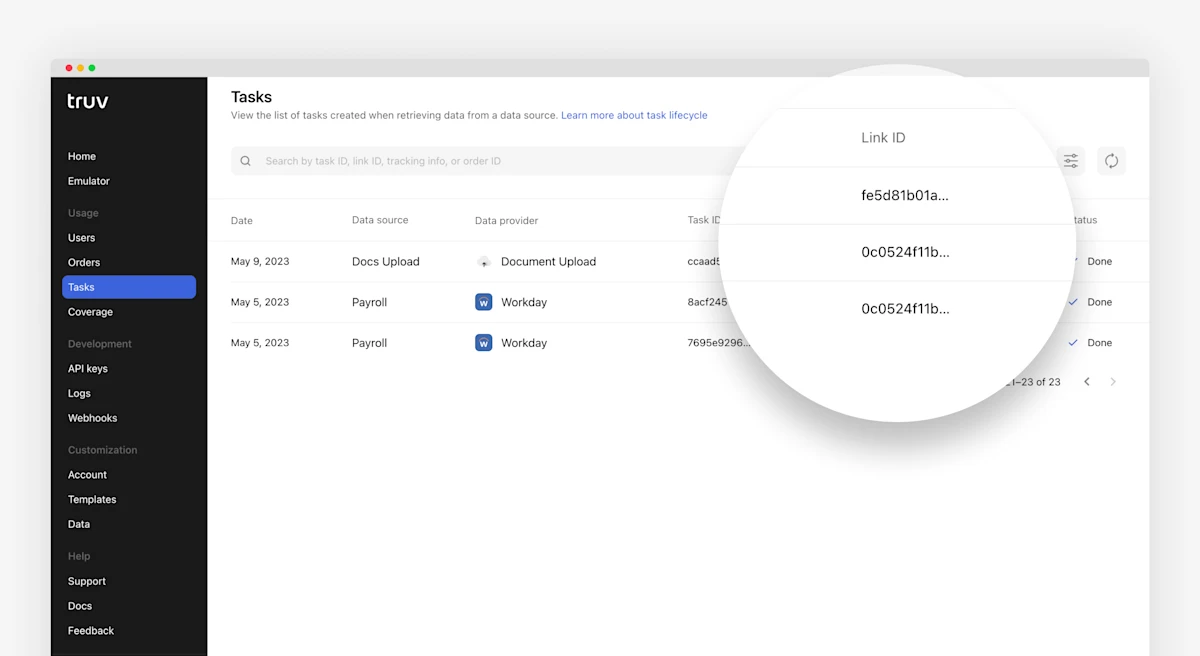
We’ve added the capability to upload rectangular customization logos along with the original square logos for a more cohesive experience. We’ve also made action buttons more prominent at the top of the page.
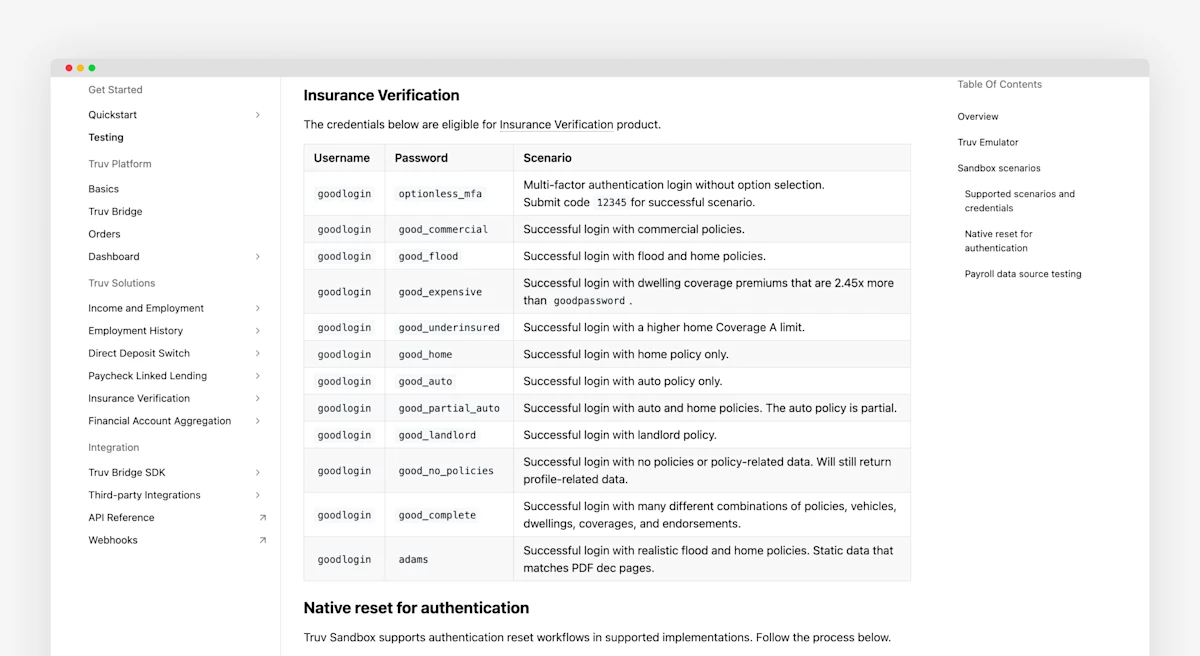
We’ve added 10+ new test case credentials for our insurance products into the Truv sandbox. This allows users to test all flows for Truv’s insurance functionality.
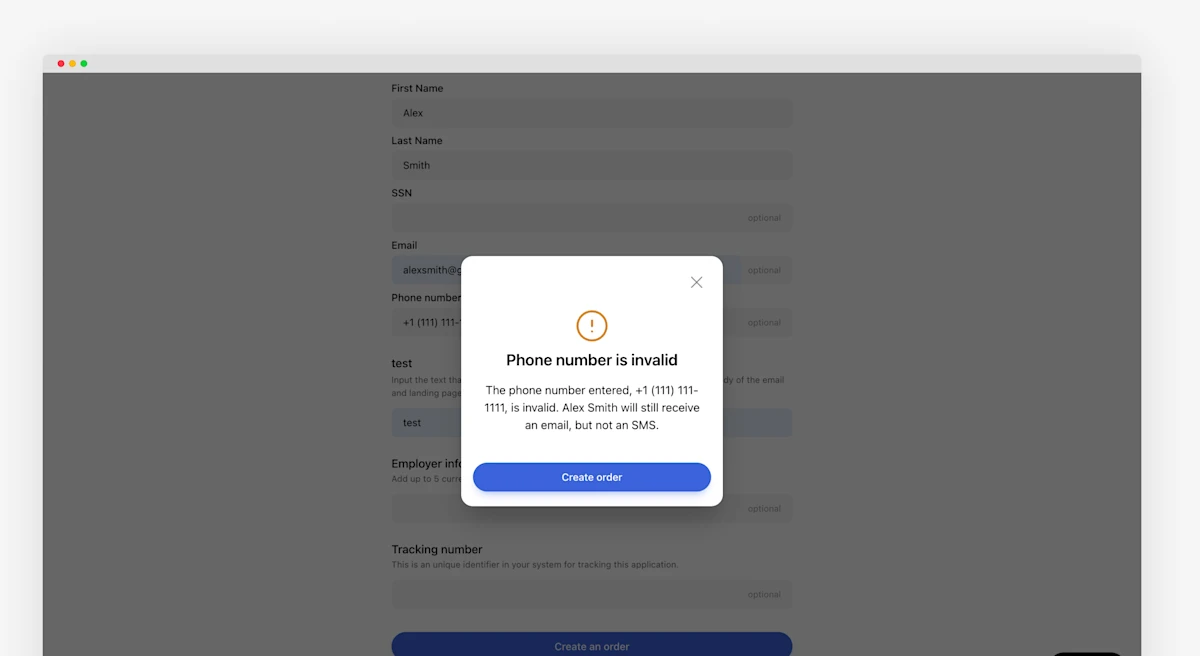
As part of your waterfall when an Order is created, we’ve had an issue where the Order creation screen is blocked if the applicant has a valid email and invalid SMS number. We’ve removed the validation to have both an email and phone number for an applicant. This simplifies creating Orders when a single valid channel can notify the applicants or borrowers.
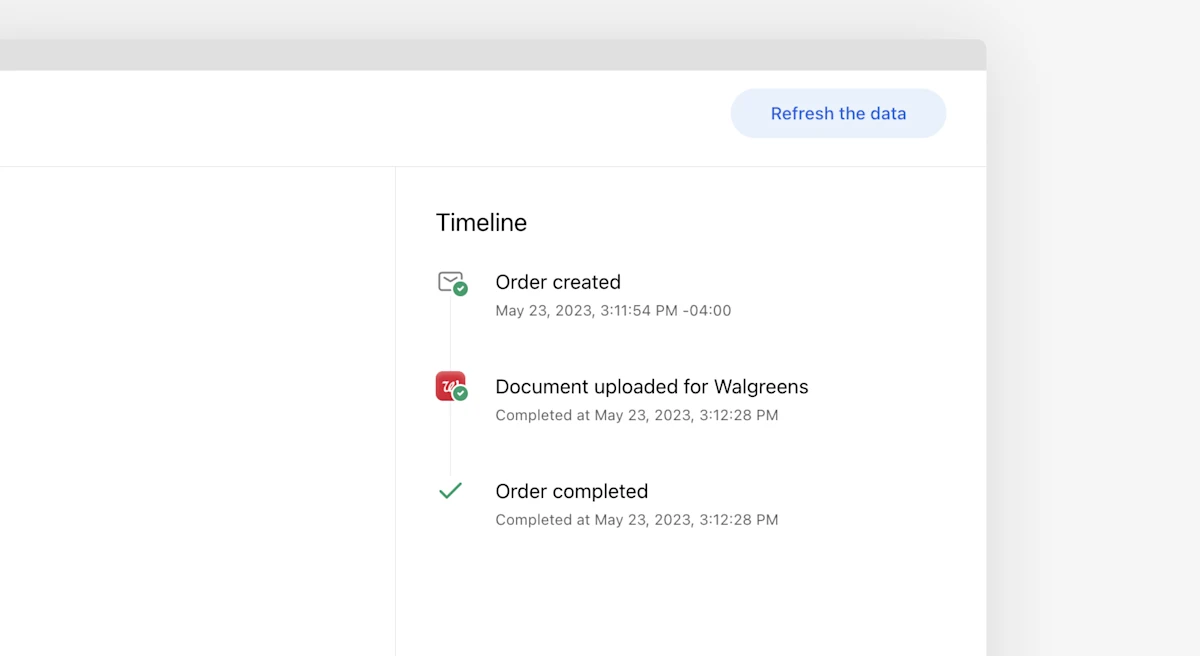
Truv has multiple data sources for receiving information and now we’ve added data source and data providers across Truv’s products. As part of this effort, we’ve added the same to the Order timeline. This provides a more granular view of completed verifications for Order managers. For example, notifications are available when a payroll provider was connected or a document was uploaded.
We’ve made enhancements in Encompass LO Connect and SmartClient based on feedback.
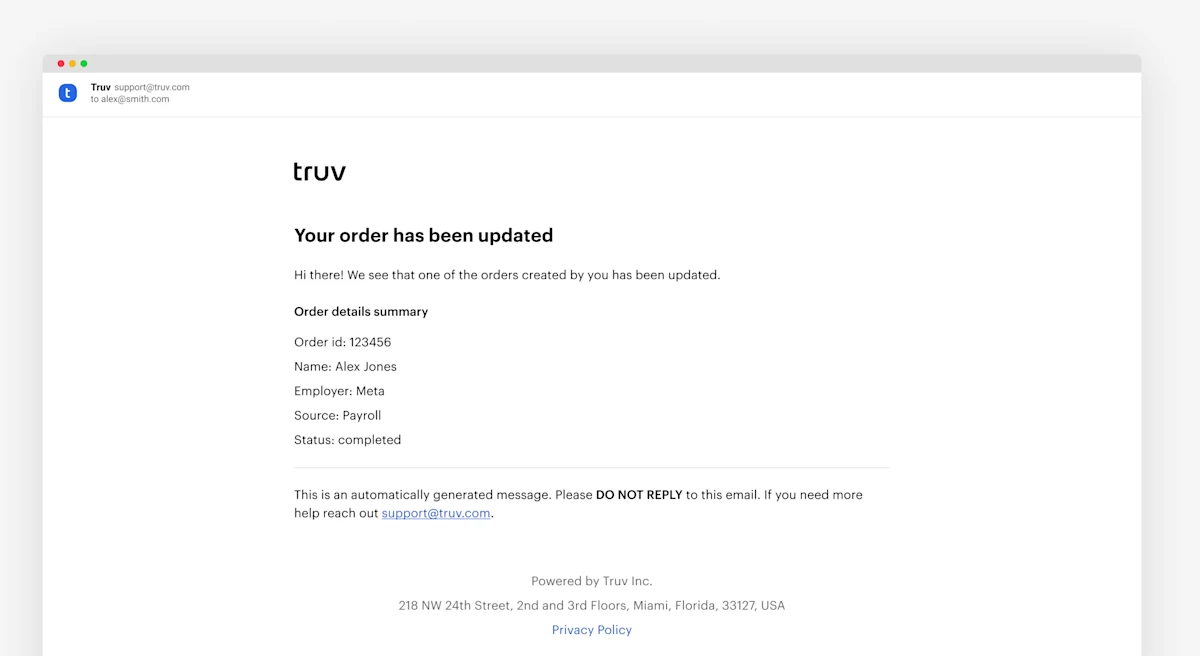
For Encompass clients, we have removed the Check order status button in Order notifications. These no longer redirect Loan Officers and Processors to the Truv dashboard. This update provides a more cohesive experience for all LOs.
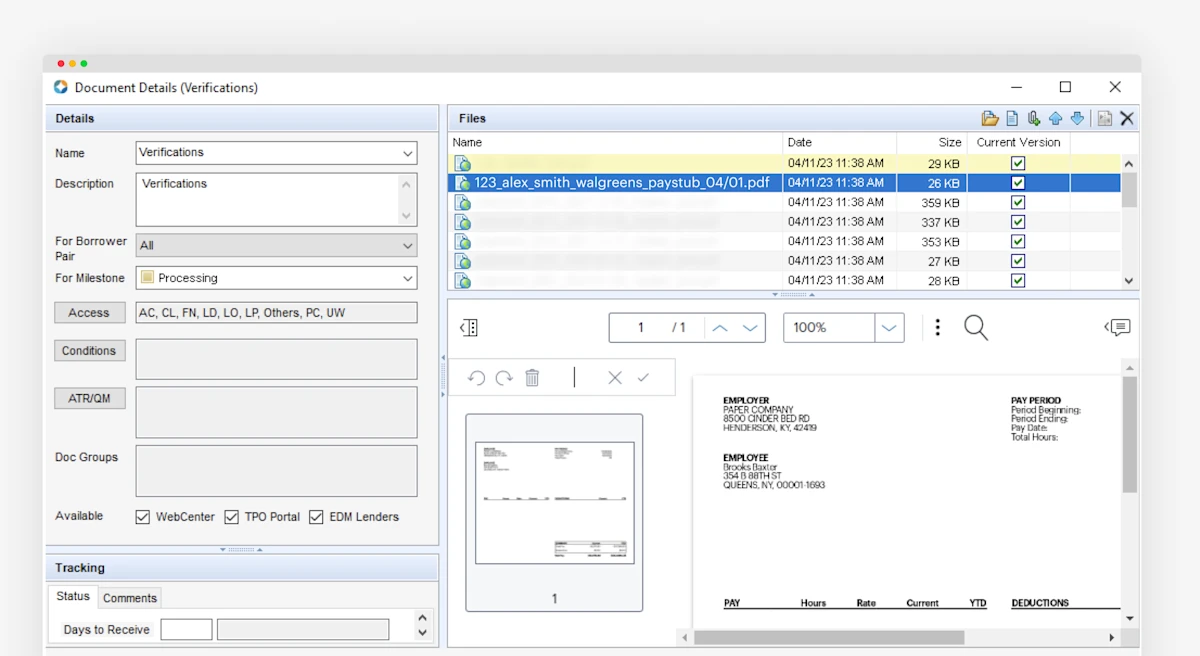
The numerous documents in eFolder without appropriate naming can be hard to differentiate. This applies for retrieving PDF reports, paystubs, as well as W2s. We’ve streamlined this experience by adding a naming convention to all documents returned from a verification check. This helps LOs and processors identify and organize the documents received from applicants.
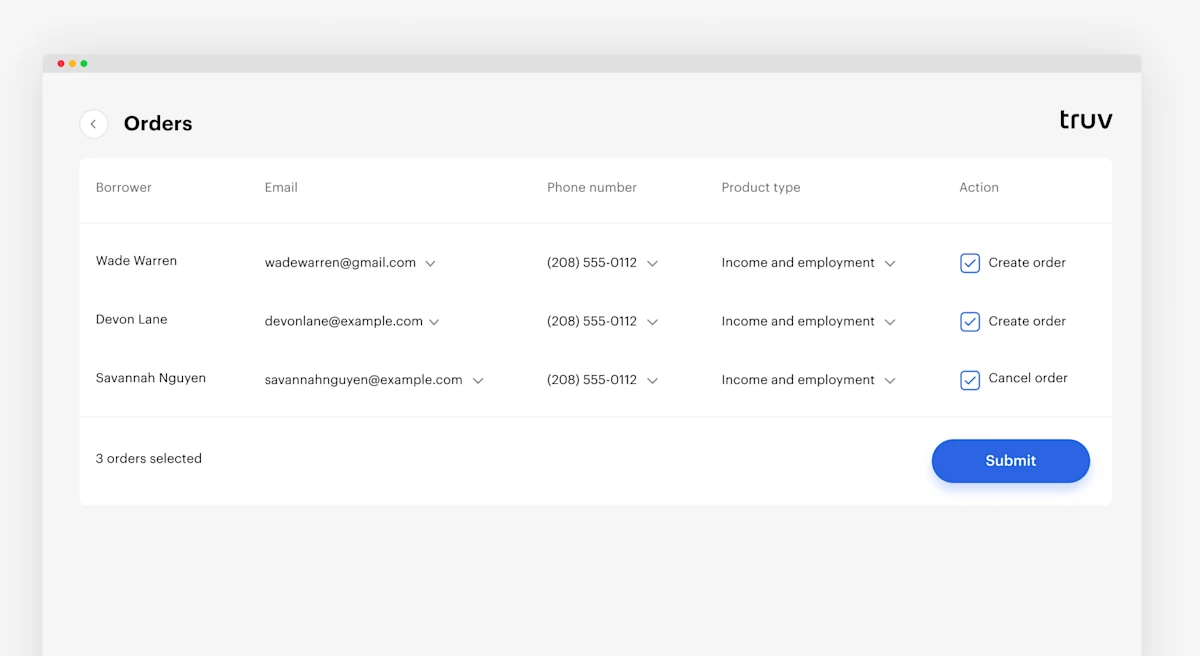
We have updated Truv flows to allow for the following enhancements.
- Default product type has been set to Income and Employment for creating Orders
- Loan Officers now can see applicant email and phone number when borrowers opt in to receive SMS updates
- On Order creation, the columns
StatusandOrdered dateare hidden to help streamline workflows
We’ve added additional customization to edit Headers and sub-headers within Truv Bridge as applicable. This allows fintech groups, lenders, and financial institutions to create a custom branded experience for their applicants. Contact your Truv implementation or customer support team to customize these items.
Feedback survey: At the bottom of the Truv documentation, you can provide feedback and let us know any issues you’re experiencing. Your feedback makes Truv better—let us know what you think!
UX Guides: We added UX guides to Truv Dashboard. These showcase the end to end experience of Truv implementation using various clients and platforms. These guides help users set up their own integrations and leverage Truv in different areas.
Field Masks: We’ve added security masks to the following fields, Account number, Social Security Number, and Date of Birth across Truv Dashboard. These provide a additional layer of privacy for sensitive information.
Templates Update: For existing templates, We are not allowing product names to be changed in the templates once created. We recommend creating new templates for product or combination of products.
Order Expiration Date Customization: We’ve added two new options when selecting the expiration date for orders. We’ve added a 3 week and a 4 week timeline to the existing options.
PDF Report New Field: We’ve added the Time Employed in Current Role field to our PDF reports. This requested field helps underwriters make informed loan decisions.