
Changelog
Get the latest feature updates in Truv
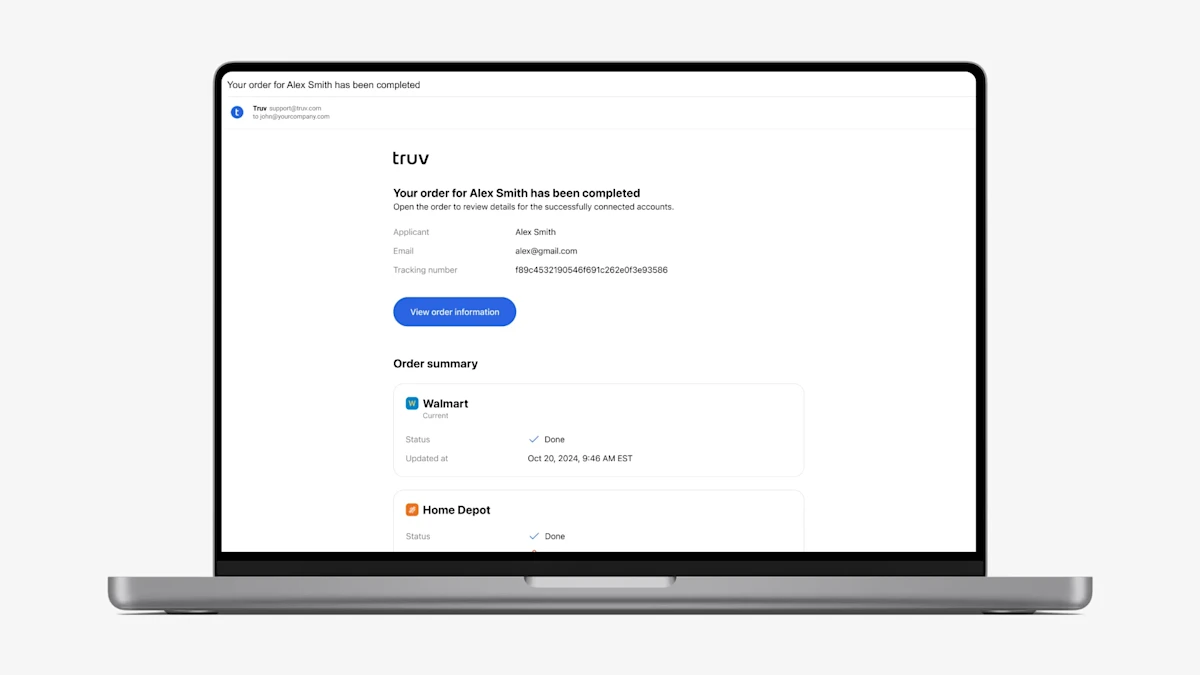
- Order-level status update emails: For Truv Orders clients, we previously sent a status update email to the Order Manager and any other CC’d roles whenever a suborder was moved to a terminal status (Completed, Expired, Canceled, Skipped by user, No data). This created a large volume of status update emails, since one order with three employers would have three separate status update emails. Additionally, if part of an order was completed, no information was shared about the remaining parts of the order, leaving Order Managers in the dark. To solve these problems, we introduced order-level status update emails.
- Now, if part of an order is moved to a terminal status (Completed, Expired, Canceled, Skipped by user, No data), we will wait 2 minutes to check if updates happen on the rest of the order. Once we detect no further updates, we will send a single email summarizing the status of the entire order.
- To make status updates more actionable, we include the last task status and number of attempts for the corresponding employer or providers in the order that are still in Pending, Sent, or Skipped status. With this information, Order Managers can decide whether to help the user complete the remaining parts of the order or pursue an alternative solution.
- Lastly, to provide more context and make the emails more searchable in your inbox, we added the following fields: End-user email, Loan number or Tracking number, Order ID, Source, Order expiration time
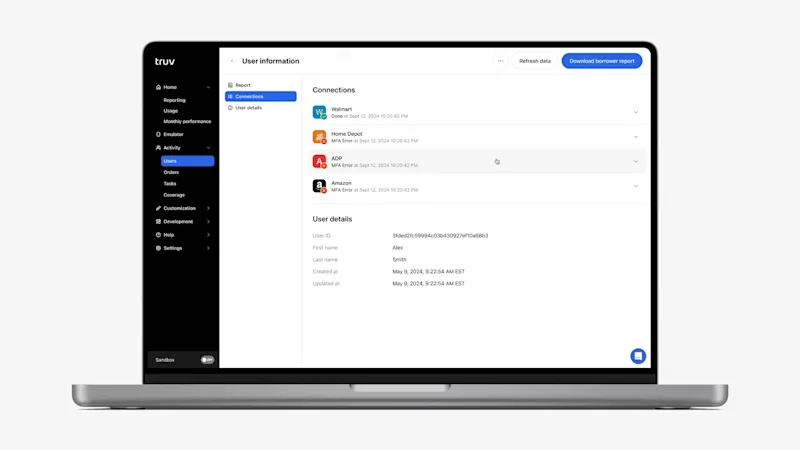
- New ‘Connections’ section added to Orders tab and Users tab (beta release): To increase transparency on progress and connection attempts for Orders and Embedded clients, we have added a ‘Connections’ section to the Truv Dashboard in the results. Open the Orders tab or Users tab (beta release only) in the Truv Dashboard, click a row, then navigate to the Connections section by either selecting the submenu or scrolling to below the Report. The section will show all attempts grouped by company or provider for the current product type. For each attempt, we show the company or provider, latest attempt result, updated at, tracking info, and a link to the corresponding attempt tasks. With this information, Truv Dashboard users can get visibility into login attempts that have not been successful. Previously this information was missing, making it hard understand the customers progress and help them through the process.
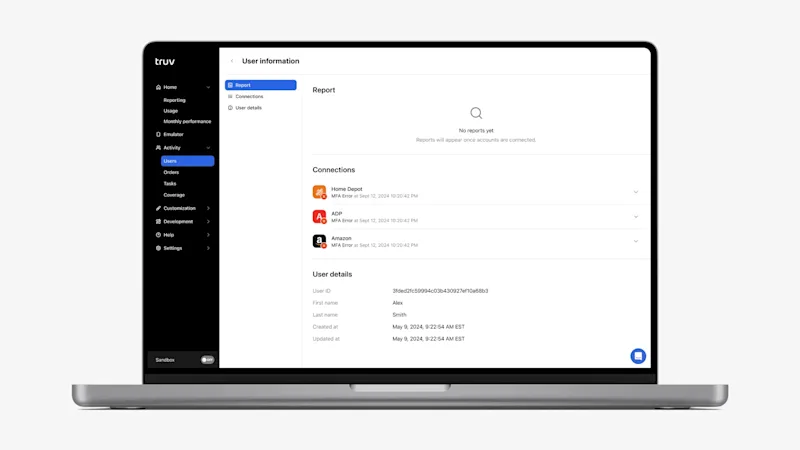
- Added Report and Connections placeholders to Orders tab and Users tab (beta release): Previously we only showed Order details or Users details for end-users that did not have any successful connections or reports. This made it unclear what should be returned where once a Truv request was completed. To solve this problem, we added a placeholders for the Report and Connections sections on the submenu and results section for both Orders and Users (beta release). Once results are available to show, we replace the empty states with the returned results.
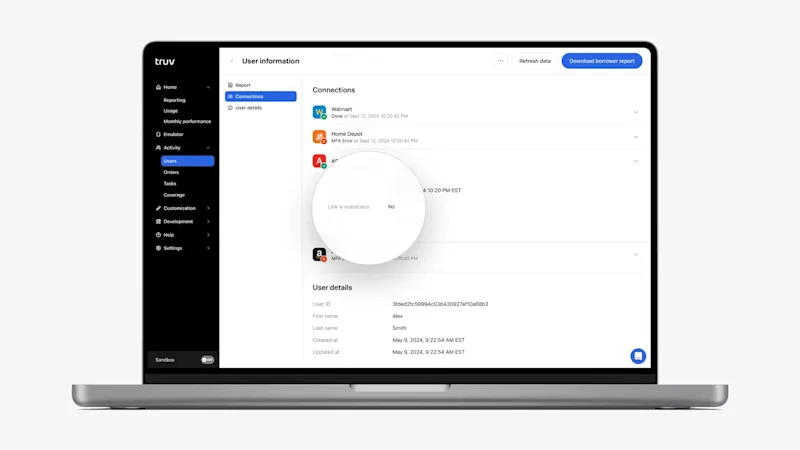
- Moved Link is suspicious field to the Connections level: To help identify fraud cases, we moved the ‘Link is suspicious’ field to the Connections level. Previously we showed a ‘Link is suspicious’ field in Truv Dashboard under Order details or User details. This field shows a Yes / No value depending on whether the SSN submitted to Truv matches the SSN returned from the connected provider. Since there can be multiple providers per order or user, it didn’t indicate which one exactly had the mismatch. To solve this we moved this field to each employer or provider under in the Connections section, so it indicates which exactly has the mismatch.
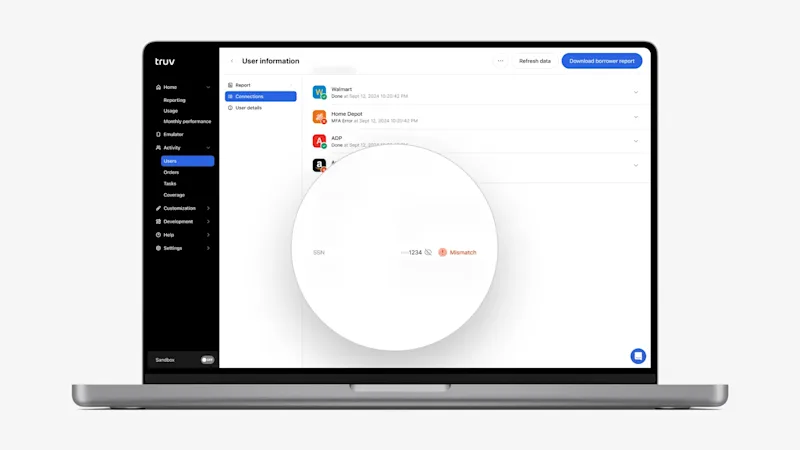
- SSN Mismatch indicator if a Link is suspicious: To further help identify fraud or suspicious cases, we added a red ‘Mismatch’ indicator next to the SSN field in Order details and User details in the Truv Dashboard. For the connections in the User or Order, if any have ‘Link is suspicious: Yes’, then a red ‘Mismatch’ indicator will be added next to the SSN field
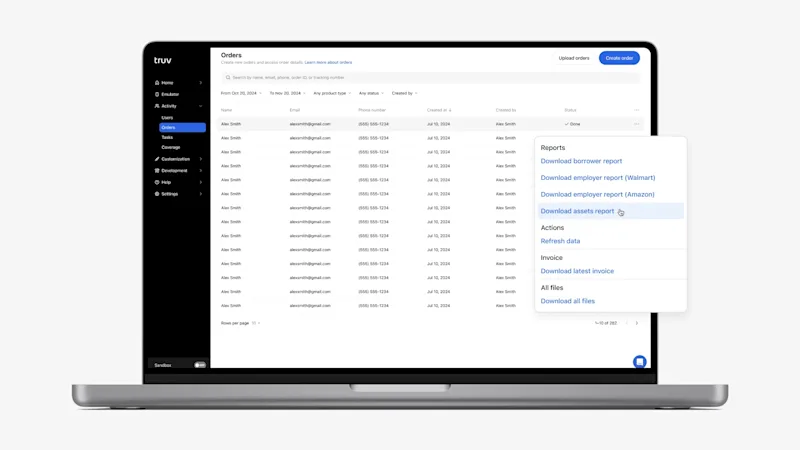
- Transformed action buttons into an ‘Actions’ dropdown: Previously we showed a variety of icons across tables in the Truv Dashboard for available actions. This created inconsistency in the experience and limited the number of actions that could be shown for each row. To create a consistent experience and make the Dashboard more intuitive, we have added a three dots ‘Action’ column to the end of tables (Orders, Templates, Webhooks). Once clicked, it opens up a dropdown with available actions grouped and summarized in plain text. Additionally, this column is now fixed in the tables, which can be horizontally scrolled to show additional columns.
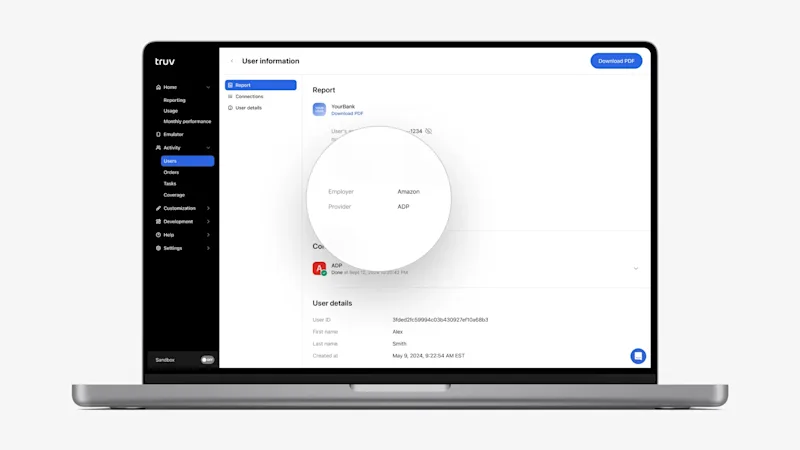
- Added Employer and Provider to the Report and for DDS and PLL products: For clients that used Direct Deposit Switch (DDS) and Paycheck Linked Loans (PLL) products in the Truv Dashboard, we previously only showed the connected bank and account information. There was no information about the employer or payroll provider that was connected to initiate the deposit switch or payment. Now in the Truv Dashboard in Orders and Users and in the Downloadable Reports (Download PDF), we include the connected Provider and Employer (if available).
- The corresponding changes have been implemented for the Direct Deposit and PLL Reports API. For details, refer to the API updates – December 2024
- Additional Error Distribution statuses in Dashboard Reporting: In Truv Dashboard in Home → Reporting tab, there is an Error distribution chart that shows a breakdown of login errors by type. We have added four additional error types that were previously missing: Account locked, Not supported, Session expired, Unable to reset.
Dashboard bug fixes
- For Orders clients, we previously showed both the Orders and Users tab in the Truv Dashboard. Since these tabs showed essentially the same information, we removed ‘Users’ tab access for companies with this workflow type to prevent confusion.
- There were some cases where suborders could be set to Error while the corresponding tasks were set to Done. These cases have been resolved so the suborder has the right status based on its task.