Changelog
Get the latest feature updates in Truv
- We fixed an issue where writing Report IDs to the GSE Additional Information fields would fail if invoice generation failed. Now there is no dependency.
- We fixed an issue where the Encompass loan number wouldn’t be propagated to the order for VOIE orders imported from a POS to Encompass.
November 7, 2025
Enhanced Timeline and Status Visibility in Encompass Order Status
- In Encompass LOS on the Order status tab, we have migrated the Timeline to our Retrieve events for an order public endpoint and made the following UI improvements:
- Timeline now shows when reminder notifications are sent, delivered, and opened by the end user via email and/or SMS.
- Showing terminal order statuses at the employer or provider-level to clarify exactly what part of the order was
completed,expired,canceled, etc. - Created a consistent formatting for events to include the employer/provider, timestamp and outcome in each case where available. Previously some key events like
Login attemptwere missing timestamps.
- In Encompass LOS, we have removed the configuration settings from the credentials management page, since these overlapped with existing settings on our backend. All lenders with in-use settings have been migrated to our backend settings prior to removal to prevent any service disruptions.

- When verifying assets, some lenders only want to pull transactions for specific periods without having to pull the entire transaction history, for example to validate an earnest money deposit. Truv has added the ability to generate to specify a specific date range while generating a new VOA / DVOE report.
- For lenders who want to update the Encompass loan file with data from the Truv VOIE, VOE or VOA report, we have added a feature to show loan and report data side-by-side and allow users to select which fields should be updated in the loan file.
- Reach out to Customer Success to have this feature enabled.
- Truv has been added to Encompass TPO Connect platform. Using the same credentials in TPO Connect and Encompass LOS, brokers can order Truv Verification of Income, Employment, or Assets. Then, when the loan is submitted to Encompass LOS, all verification details, documents and GSE Report IDs will be passed along with it.
- When lenders need to order a reverification prior to closing, they can simply refresh the data from the LOS.
- See our setup guide and reach out to Customer Success to get started!

- Introduced coverage indicators to orders for Verification of Assets: To give lenders in Encompass using Truv Verification of Assets visibility into likelihood of successfully connecting, we have extended the financial institution coverage indicators to the New order page of the Truv Encompass app.
- Added disable option in the ‘Transactions’ section of the Truv VOA report: There are tags for transaction categories to help lenders quickly understand borrower spending habits. We have added the ability to disable these tags in the report. Reach out to Customer Success at Truv for assistance.

- Automated cross-platform data flow from POS to Encompass: Truv has built out support for lenders who initially verify Assets in a point-of-sale (POS) and then originate the loan in Encompass. Truv now supports automatically importing the VOA report into the Encompass loan file and writing the Report ID to the Fannie Mae and Freddie Mac fields. Additionally, when the imported VOA order needs to be refreshed, lenders can select which financial institutions and accounts should be refreshed.
- Automated service ordering (ASO) multi-order condition: For lenders who want to use Encompass automated service ordering (ASO) to request both VOIE and VOA for a borrower, Truv now supports creating a separate VOIE and VOA order for a borrower with one ASO trigger.
- In some cases, VOIE orders imported from a POS to Encompass would show duplicate rows in the Encompass ‘Order status’ tab. This has now been resolved and only 1 row will appear.
- When refreshing a VOA order in Encompass, there could be a delay up to 1 hour between when the order was completed and the status would reflect correctly. The delay has been reduced to a maximum of 10 minutes, which will be further reduced in the coming weeks.

- Customize ‘Large deposits’ threshold for VOA Reports: For some loan types, lenders wanted the ability to return all deposits in the ‘Large deposits’ section of the VOA report.
- We now allow allow “0” dollars for the ‘Large deposits’ threshold, which will return all deposits across connected accounts.
- You can also hide the “Large deposits’ section completely by ensuring the box is unchecked.
- New tags for undisclosed debts added in VOA Reports: To improve visibility into potentially undisclosed debts in Truv’s Verification of Assets report, we added a set of tags in the ‘Transactions’ section for BNPL, Payday Loan, and P2P transactions. If we detect a transaction in any of these categories, it will have a tag in the PDF and Dashboard Report.
- Customizable status update recipients: A new field mapping has been introduced to support mortgage lenders with custom roles, enabling the option to auto-send order status updates to any CC’d email addresses. Refer to our guide for setup instructions. See our setup guide or reach out to Customer Success for help.
- Automated service ordering (ASO) multi-order condition: To enable more granular control over Automated Service Ordering (ASO) in Encompass, we have added the ability to specify whether companies with the ‘Not enough data’ indicator should be preselected in Encompass. Reach out to Customer Success for setup help.
- The days requested field for Assets in Encompass had a minimum of 31 days, instead of 30, which has now been fixed.
- Introduced June 17 → Fixed July 18

- Pre-fill financial institutions from loan application: To help lenders verify required financial accounts, we added the ability to import financial institutions (FIs) from the ‘Assets’ section of the Encompass loan application into the Truv application.
- Truv automatically adds the unique FIs per borrower from Encompass into the ‘New order’ tab of the Encompass app. Lenders can select up to 5 FIs to be included in the order per borrower.
- When the borrower opens the order, they will be prompted to sign-in to each of the requested FIs. Report data will be uploaded as its completed so there is always access to the most recent data as soon as its available.
- If no FIs are included in the order, the borrower will be prompted to select one to connect in the Truv bridge.
- VOA and DVOE report disclaimers: To provide clarity to loan teams while reviewing the VOA and DVOE reports, we added disclaimers to the Large deposits, Account owner information, and Transactions sections. The disclaimers clarify that no data for the corresponding section was available for the period requested.
- Added pending transactions to assets reports: To give clients additional visibility into deposits and withdraws, we have included pending transactions in the VOA and DVOE report, with a ‘pending’ label under the date field.
- Corrected report ID prefix from “Truv” to “TRUV” for Freddie Mac LPA submission and backfilled for previous reports. This was preventing data ingestion while running LPA.
- Introduced June 13, 2025 → Fixed June 26, 2025
- Stopped writing VOIE report ID to generic Fannie Mae report ID field. This data is ingested using Truv’s dedicated field (GSEVENDOR.X50), and in some cases this was causing the VOA report ID to be overwritten.
- Introduced June 13, 2025 → Fixed July 2, 2025
- VOA and DVOE report disclaimers: To provide clarity to loan teams while reviewing the VOA and DVOE reports, we added disclaimers to the Large deposits, Account owner information, and Transactions sections. The disclaimers clarify that no data for the corresponding section was available for the period requested.
- Added pending transactions to assets reports: To give clients additional visibility into deposits and withdraws, we have included pending transactions in the VOA and DVOE report, with a ‘pending’ label under the date field.
- Hide large deposits section in templates for verification of assets report: For clients that don’t want to see the large deposits section of the VOA report, we have added a toggle in Truv Dashboard Customization → Templates. If a template has Assets product type, there will be a ‘Large deposits’ toggle in the ‘Report’ section to control whether this section is included in the VOA report or not. If the section is disabled, the field will also be hidden from Dashboard and Encompass order pages.
- Automatically write VOA Report IDs to GSE fields: To support mortgage lenders who use Truv’s Verification of assets product in Encompass, we now automatically write the VOA Report ID to the GSE fields with the following format
- Fannie Mae Additional Provider Fields (GSEVENDOR.X37, GSEVENDOR.X38):
Truv:{voa_report_id} - Freddie Mac Additional Provider Fields (GSEVENDOR.X43, GSEVENDOR.X44):
TRUV:{voa_report_id}
- Fannie Mae Additional Provider Fields (GSEVENDOR.X37, GSEVENDOR.X38):
- Generate a new report functionality: To enable lenders to include only necessary data in the VOA or DVOE Report PDF, we have added an option to generate a new report in Encompass. For a completed order, click “Generate new assets report” in the Actions list, then select which accounts should be included and the Days requested. Truv will generate a new version of the assets or dvoe report and upload it to Encompass.
- Added timestamp to report file name: To help lenders differentiate between different versions of Truv reports that are uploaded to Encompass, we have added a timestamp to the end of the file name.
Encompass bug fixes
- Encompass Doc Upload Fix: Some documents were not uploading to Encompass as expected, leading to confusion during re-verification workflows. We’ve fixed an issue where VOE orders submitted through Floify were not being registered in the Truv Dashboard and, as a result, were not delivering documents into Encompass. Now, all relevant documents appear in the Orders tab and are successfully uploaded, ensuring visibility and continuity across systems. This resolves the gap between Floify submissions and Encompass delivery.
- Introduced Feb 24, 2025 → Fixed By Apr 07, 2025

- Allow creating new open order: To address use cases where clients cannot capture all VOIE data due to the employer changing payroll providers while the borrower was employed, we have introduced the ability to create an open order in Encompass.
- In ‘Order statuses’ tab, for any orders where all employers are in a terminal status, there is now an action to ‘Add income source’.
- This opens a pop-up where the user can select up to 5 additional employers or payroll providers that require verification.
- Once the pop-up is submitted, a new order will be created and sent to that borrower with the requested employers or payroll providers, which will function the same as any other Encompass order.

- Show ‘Not found’ success rate indicator in Encompass: Previously, unmapped companies were labeled with a ‘High’ coverage indicator, causing client confusion as they couldn’t distinguish between genuinely ’High’ coverage and unknown companies mislabeled as ’High’. In addition to updating this in the Truv Dashboard, we have also extended this to Encompass. If a company is added to Encompass that doesn’t exist in the Truv database, we will show a new indicator with a
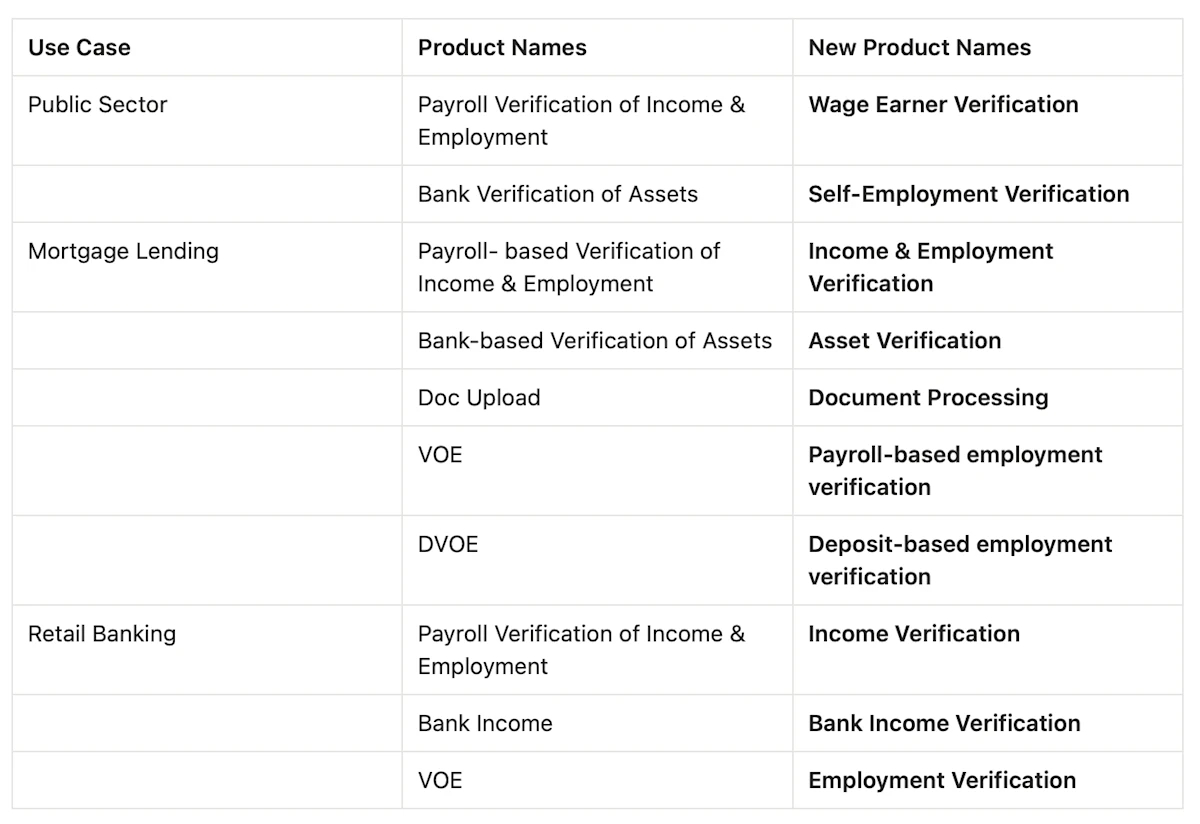
Company is not found in the databasetooltip. - Product name updates: We have updated product names across various locations in Encompass to correctly align with how they are billed by ICE. The new names have been applied in the following locations: New Order tab, Order Status tab, Re-verify data popup, Automated Option setup page and Report names. Naming convention changes:
Income and Employment→Verification of IncomeEmployment→Verification of EmploymentEmployment and Most Recent Paystub→VOE and Most Recent Paystub(for re-verification option)
Empower: In Truv Dashboard → Platform Keys, we have added a page for the configuration of Empower Party IDs. Previously clients planning to go-live on Empower needed to request Truv to manually configure their Empower Party IDs to unblock testing. Now, once clients have received their Client Implementation Guide (CIG) from the Empower implementation team, they can add Sandbox and Production Party IDs directly in Truv Dashboard and begin the testing process required for approval. Check our docs for more information (link)

- Show user-assigned templates only: To help with large lender usability, in Encompass → New order tab, we now automatically filter the list of available Truv templates in Encompass based on the list of templates they have assigned in the Truv Dashboard. Previously, if a lender had a large number of branches or DBAs, it would be difficult for the Loan Officer or Processor to identify their template in the dropdown list. Now that the list is filtered based on the user and selected product type, in most cases there should only be a handful of options to select from, making template selection significantly more user friendly.
- As an Admin or Owner, to check assigned templates in the Truv Dashboard navigate to Settings → Team page and select an Order Manager. The assigned templates are visible under the ‘Available orders’ field.

- Updated table UI and actions: In both the Encompass → New order and Order statuses tabs, we rolled out new standardized UI components for the tables. Tables now have horizontal scrolling to prevent crowded and overlapping column text on small screens. Additionally, in the Order statuses tab, we transitioned the action icons on the right side of the table into an organized action list that can be opened when clicking the three dots (…).
- Employer sorting: To reduce the likelihood of manually ordering Truv on the wrong employers in Encompass, we now sort employers in the Encompass → New order tab based on their order in the loan application.

- Warning pop-up when adding unsupported employers: To help Encompass users decide the best verification solution to use for each borrower or employer, we have added a warning pop-up when trying to add an Unsupported company (red caution icon) to the Truv order in the New order tab of Encompass. Note, if the Document Upload solution is enabled on your account and template, we won’t show this pop-up since the verification can still be completed successfully with this solution.

- Use Encompass values in Truv Templates: For lenders with a Correspondent or Broker or Wholesale business model, borrowers recognize the Loan Originator more so than the parent company. Within Truv Templates, there was no way to add this level of customization to the order email, sms or landing page text, which could cause delay borrower action due to uncertainty. We have added the ability to map any Encompass field to Truv’s custom field, which can then be used freely in the Template. To setup, check the below steps or our full guide:
- Go to Encompass Admin → Services Management → then select “Truv – Verification of Income/Employment” provider
- Select Field Mapping and create a [Encompass custom field] → “Maps To” → “custom_field” relationship in an open space
- Then navigate to Truv Dashboard → Customization → Templates, select a Template and add {custom_field} to any desired fields
- When an order is created from Encompass using this Template, if will pull the mapped field value and add it to the notification or landing page where {custom_field} is specified
- Encompass bug fixes:
- Fixed an issue where Employers didn’t align to Statuses in the Order statuses tab of the Truv Encompass app

- Coverage updates in Encompass (Web and SmartClient): To create a consistent experience in Truv Dashboard and Truv Encompass app, we have updated the Coverage Indicators in the Encompass ‘New order’ tab to a green “thumbs up” icon, yellow “thumbs up” icon, and a red “warning sign”. Also, we have moved them to a dedicated “Truv’s success rate” column and updated the tooltip text to provide more details and recommended actions. The clearer indicators and actionable tooltips will help new order creators in Encompass quickly ramp up and optimize their usage of Truv.

- Updates to Status Update column: In the Encompass ‘New order’ and ‘Order statuses’ tabs, we have a Status updates column that allows the order manager to add email addresses that will be CC’d on status updates for the initial or refresh Truv order. There were some cases where a user wouldn’t be able to add or delete an email address. To fix this issue, we have updated the pop-up to match the standardized pop-up in the Truv Dashboard, as well as listing the email addresses vertically and adding dedicated buttons for adding, removing and saving.

- Previously, we only allowed customization in the number of employers that could be requested while setting up an Automated Option to be used in Encompass Automated Service Ordering (ASO). To enable control over additional Truv order parameters while setting up ASO scenarios, we have expanded the Automated Option configuration page to allow selection of
- Product Type,
- Truv Template, and
- Borrower Notification Methods and
- removed setting the number of employers requested (default is now 5, Truv’s maximum). This unlocks a huge amount of customization within ASO since order branding, verbiage, returned documents, expiration periods and so much more can be edited in Truv templates, which can then be used in specific ASO scenarios.
- To access the new setup page, navigate to the Automated Options page when adding or editing a Service Order for Truv.
- If new to setting up ASO or you need help, check our setup guide at: https://docs.truv.com/docs/automated-service-ordering-setup-guide
- Set ASO conditions based on Truv Coverage: To increase the value and effectiveness of ASO with Truv, we added settings to allow lenders to specify which success rates they want to order ASO on. Previously, lenders could control the loan scenario and timing of ASO by using Encompass fields, but there was no control for the Truv’s success rate with the given employers. As a result, ASO would order Truv in cases where there was a low likelihood of success, instead of choosing an alternative method. Now lenders can incorporate this criteria into their ASO setup to avoid low success, high friction transactions and maximize their ROI with Truv. Reach out to Truv Implementation to request enabling this feature.

- Additional config for Re-verification: We have extended the functionality to approve or deny re-verifications that require borrower re-authentication to Encompass. Sometimes, if lenders know a 10 day pre-closing re-verification is going to require borrower re-authentication, they prefer to use an alternate method. Now, if lenders have the ‘approve re-verify’ setting enabled, when the order manager presses “Refresh data” in the ‘Order statuses’ tab, they will be prompted to Notify or Cancel before the request is sent, if borrower re-authentication is needed. Contact Truv Implementation to enable this feature.
- Borrower Report Naming Update in eFolder: Truv has a Borrower-level Report that includes a GSE Report ID and an Employer-level Report that does not. For lenders who have Truv’s Employer-level report enabled in Encompass, there were some cases where it would be named and tagged as a Borrower-level Report before being uploaded to the eFolder and ‘Order status’ tab. This has been corrected so the report will now be named and tagged correctly.
- Before the fix, Employer-level Report uploaded to Encompass as follows
- Document name:
{loan ID}_{borrower name}_{employer}_voie_report - Type:
report
- Document name:
- After the fix, Employer-level Report uploaded to Encompass as follows
- Document name:
{loan ID}_{borrower name}_{employer}_employer_report - Type:
employer_report
- Document name:
- Before the fix, Employer-level Report uploaded to Encompass as follows
- In the Truv Encompass app in the ‘New order’ tab, previously we always required a borrower’s email address to be added for Truv order creation. To address cases where only a phone number is available at the time of Truv ordering, we enabled order creation if either an email address or phone number are provided.
- To enhance Automated Service Ordering (ASO) scenarios lenders can setup with Truv, we enabled using the Truv order status as a custom field in Encompass. To enable this feature, in Encompass navigate to Services → Service Management, then Truv → Field Mapping. In the Field Mapping page, add a custom field in the ‘Encompass Field ID’ column, select ‘Mapping Type’ as “Maps To”, then add ‘Provider Field Name’ as “partnerStatus”. Once saved, the mapped custom field that will show the Truv order status can be used as an ASO condition.
- In the Truv Encompass app in the ‘Order statuses’ tab, we fixed issues where the ‘Download’ button would be stuck in Pending status. Now once a verification is complete, the report should be available from the Download button once regardless of the status of any other employers in the order.
- Additionally in the ‘Order statuses’ tab, we previously showed a Refresh button for each employer and only one Download button aligned to the top employer. Having some buttons duplicated and others not created a confusing experience, so we now we only show one Refresh button and one Download button per order.

- To give lenders using Encompass visibility into success rate before placing an order, we added success rate indicators to the ‘New order’ tab of the Truv app in Encompass. These indicators match what is shown in the Truv Dashboard → Create order form and Truv Dashboard → Coverage tab.
- Green – verification expected to succeed, send the order
- Yellow – may succeed, send if the user is confident or guide them through the verification
- Red – verification via payroll is not feasible, try an alternative method
- To help streamline lender ordering, we added a setting to default add the Borrower’s cell phone number from the loan application as a notification method. Reach out to implementation@truv.com to enable this feature.
- In the Encompass loan application, previously if a lender deleted an employment, we would still show an empty placeholder in the Truv app in Encompass → Create order tab. This causes confusion and could result in sending borrowers blank orders to complete that weren’t required. Now, when an employer is deleted, we won’t show an empty placeholder row in the Create order tab and will only show rows for valid employers in the application.
- After an initial verification of Income and employment is completed, lenders can order a reverification in the Encompass Truv app → Order status tab by pressing “Refresh data”. Lenders can select ‘Employment and most recent paystub’ as a refresh option which will generate a verification of employment report and return the most recent paystub. Previously, we only attached the paystub to the verification report and did not upload it to the eFolder causing confusion and delays. We now also upload it to the eFolder so it will be easily accessible in the loan file and speed up the reverification process.

- In Encompass we enabled ordering Truv verifications for Disability, Social Security, and VA Benefits NonEducational income sources. When one of these eligible benefit types is entered into ‘Section 1e. Income from Other Sources’ in Encompass, it will automatically appear as a verification option in the Encompass Truv app. When the borrower successfully completes the order, we will return a report and the most recent Benefits Letter.

- In Encompass, we’ve added a setting to pre-select ‘Current’ employers in the Truv order creation screen. Any employers entered into the Previous Employment section in Encompass won’t be pre-selected. This feature is also applicable to clients using Automated Service Ordering called as ASO. If the lender creates Truv orders automatically with ASO, the order will be placed with only the pre-selected ‘Current’ employers. Reach out to the Truv team to enable this setting.
- In Encompass, previously we had a setting to automatically CC the email address of the Loan Officer and/or Loan Processor on the file to status updates for the Truv Order. This was previously only working for Manual Truv orders. We have now scaled it to also work for Automated Service Ordering (ASO). If an Encompass role is set to automatically be CC’d for Truv status updates and an ASO order is placed, they will be CC’d. Reach out to the Truv team to enable this CC setting.

- Previously, lenders couldn’t change the CC email addresses for Truv order status updates prior to refreshing the data in Encompass. We now allow users to add or delete email addresses in the Status updates column for completed orders, prior to ordering a refresh. This is particularly useful for lenders who need to keep underwriters, closers or others in the loop when a 10 day PCV of employment has been ordered.
- An option has been added to the Verification of Employment (VOE) product for creating refresh orders that include receiving the most recent paystub as part of the result. Reports are now automatically uploaded to the Encompass eFolder for streamlined management.
- Clients now have the ability to configure if the borrower needs to be notified for order refreshes when a backend refresh fails. Once configured, order creators will get notified when an approval is needed. Once approved, this triggers a notification to the borrower allowing the loan officer to better control the timelines when the loan is closing.

- Based on the recent guideline by Fannie Mae and Freddie Mac, for re-verifications, Truv has added an option to include the
Verification Of Employment(VOE) and the most recent paystubas an alternative to the manual solution. If selected this option Truv now retrieves the VOE for the 10-day PCV and the most recent paystub as an attachment. This change has been reflected in Encompass as well and when this option is selected we upload the most recent paystub into Encompass eFolder as well. - For originations placed via a point-of-sale, Truv now has added an option to place the re-verification via Encompass.
- For Verification of Income and Employment orders that are refreshed in Encompass, we now preselect the ‘Employment’ option, to make pre-closing reverifications of employment easier for lenders.
- Unassigned Folder: As a fast follow to our eFolder Support feature that was release in May, now, lenders now have the option to send all returned documents from borrowers into the Unassigned File section within the eFolder. This offers more visibility into specific documents for underwriters, processors and loan officers if needed. From the Unassigned File section, the documents can be relocated into the eFolder.
- New implemented configuration for custom eFolder Document Folders now enables automatic storage of various document types such as Paystubs, W-2s, 1099s, Invoices, Employer and Borrower reports.
- Email update: Loan Officers now have the option to use CC for status update notifications via email upon order creation.
- Notifications are now available for Loan Officers (LO) once an order is created, indicating that the borrower has been informed via email/sms with the notification link. This ensures prompt communication and transparency throughout the process.
- We added short links in place of long URLs.
- Added a client level setting to show or hide the links per client. Please reach out to Truv Implementations team to change this behavior.
- Truv always showed available templates in Encompass UI. We had the view limited to 10, but have now increased it so you can view all applicable templates in Encompass.
- For borrowers, we added a
Currenttag to indicate their current employments, assisting Loan Officers (LO), Loan Officer Assistants (LOA), and processors in identifying the borrower’s current employer and facilitating re-verifications. - In status update emails, we included Loan Number, Loan Originator, and Loan Processor details, providing recipients with comprehensive information for efficient tracking and communication.
- Improved design for order manager notifications regarding order status changes, featuring loan number, loan originator and what employer was ordered tailored to each status (CANCELED, EXPIRED, SKIPPED and COMPLETED), aiming to provide loan officers or operations team with clearer insights and facilitate decision-making. You can use it in both Encompass and Truv dashboard.
- Implemented a re-verification status warning for orders experiencing auto-refresh failure, where borrower engagement is needed. This specifically helps when the loan is about to close so LO’s and LOA’s can decide when to notify the borrower.
- Previously, the automated triggering(ASO) functionality activation left LOs without notifications upon order creation, resulting in uncertainty regarding borrower contact timing. Now, with the implementation of alerting, seamless communication and borrower interaction are facilitated.
- Enhanced the reporting functionality to include all employer level reports in Encompass eFolder for all borrower/co-borrower pairs along with borrower reports.
Borrower involvement for re-verifications
- We always try to do a BE refresh in case of re-verifications
- However, if there is an odd chance when borrower needs to be involved, we will let the LO/LOA know on click of re-verification.
Allow to copy-paste Truv Order URL and/or resend link to borrower
- In Encompass now the link is available if LO wants to just copy – paste the link and send it to the borrower via text or email.
Employer level reports available in eFolder
- In addition to Borrower level reports(submitted to GSE’s), paystubs, W2 now employer level reports are available in Encompass eFolders.
- This means LO/LOA’s no longer need to wait for the full order to be complete.
Changed defaults for lock behavior
- Applies to Encompass SmartClient only. Used to be 15mins for every 24 hrs now we request refresh every minute when the loan file is in locked status.
- In Encompass Web aka Encompass LOConnect, this is just an automatic refresh.
Canceling specific employments for a borrower
- Now you can cancel 1 out of many employers requested from the Encompass UI per borrower, this is similar to re-verification you can select what employer to re-verify, now after you have placed the order you can cancel 1 or more employers only for a specific borrower.
Borrower consolidation
- Now you can place multiple orders for the same borrower and Truv will consolidate all the reports per borrower in Encompass.
- This is helpful if LO’s/LOA’s have placed multiple orders for a specific borrower, we will consolidate before submitting to GSE’s.
- Incorporated employer level reports in Encompass eFolder in addition to Borrower reports, paystubs/1099’s and W2’s. No more waiting and get employer level reports as the borrower completes the verifications at the employer level.
- Cancel employers for a borrower or co-borrower at any time in the Truv experience in Encompass. We understand you may not need to wait to see if the borrower or co-borrower connected current and prior employments. You now have the flexibility to cancel or re-verify at the employer level.

Truv has a significant number of mortgage customers who use Encompass as their Loan Origination System, which is why we’re committed to providing you with the best user experience possible.
- This past sprint we’ve added visibility into which documents are available and we’ve further synced the Truv dashboard with the Encompass experience. When viewing an order status in Encompass, users will now see a
Processingstatus for any documents that are still being uploaded via API. - Once the documents have been added to Encompass, users will be able to view and download documents from the orders status screen.
This enhancement helps to clarify which verification orders are completed and which are waiting for documents to be processed via successful connections.

To further improve our Encompass integration, we’ve taken the loan number from inside Encompass and put that information in the Truv dashboard.
This will make it easier for you to reconcile verifications between the Truv Dashboard and your Encompass instance to find the information necessary to underwrite a loan.
Summer is officially here…and Truv is bringing the heat! Our product team has been busy the past two weeks pushing product improvements to production. We’re happy to report the following feature changes…

Encompass is where many of you choose to operationalize your lending business, which is why Truv is committed to providing you with the best user experience possible. This past sprint we’ve added visibility into the order status of an existing order.
- This gives someone working on the loan the ability to see if the order is locked before trying to take new actions.
- This feature will help reduce redundant work and keep Encompass orders in check.

We’ve made big quality of life improvements for our customers leveraging Encompass. These UI changes help optimize Encompass workflows and reduce confusion across Truv functionality within Encompass.
We’ve made enhancements in Encompass LO Connect and SmartClient based on feedback.

For Encompass clients, we have removed the Check order status button in Order notifications. These no longer redirect Loan Officers and Processors to the Truv dashboard. This update provides a more cohesive experience for all LOs.

The numerous documents in eFolder without appropriate naming can be hard to differentiate. This applies for retrieving PDF reports, paystubs, as well as W2s. We’ve streamlined this experience by adding a naming convention to all documents returned from a verification check. This helps LOs and processors identify and organize the documents received from applicants.

We have updated Truv flows to allow for the following enhancements.
- Default product type has been set to Income and Employment for creating Orders
- Loan Officers now can see applicant email and phone number when borrowers opt in to receive SMS updates
- On Order creation, the columns
StatusandOrdered dateare hidden to help streamline workflows
Order Notifications: We’ve added Encompass notifications of order statuses for order creators. These notifications include User Name, Employer Name, Order ID, Source, and Status. This allows an organization to keep creators informed and work more efficiently.