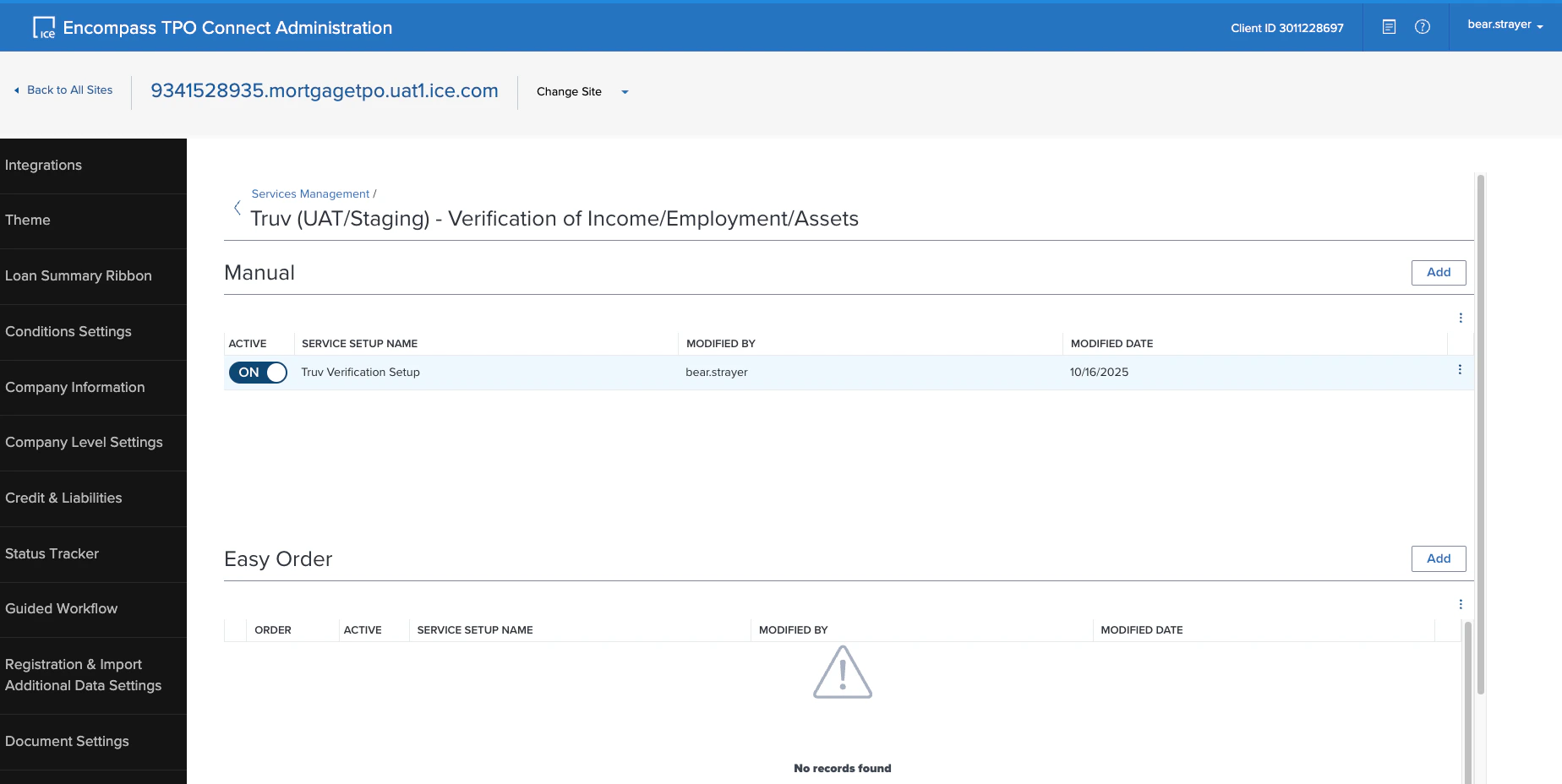
Truv Verification of Assets, Income, and Employment can be enabled in Encompass TPO Connect, allowing broker, wholesale, and correspondent channels to order Truv verifications before submitting the loan to Encompass LOS. Once a loan is submitted, all verification data and files are automatically transmitted to Encompass LOS.
If using Truv in both Encompass TPO Connect and Encompass LOS, set up and test LOS first. See the Encompass LOS Setup Guide.

One-Time Setup Guide

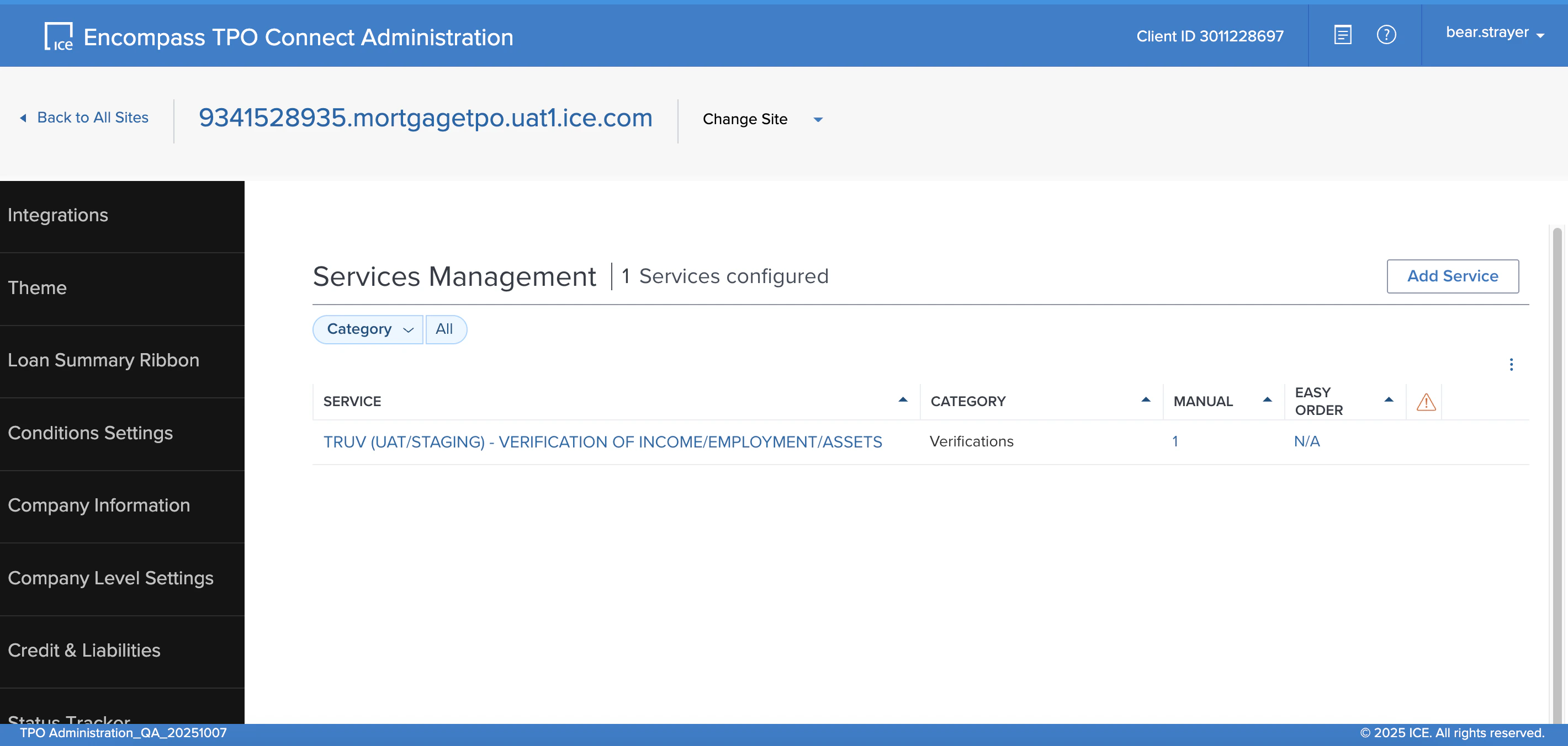
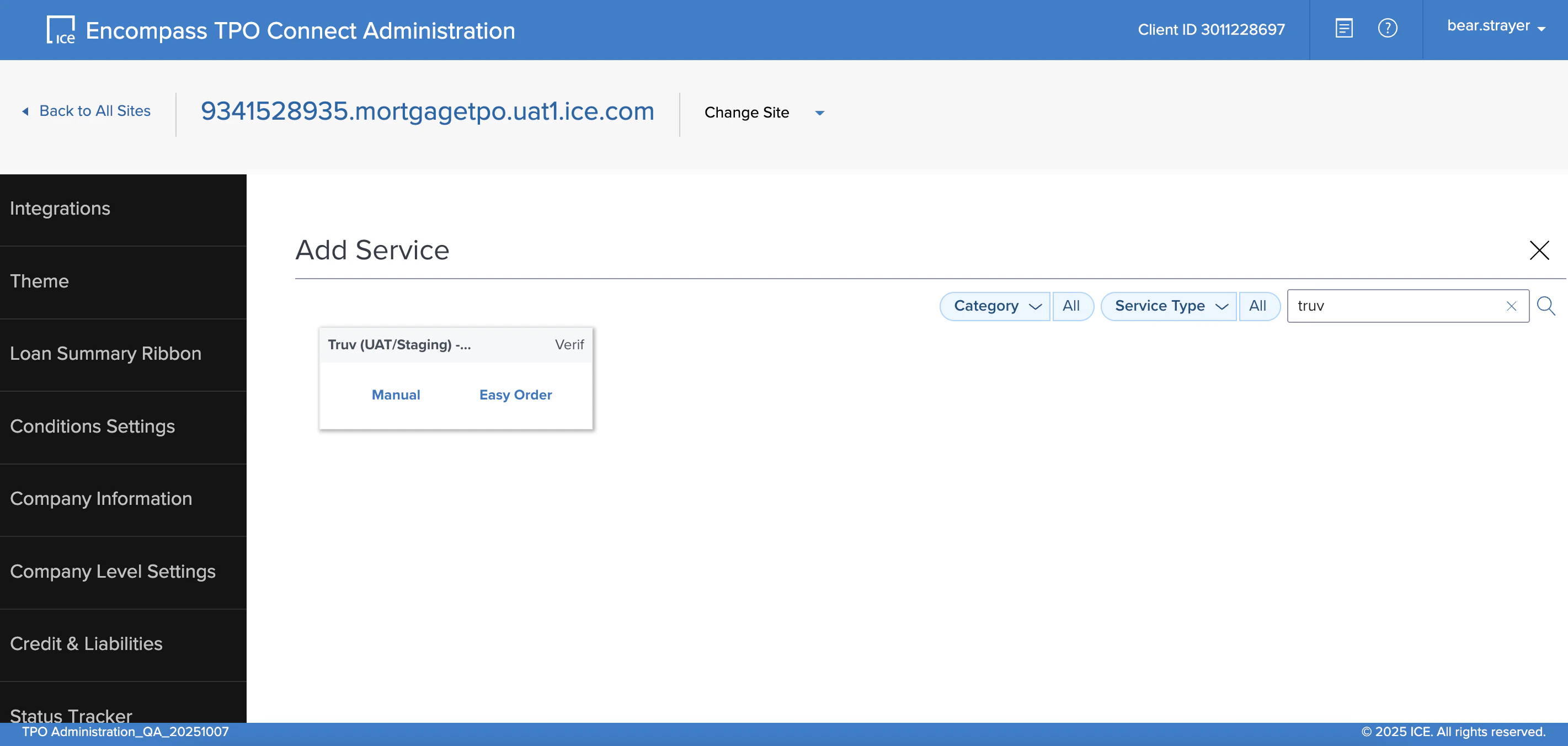
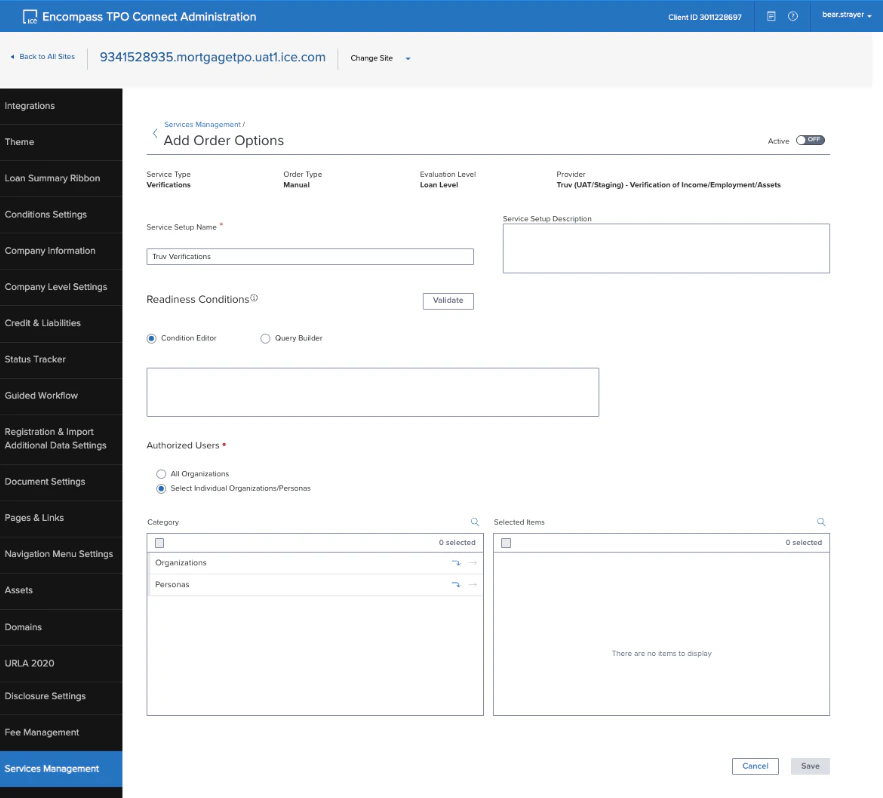
Follow these four steps to configure Truv in Encompass TPO Connect. Step 1: Open Encompass TPO Connect Admin at beta.tpo.ellielabs.com/tpoadmin. Enter your Instance ID and log in as an administrator. Find your TPO Connect website URL and click Edit. Scroll down and select Services Management from the left sidebar. Click Add Service, search for “Truv”, and select the Manual option. On the Add Order Options page:
  • Add a Service Setup Name
  • (Optional) Configure Authorized Users at the Organization or Persona level, or leave All Organizations selected
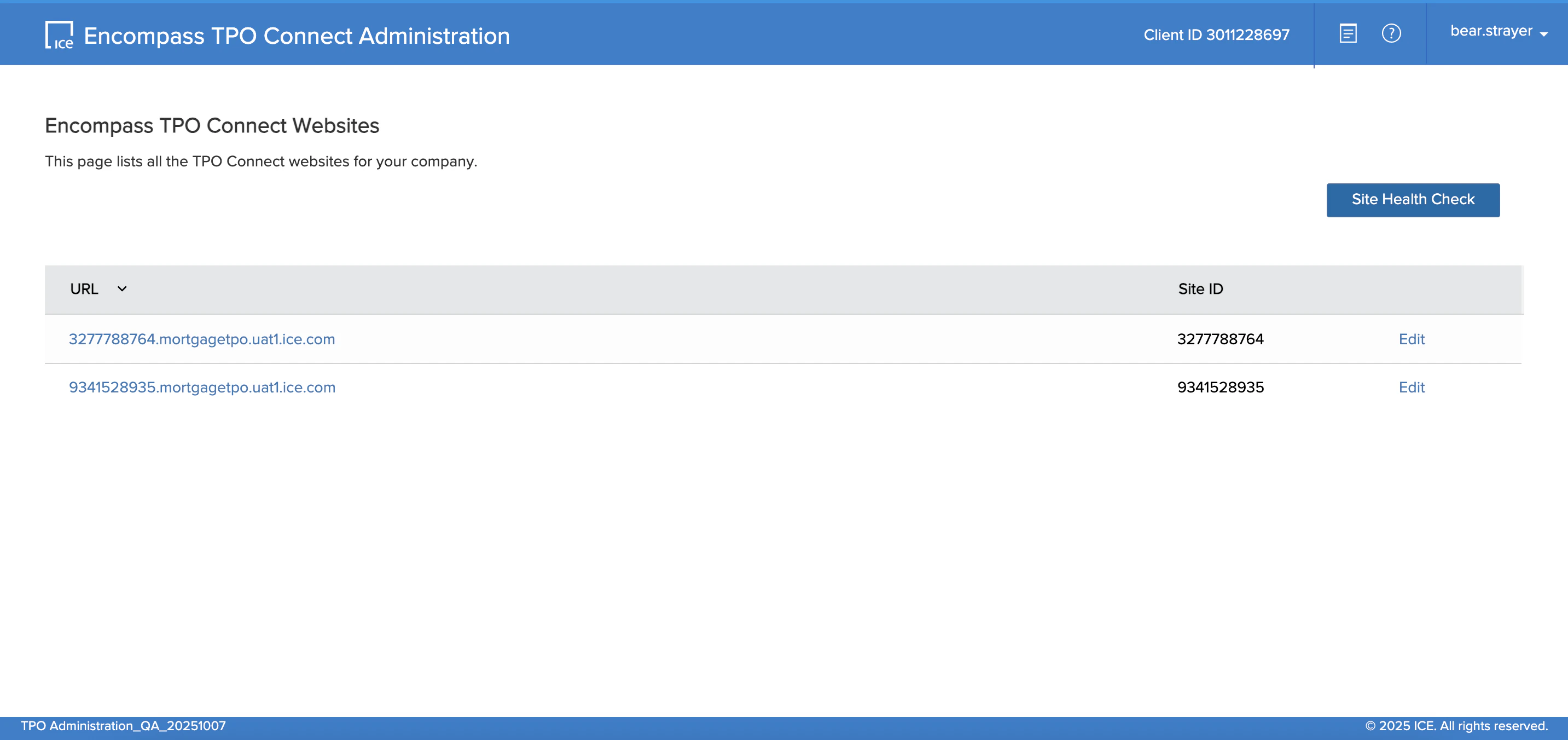
Click Save. You should now see “Truv - VERIFICATION OF INCOME/EMPLOYMENT/ASSETS” in the Services Management table. TPO Connect Admin — Services Management Search for Truv in Add Service Add Order Options configuration Truv added to Services Management table Step 2: Visit the Truv Dashboard as an Owner, Admin, or Developer. Select the API Keys tab and copy the credential values using the Copy icon.
If using both Encompass TPO Connect and Encompass LOS, enter the same API Keys into both platforms so Truv data flows automatically when loans are submitted from TPO Connect to LOS.
Truv provides sandbox and production environments, each with its own Access Secret. Use sandbox to check structure and get sample data. Confirm your configurations in sandbox before moving to production.
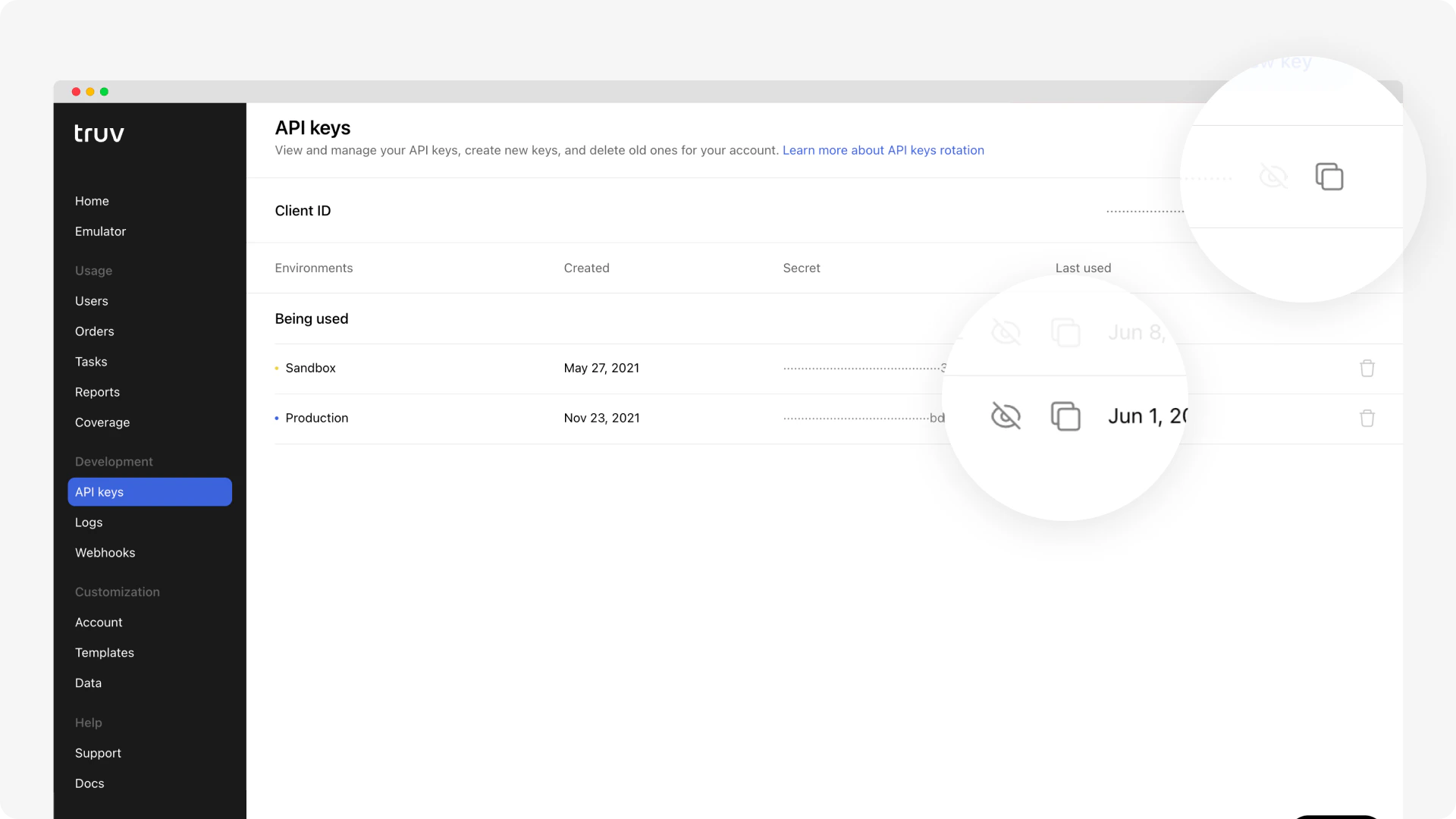
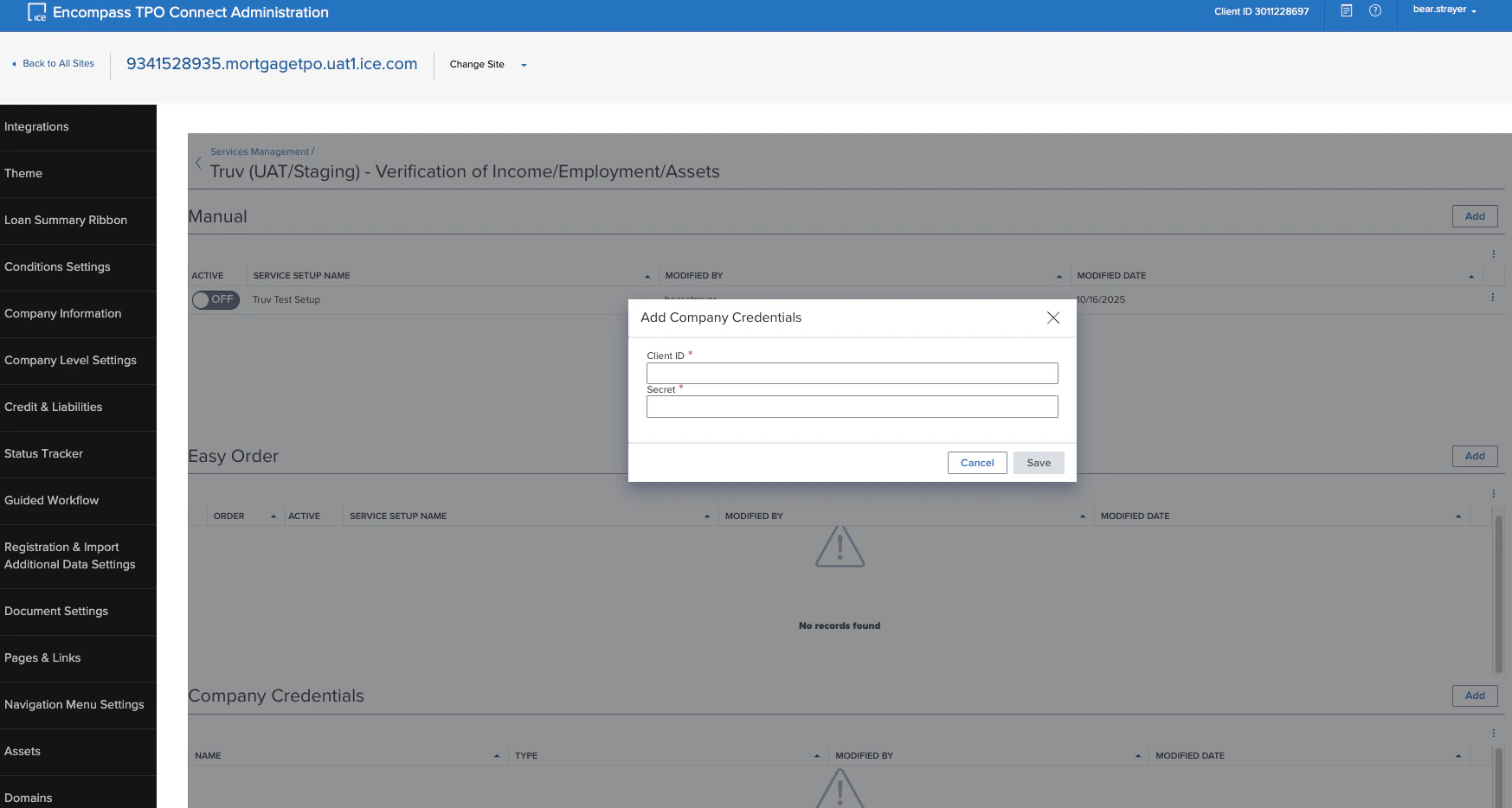
Copy API credentials from Truv Dashboard Step 3: From the Services Management page, scroll to the Company Credentials section and click Add. In the Add Company Credentials pop-up, paste the Client ID and Secret from the Truv Dashboard. Press Save. Enter Truv credentials into TPO Connect Step 4: After saving credentials, toggle the Active switch to “ON” to enable Truv as a Service Order option for loan files in TPO Connect. Set Truv to Active in TPO Connect Truv is now activated for Encompass TPO Connect.

Next steps

Encompass LOS Setup Guide

One-time Encompass LOS configuration

Create and Manage Orders

Manual ordering for VOIE, VOE, VOA, and Income and Assets

Contact Support