

Real-Time Verification
Eliminate manual documentation reviews with instant, source-verified income and employment data
Fraud Reduction
Source-verified payroll data minimizes fraud risk and increases accuracy
Flexible Deployment
Deploy as embedded verification, a borrower task, or both. Adapts to your workflow.
Continuous Monitoring
Connected accounts monitored for new payroll information throughout the loan process
How it works
Borrower connects payroll
When borrowers reach the income verification stage, they connect their payroll accounts through Truv’s secure interface, giving instant access to verified employment and income details.
Reports delivered to loan file
Once accounts are connected, Lodasoft automatically receives comprehensive Truv verification reports. If a borrower skips the step, a task is created prompting them to complete it later.
- Embedded: Truv verification presented to all borrowers during the application flow
- Task-based: Truv verification assigned as a to-do item for borrowers to complete at their convenience
Lodasoft Setup Guide
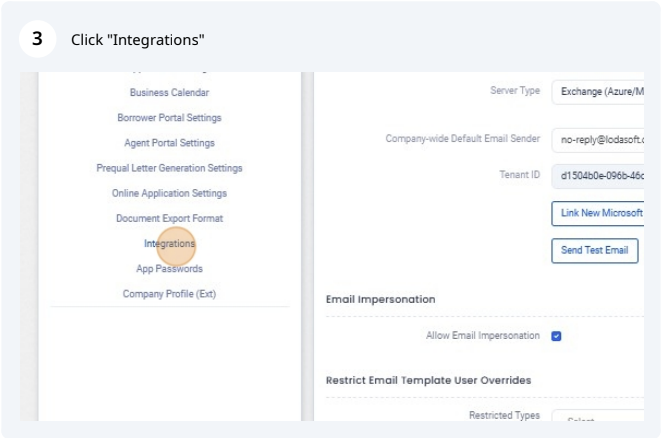
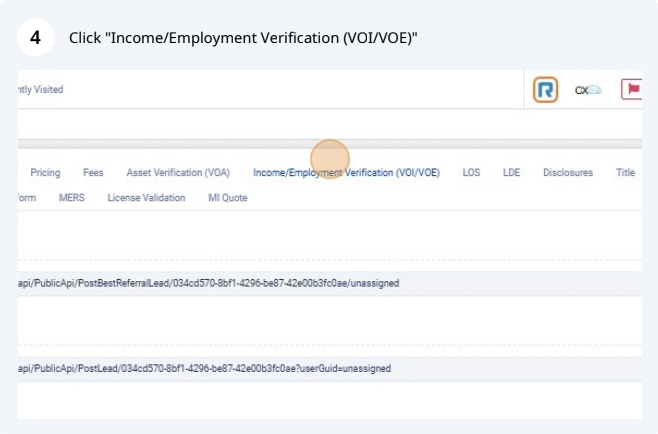
Step 1: Contact Lodasoft Customer Success for one-time admin configuration. Step 2: Navigate to Admin → System Level in Lodasoft.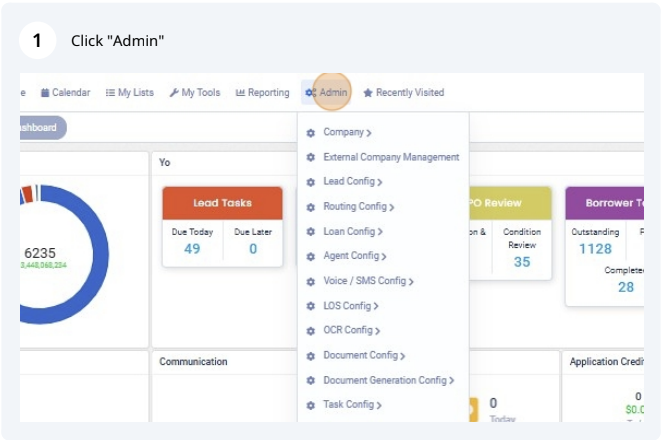 Step 3: Go to Integrations → Income/Employment Verification (VOI/VOE) tab.
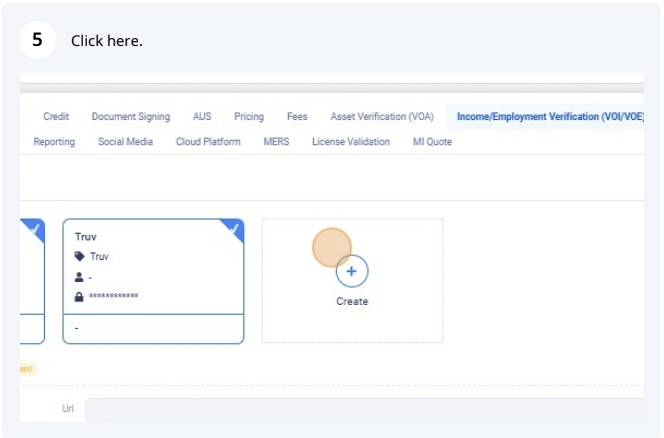
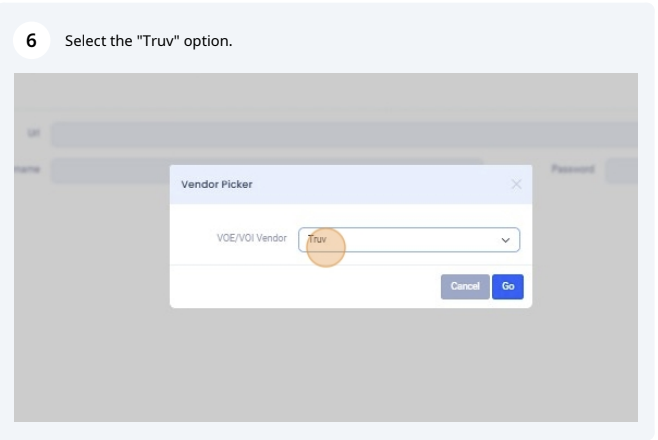
Step 4: Select Create New and choose Truv from the vendor dropdown.
Step 3: Go to Integrations → Income/Employment Verification (VOI/VOE) tab.
Step 4: Select Create New and choose Truv from the vendor dropdown.
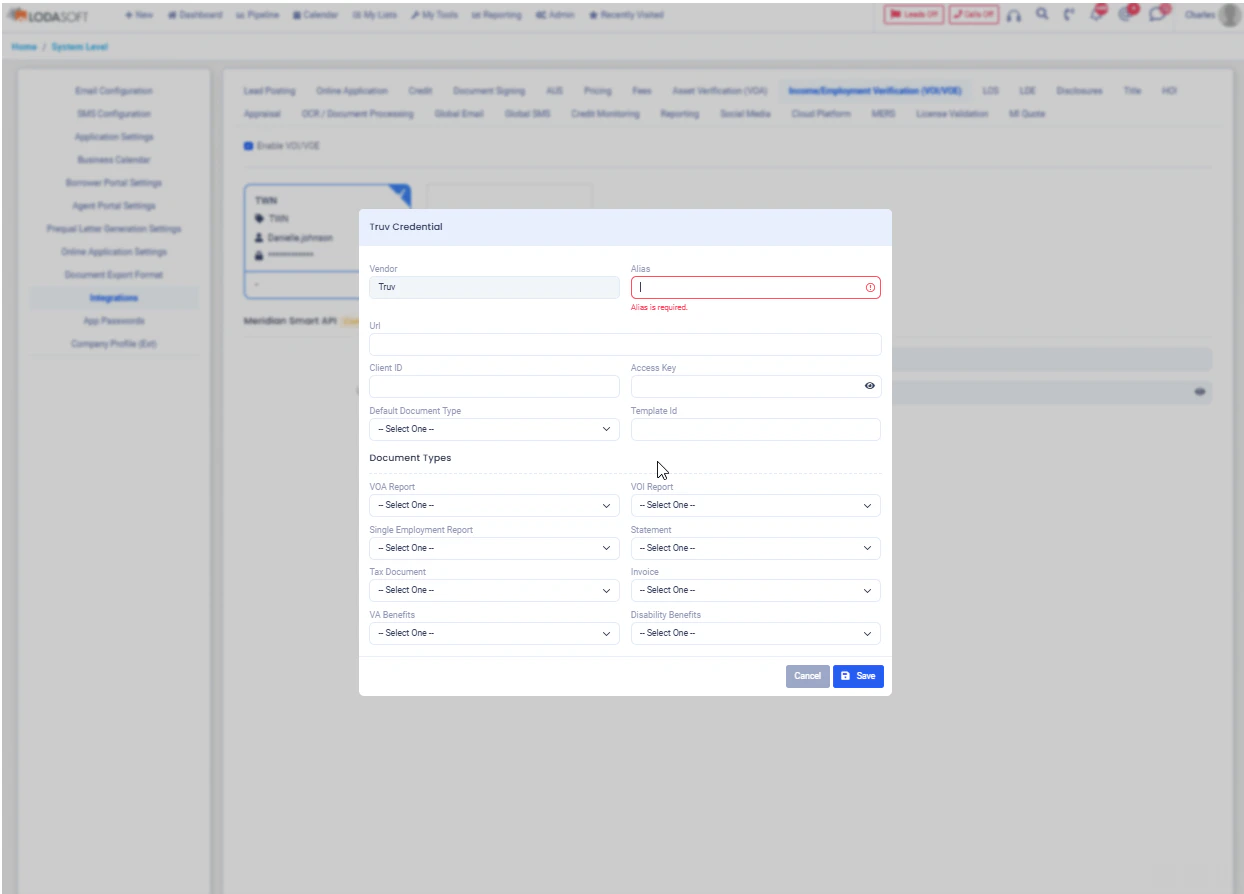
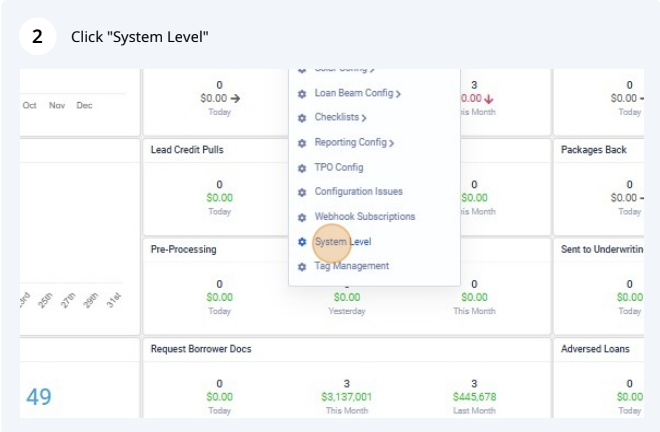 Step 5: Enter your Truv credentials and Template ID:
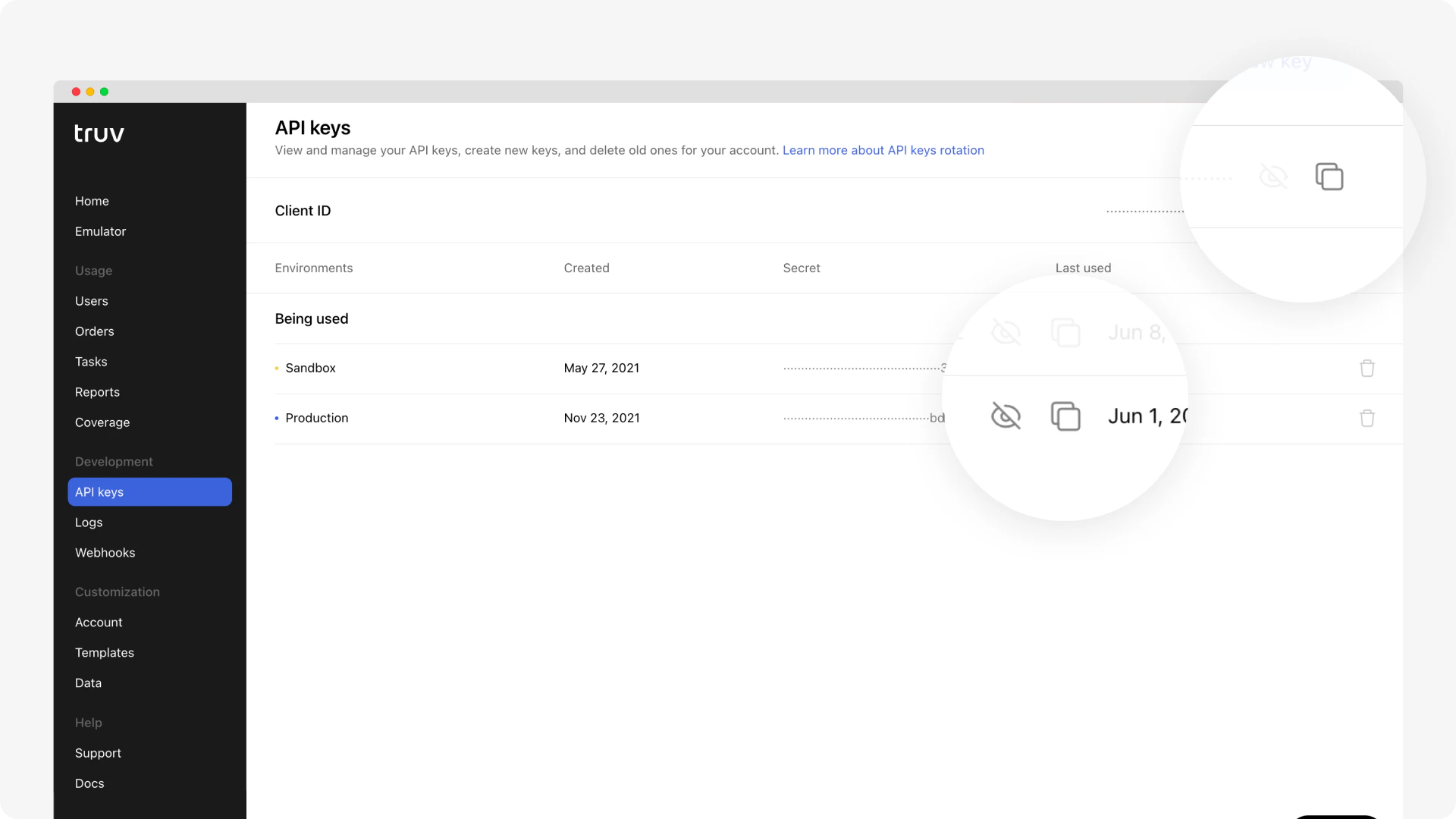
- Copy your Client ID and Access Secret from the Truv Dashboard
- In Lodasoft, navigate to Admin → System Level → Integrations → Income/Employment Verification
- Paste your Client ID and Access Key, then click Save
- Add your Truv Template ID to the Template ID field
- Navigate to Settings → Webhooks
- Add webhook URL:
https://publicapi.lodasoft.com/api/truv/receive-event - Enable for both Sandbox and Production environments
- Select all Events
 Step 7: Test the full borrower flow in sandbox mode using Truv’s test credentials.
Step 8: Obtain production access and complete end-to-end setup with DU (Desktop Underwriter) and LPA (Loan Product Advisor) systems.
Step 9: Go live. Your operations team is ready to verify income and employment within Lodasoft.
Step 7: Test the full borrower flow in sandbox mode using Truv’s test credentials.
Step 8: Obtain production access and complete end-to-end setup with DU (Desktop Underwriter) and LPA (Loan Product Advisor) systems.
Step 9: Go live. Your operations team is ready to verify income and employment within Lodasoft.
Next steps
POS Integrations
View all POS integration options
Sandbox Testing
Test your integration in sandbox
Support
Truv Support
POS Integrations
All supported POS systems