

Fast Verification
Quickly verify employment and income during the borrower application
Reliable Data
Accurate data sourced directly from authenticated payroll accounts
Task-Based Workflow
Skipped verifications become tasks in the borrower’s to-do list for completion later
Ongoing Monitoring
Connected accounts monitored continuously for new payroll documents
How it works
Borrower connects payroll accounts
During the pre-application phase, borrowers and co-borrowers are prompted to connect their payroll accounts using the Verify Income section of their BeSmartee loan application.
Reports available in your LOS
Once accounts are connected, Truv reports are made available in your connected Loan Origination System (LOS) along with relevant payroll documents.
Task management for incomplete verifications
If the Verify Income step is skipped, tasks are automatically assigned to the borrower or co-borrower in their to-do list to complete the verification later.
BeSmartee Setup Guide
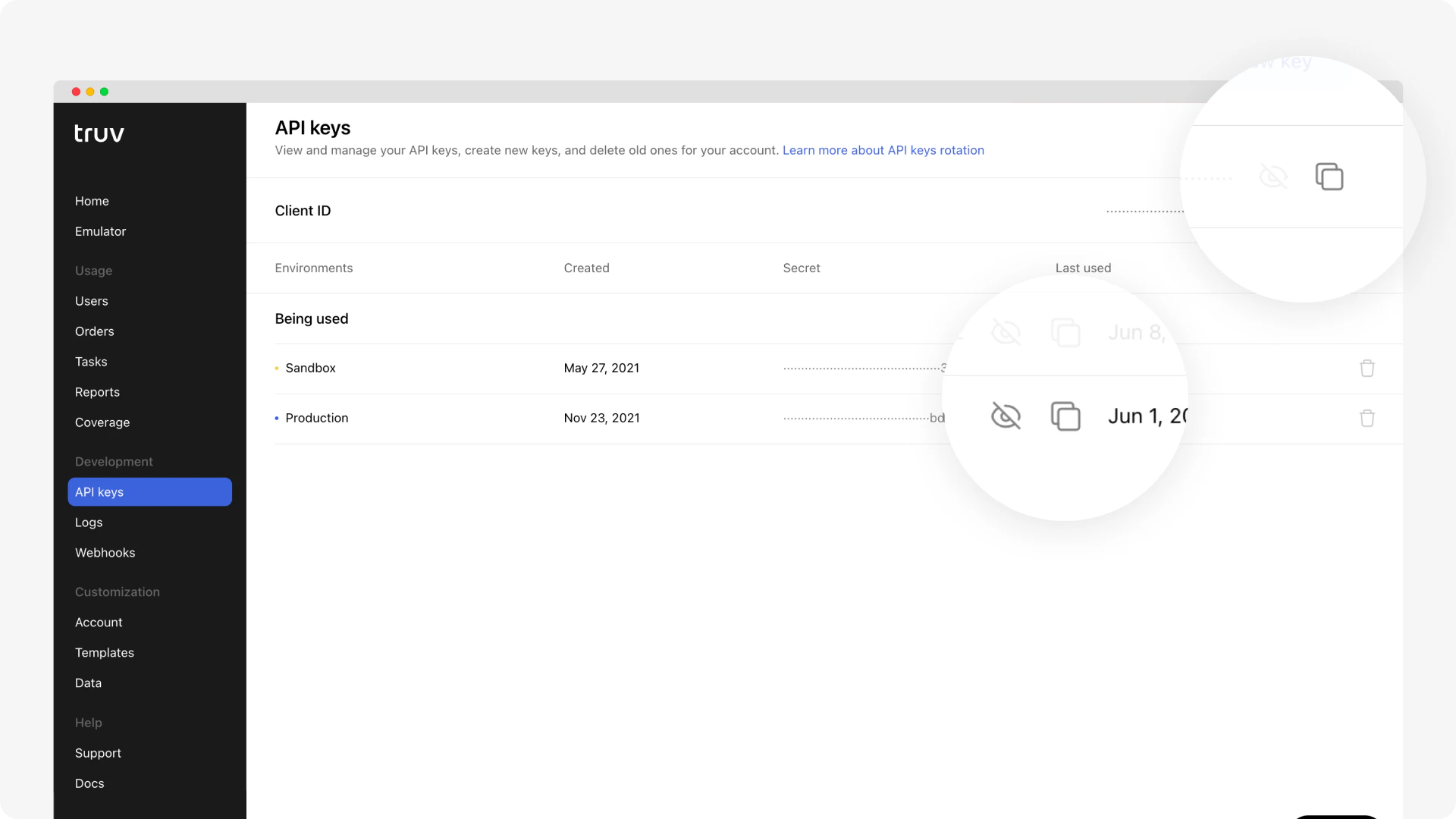
Step 1: Contact BeSmartee Customer Success to complete the one-time admin configuration. Step 2: Copy your Truv API credentials into the BeSmartee platform:- Log into the Truv Dashboard and navigate to Development → API Keys
- Copy your Client ID and Access Secret
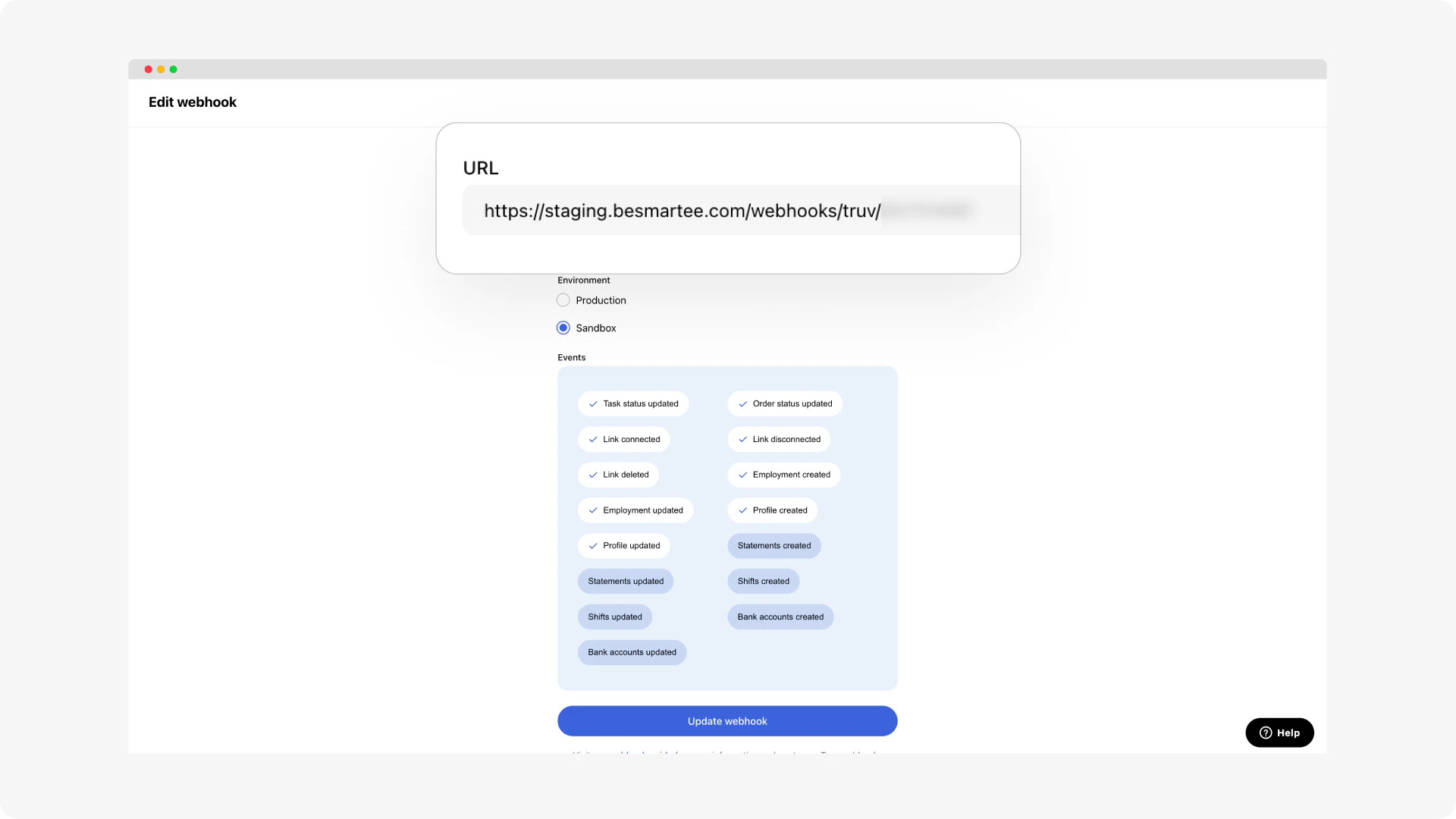
- BeSmartee utilizes webhooks to listen to events on every order from Truv and get updated statuses.
- Ask your BeSmartee Customer Success representative to provide the Sandbox and Production URLs to add to the Truv Dashboard.
- Once you have the URLs for both environments, navigate to Truv Dashboard → Development → Webhooks and add a URL for your environment. Each environment requires a specific and separate URL.
Borrower workflow
Borrowers enter their employment and income information using the Verify Income section of the BeSmartee application. Alternatively, they receive tasks in their TO-DO list prompting them to connect their accounts through Truv.Next steps
POS Integrations
View all POS integration options
Sandbox Testing
Test your integration in sandbox
Support
Truv Support
BeSmartee Support
Contact BeSmartee customer success for platform-specific setup