

One-Time Setup
Add Truv as a Service
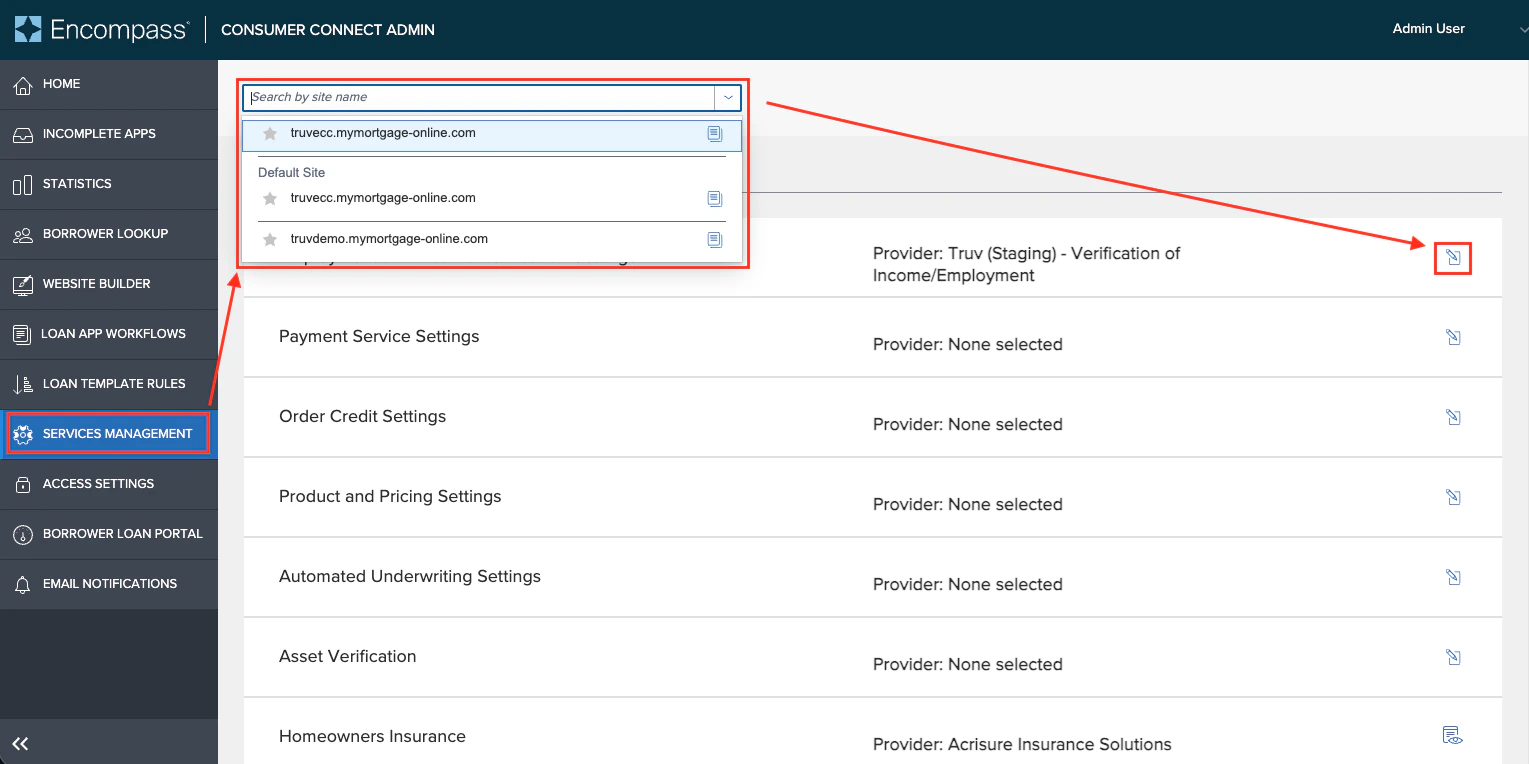
Open the ECC Admin site, enter your Instance ID and log in as an administrator.
- Click Services Management from the left sidebar
- Select the correct site name in the dropdown
-
Check the box in the Employment and Income Verification Settings row
Enter Truv credentials
Select Truv - Verification of Income/Employment/Assets from the Provider dropdown.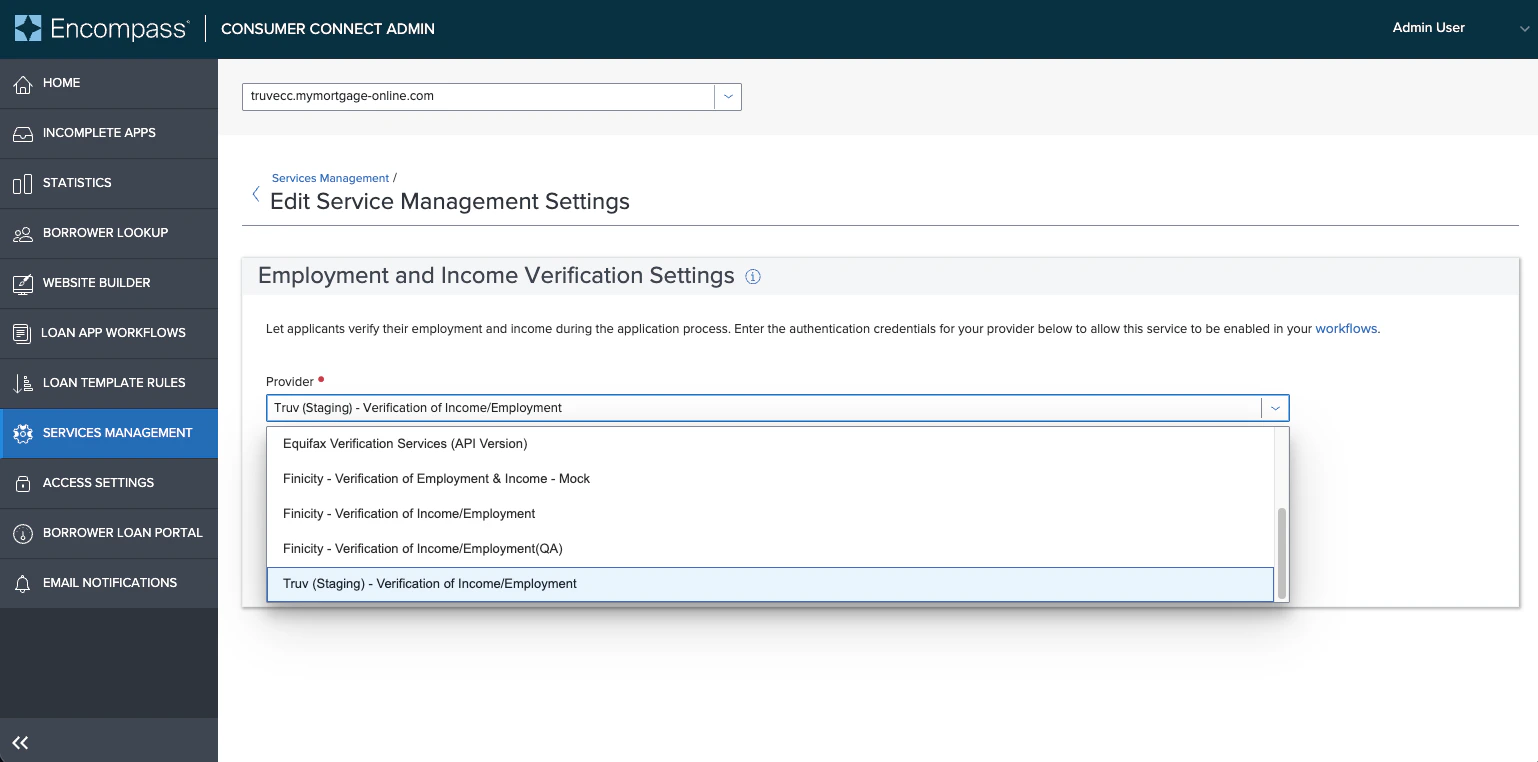
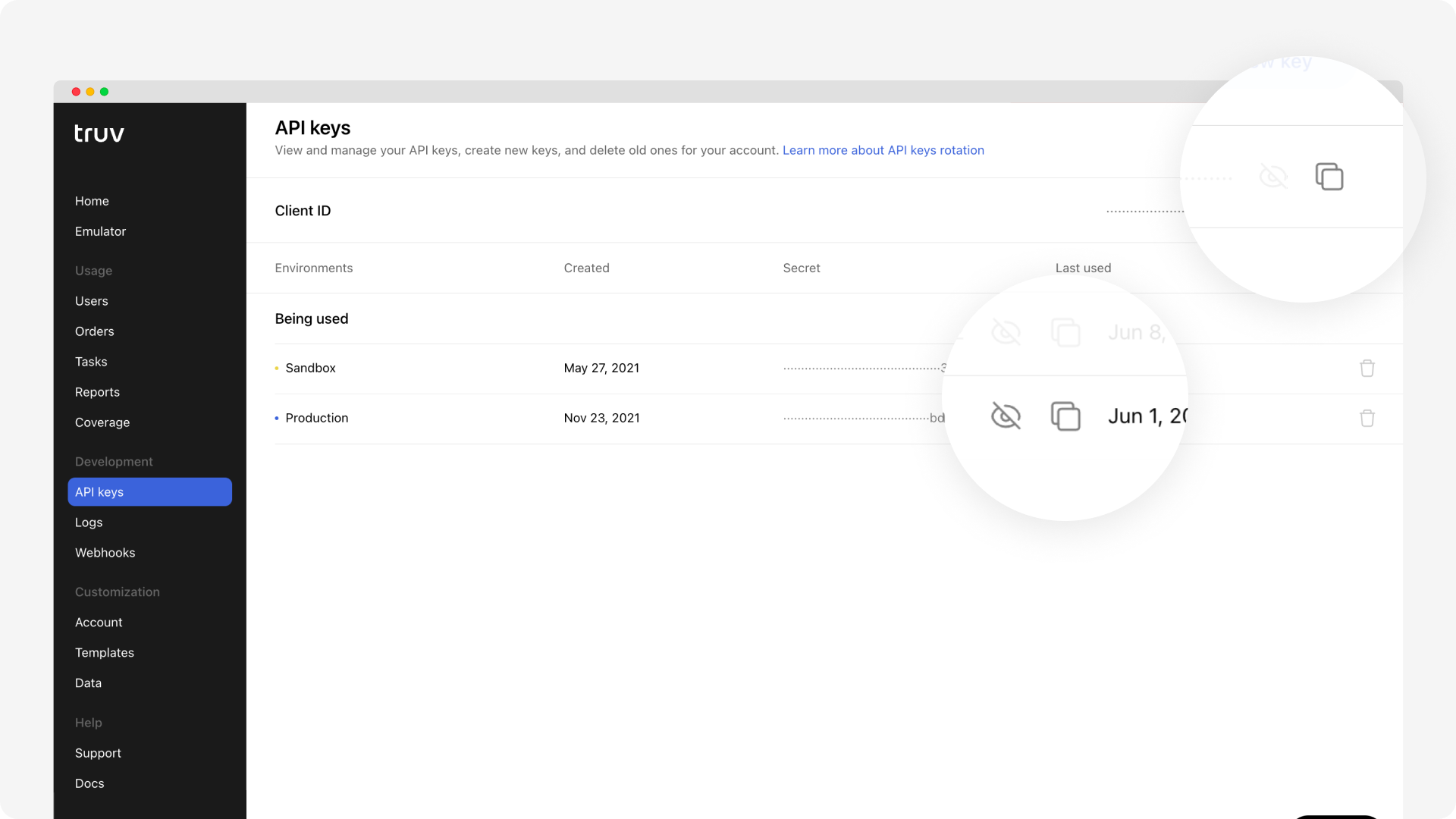
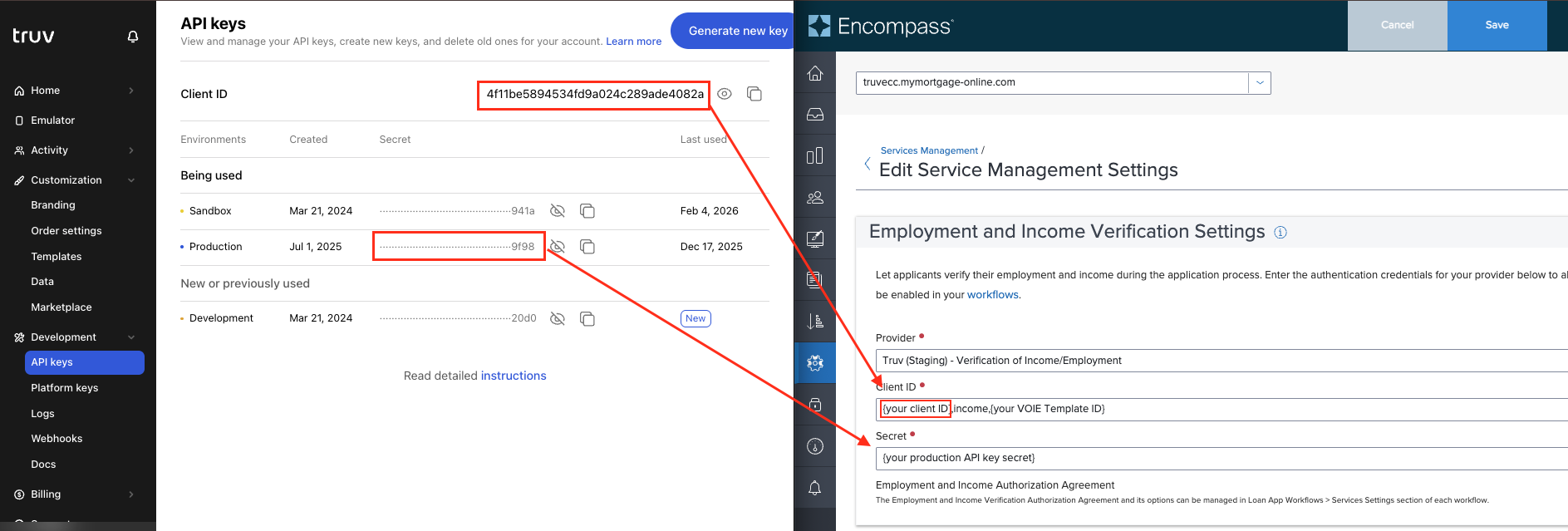
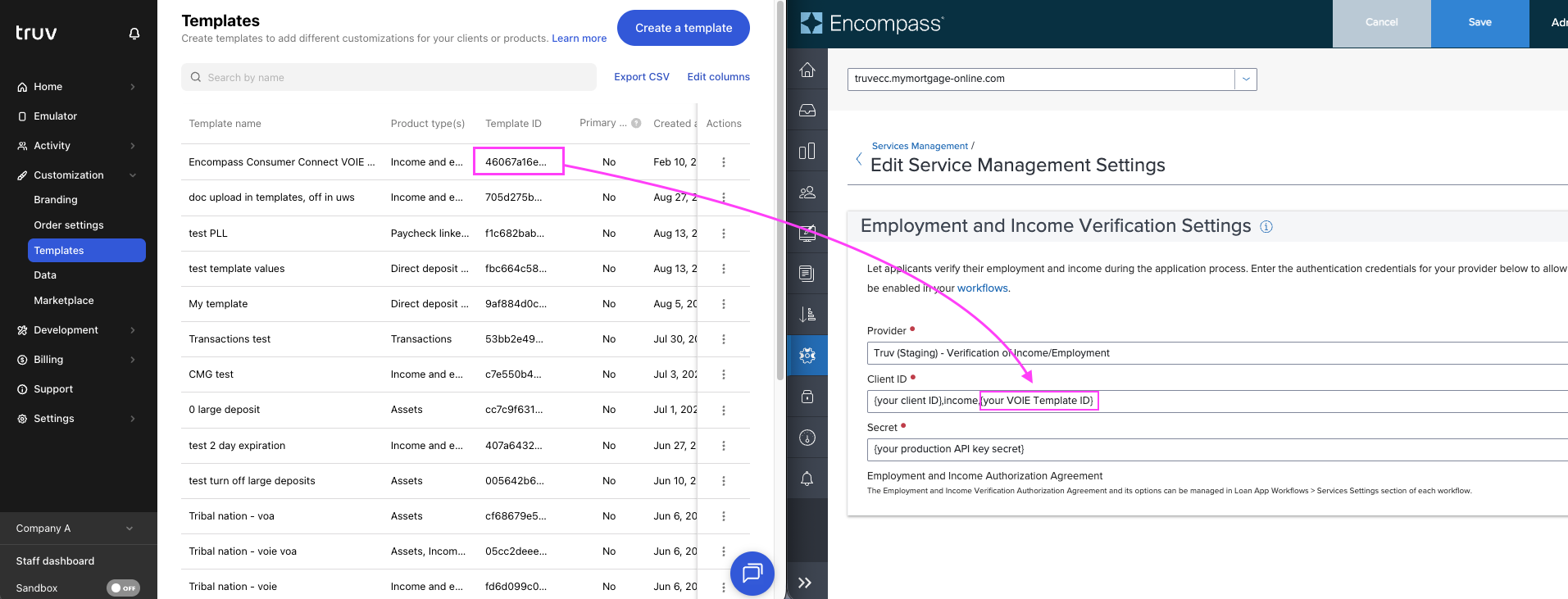
- Client ID from the Truv Dashboard API Keys page
- The word
income(to distinguish the product type) - A Template ID from Customization → Templates in the Truv Dashboard
4f11be5894534fd9a024c289ade4082a,income,46067a16e38b4b8c8c83b7fbe911b23aThe Secret can be copied directly from API Keys. After entering both fields, press Save.Add to active Loan App Workflow
-
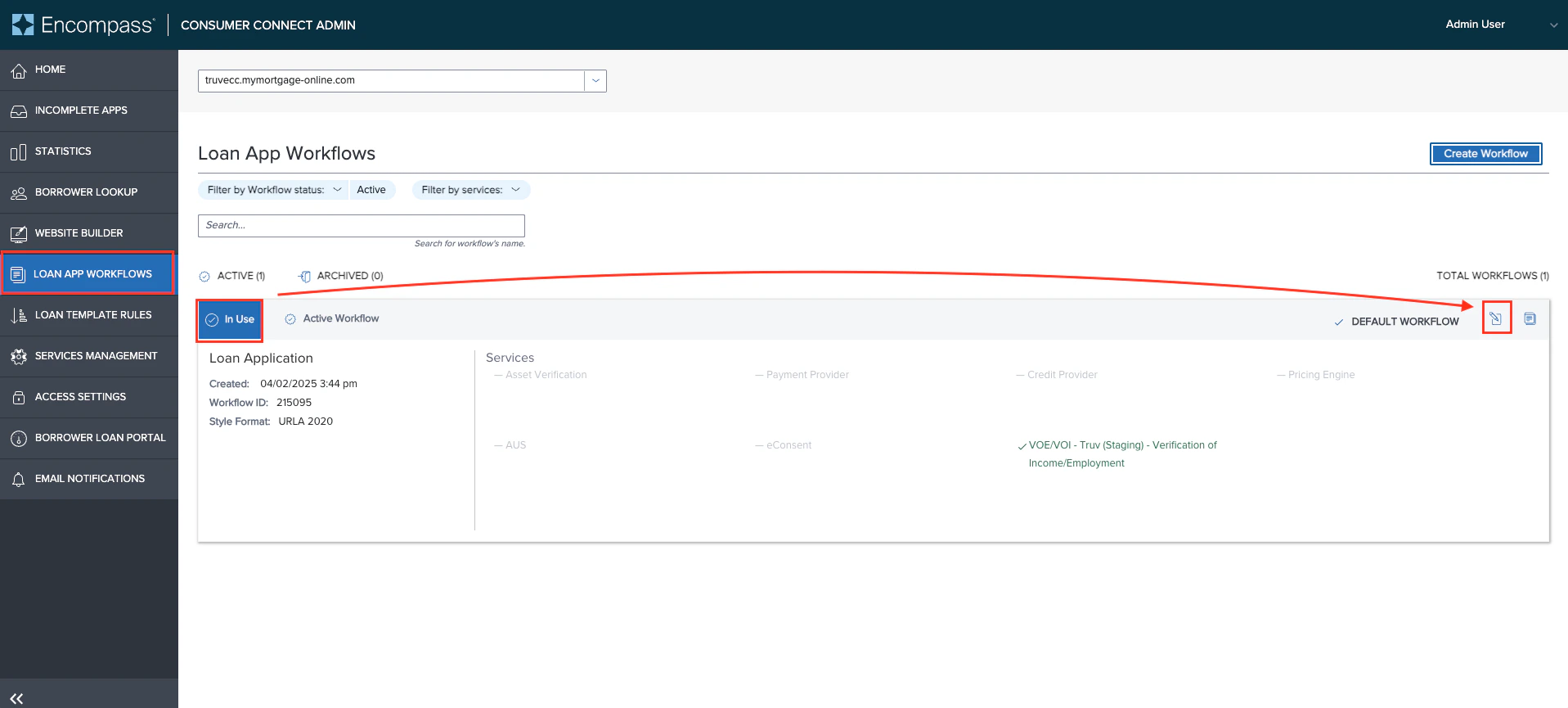
Navigate to the Loan App Workflows tab. Find the In Use workflow and click the edit icon.
-
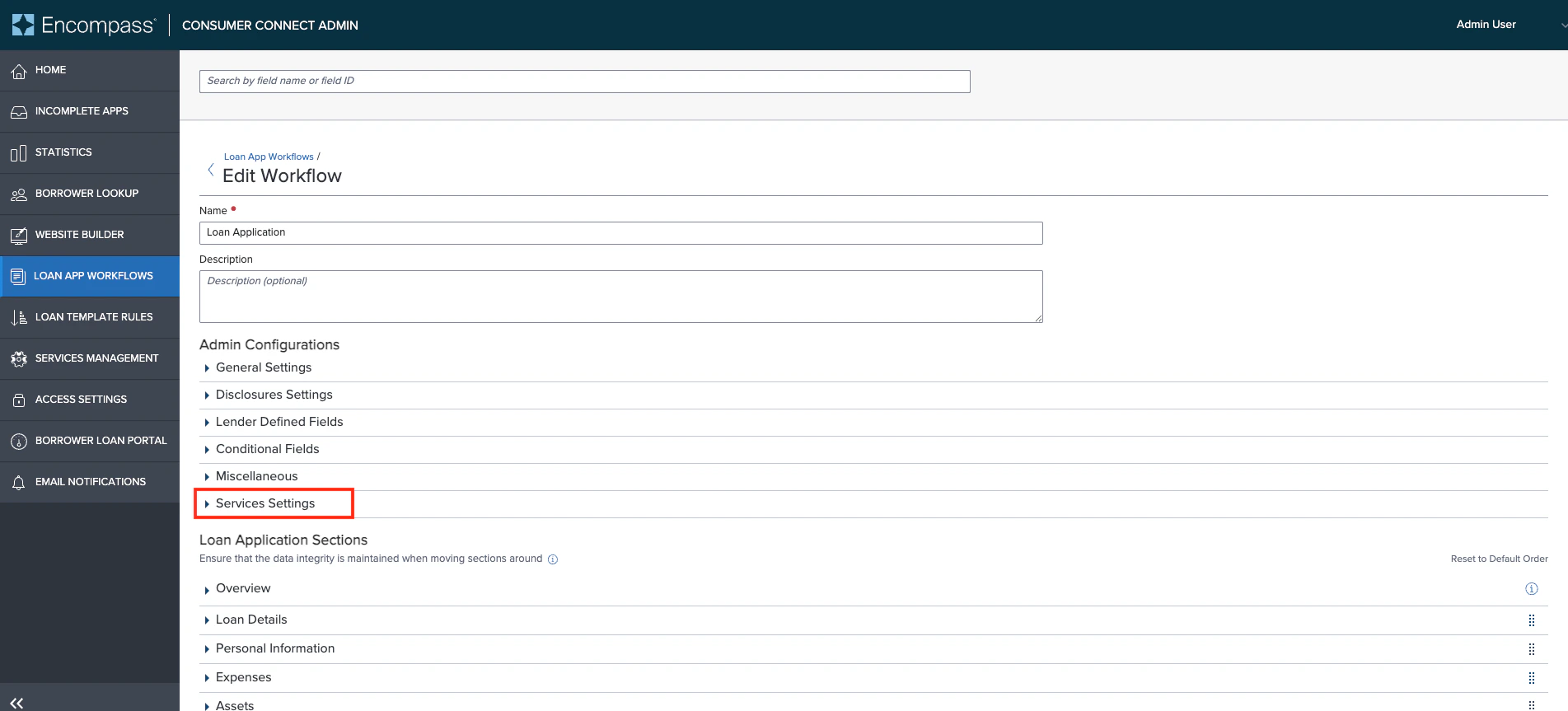
Scroll to Services Settings, expand it, and enable VOE/VOI.
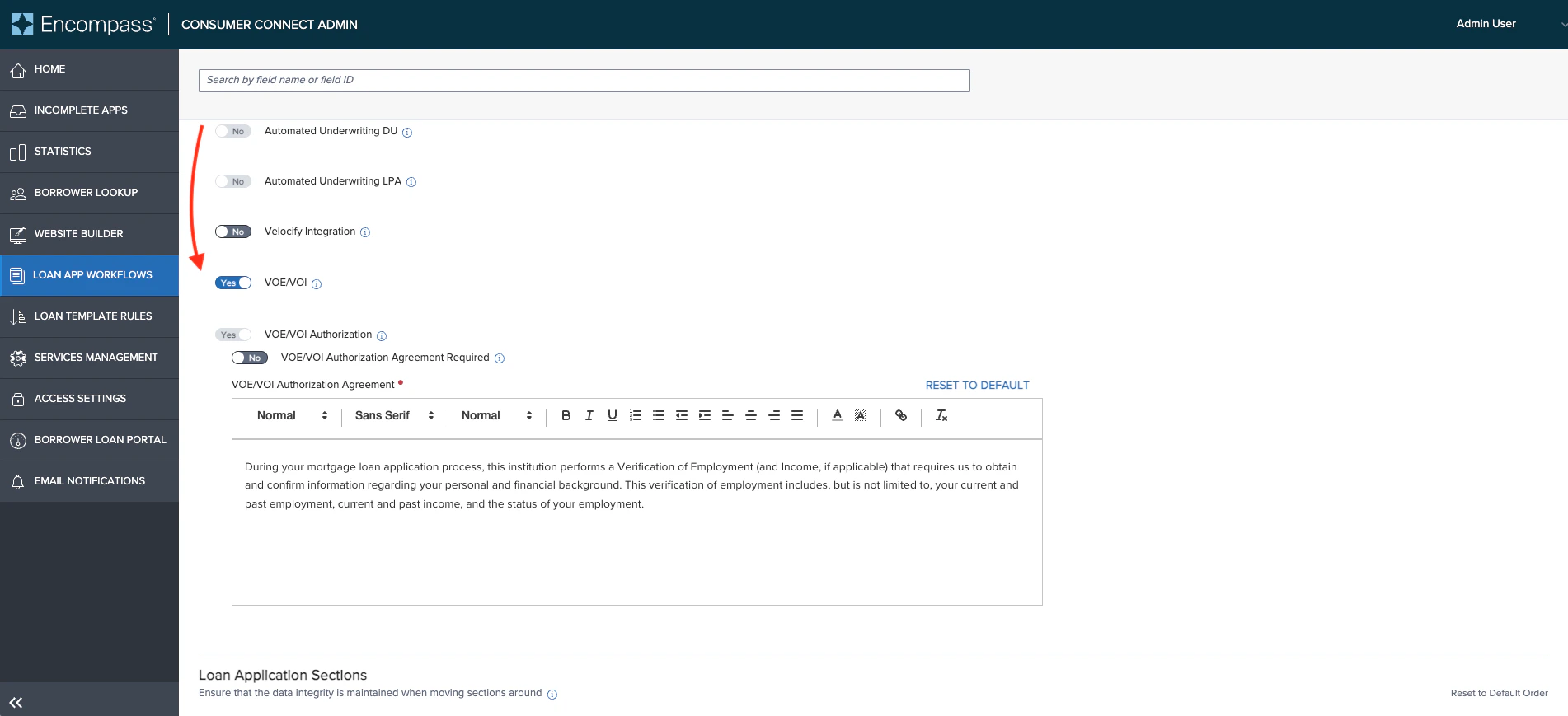
- The VOE/VOI Authorization setting is mandatory when enabled. The Authorization Agreement Required setting is optional.
-
Optionally update the header and body copy on the Employment and Income application page so borrowers understand when to use Truv versus manual entry.
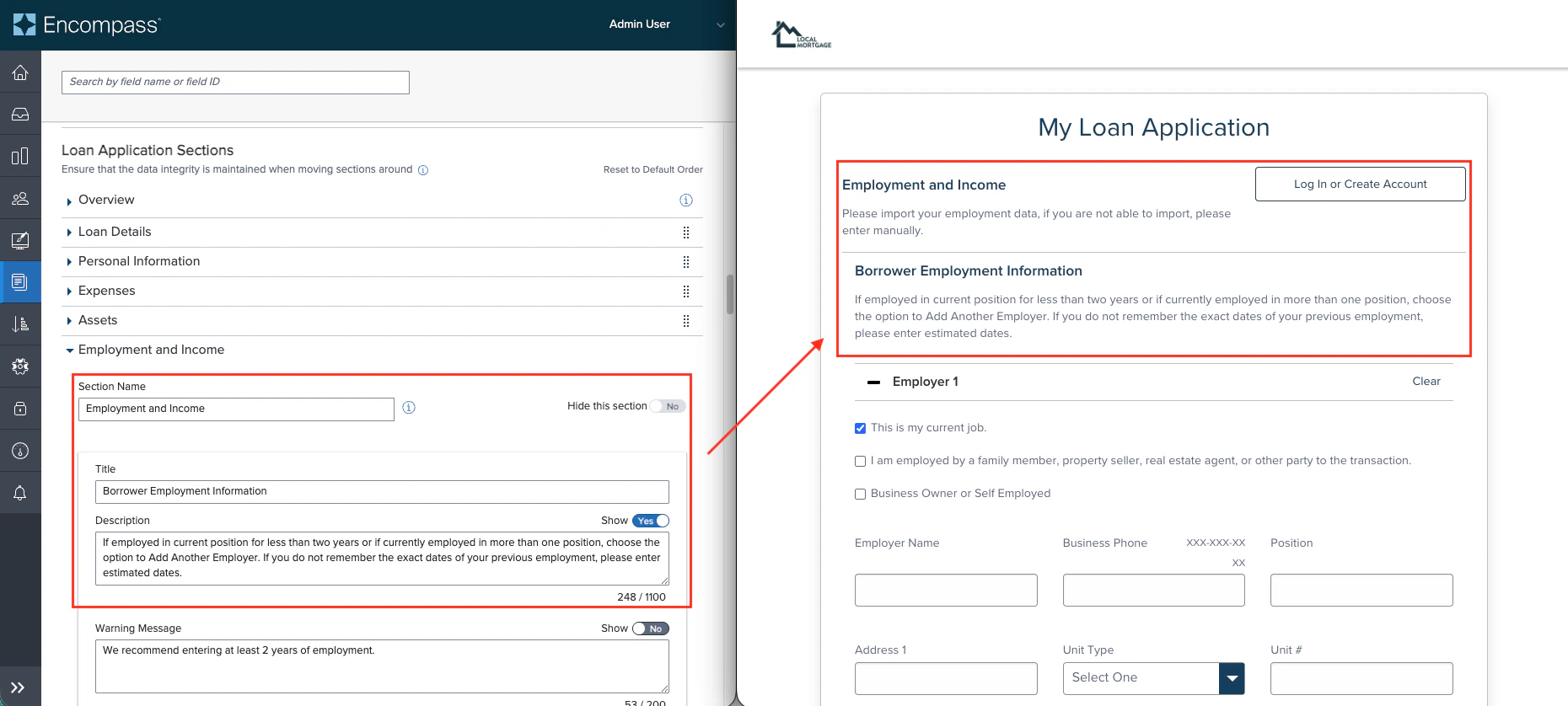
Customize the Truv Template
In the Truv Dashboard, open the template configured in Step 2.Settings tab:
- Set Link expiration to 1 day
-
Set Send notifications to the end-user to disabled
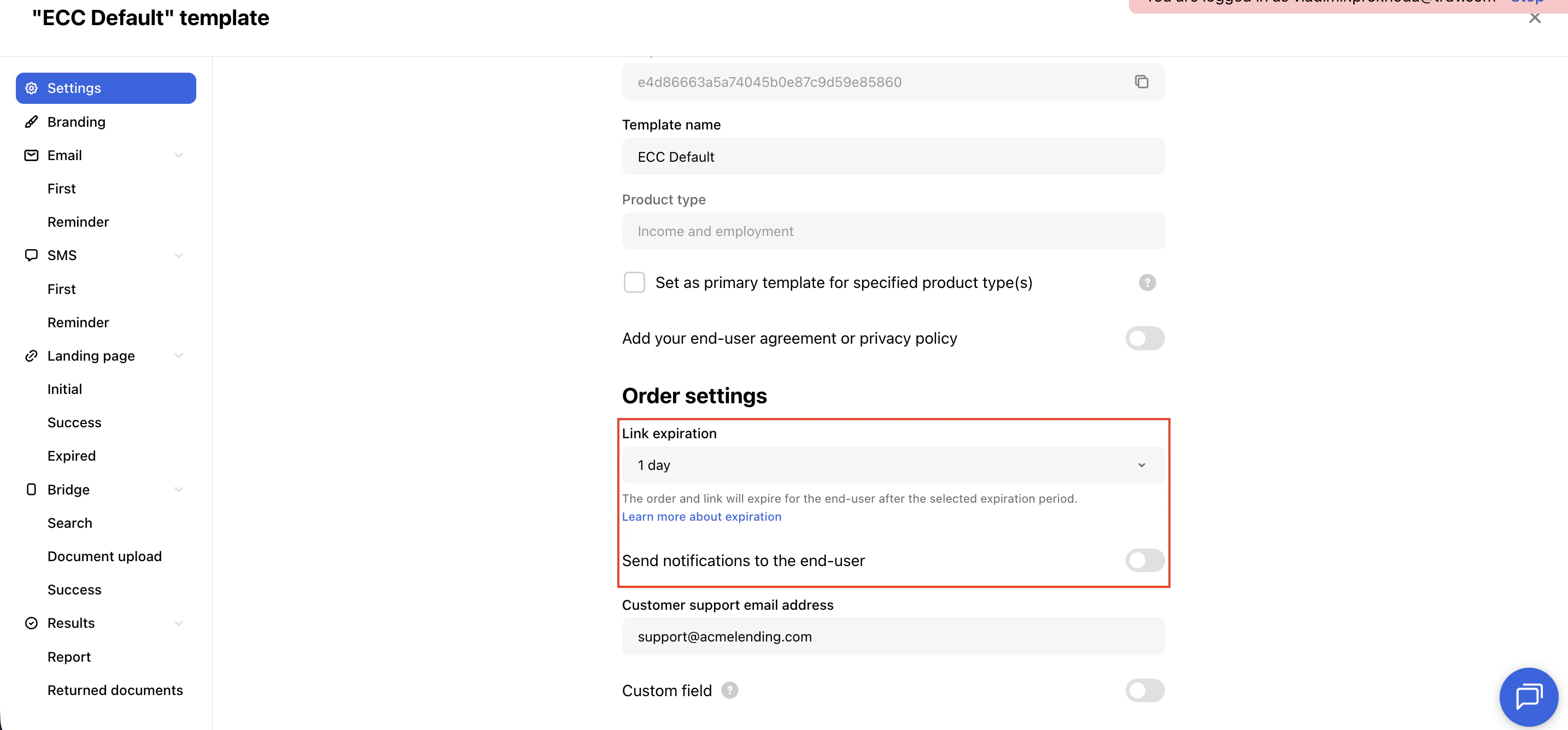
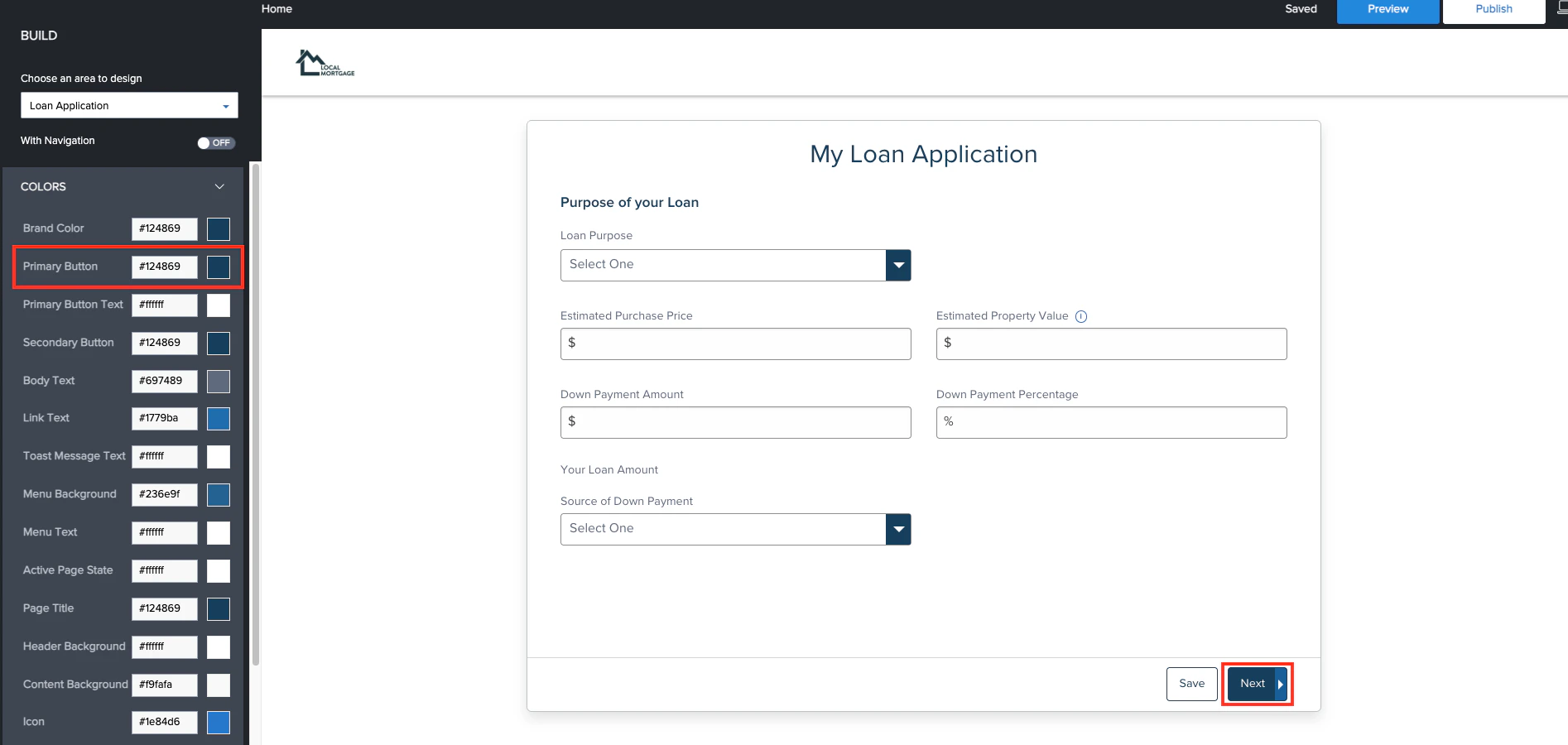
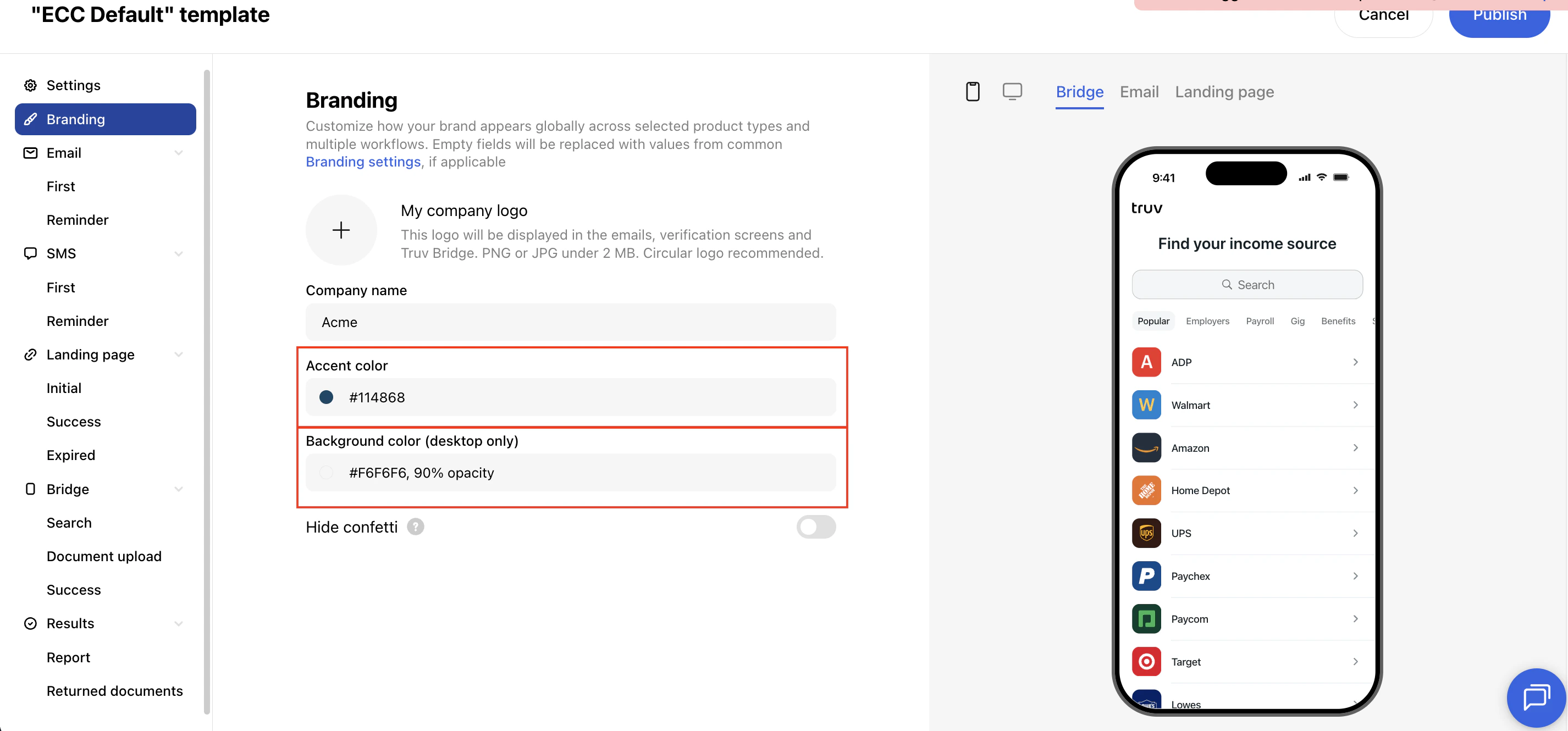
- Set the Accent color to match your ECC primary button color (found in Website Builder)
-
Set the Background color to white with opacity 0.9 (R: 246, G: 246, B: 246, A: 0.9)
Borrower Experience Demo
Next steps
Encompass Overview
Back to Encompass integration overview
Sandbox Testing
Test your integration