

Encompass LOS Setup Guide
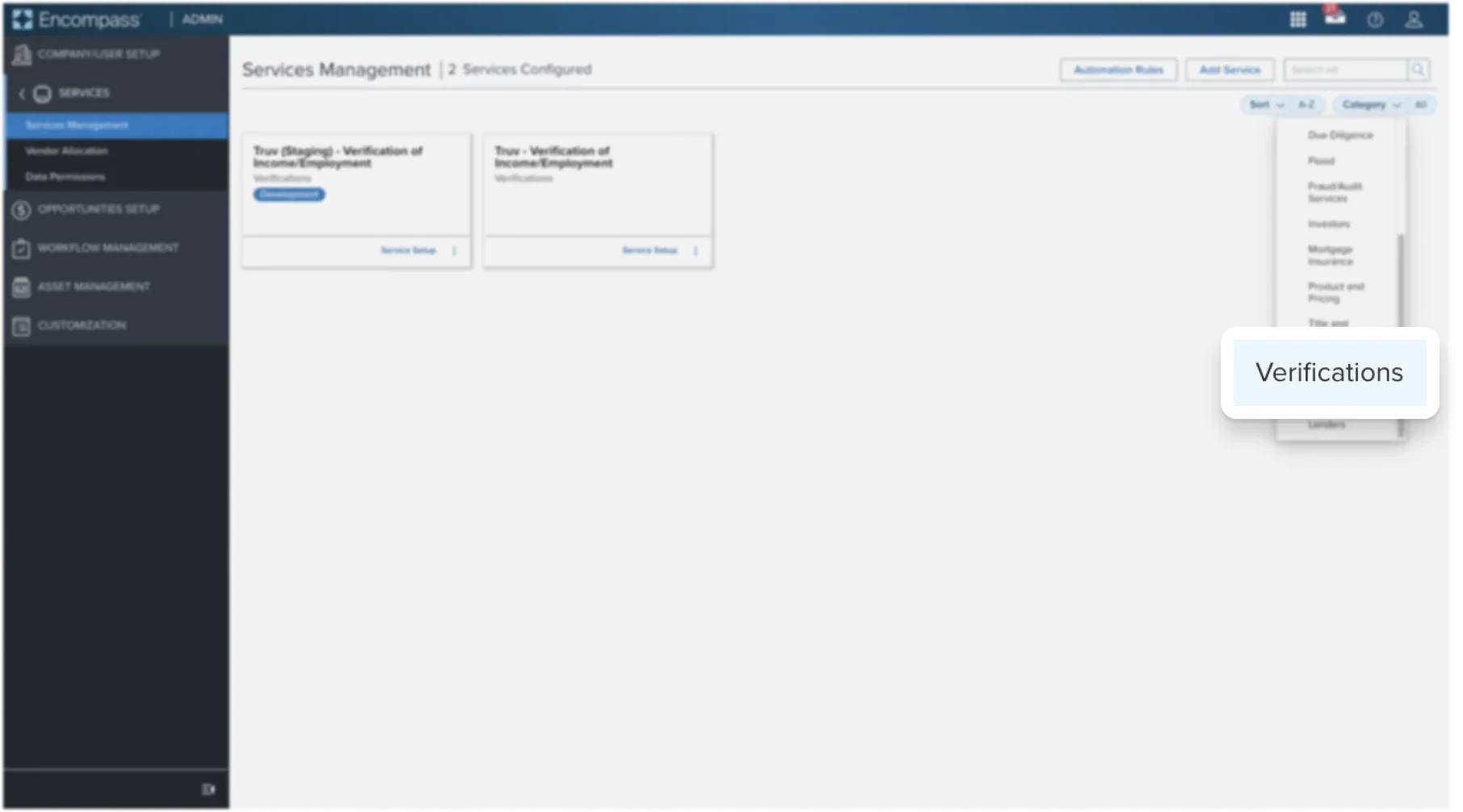
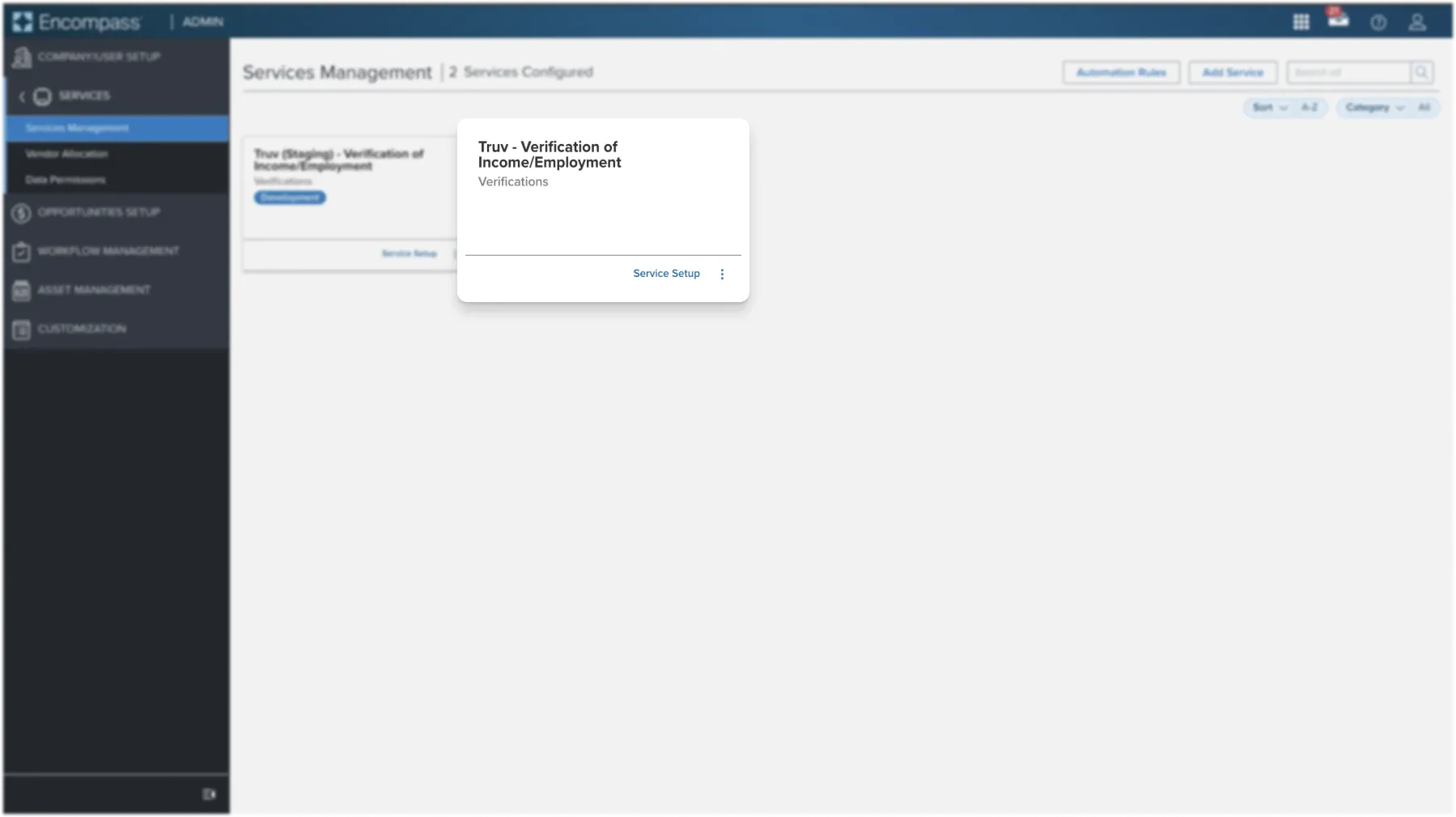
The steps below cover each part of setting Truv up with Encompass® using administrator privileges. Step 1: Log into Encompass® as an administrator using Encompass® Web. Navigate to the Admin tab at the top of the screen, select Services on the left navigation. Select Services Management and then Add Service on the right.
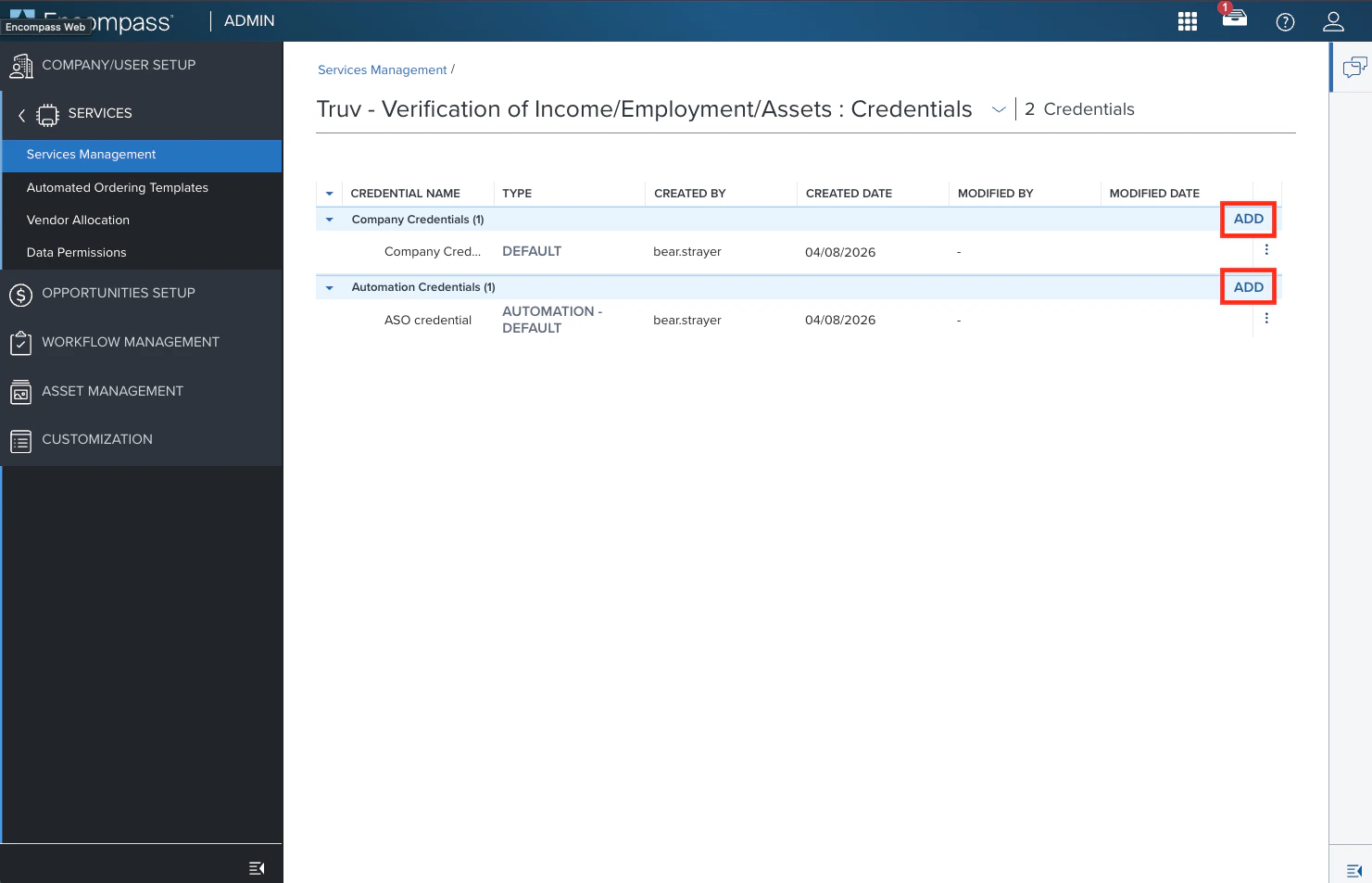
- Select Add under Company Credentials.
- Copy and paste the Client ID and Production API Key Secret from your Truv Dashboard → API Keys tab into the corresponding fields in Encompass.
- Repeat this step to add an Automation Credential using default Company Credentials. This will ensure any automation workflows function smoothly.
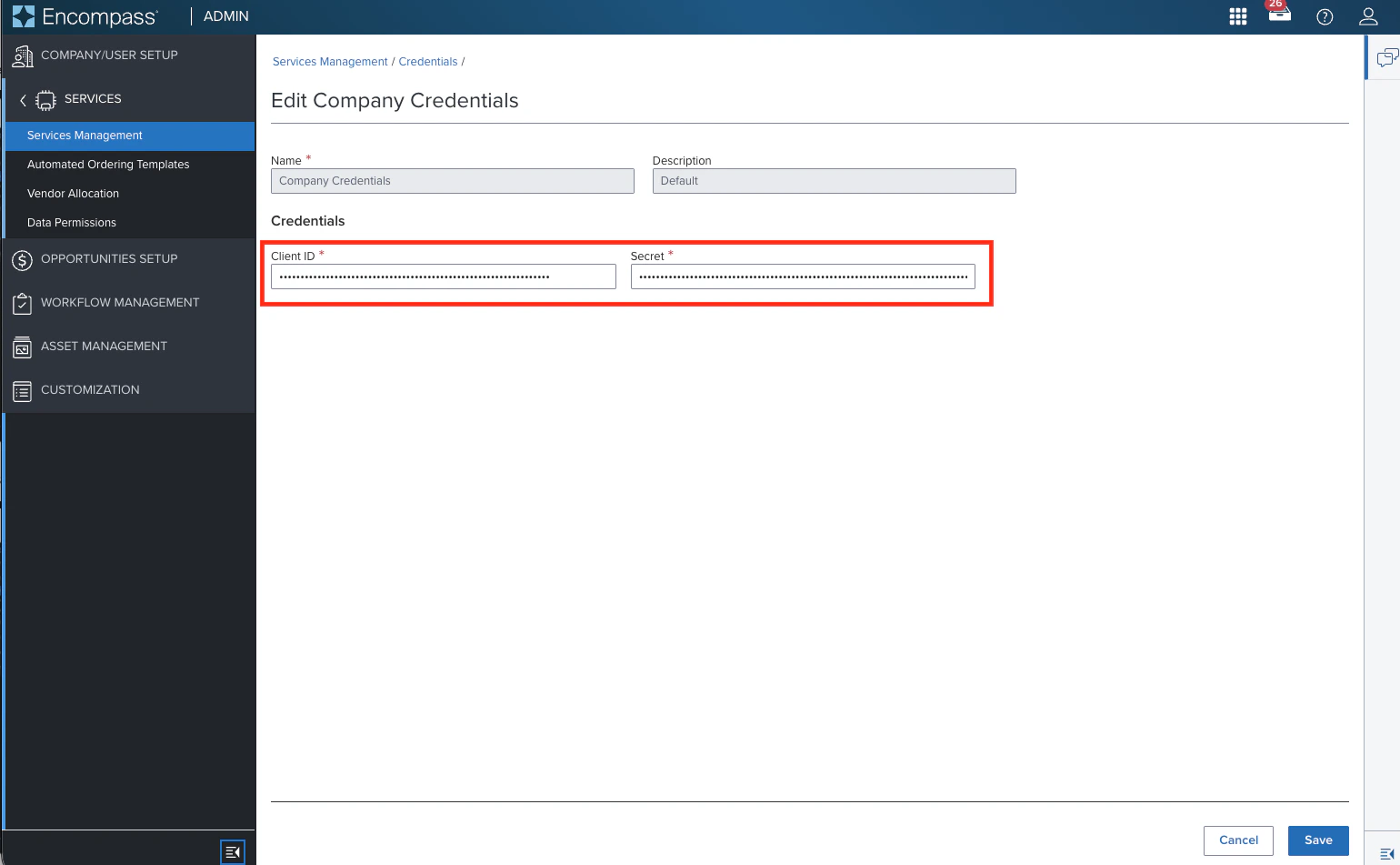
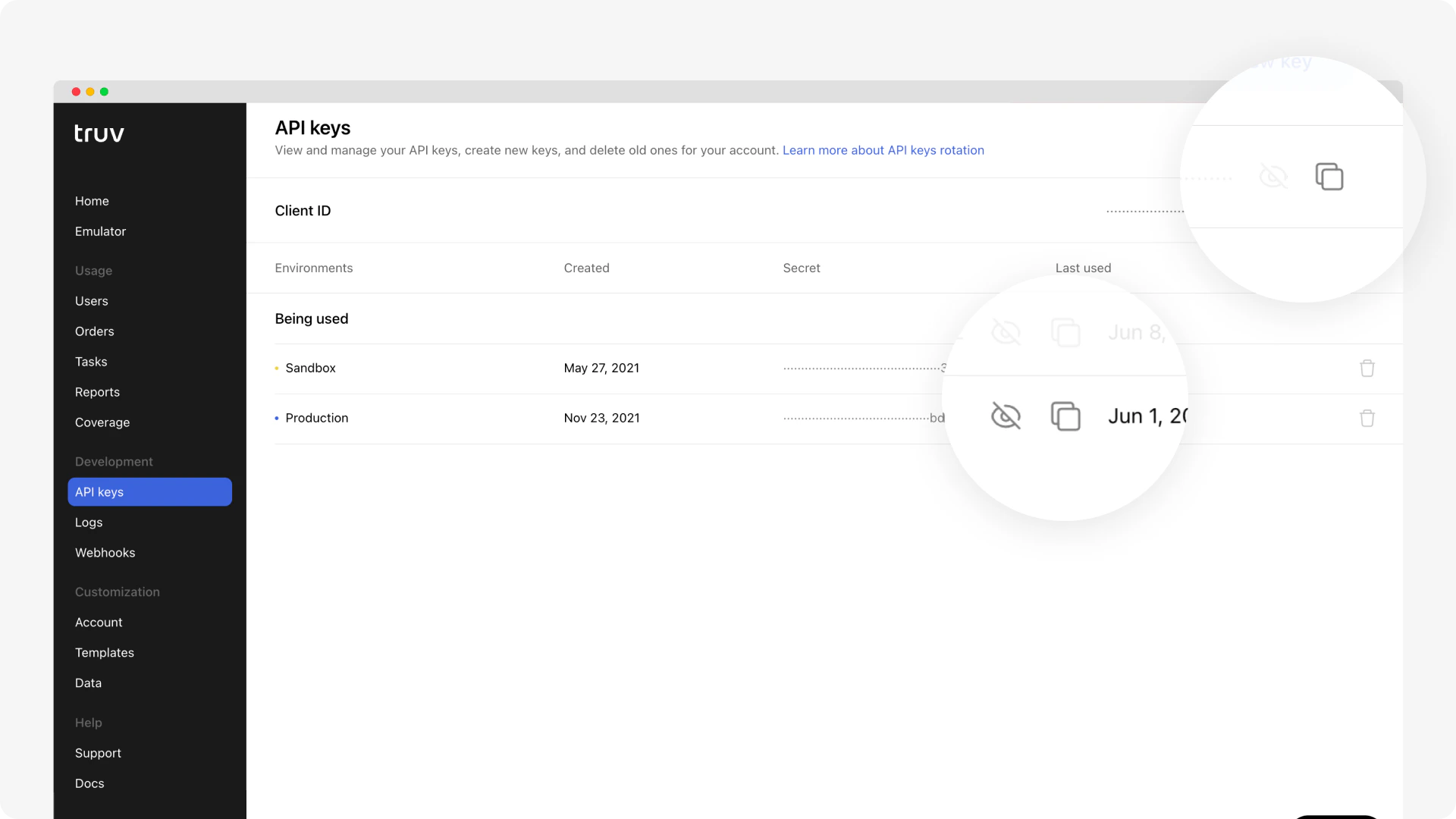
Truv provides sandbox and production environments, each with its own Access Secret. Use sandbox to check structure and get sample data. Confirm your configurations in sandbox before moving to production.
- Select Service Setups in the options. On the next page click Add on the Manual option.
- Add a Service Setup Name, then enable the service at the highest organization level so all Encompass users can access. Then switch the Manual setup to Active in the top right.
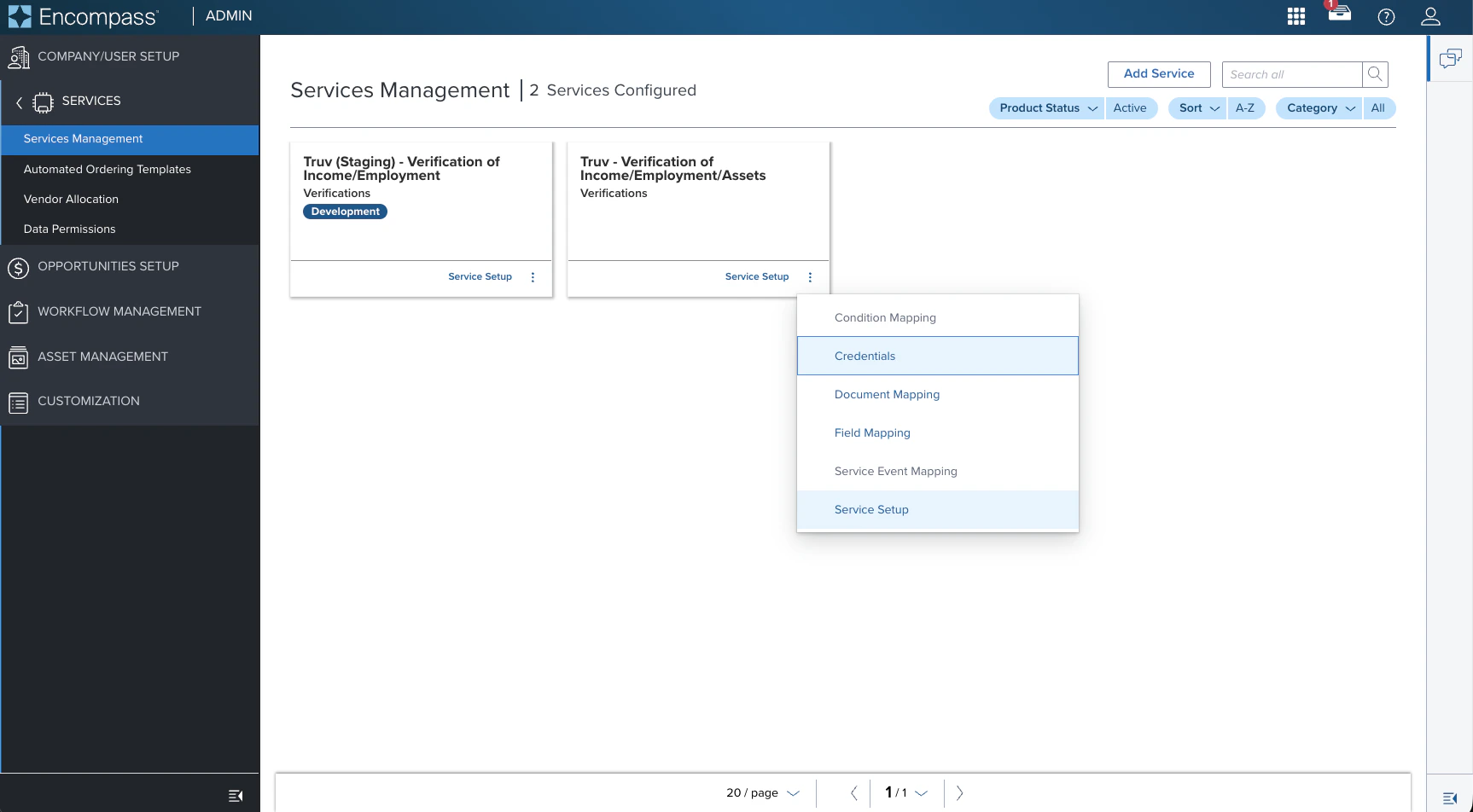
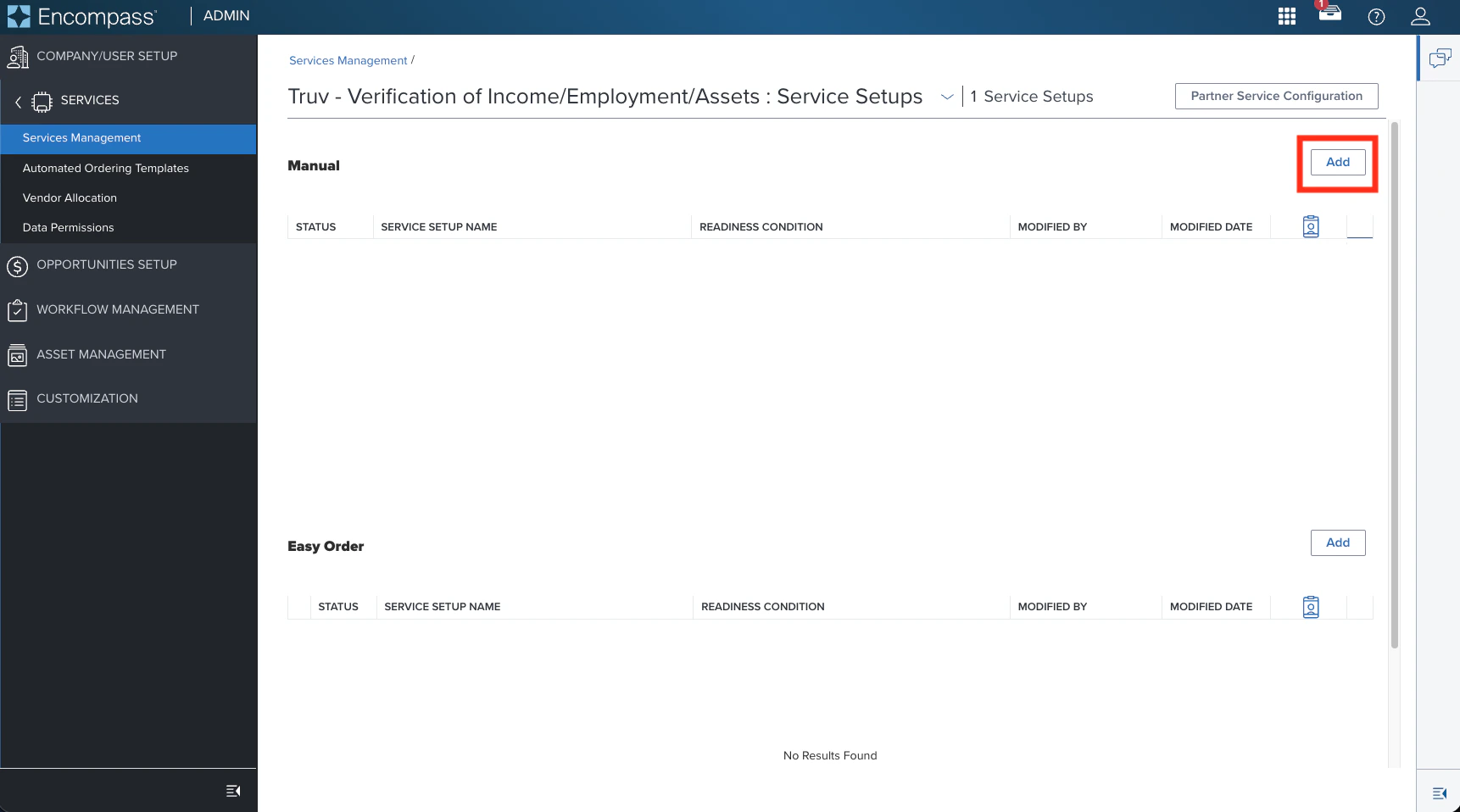
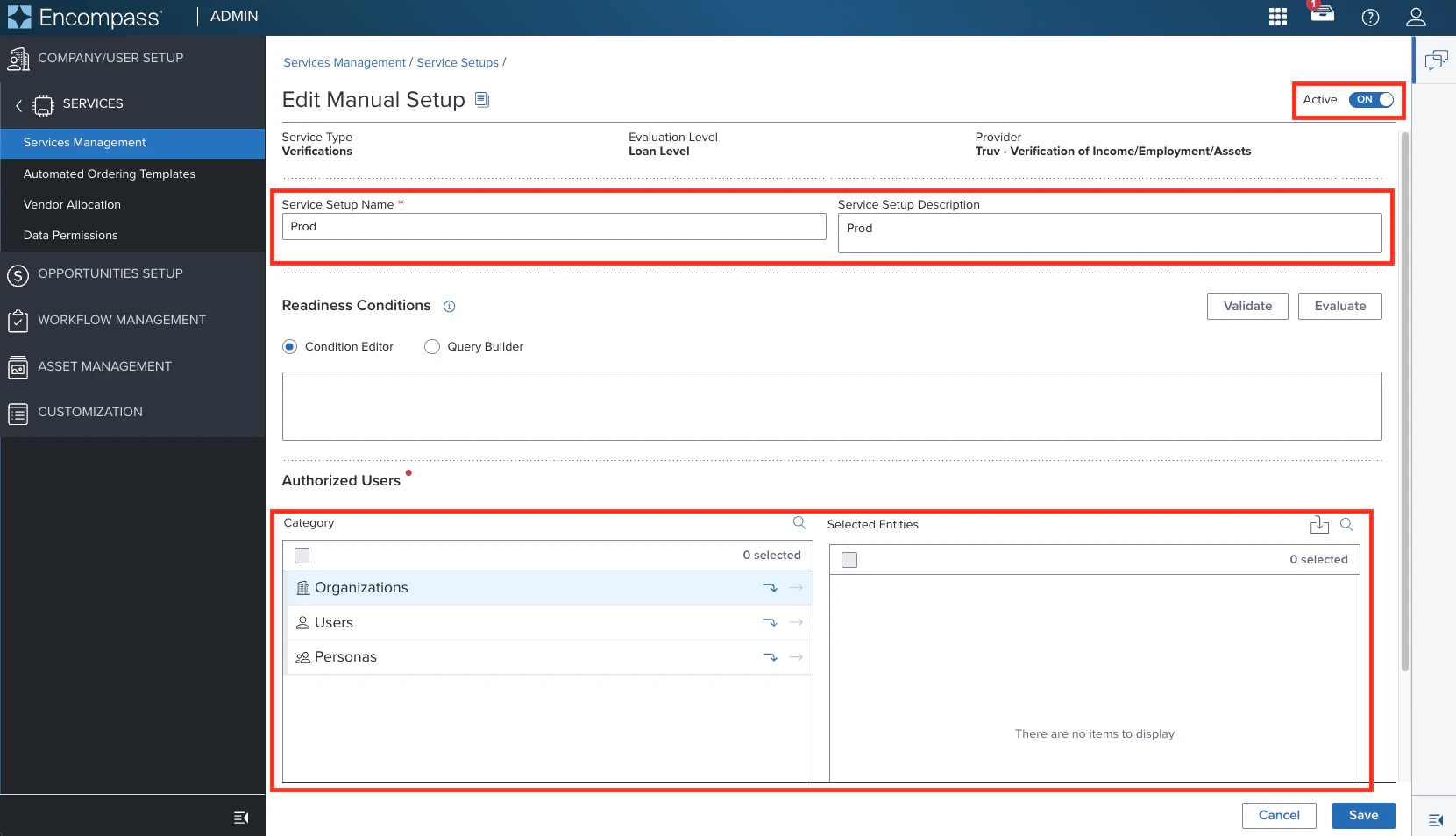
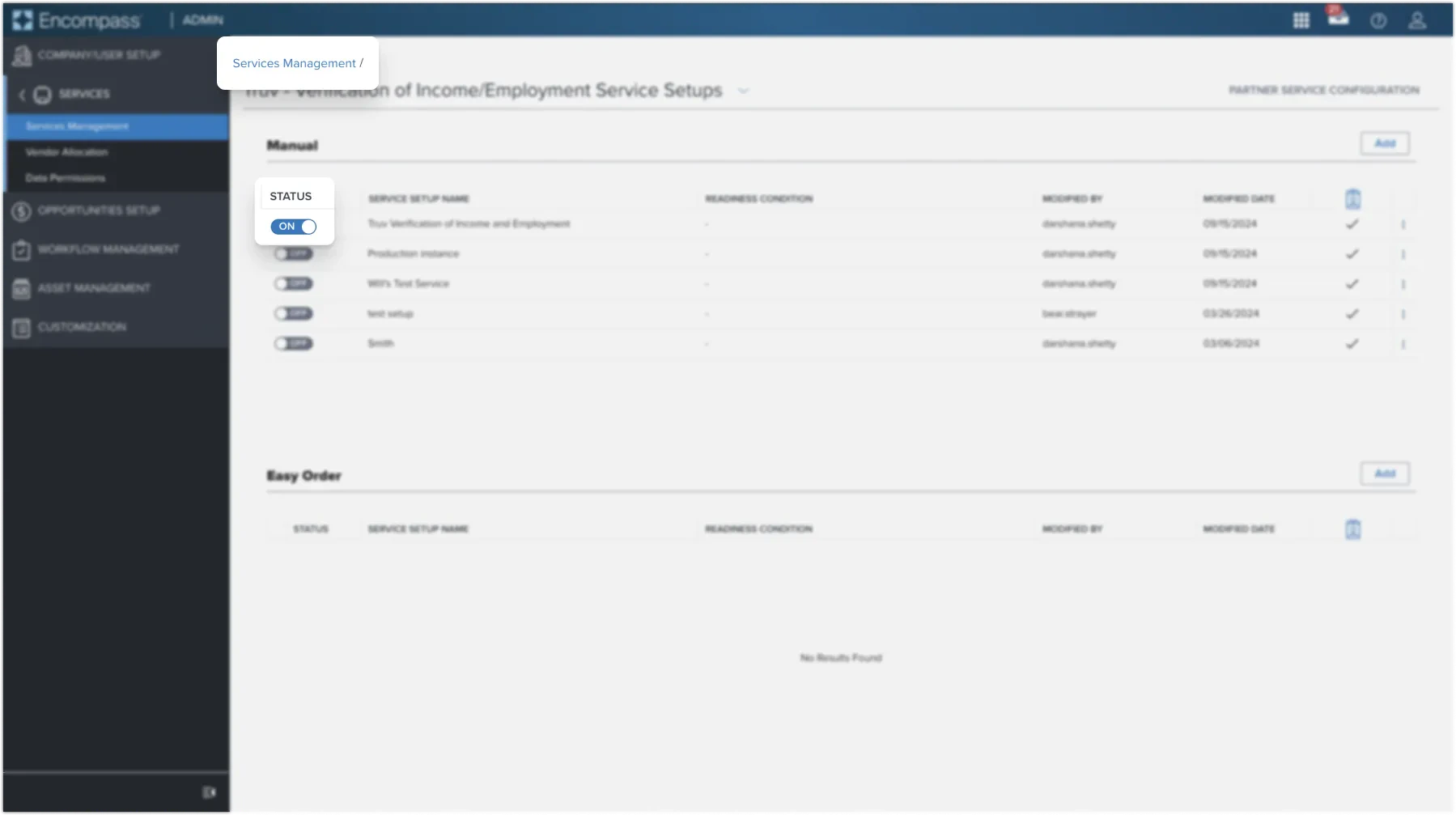
Setup guide for manual ordering with Encompass®
Next steps
Placing Orders
Manual ordering, ASO configuration, and AIM Check
Customization
Templates, eFolder mapping, and notification settings
Truv Dashboard
Manage credentials and templates