

- Higher success rates — orders are placed at the right moment in the loan lifecycle
- Increased productivity — eliminates repetitive manual ordering for loan officers and processors
- Faster closings — earlier, automated data retrieval reduces turnaround time
Implementation Options
| Initial Order | Refresh Order | |
|---|---|---|
| What it does | Automatically places a verification order when a loan meets defined conditions | Automatically places a refresh order for previously connected accounts |
| Best for | Reducing manual ordering and turnaround time at loan start | Automating 10-day PCV and pre-closing re-verification |
| Trigger examples | Loan creation, LO assignment, milestone completion | Estimated closing date within 10 days, milestone completion |
Setup Guide
Create a New Rule
Log into Encompass as an administrator via Encompass LO Connect. Navigate to the Services tab and select Automated Ordering Templates. Click Add, select the Verifications category, enter a Rule Name, and select Truv - Verification of Income/Employment/Assets.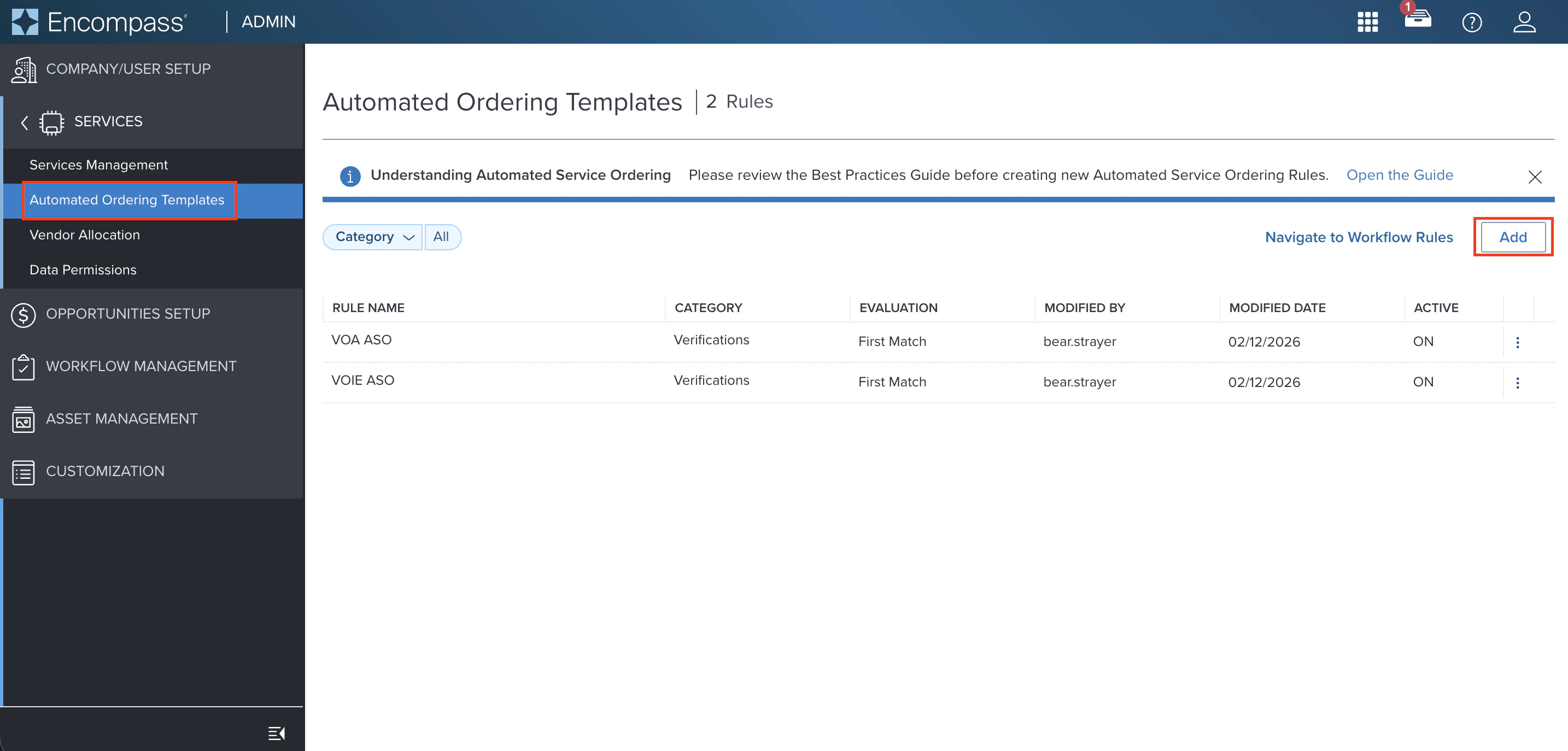
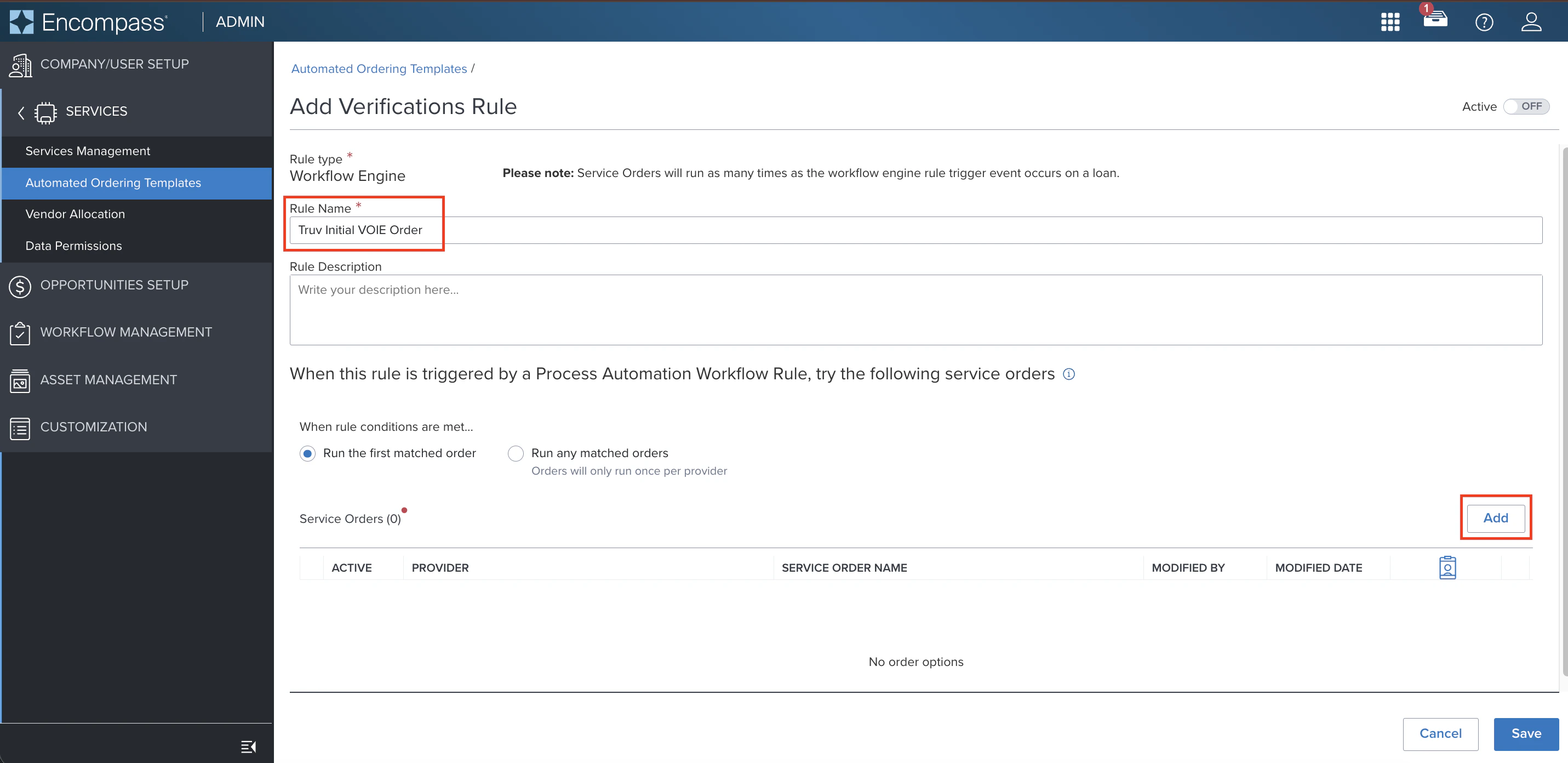
Create a Service Order
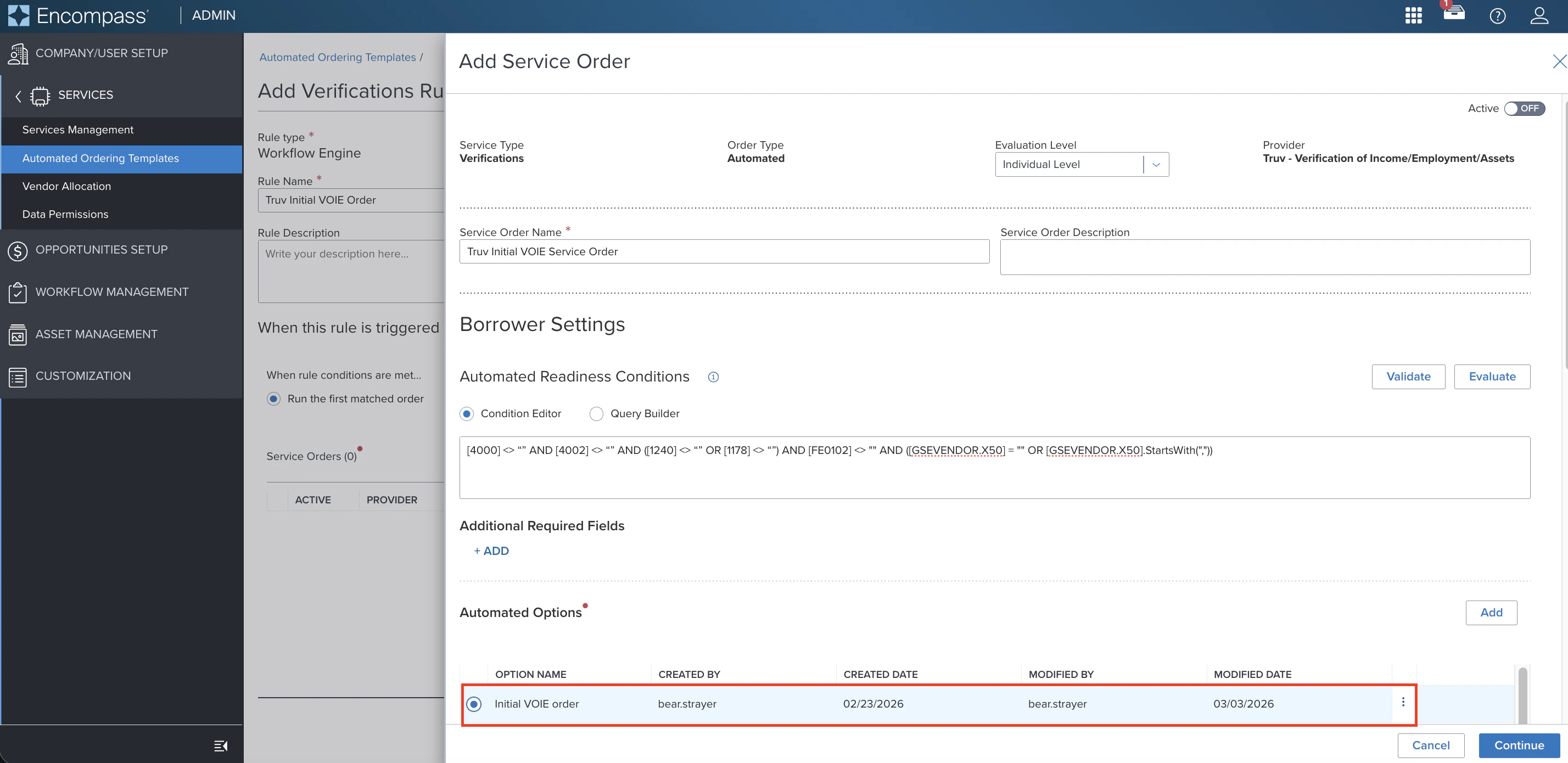
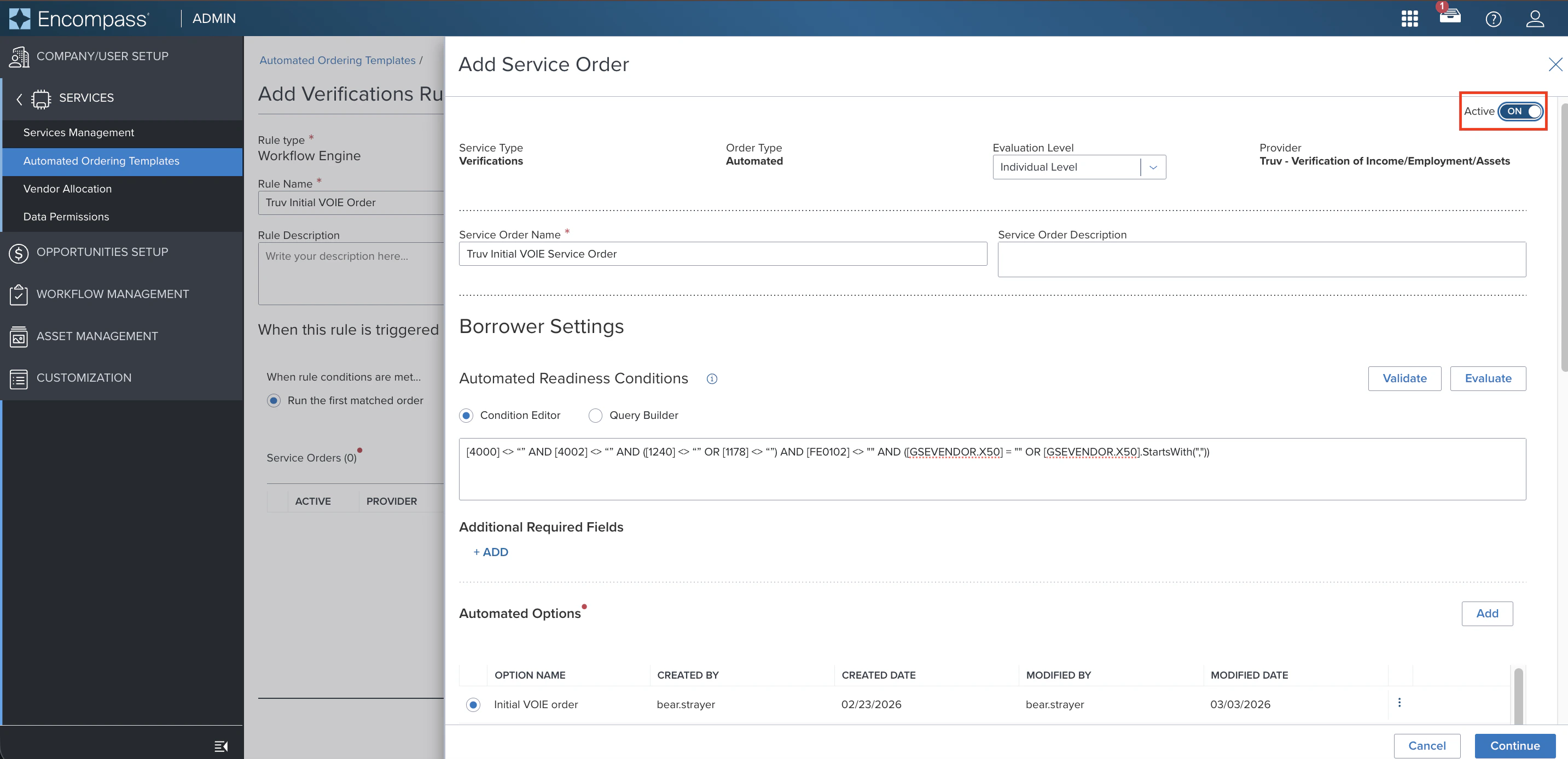
Configure the service order with the following fields:
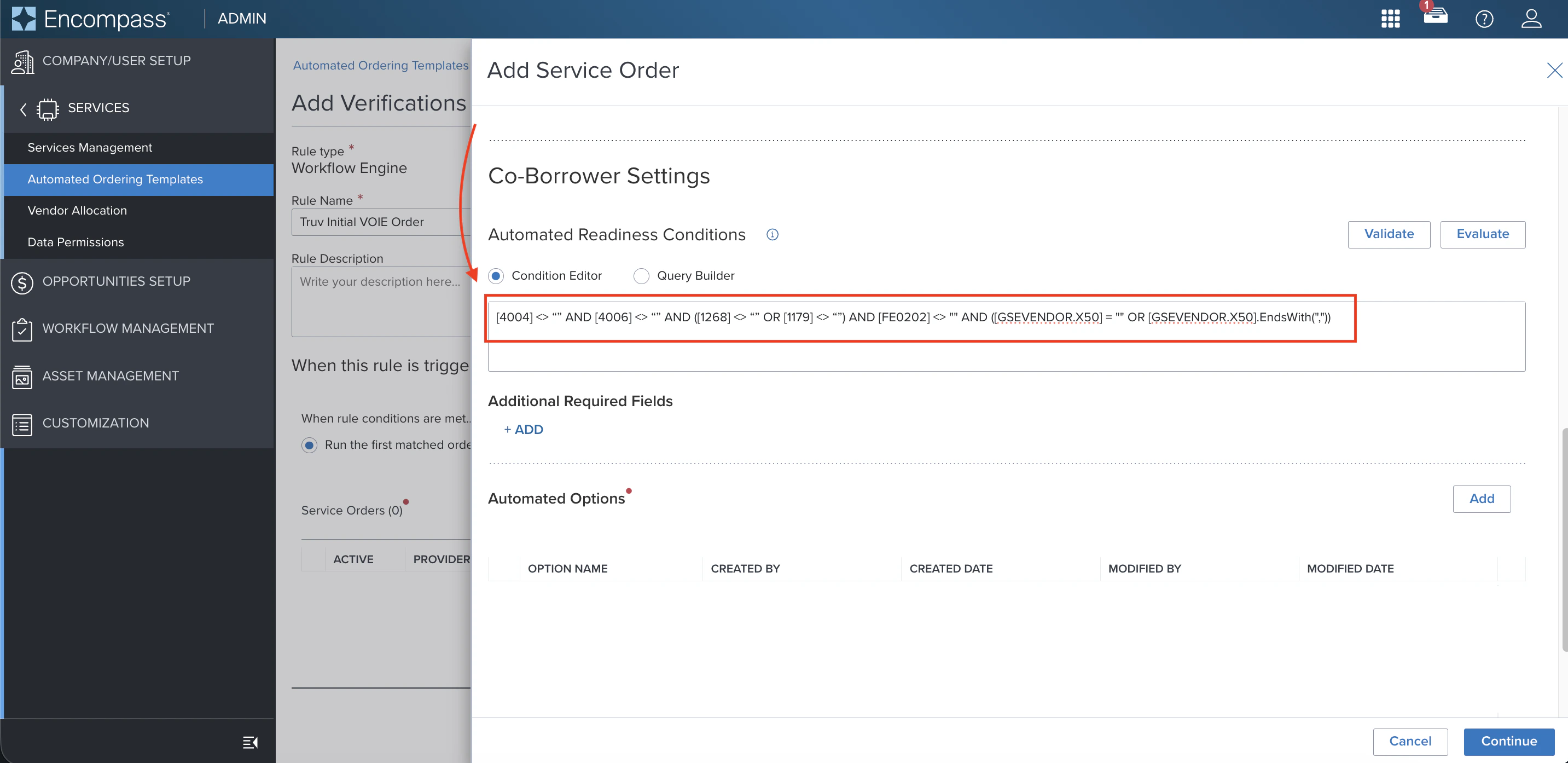
Automated Readiness ConditionsCopy the appropriate condition query into the Condition Editor for the borrower and co-borrower.Initial order — Borrower (VOIE / VOE):Initial order — Borrower (VOA / DVOE):Initial order — Co-Borrower (VOIE / VOE):Initial order — Co-Borrower (VOA / DVOE):Refresh order — Borrower (VOIE / VOE):Refresh order — Borrower (VOA / DVOE):Refresh order — Co-Borrower (VOIE / VOE):Refresh order — Co-Borrower (VOA / DVOE):Under Automated Options, click Add to create a new option or select an existing one for the borrower and co-borrower.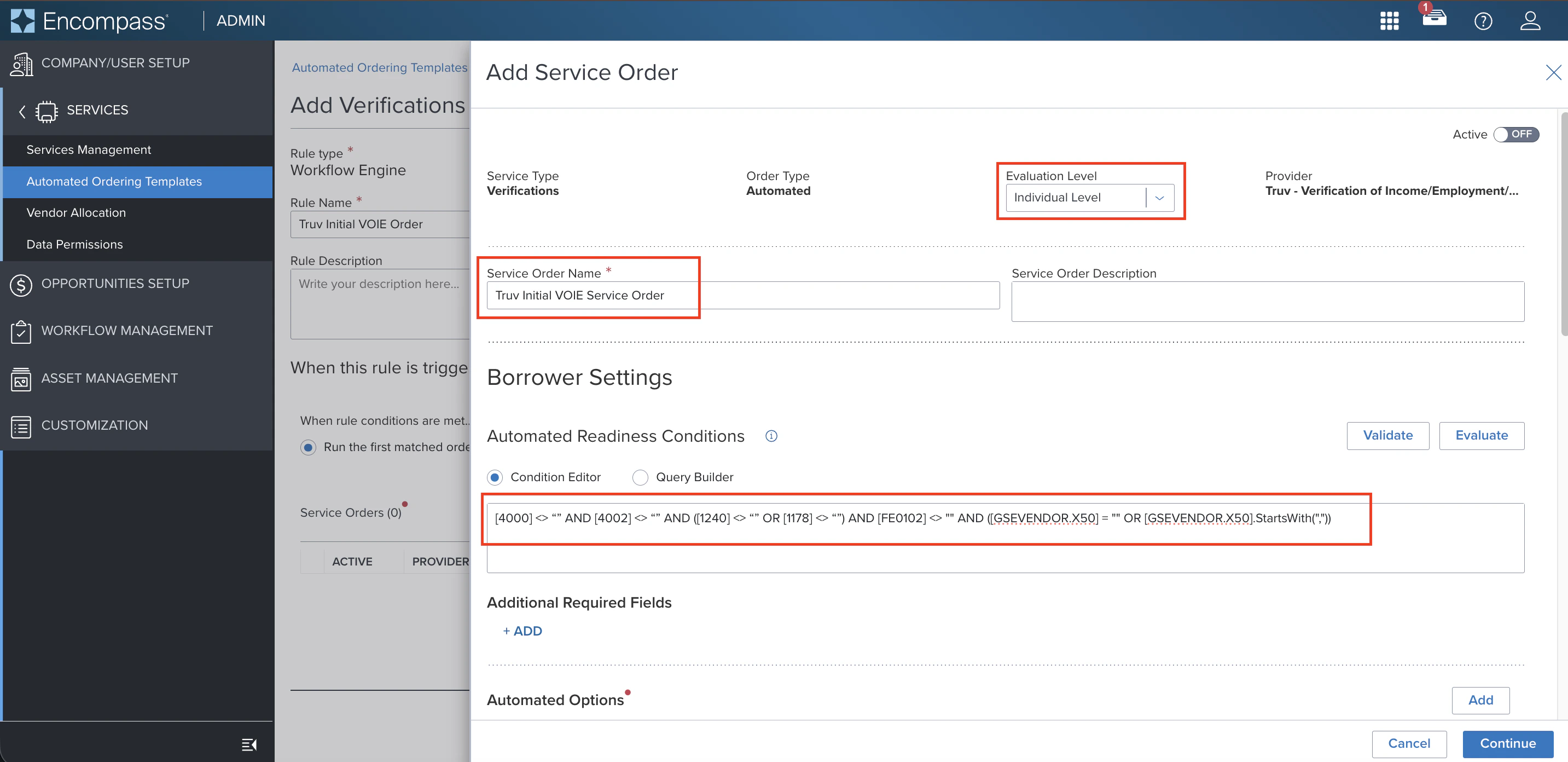
| Field | Description |
|---|---|
| Evaluation Level | Set to Individual Level to evaluate borrower and co-borrower separately |
| Service Order Name | Use a name that identifies the borrower scenario and product type |
| Automated Readiness Conditions | Borrower-level conditions that must be met before the rule fires |
| Automated Options | The Truv product and notification settings to use when the rule fires |
Create an Automated Option
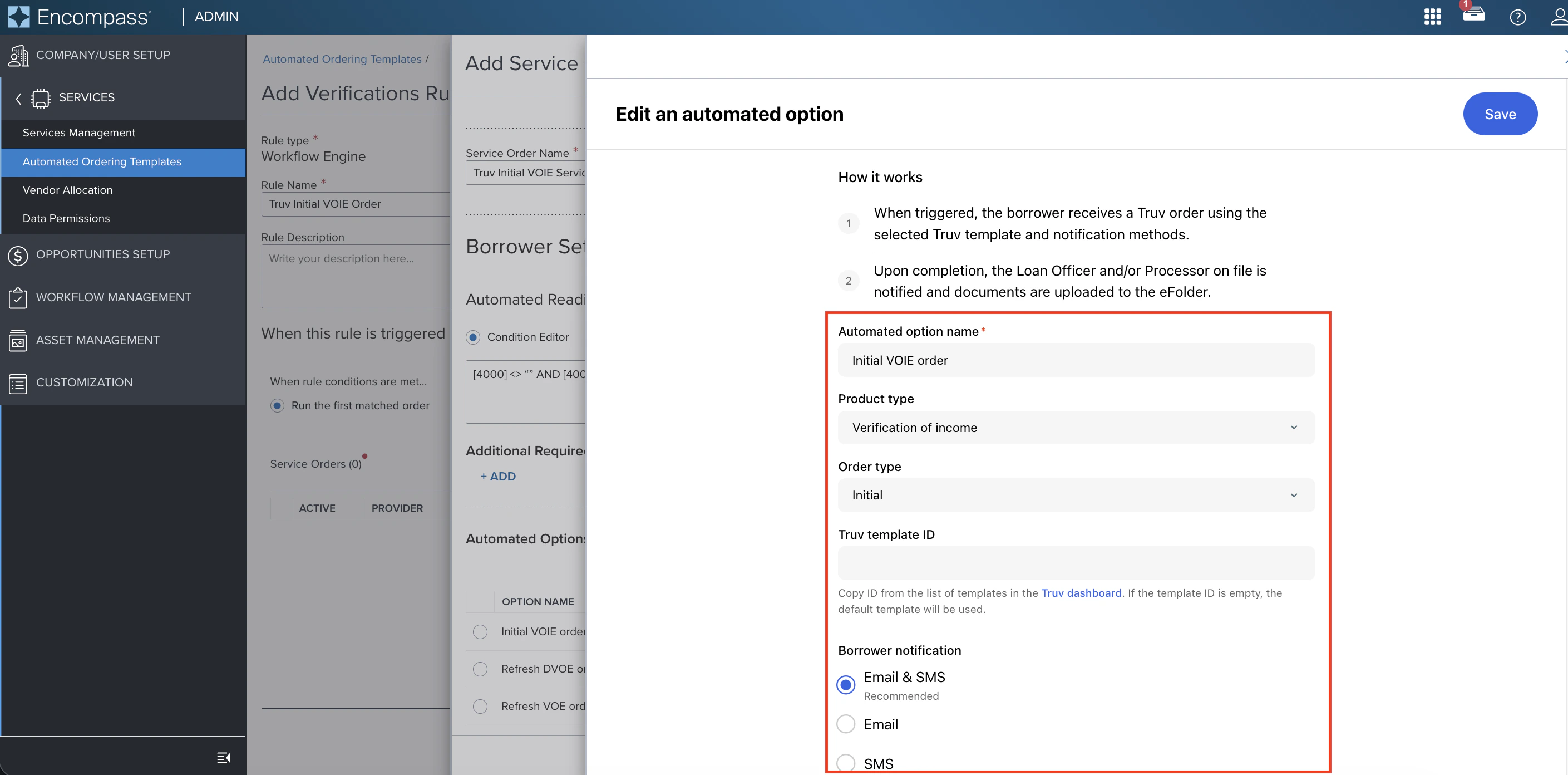
Configure the automated option with the following fields:
| Field | Description |
|---|---|
| Automated option name | Reflect the product type, order type (initial or refresh), and template used |
| Product type | Select the Truv product: VOIE, VOE, VOA, DVOE, etc. |
| Order type | Choose Initial or Refresh |
| Refreshed employers (Refresh only) | Select all connected employers or only connected & current employers |
| Truv Template ID (Optional) | Copy from the Truv Dashboard under Customization > Templates. If not set, the Primary/Default template is used. |
| Borrower notification | Recommend Email & SMS for fastest borrower turnaround |
Create a Workflow Rule
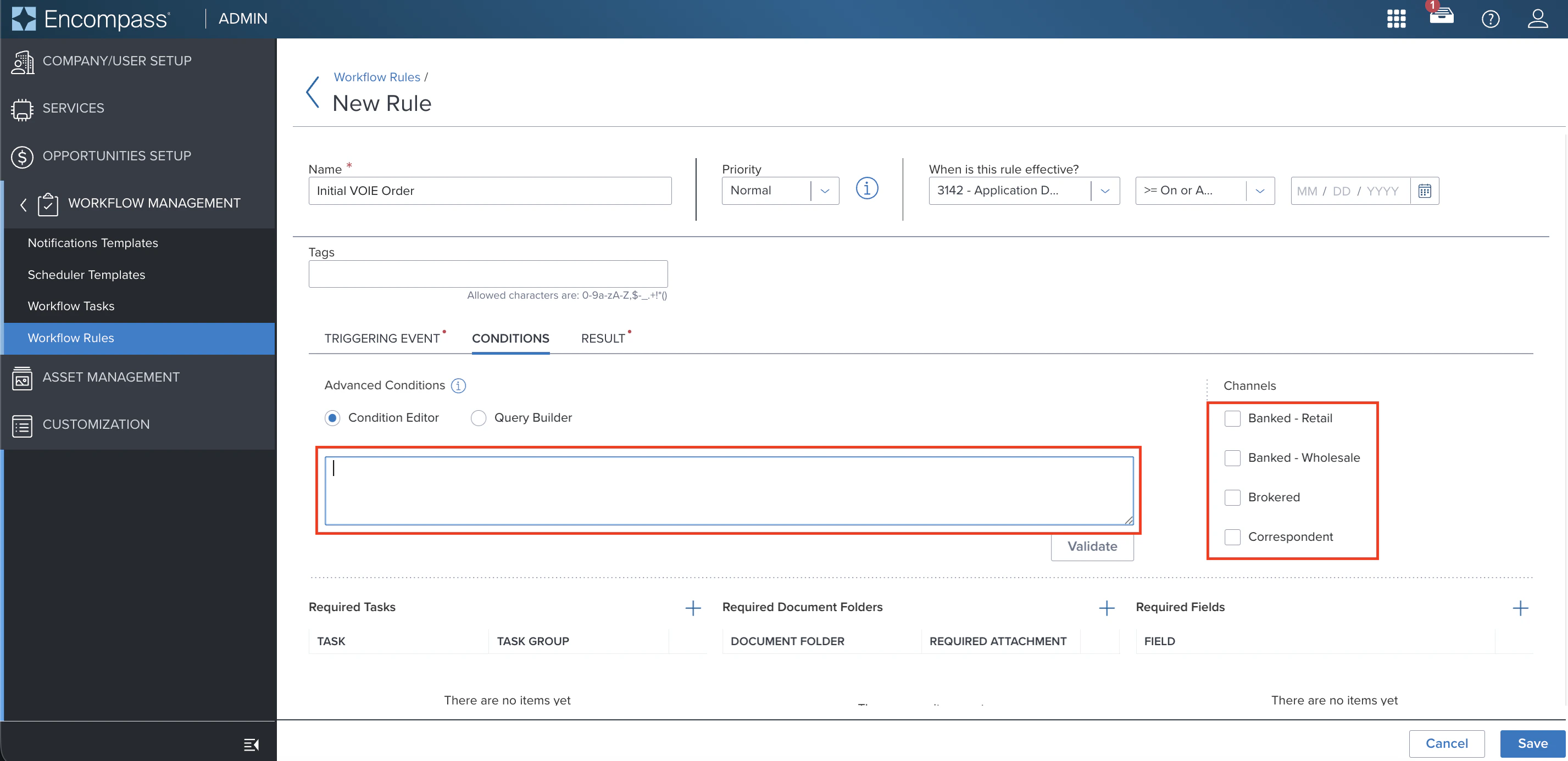
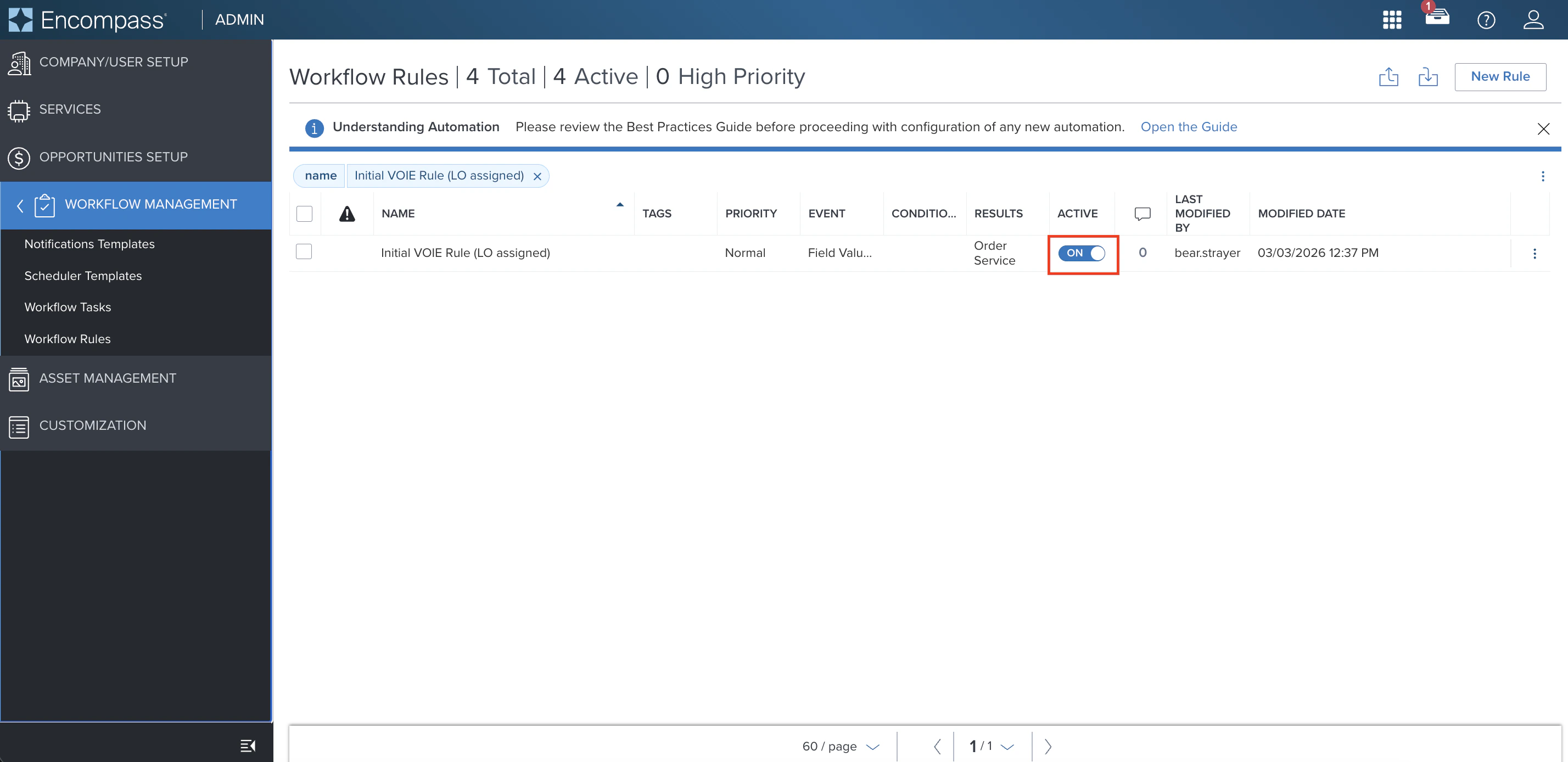
Navigate to the Workflow Management tab and select Workflow Rules. Click New Rule.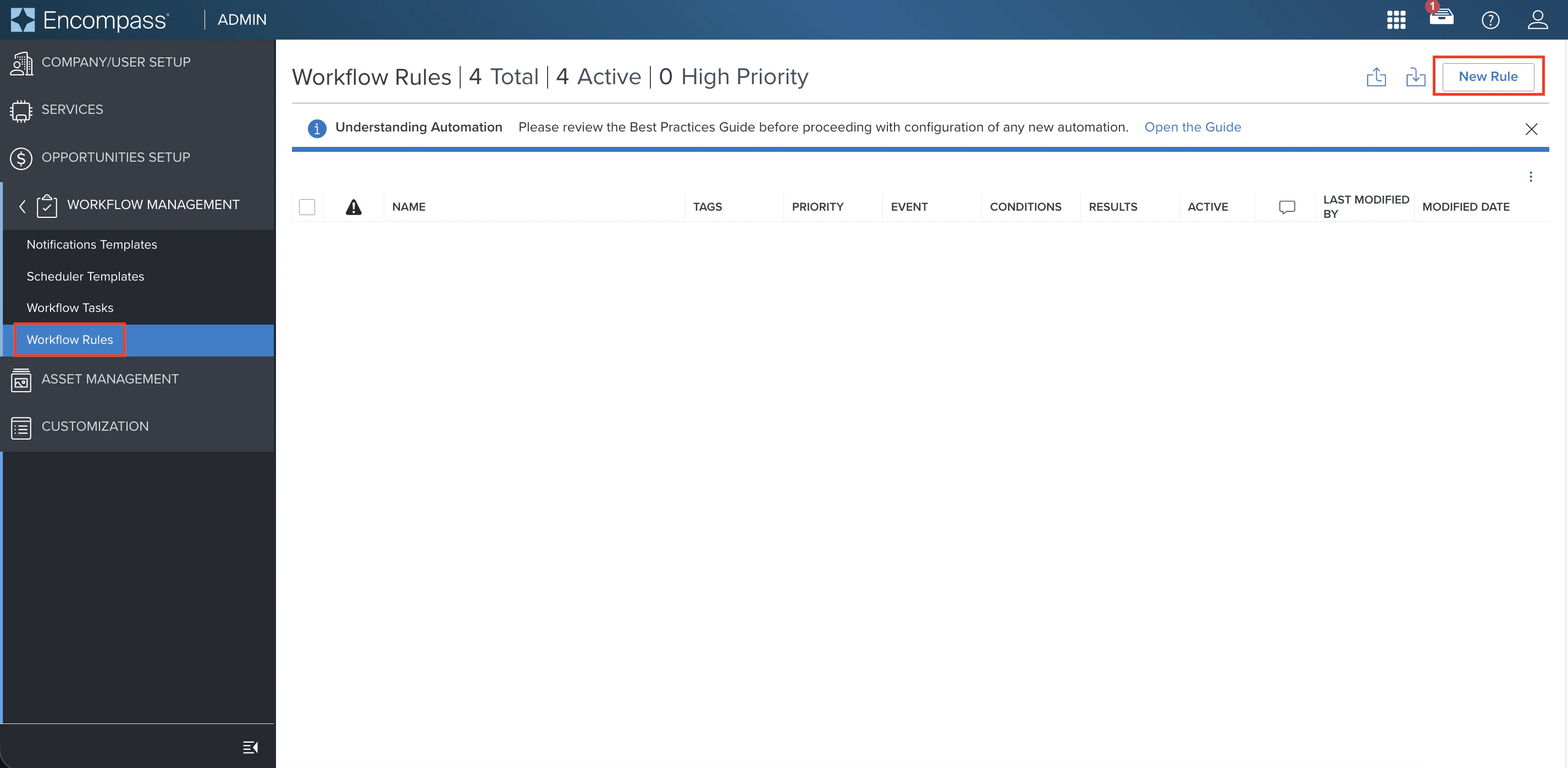
Also set:
| Use case | Trigger options |
|---|---|
| Initial ASO — Field Value Modified | Borrower Intent to Continue Date (3197), Application Date Set (3142), Loan Officer Name (317), Loan Processor Name (362), eConsent Date (3983) |
| Initial ASO — Milestone Completed | Processing, or any lender-defined milestone aligned with VOIE/VOA ordering |
| Refresh ASO — Field Value Modified | Calculated field (estimated closing date < 10 days away), Loan Closer Name (1855), or any lender-defined refresh trigger |
| Refresh ASO — Milestone Completed | Approval, or any lender-defined milestone aligned with refresh ordering |
- Rule Name: Use a name that reflects what triggers the rule and when
-
Rule Effective Date: Set to Loan Created Date or Application Date after the agreed go-live date
| Use case | Recommended conditions |
|---|---|
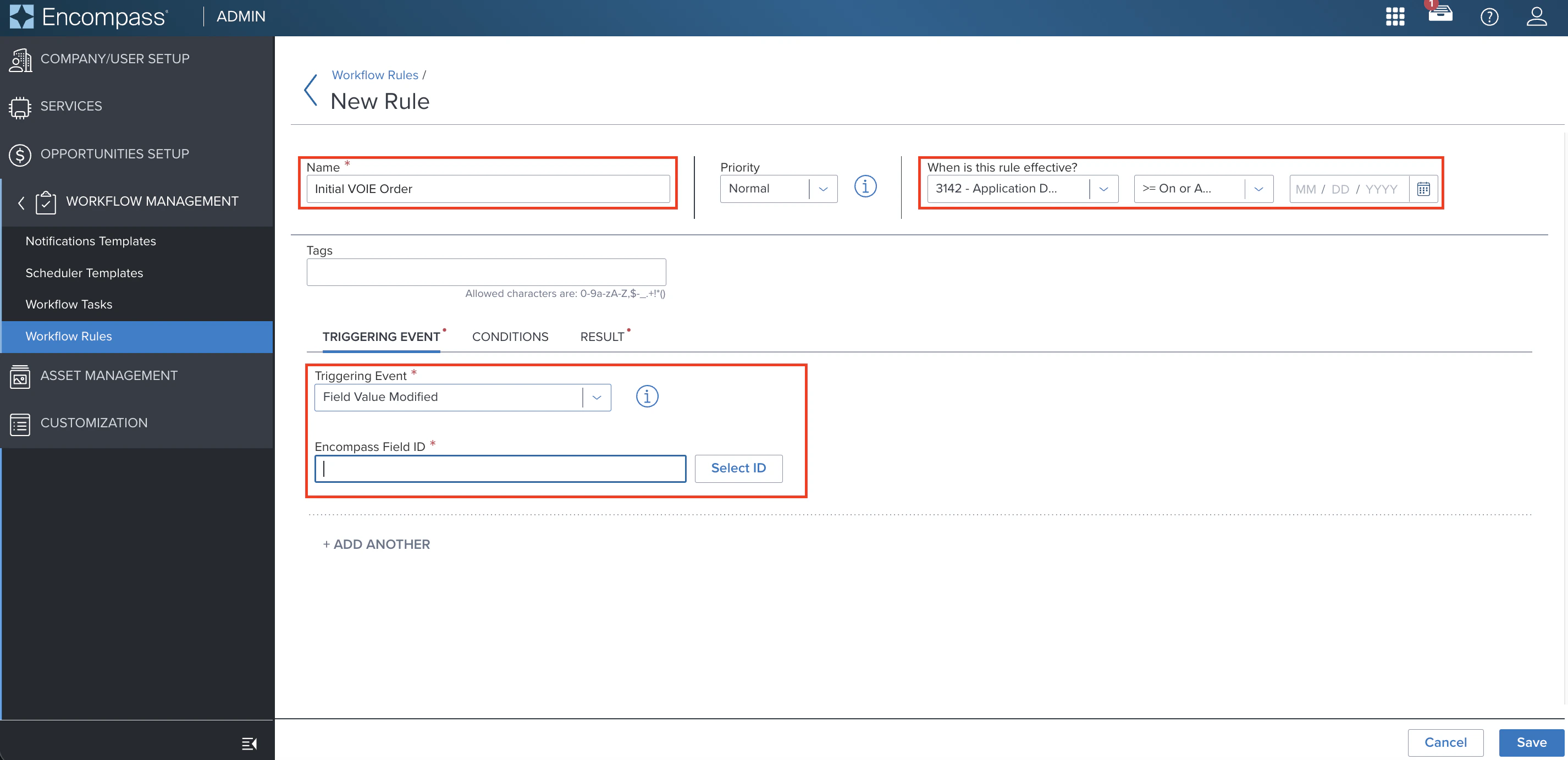
| Initial ASO — Permanent | Credit Score for Decision Making (2853), Loan Program (1401), Channels: Banked-Retail, Banked-Wholesale, Brokered, Correspondent |
| Initial ASO — Pilot | Loan Officer Email (1407), specific branch or DBA |
| Refresh ASO | No additional loan-level conditions recommended — rule applies only to files with a successful initial connection |
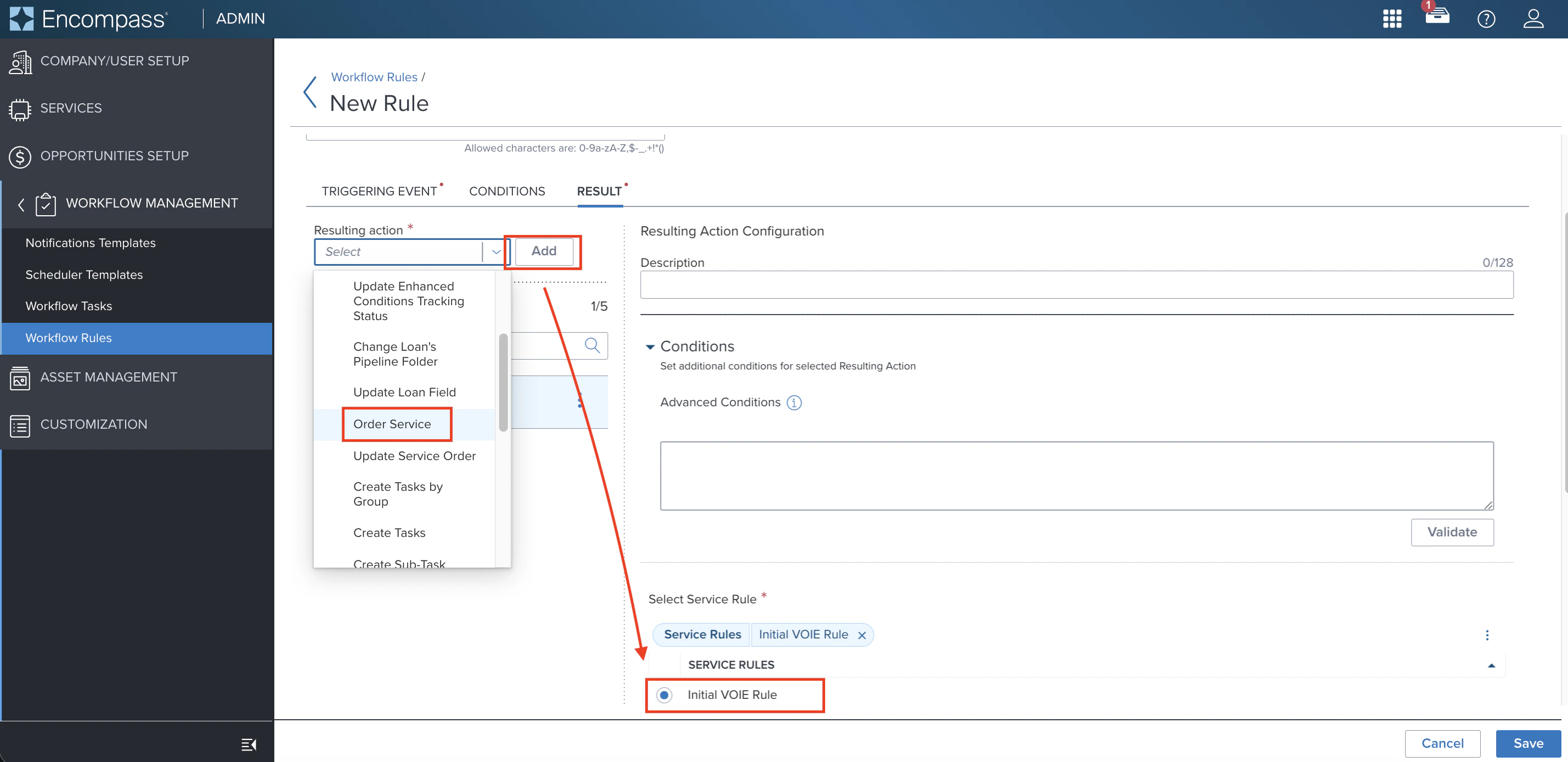
- Open the Resulting action dropdown and select Order service
- Scroll down and select the Service Order configured in Step 2
-
Click Save
Additional Truv Configurations
Work with your Truv Customer Success Manager to configure:
- Employer filtering by Truv success rate — include only Green, Yellow, Red, or Gray rated employers
- Current employers only — limit ASO to currently active employers
- Status update recipients — notify loan officers, processors, group inboxes, or other roles when order status changes
Setup Walkthroughs
Initial ASO Setup
Refresh ASO Setup
Next steps
Create and Manage Orders
Manual ordering for VOIE, VOE, VOA, and Income and Assets
Customization
Templates, eFolder mapping, and notification settings
Encompass LOS Setup Guide
One-time Encompass configuration