

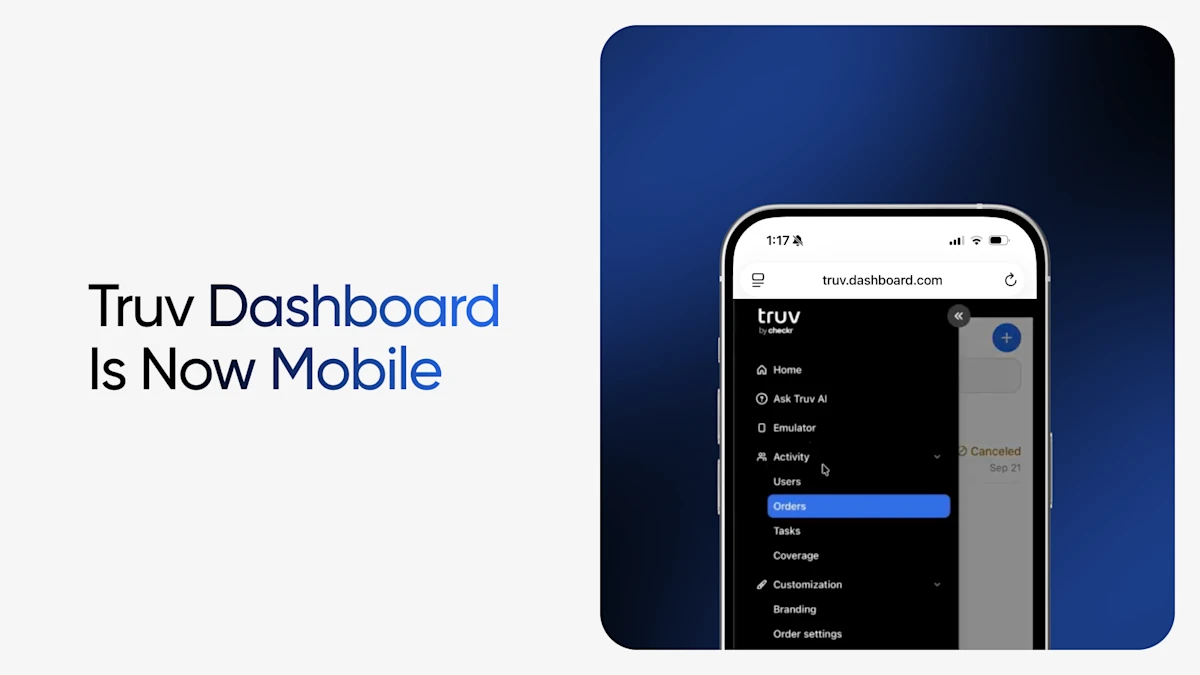
Big news! The full Truv Dashboard now works on mobile. Nearly everything you can do on desktop, you can now do from your phone's browser, with no app download required. That means you can maintain momentum from wherever you are.
Picture a caseworker finishing an intake between appointments, or a screener who gets a status question while away from the office. A credit union branch employee might be with a member who is ready to switch a deposit right now. An admin might need to add a new teammate before they start their first shift. Until now, all of that meant waiting until you were back at a laptop.
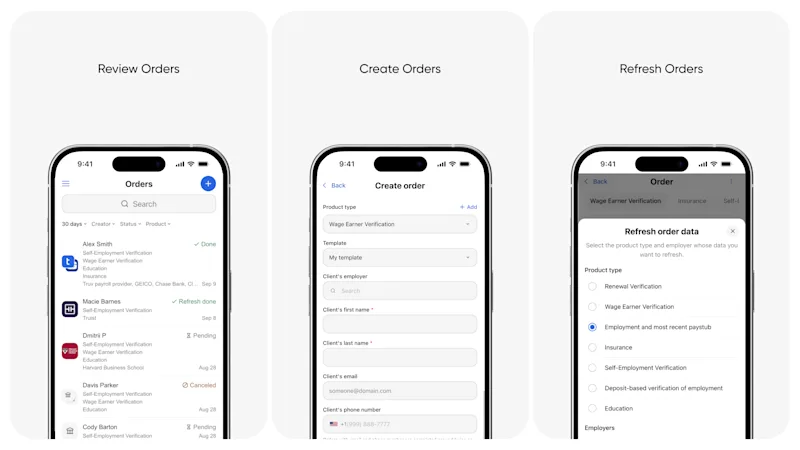
What you can do on mobile
Every page of the Truv Dashboard is now mobile-friendly. The layouts are rebuilt for a small screen, so the experience matches desktop instead of just shrinking it down.
Create an order. Start a new verification the same way you would on desktop: choose your environment and product, enter end user details, and send it. The end user gets their email or SMS notification in real time.
Review your orders. See everything in flight, with current statuses, in a layout built for scrolling on a phone instead of a compressed desktop table. Section details are collapsed by default for easy scrolling and expand with a tap.
Open order details. Tap into any order to check status history, see which data sources have been verified, refresh order data, and download reports once your end user has completed their verification.
Switch between Sandbox and production. The environment toggle carries over, so testing behaves the same way it does on desktop.
Manage your team. Invite teammates, update roles, and manage access from the Team page.
Edit templates. Create and update templates, and adjust their settings on the go.
Update company branding and profile. Keep your company details and branding settings current from anywhere.
Manage API keys. Create, delete, and manage your API keys from your phone.
Access Subscription pages. Truv clients on subscription plans can review plan details and usage from mobile.
A few differences from desktop
Mobile and desktop are now nearly identical, with two small exceptions. Template previews aren't shown on mobile, though you can still edit all template settings. API key secrets also aren't displayed on mobile for security reasons. You can create and manage keys on your phone, but to view a secret, open the Truv Dashboard on desktop.
How to get started
There's nothing to install. It's ready as-is.
- Open the Truv Dashboard in your phone's browser and sign in with your existing credentials.
- The mobile layout loads automatically.
- Your permissions, environments, and order history are all the same. It's the same dashboard, sized for the device in your hand.
Tip: For one-tap access, add the dashboard to your home screen from your mobile browser's share menu.
Why we built it
Teams across lending, public sector programs, screening, and banking kept telling us the same thing. The Truv Dashboard was where the critical details of their work lived, but their work didn't stay in one place. Field staff, remote reviewers, and anyone covering after-hours questions all relied on the same workarounds: screenshotting a status, messaging a colleague at a desk, or telling an applicant they'd follow up tomorrow.
We started with the handful of actions users take dozens of times a day. Now we've brought the rest of the dashboard along with them, so you're never stuck waiting for a laptop.
Have feedback on the mobile experience? Tell your Truv customer success or technical account team, or reach out through Support in the dashboard.
Ready to see it? Log in to the Truv Dashboard on your phone, or create an account to get started.


