
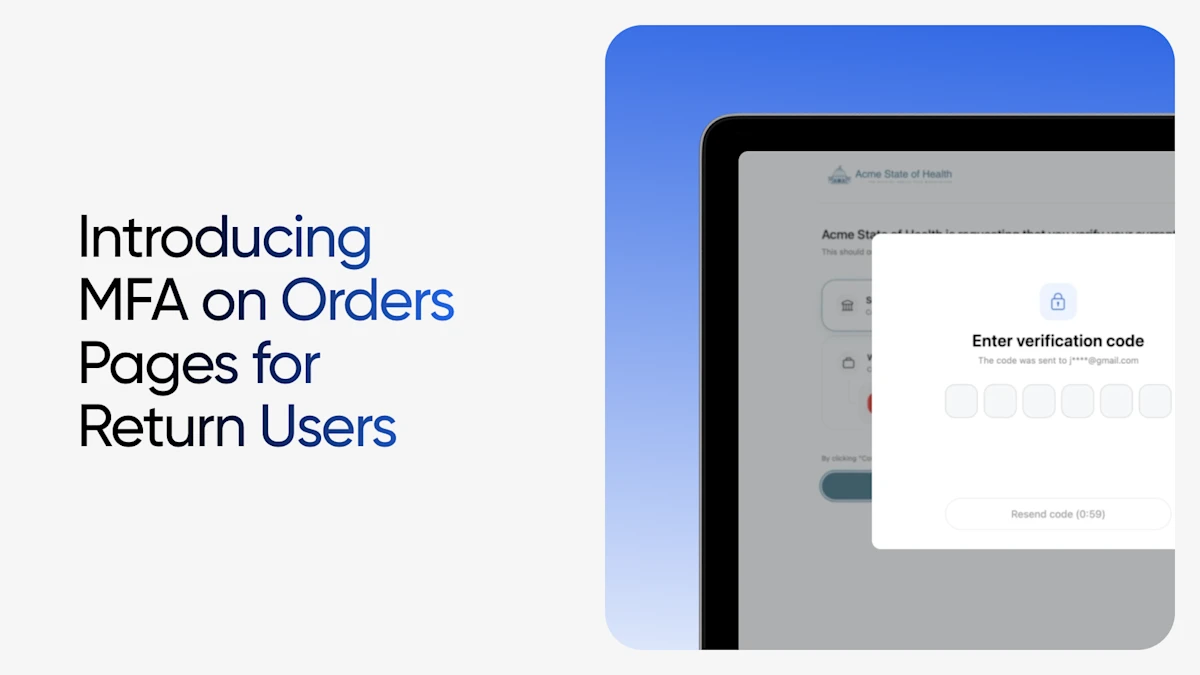
Applicants don’t always finish an order in one sitting. They come back later, often from a different device, to check status or complete a step. Now you can add a verification step to that return trip.
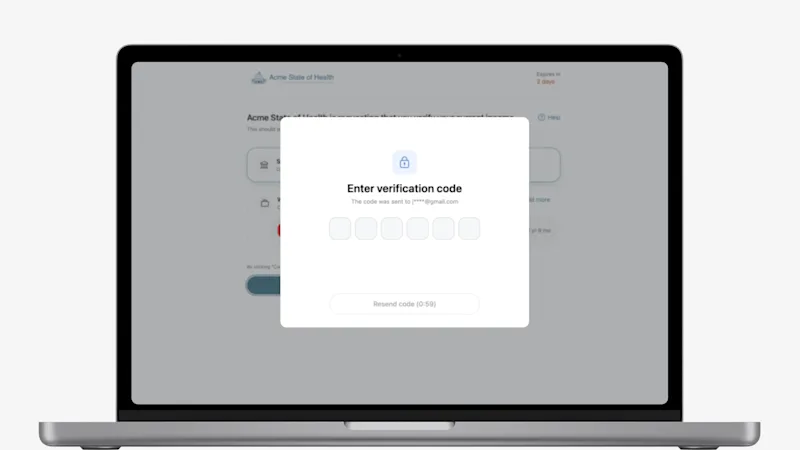
Now you can add a verification step for an extra security layer. Our new optional MFA step asks returning applicants for a one-time code before we show any report details. For state agencies, that means an applicant coming back to complete self-certification has to verify who they are first.
How it works
- Applicants open their order link. Until they verify, they see only a branded page, with no order or report details.
- They choose where to get a code. Email or phone, with contact details partially hidden.
- They enter the code. Once it’s verified, the orders landing page and certification page load as usual.
Applicants who stay in their original session don’t see any extra step, so the regular flow stays just as fast.
Built-in controls
- Attempt limits. Each code allows 3 attempts. After that, the applicant requests a new one.
- Lockout. After reaching the maximum failure attempts in total, we lock the order and direct the applicant to support.
- Easy recovery. Contact us and our support team can reset a lockout from our admin tools.
- Audit trail. We log every code sent and every failed attempt, so you have a record when you need one.
Additional details
- Where it applies. The verification step covers the certification page and the orders landing page for returning applicants.
- When it applies. It applies once at least one account is connected to the order.
- Contact method required. We can only send a code if the order has an email address or phone number. If it has neither, the verification step is skipped.
- Embedded orders aren’t supported. MFA for returning applicants doesn’t work with embedded order flows, so it should stay off for those orders.
How to enable it
MFA for returning applicants is off by default. To turn it on, contact your customer success manager or technical account manager. We’ll enable it for your account and confirm when it’s live.
Keep in mind that the verification step appears only once the feature is enabled for your account and at least one account has been connected to the order. Connecting an account alone won’t trigger it.
New to us? Talk to our team and we’ll walk you through it.


