

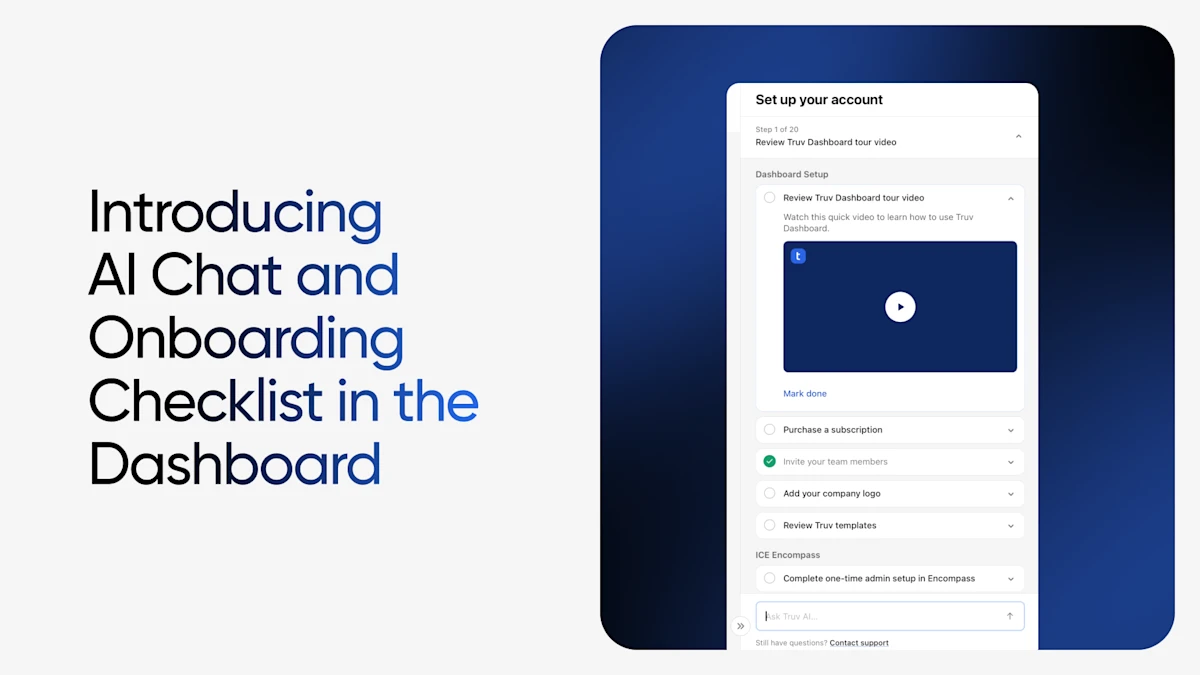
Get set up faster and get answers without leaving the Dashboard.
Getting started with your Truv by Checkr verifications shouldn't always mean digging through docs or waiting on a support reply. Today, we're introducing two new ways to get up and running in the Dashboard: a redesigned onboarding checklist and a built-in AI chat that answers questions, looks up your data, and can even place orders for you.
A clearer path to going live
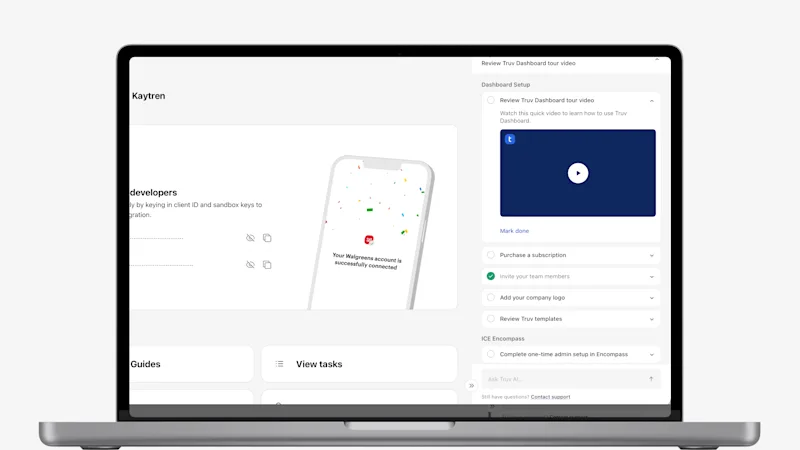
The new onboarding checklist sits right in the Dashboard and shows your progress as you go. Steps are split into company-wide tasks and tasks specific to you, so it's always clear what's done and what's next.
Depending on your role and permissions, your checklist may include:
- Watching the Dashboard tour video
- Creating a test order
- Purchasing a subscription
- Creating a production order
- Scheduling an onboarding call
- Inviting team members
- Adding your company logo
- Reviewing templates
- Completing one-time admin setup in Encompass (for ICE Encompass customers)
Prefer to jump straight in? You can minimize the checklist at any time and use the chat before finishing your onboarding steps.
Meet Truv AI Chat
Truv AI Chat is an assistant built into the Dashboard. It draws on Truv's public and internal documentation and the Dashboard API, so its answers reflect how Truv actually works.
Ask general questions. Get help with Dashboard navigation, how Truv works, how to start running production verifications, what each order status means, and more.
Get help on the page you're on. The assistant knows where you are in the Dashboard. Ask "What does this page do?" or "When was this order placed?" and it responds with the context of your current page.
Look up your data. Ask the assistant to:
- Create orders with applicant/client details
- Fetch orders and their properties
- Investigate issues
- Explain what's wrong with an order
- Pull account information, including billing and use case
- Share reports and performance metrics
- Find the right documentation
Place orders without leaving the chat. The assistant can create orders, including refreshes. Its ordering options are more limited than the full Create order page, so use that page for more advanced setups.
Support is one click away
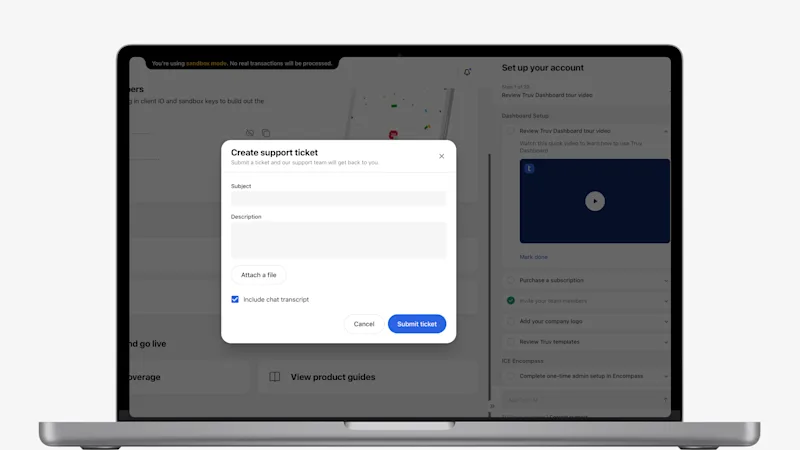
If the AI chat isn't providing the information you need, use the Contact support link at the bottom of the chat to open a support ticket right from the Dashboard. Add a subject and description, attach files, and choose to include your chat transcript so our team has the full context from the start.
Availability
The onboarding checklist and AI Chat are available on desktop and mobile Dashboard views for all Truv by Checkr customers.
Try it today
Log in to your Dashboard to see your checklist and start a chat at dashboard.truv.com.


