

Company
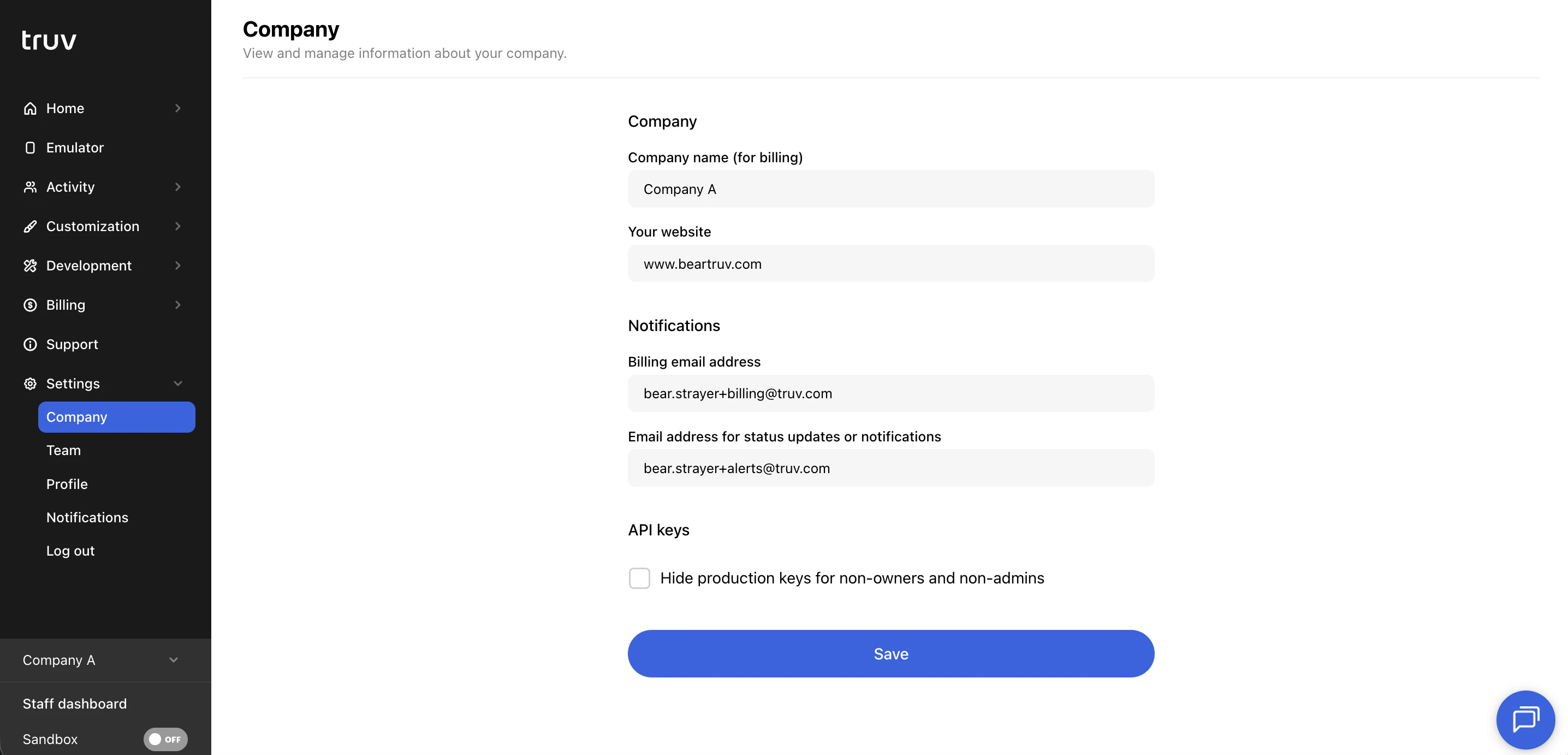
| Field | Description |
|---|---|
| Company name | Name displayed in the Dashboard |
| Website | Your company’s website URL |
| Billing email | Email address for billing communications |
| Status updates email | Email address for receiving order status notifications |
| Show / hide API keys | Control whether API keys are visible to team members in the Development section |
Team
The Team tab shows all members in your Truv Dashboard account.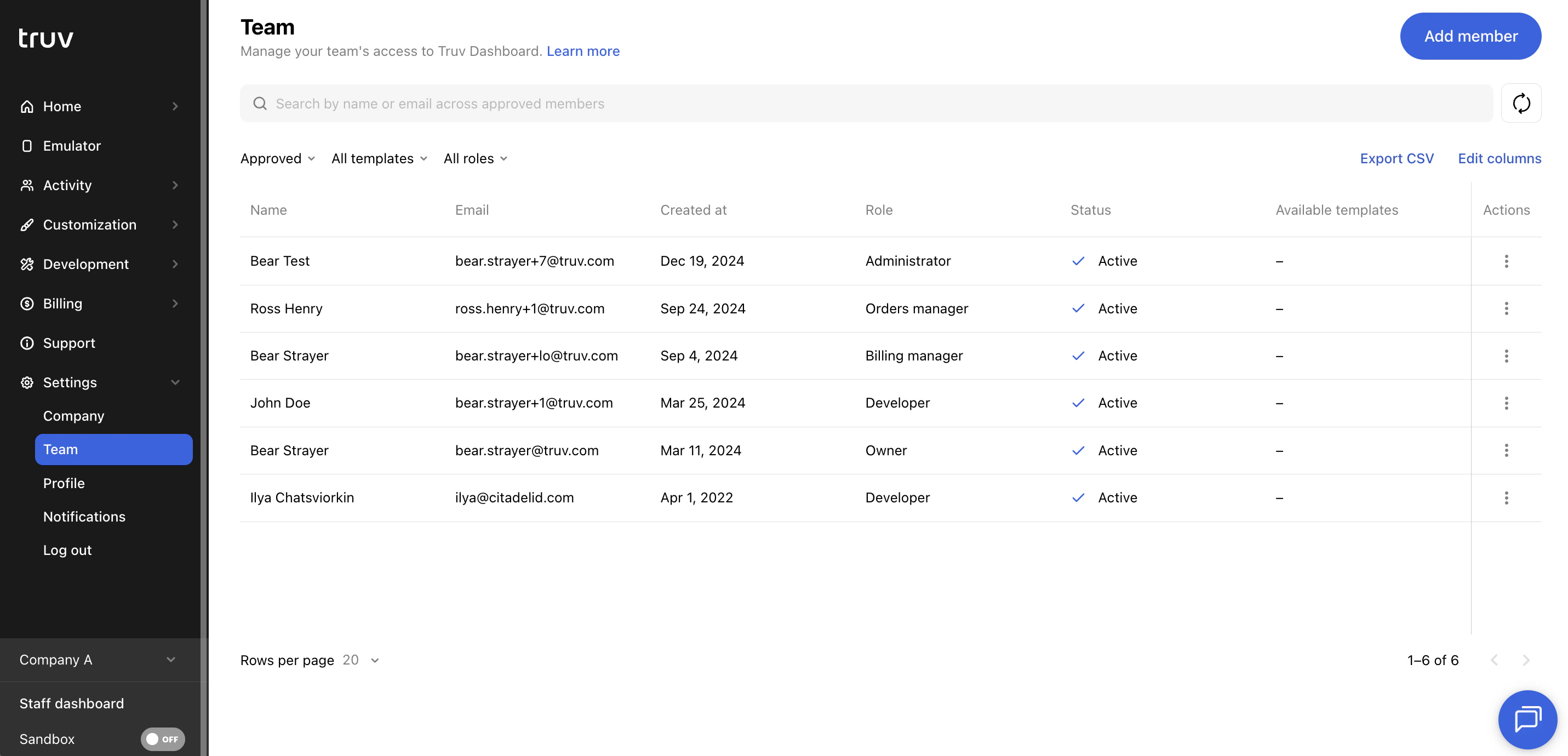
Table columns
| Column | Description |
|---|---|
| Name | Team member’s full name |
| Team member’s email address | |
| Created at | Date the member was added |
| Role | Assigned role (Owner, Administrator, Developer, Orders Manager, Billing Manager) |
| Status | Current membership status (see Member statuses below) |
| Available templates | Templates the member has access to |
| Actions | Actions available per member (see Member actions below) |
Member statuses
| Status | Description |
|---|---|
| Active | Accepted invite, full access |
| Invited | Email sent, pending acceptance |
| Waiting for approval | Signed up, not yet approved |
| Declined | Access denied |
| Invite expired | Link expired before acceptance |
| Invitation error | Invite send failed |
| Deactivated | Account deactivated |
Member actions
| Action | When available |
|---|---|
| Edit | Always — change role or templates |
| Approve / Decline member | For members waiting for approval |
| Revoke access | For active members |
| Grant access | For declined members |
| Resend invite | When invite has expired |
| Delete | For declined or expired members |
Search and filters
| Name | Description |
|---|---|
| Search | Search by name or email across members of the selected status |
| Status | Filter by invite status: All members, Approved, Invited, Waiting for approval, or Declined |
| Templates | Filter by assigned template. Supports multi-select with search. |
| Roles | Filter by role. Supports multi-select. |
Add a member
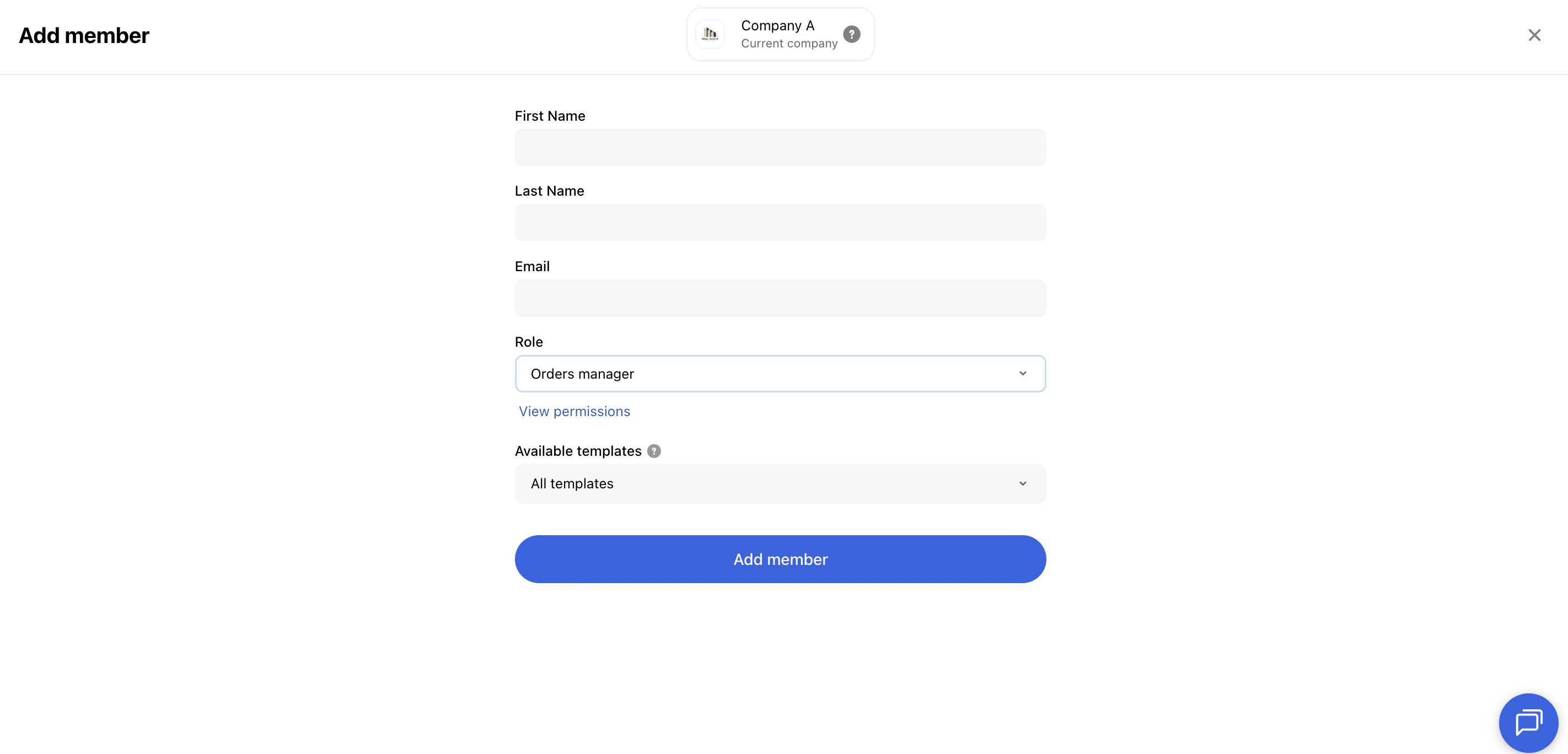
Click Add Member and provide:- First name, last name, and email address
- Role to assign
- Available templates — if the member has the Orders Manager role and you want to restrict their access to specific templates, select the templates here. If none are selected, they can access all templates.
Roles
See the full role access matrix.In a multi-tenancy setup, team members can have different roles in each company.
Profile
The Profile tab shows your personal account information.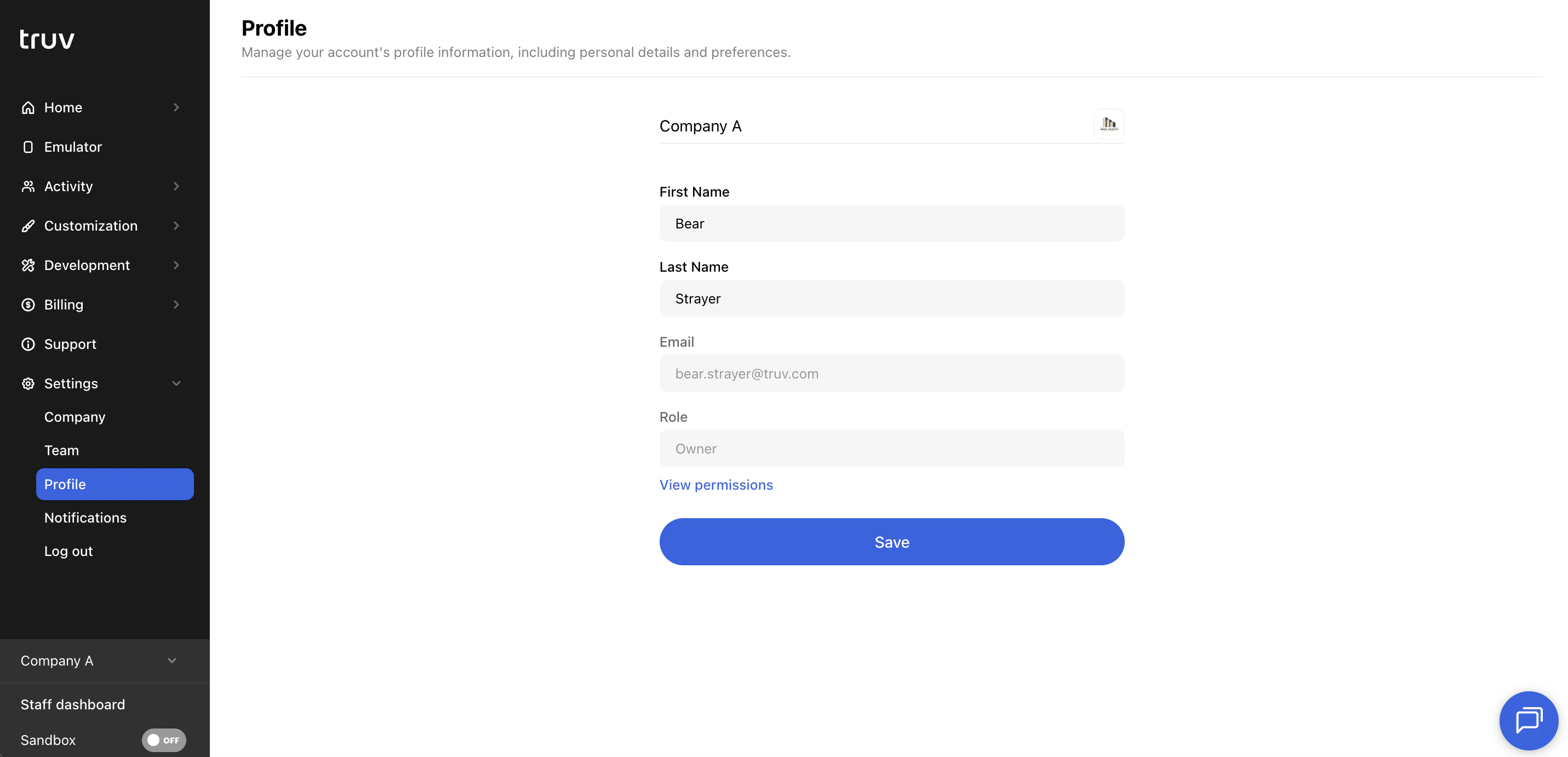
| Field | Description |
|---|---|
| First name | Your first name (editable) |
| Last name | Your last name (editable) |
| Your login email address (read-only) | |
| Role | Your assigned role (read-only, visible for Owners) |
Notifications
The Notifications tab controls which notifications you receive and how.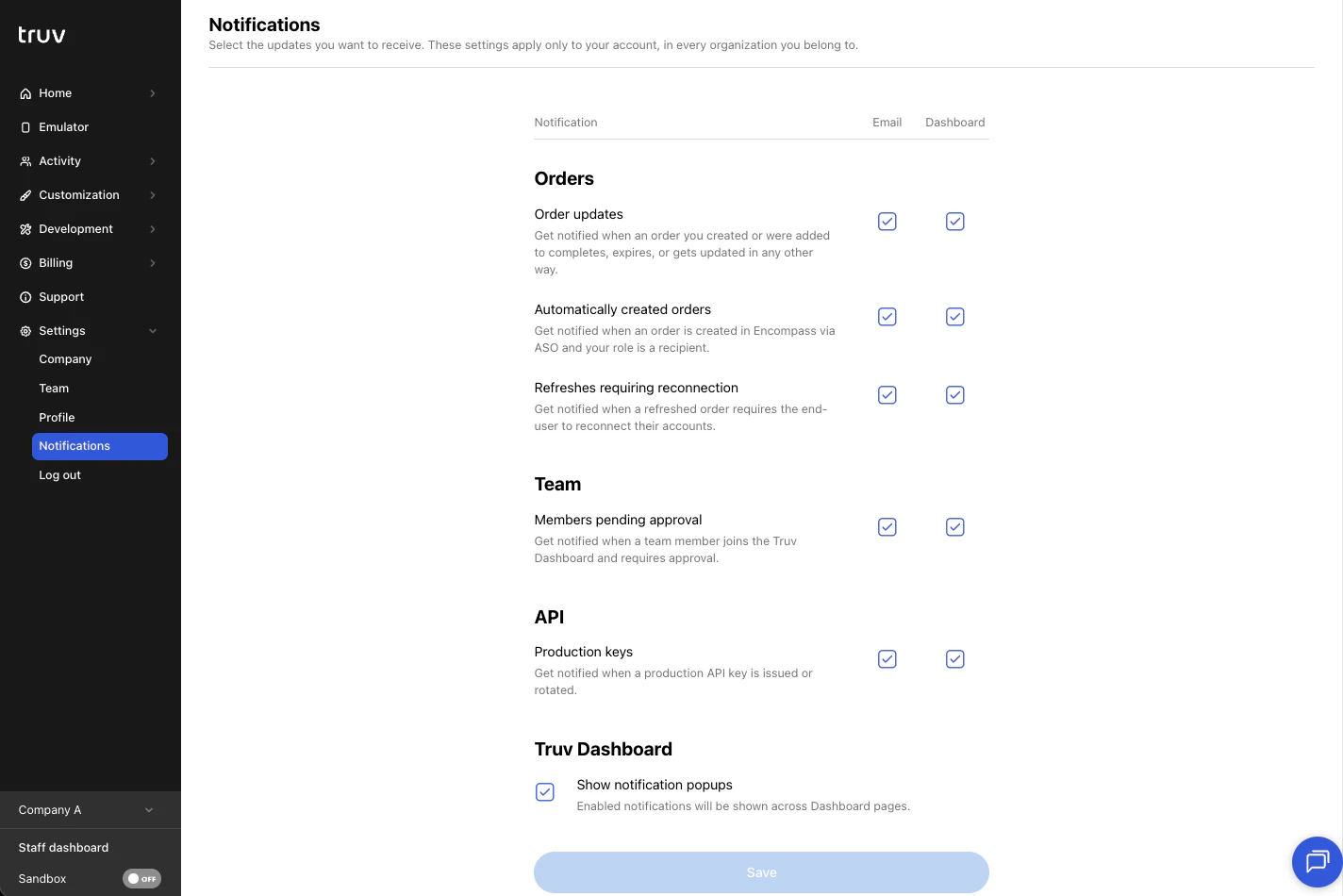
Delivery methods
For each notification type, toggle delivery via Email or Dashboard (in-app bell), or both. Deselecting a method stops delivery through that channel. If enabled, a notification feed tile will briefly appear on the Dashboard when a notification is triggered. This can be disabled by unchecking Show notification popups.Notification types
| Notification | Trigger |
|---|---|
| Order updates | Get notified when an order you created or were added to completes, expires, or gets updated in any other way |
| Automatically created orders | Get notified when an order is created in Encompass via ASO and your role is a recipient |
| Refreshes requiring reconnection | Get notified when a refreshed order requires the end-user to reconnect their accounts |
| Members pending approval | Get notified when a team member joins the Truv Dashboard and requires approval |
| Production keys | Get notified when a production API key is issued or rotated |
Next steps
SSO Configuration
Set up single sign-on for your team
Multi-Tenancy
Manage multiple companies