

- Business unit separation: distinct divisions operating independently
- Brand management: different brands with separate branding and templates
- Per-environment isolation: a separate company per customer-side environment (Dev / UAT / Prod) so orders, templates, and webhooks never cross
- Testing isolation: separating sandbox and production setups across teams
How it works
Company Toggle
A company toggle appears in the bottom-left of the Dashboard Home page. It shows your current company and an expandable list of all companies you belong to, with member counts and owner email addresses.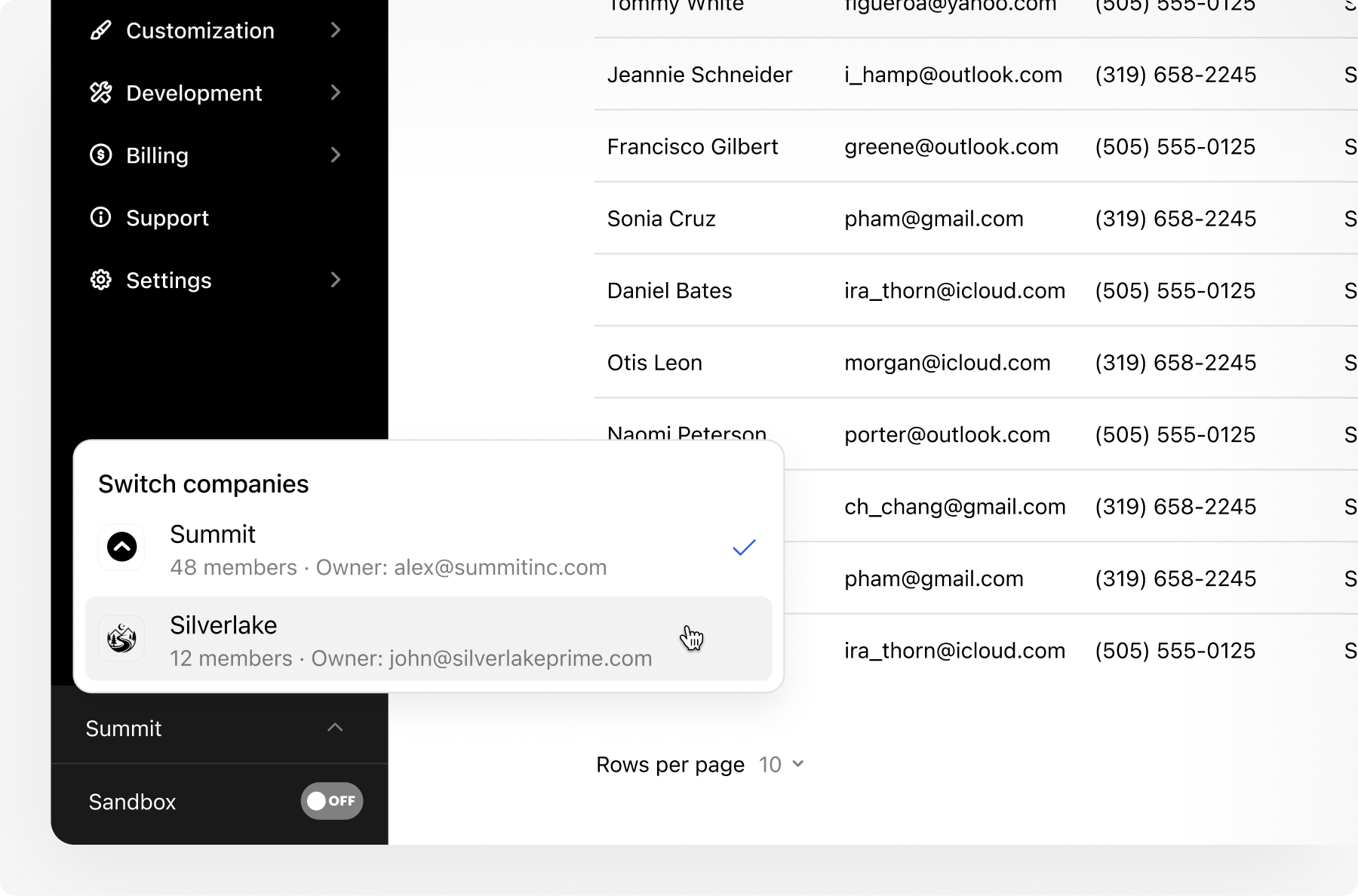
Shared Credentials
Team members use the same login credentials across all assigned companies. No separate accounts needed. When access to a company is removed, it simply disappears from the toggle list.Members can have different roles in each company. For example, you could be an Owner in one company and a Developer in another. See Team Roles & Permissions for the full roles matrix.
Company Identification
A static company tile appears in the header on key pages (Create Order, New Template, Add Member) so you always know which company context you’re working in.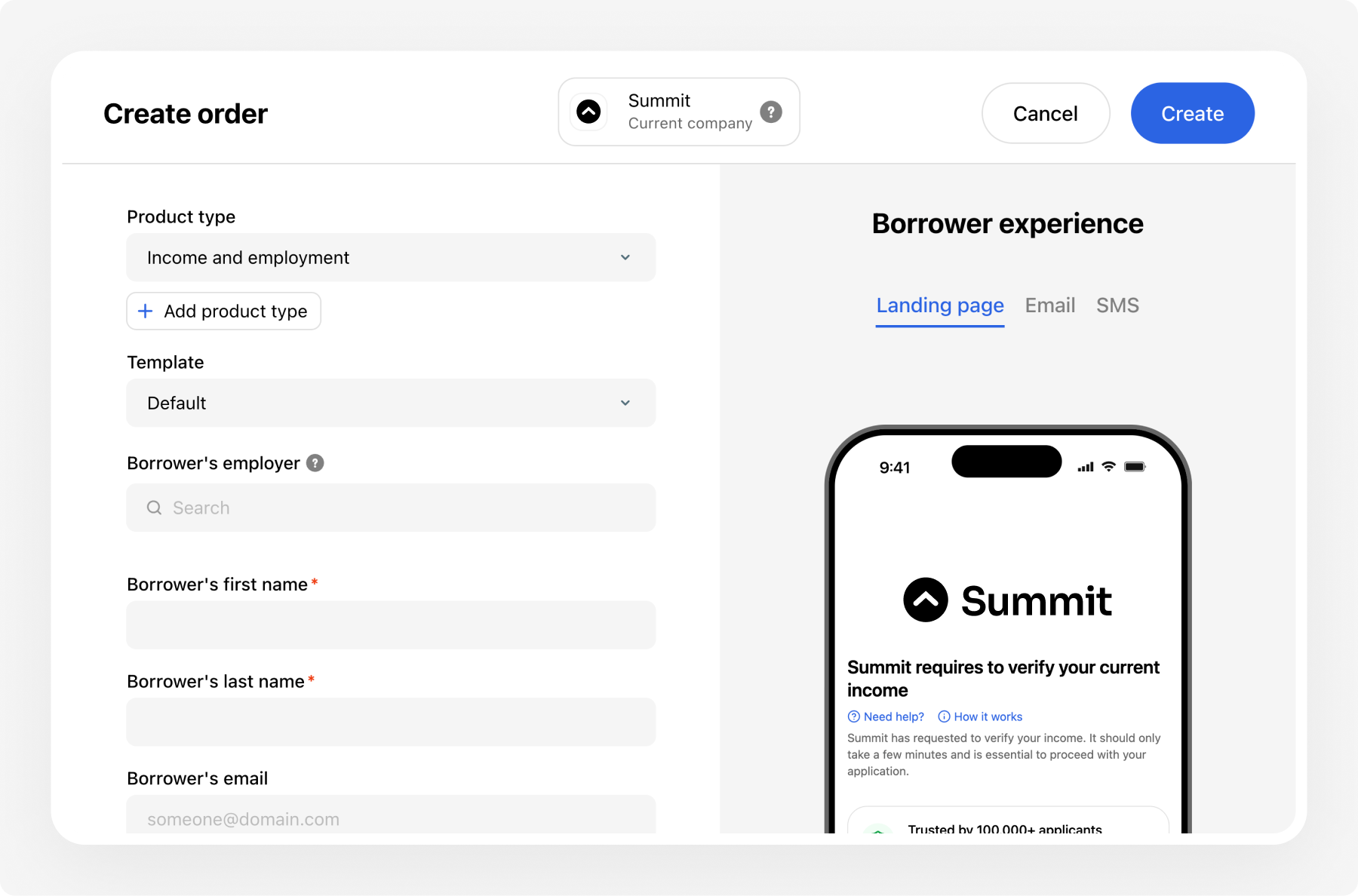
Set up multi-tenancy
Contact your Customer Success Manager
Provide the following for each new company:
- Company name (include the environment in the name when relevant, e.g., “Acme — UAT”)
- Designated owner (one owner per company)
- Billing rollup preferences
- Any specific configuration requirements
Accept invitations
Your CSM creates the company and sends invitations. Existing active members get automatic access without needing a new invite email.
Configure each company
For each new company, you’ll need to:
- Request production API keys
- Set up customization templates with the correct branding
- Configure webhooks and data settings as needed
Manage teams
Add members to any company via Settings > Team > Add member. When adding a member, specify:- Name and email
- Role for this specific company
- Available order templates
Adding a member who already has a Truv account automatically grants them access to the new company through their existing login.
Next steps
Dashboard
Navigate the Dashboard interface
Authentication
Manage API credentials for each company
Customization
Set up branding per company