Brand your verification experience across Bridge, emails, SMS, and landing pages
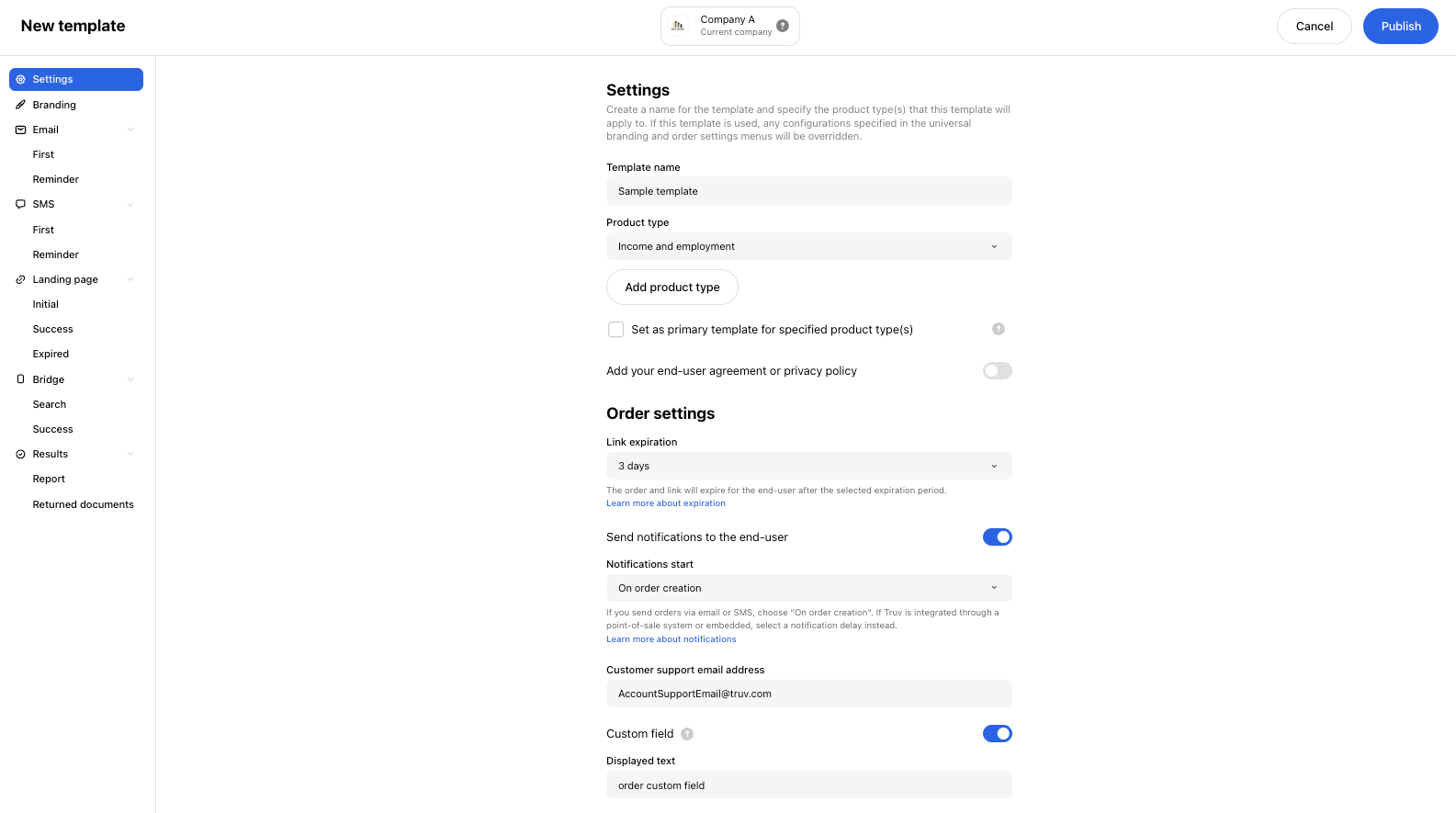
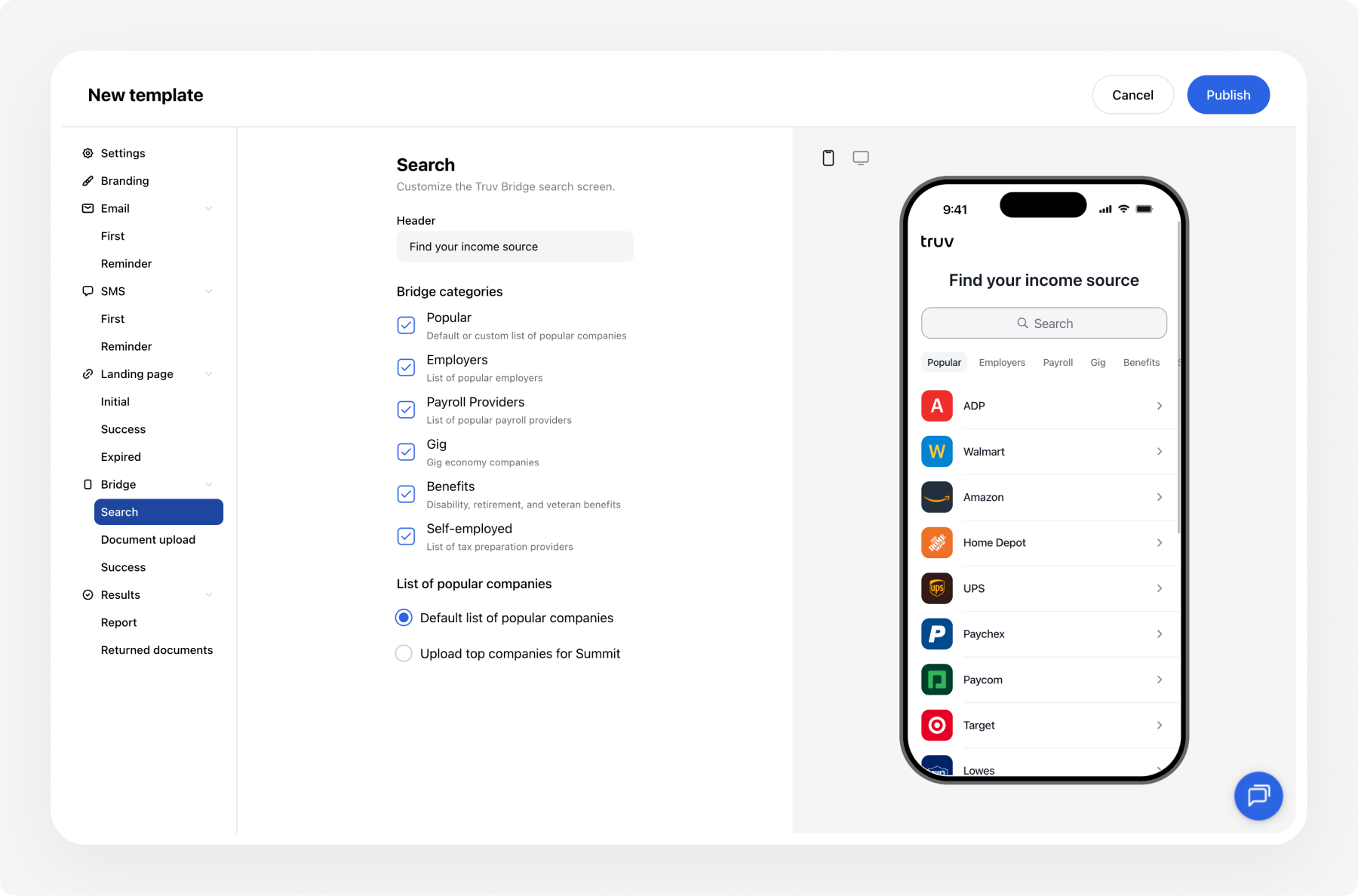
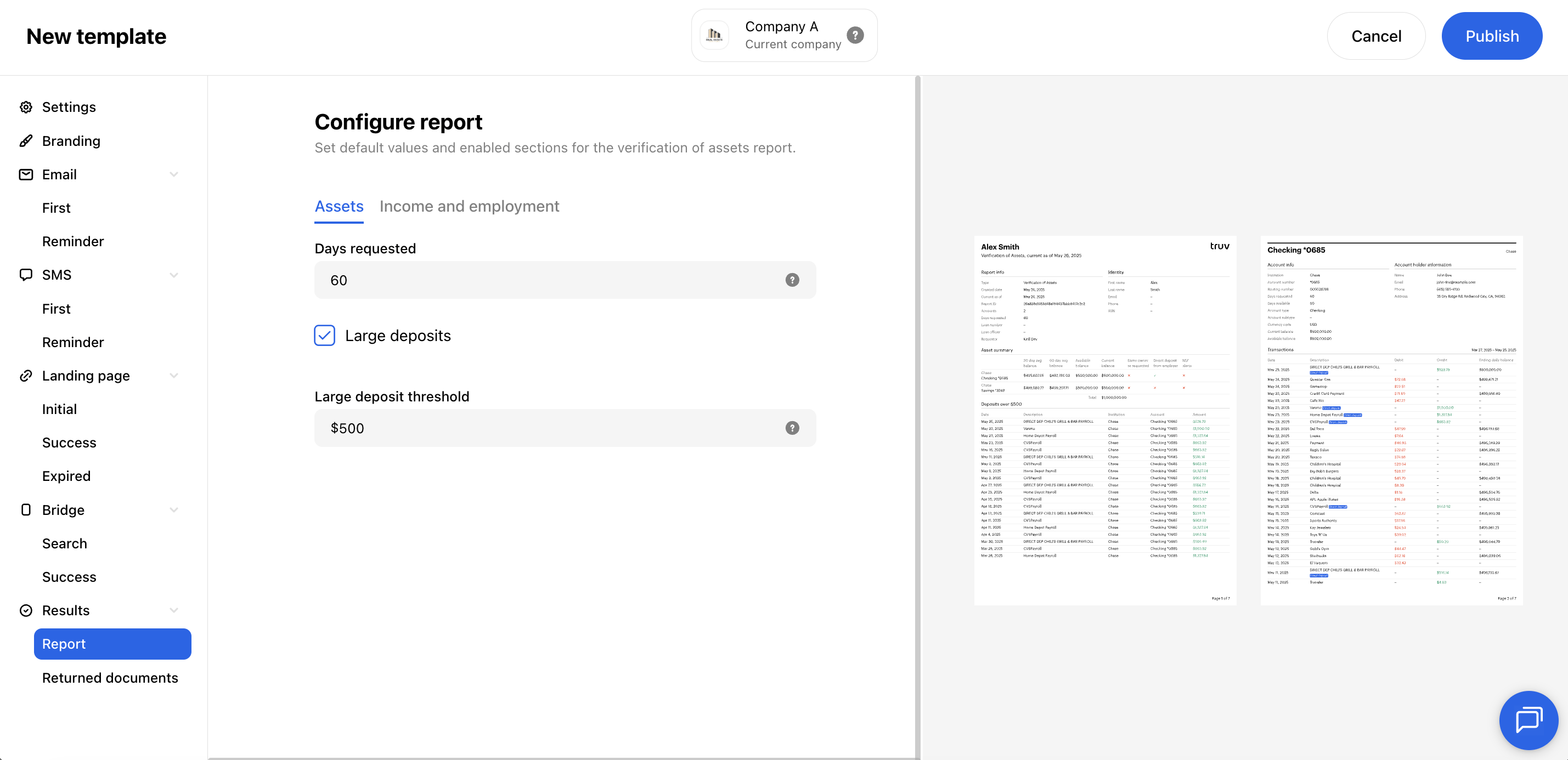
Customization templates let you personalize the entire verification experience, from the Truv Bridge widget to emails, SMS messages, and landing pages. Templates are configured per product type and can be managed in the Dashboard under Customization > Templates or programmatically via the Templates API. Truv adds default templates to your account tailored to your use case and products — open and edit these to get started.
Template configurations take priority over universal branding settings. Set a template as Primary to make it the default for its product type when creating new orders.
Truv automatically creates default templates in your account tailored to your products and use case. Adjust them in the Dashboard or via the API below.
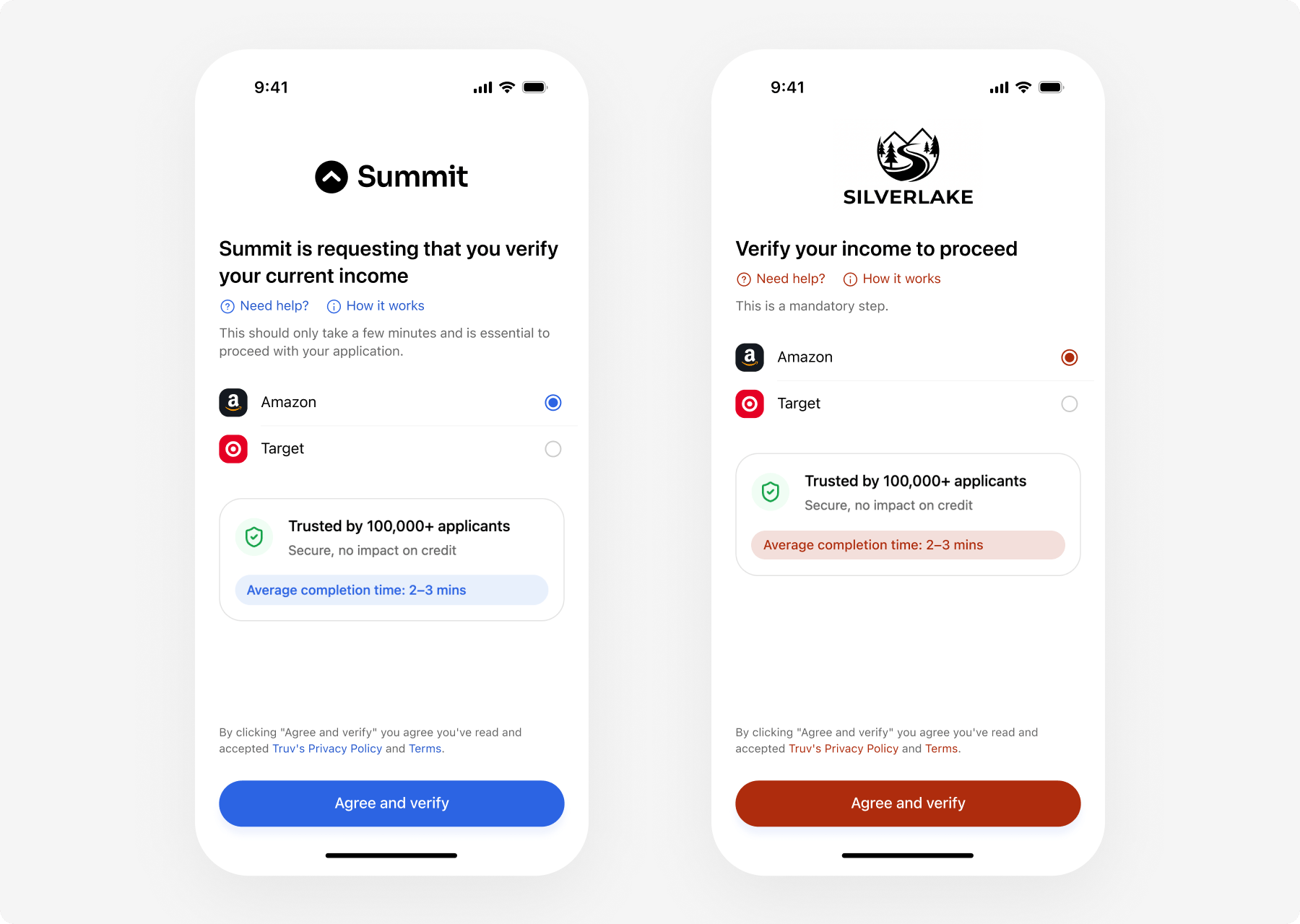
Configure the visual identity that appears across all touchpoints. If not specified, these will be inherited from the Branding settings set at the Dashboard level.
Field
Description
Logo
Displayed in emails, verification screens, and Truv Bridge
Company name
Name shown across all verification touchpoints
Accent color
Used for buttons and links. A warning is shown if the selected color is too light and may impact conversion rate.
Background color (desktop only)
Overlay background color shown on desktop
Hide confetti
Toggle to show or hide the confetti animation on successful connection
Bank nameDirect Deposit Switch, Paycheck Linked Lending
Prefilled in emails and the landing page
Product name in Truv Bridge and on the landing pagePaycheck Linked Lending
Overrides “Auto Pay” across all Bridge screens and the landing page
Enable individual document types: Paystubs, W-2, 1099, 1040. For each: set mandatory/optional, minimum and maximum number of documents, and the upload button label.
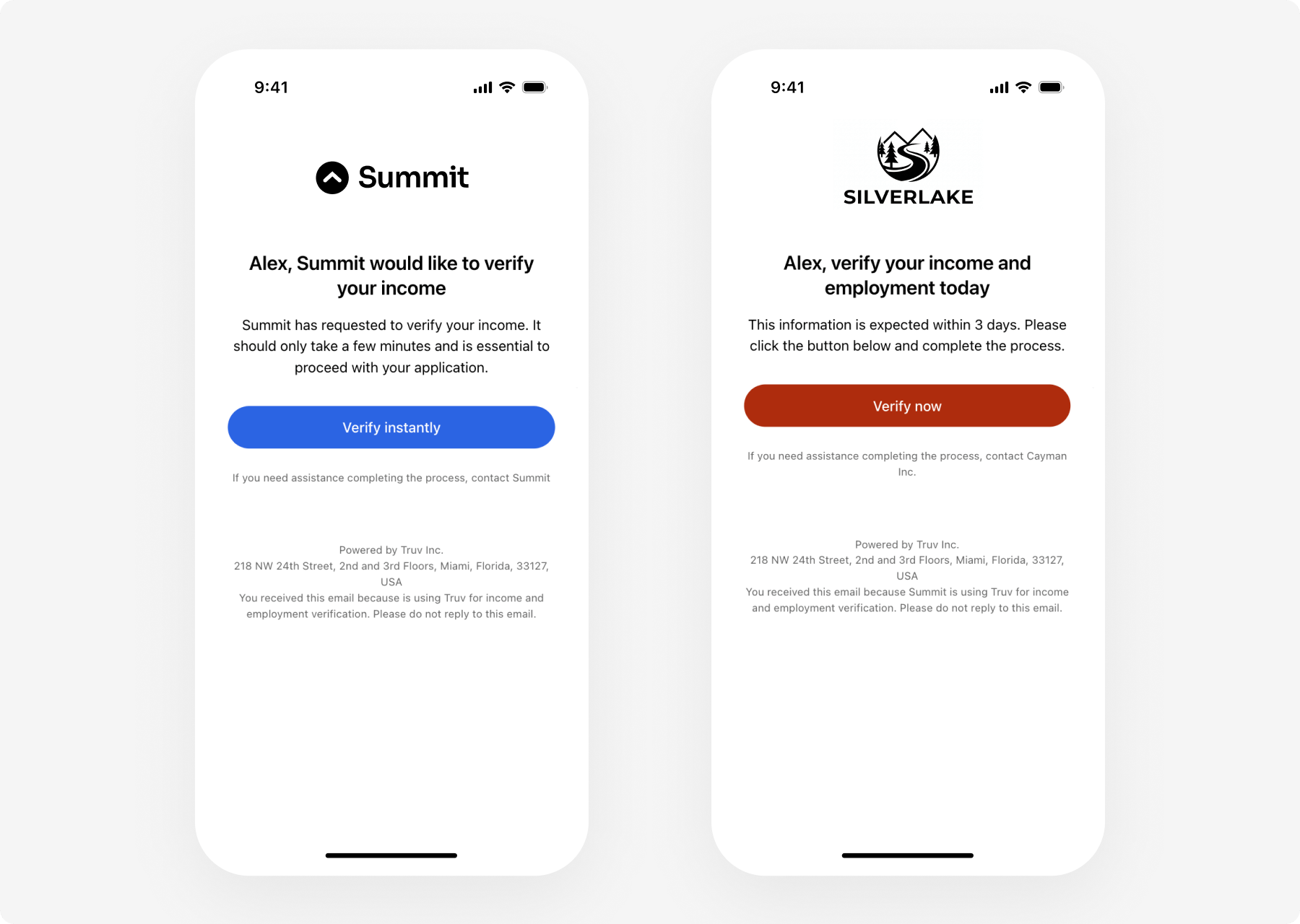
Customize the emails sent to applicants. Each section has a First email and Reminder email sub-tab. Text applied to the first email can optionally be copied to the reminder.