

Create an order
- Go to Activity > Orders in the Dashboard and click Create Order
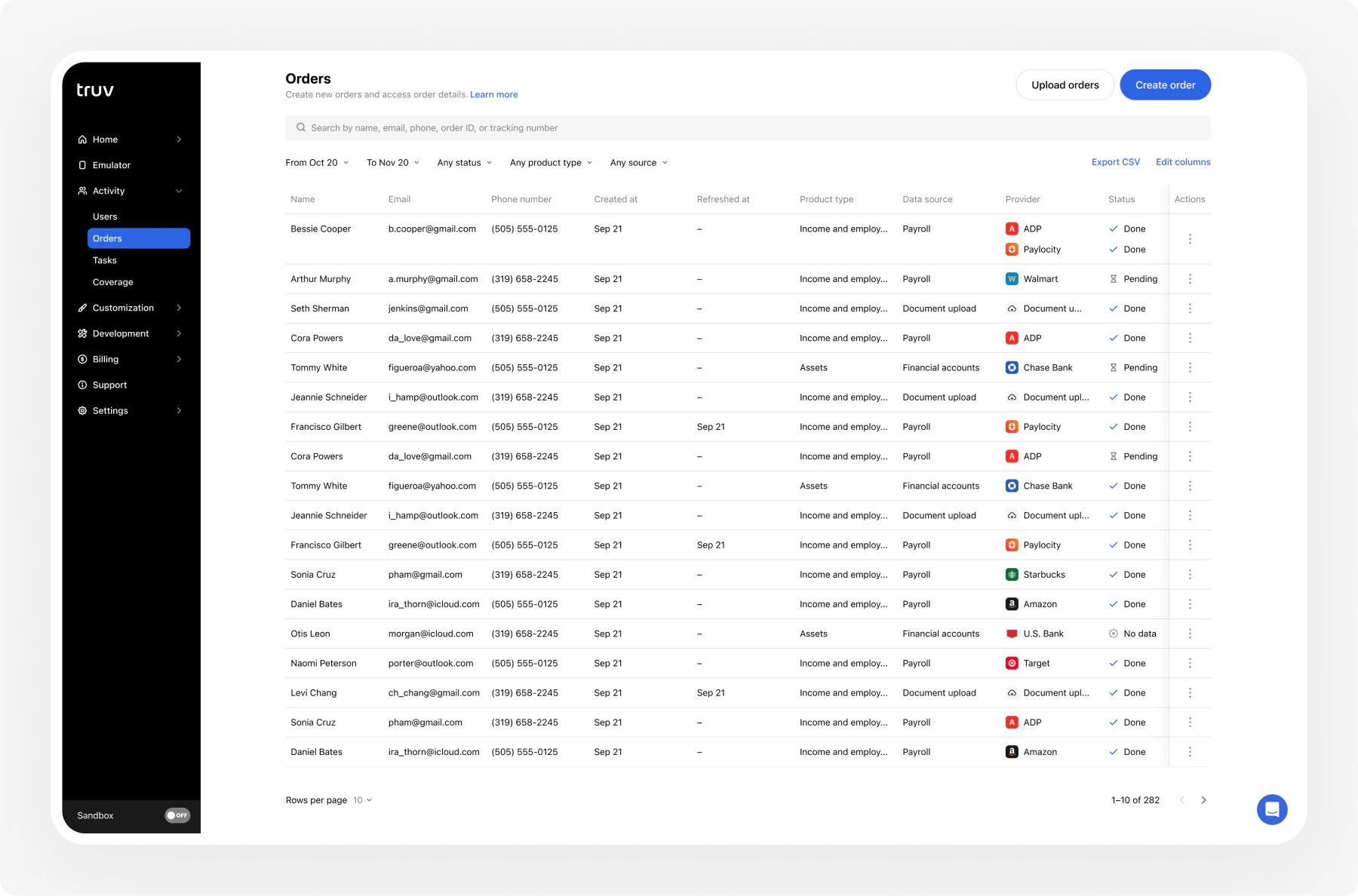
- Select the product type (income, employment, assets)
- Enter applicant details. First and last name are required.
- Choose how to reach the user: send via email, SMS, or generate a shareable link
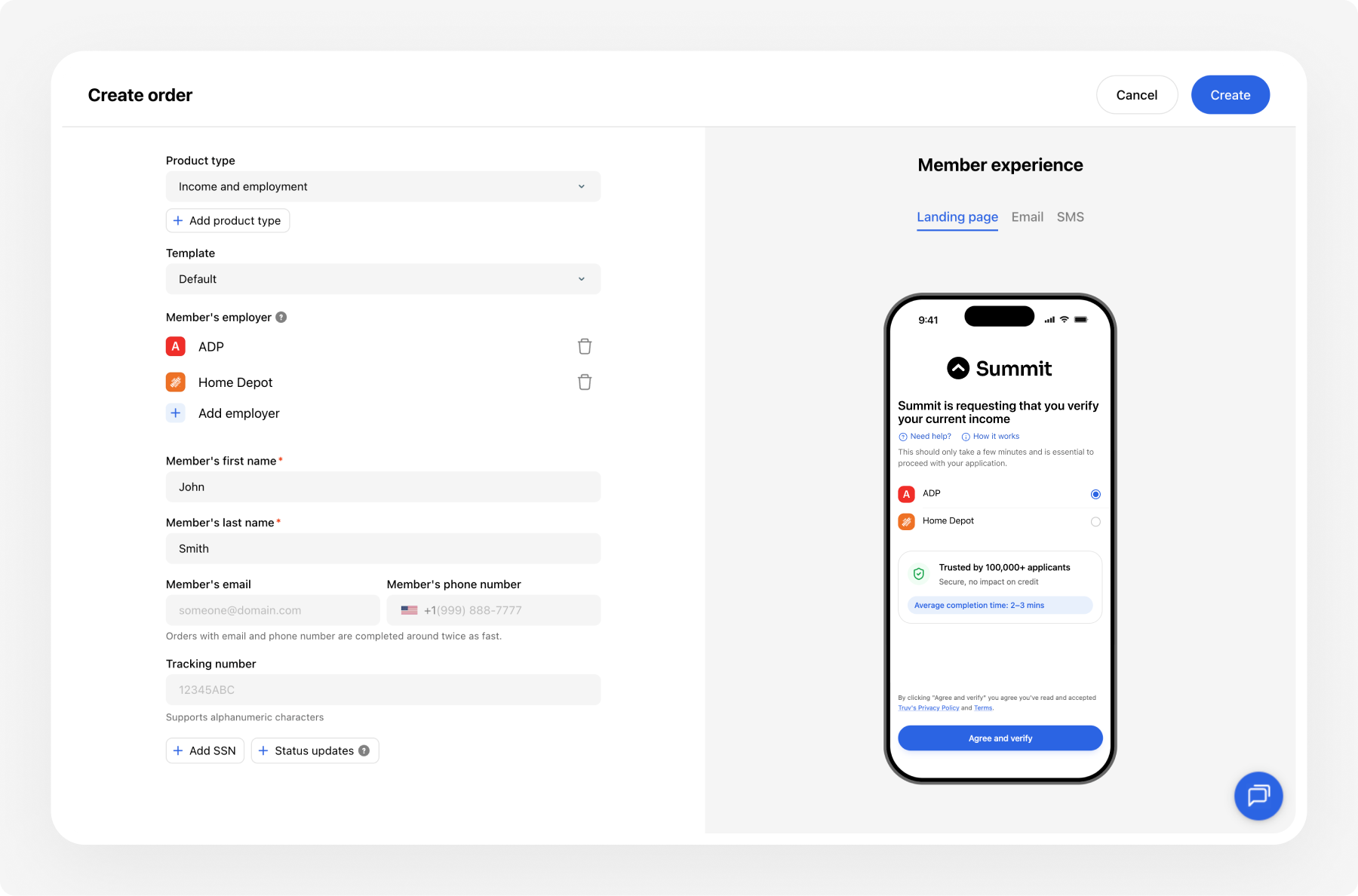
- Click Create. Truv sends the notification automatically.
Required fields
| Field | Description |
|---|---|
First name | User’s first name |
Last name | User’s last name |
Product type | Income, employment, or assets |
Recommended fields
| Field | Description |
|---|---|
Email | User’s email for notifications |
Phone | User’s phone for SMS notifications |
SSN | Social security number (4 or 9 digits). Used for identity matching. |
Loan number | Loan identifier for tracking |
Employer | Pre-fill employer info to skip search (up to 5 employers) |
Template | Customization template for branding |
Custom field | Custom metadata field to associate with the order. Configure custom fields in your customization template. |
If both email and phone are left blank, Truv cannot send notifications. Retrieve the verification link from the order details and share it manually.
Track order status
After creating an order, track its progress directly in the Dashboard. The order card shows the current status, notification history, and connection results.| Status | Description |
|---|---|
| Pending | Order created, system processing |
| Sent | Email or SMS sent to the user |
| Completed | User connected their account |
| Error | Notification delivery failed |
| Canceled | Order manually canceled |
| Expired | Order exceeded its expiration window |
| Skipped | User opened the link but did not complete |
| No Data | User connected but the provider returned no data |
Set expiration and reminders
The default expiration window is 72 hours, configurable from 1 day to 12 weeks. Expiration periods do not count weekends. Configure expiration and automatic reminders in the Dashboard under Customization.View results
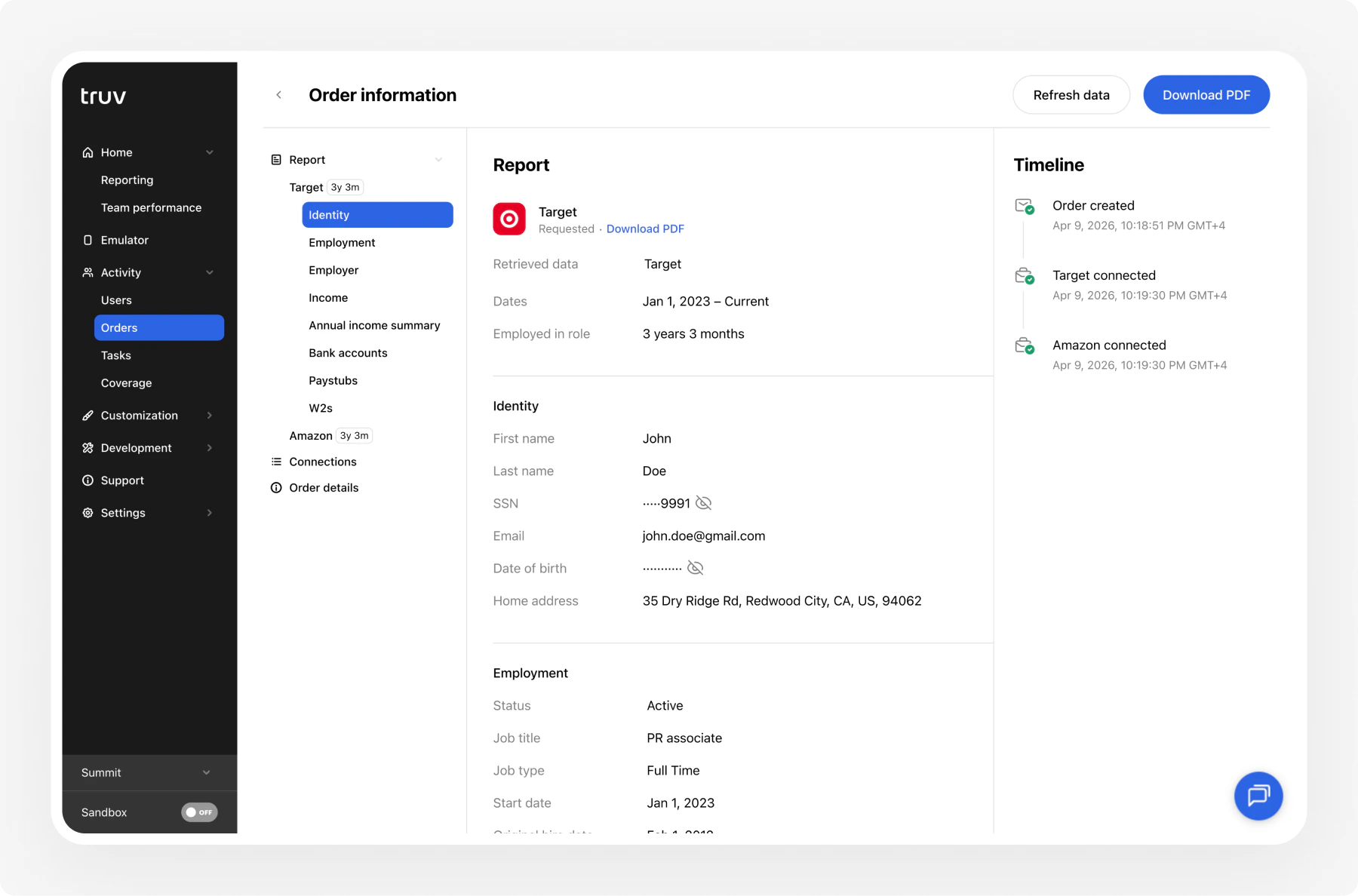
Once the user completes verification:- Open the order in Activity > Orders
- View employer data, income, and employment details
- Download PDF reports for each verified employer
- Export data as needed
Next steps
Manage Orders
Filter, search, and export order data
CSV Upload
Create orders in bulk via CSV
Dashboard
Full Dashboard overview and backend integration