

Upload orders
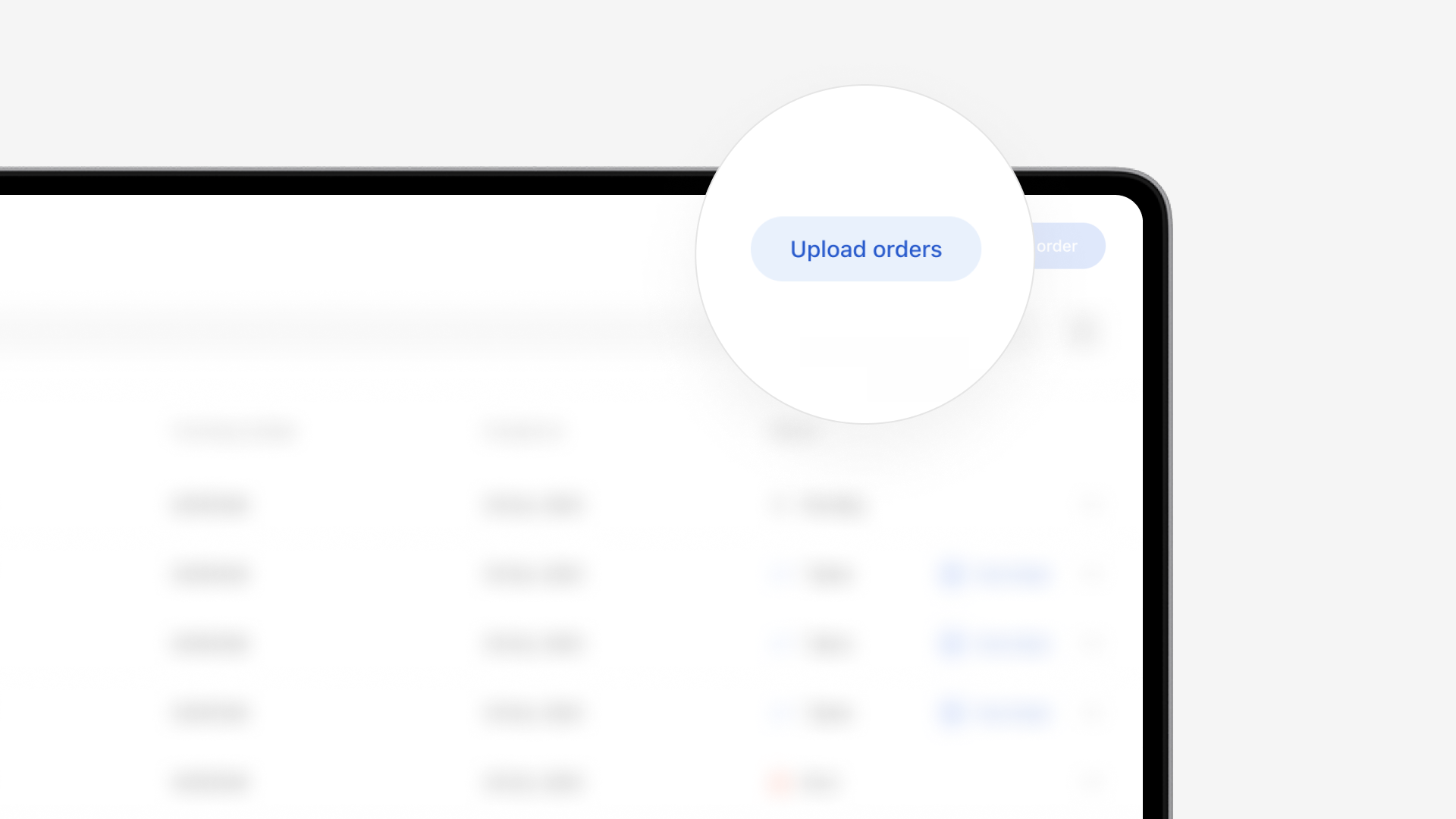
- Go to Activity > Orders and click Upload Order
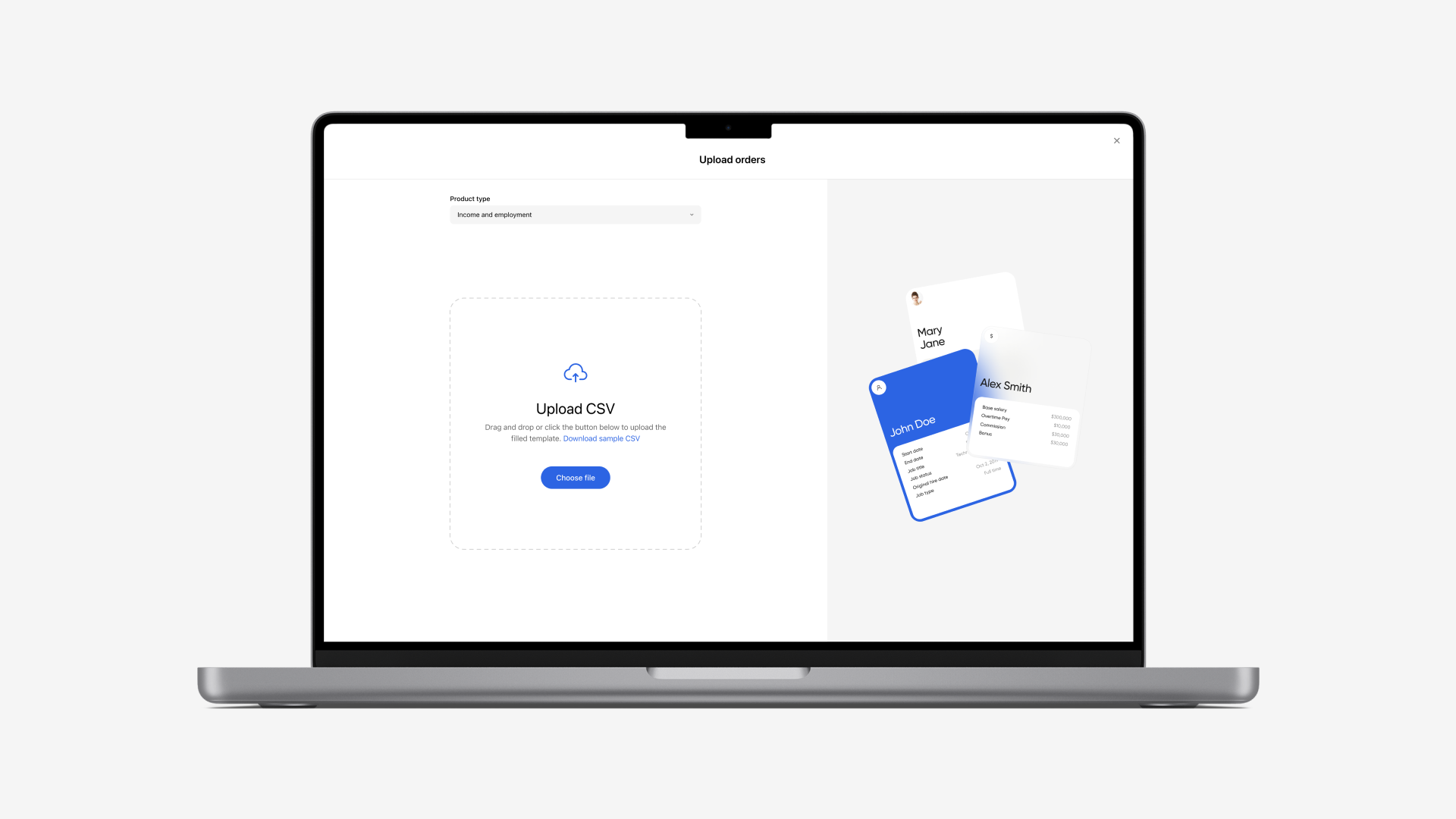
- Select the product type (income, employment, assets)
- Download the sample CSV template provided
- Fill in the template with applicant details, one row per order
- Drag-and-drop or browse to upload the completed file
- Truv validates mandatory fields before processing
CSV template fields
| Column | Required | Description |
|---|---|---|
first_name | Yes | User’s first name |
last_name | Yes | User’s last name |
email | No* | User’s email for notifications |
phone | No* | User’s phone for SMS notifications |
ssn | No | Social security number (4 or 9 digits) |
employer_name | No | Pre-fill employer for deeplinking |
loan_number | No | Loan identifier for tracking |
external_user_id | No | Your internal identifier |
At least one of
email or phone is recommended per row. Otherwise Truv cannot send notifications and you must share the verification link manually.After upload
Each row creates a separate order visible in the Activity > Orders table. Filter by source to see only CSV-uploaded orders. Track individual order statuses and view results as users complete their verifications. See Manage Orders for filtering, searching, and exporting.Next steps
Manage Orders
Filter, search, and export order data
New Order
Create a single order through the Dashboard