

Reporting
The Reporting tab shows performance metrics for all verifications in the selected period.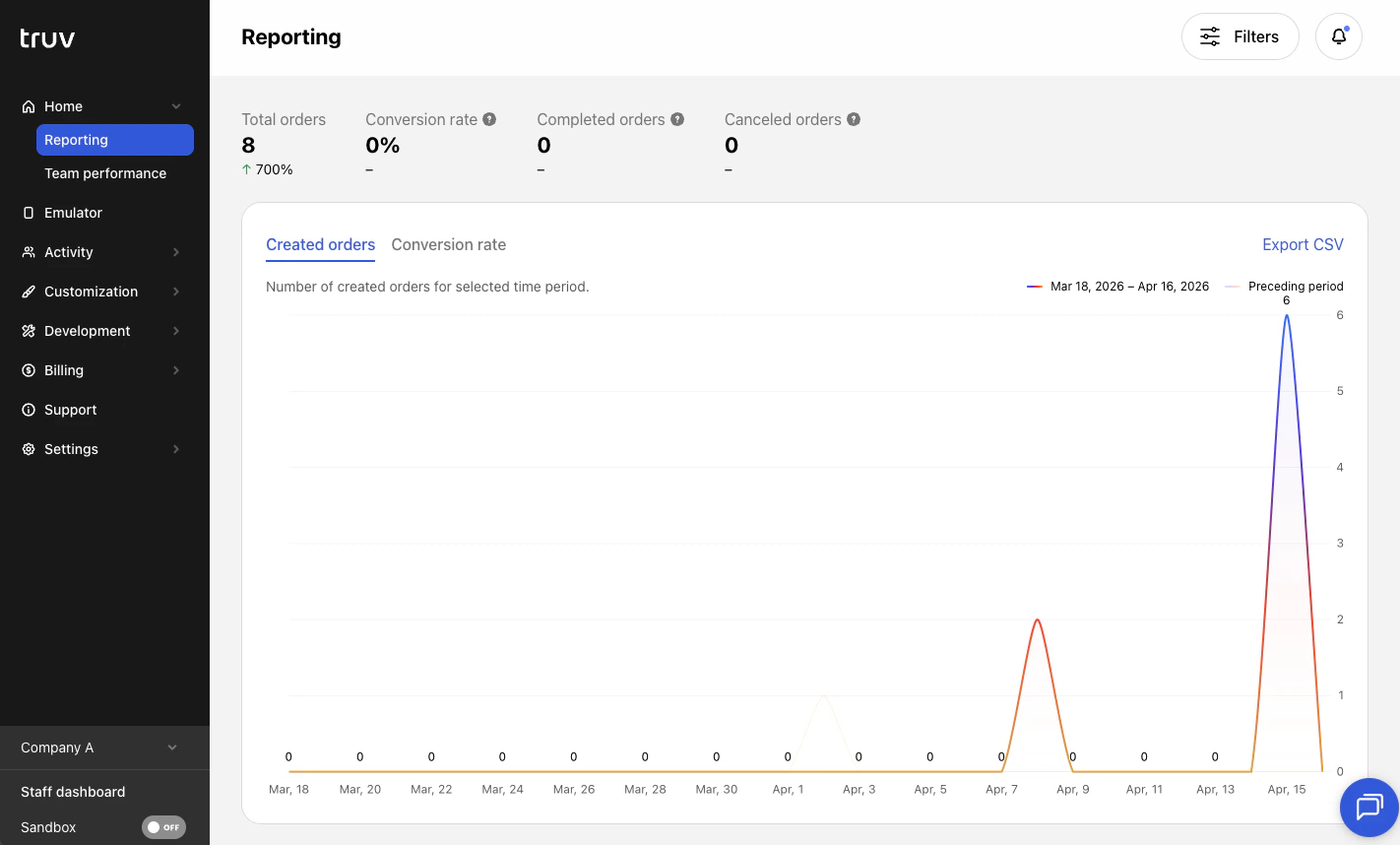
Filters
Use the filter bar to slice the data:| Filter | Description |
|---|---|
| Date | Select a date range for the reporting period |
| Companies | Filter by sub-company in a multi-tenancy setup |
| Product type | Income & Employment, Assets, etc. |
| Data source | Payroll, Document Upload, Financial Accounts, etc. |
| Initial vs. Refresh | Toggle between initial and refresh orders |
| Source | Dashboard, API, Encompass, or other platforms |
| Template | Filter by a specific customization template |
| Orders vs. Embedded | Compare hosted order performance vs. Bridge embedded implementations |
Charts and tables
| Chart | What it shows |
|---|---|
| Total order volume | Total orders created in the selected period |
| Conversion rate graph | Created orders and conversion rate over time |
| Status breakdown | Distribution by status: completed, expired, canceled, etc. |
| Order turnaround time | Time from creation to completion, broken down by notification method (Email & SMS, Email only, SMS only) |
| Funnel | Step-by-step breakdown of where users drop off in the verification flow |
| Error distribution | Incomplete orders broken down by error type |
| Benchmark | Your conversion rate compared to industry benchmarks |
| Volume & conversion by template | Order count, completions, and conversion rate per template |
Export
Click Export CSV in the top-right corner of any chart to download the underlying data.Notifications
The bell icon in the top navigation shows in-app notifications in three categories:- Order updates — Order completed, canceled, expired, or moved to another terminal status
- Team updates — A team member requires approval to access the account
- API updates — A new API key was issued or rotated
Team Performance
The Team Performance tab shows orders created and conversion rate broken down by individual team members.- Filter by template to see per-template performance for each member
- Export the table as a CSV
Next steps
Activity
View individual users, orders, and tasks
Customization
Configure templates to brand your experience