

Users
The Users tab shows every applicant created in your company and all of their connections.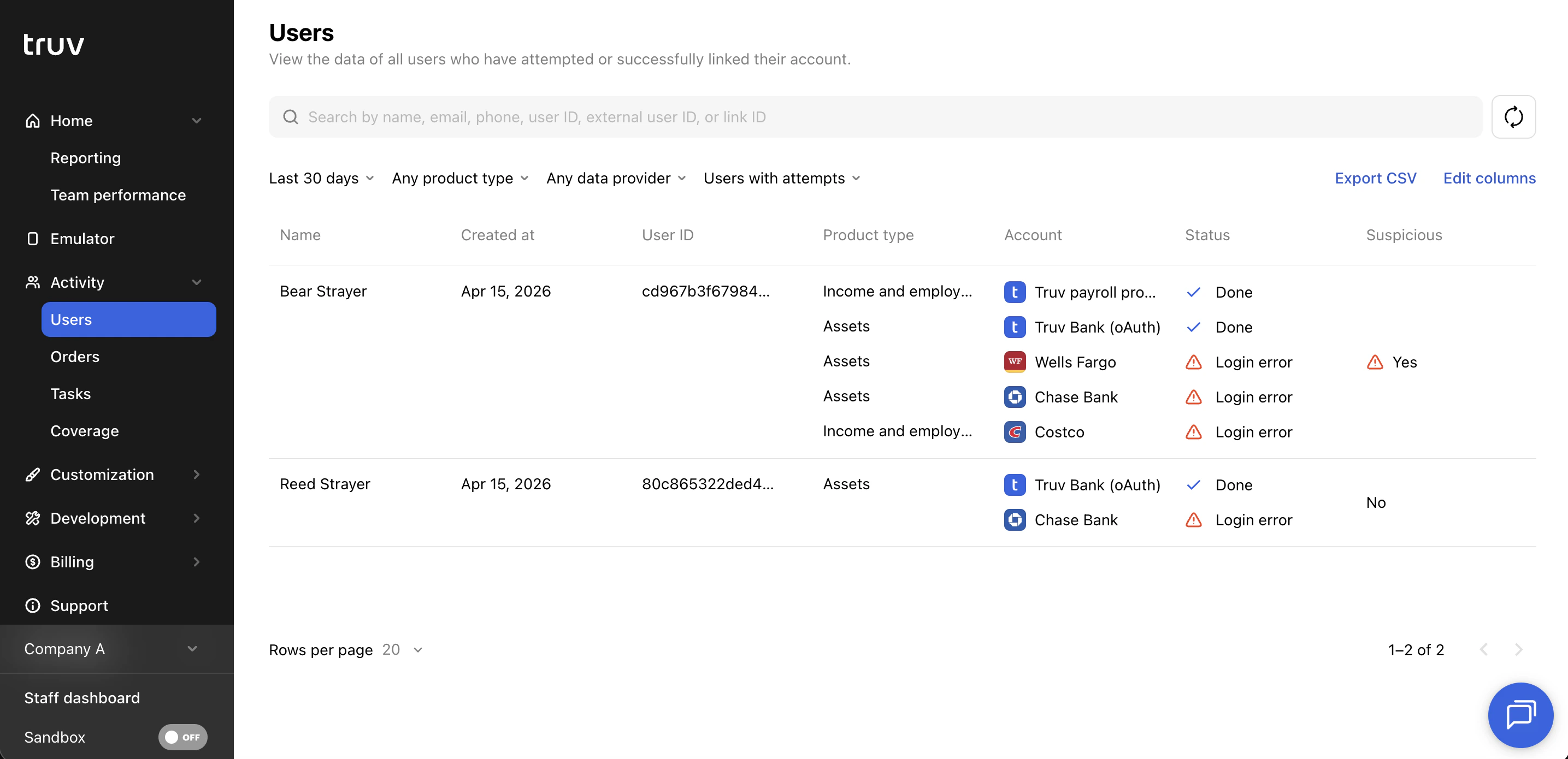
Table columns
| Column | Description |
|---|---|
| Name | Applicant’s full name |
| Created at | Date the user record was created |
| Updated at | Date the user record was last updated |
| User ID | System-generated unique identifier for the user |
| External user ID | Your system’s identifier for the applicant, passed at user creation |
| Applicant’s email address | |
| Phone number | Applicant’s phone number |
| SSN | Applicant’s Social Security Number |
| Product type | The verification product(s) associated with this user’s connections |
| Accounts (links) | The data provider(s) the user has connected to |
| Data source | The type of data source used (payroll, financial accounts, document upload, etc.) |
| Status | Outcome status of the user’s connection attempts |
| Suspicious | Flags users where the SSN doesn’t match the provider, or uploaded documents may contain fraudulent data |
Search and filters
| Name | Description |
|---|---|
| Search | Search by name, email, phone, user ID, external user ID, or link ID |
| Date period | Filter by when the user was created. Presets: Last 24 hours, Last 7 days, This week, Last 30 days (default), Last 90 days, or a custom date range |
| Product type | Filter by the verification product associated with the user’s connections |
| Data provider | Filter by the specific provider the user connected to |
| Attempts | Filter by users with attempts, users without attempts, or all users |
Open a user
Click any user to see all reports returned across their links. Reports can be downloaded as PDFs or viewed in the Dashboard UI. Paystubs and W-2s can be downloaded directly from the report view. Additional connection details or errors can be reviewed under the Connections tab.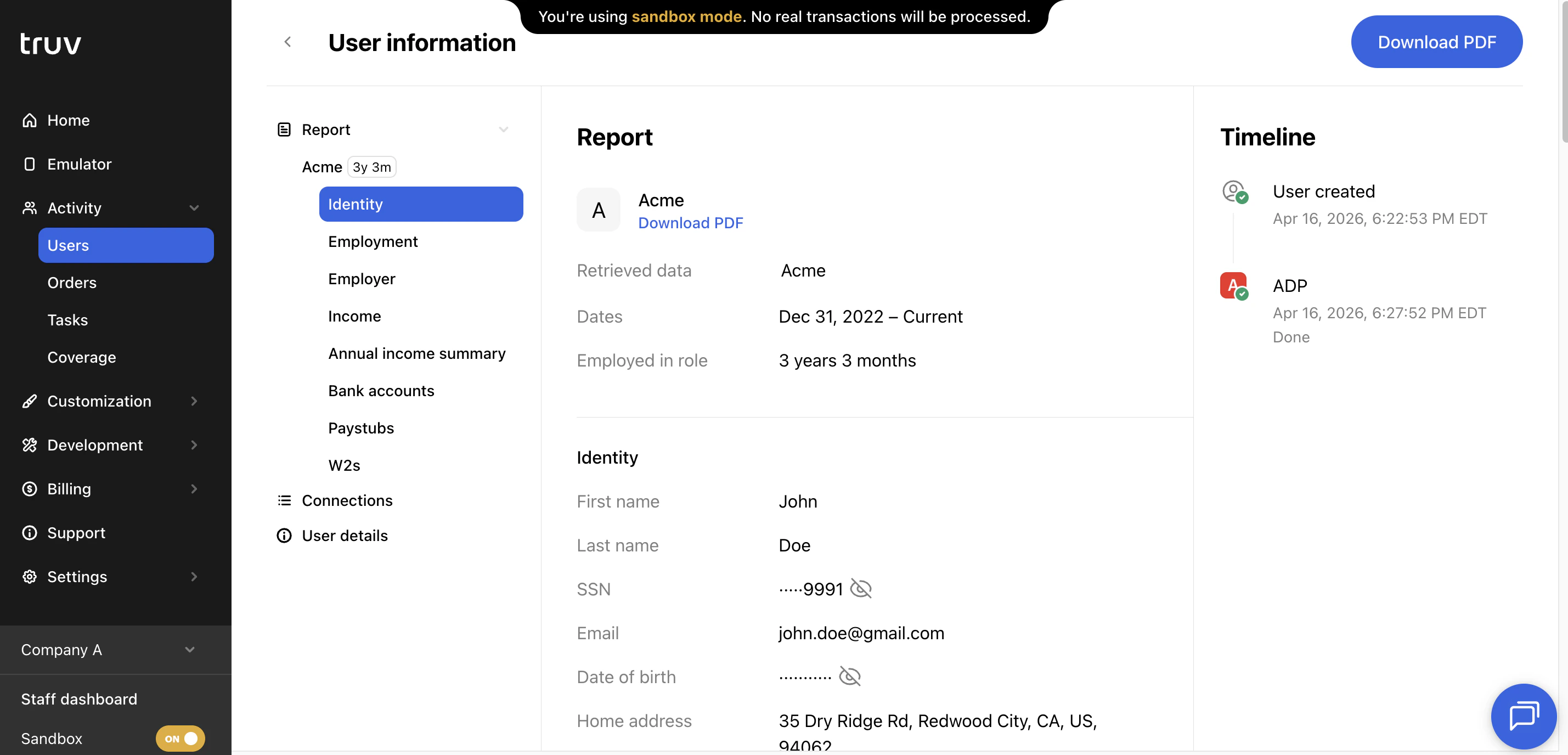
Orders
The Orders tab shows every Truv verification order in your account.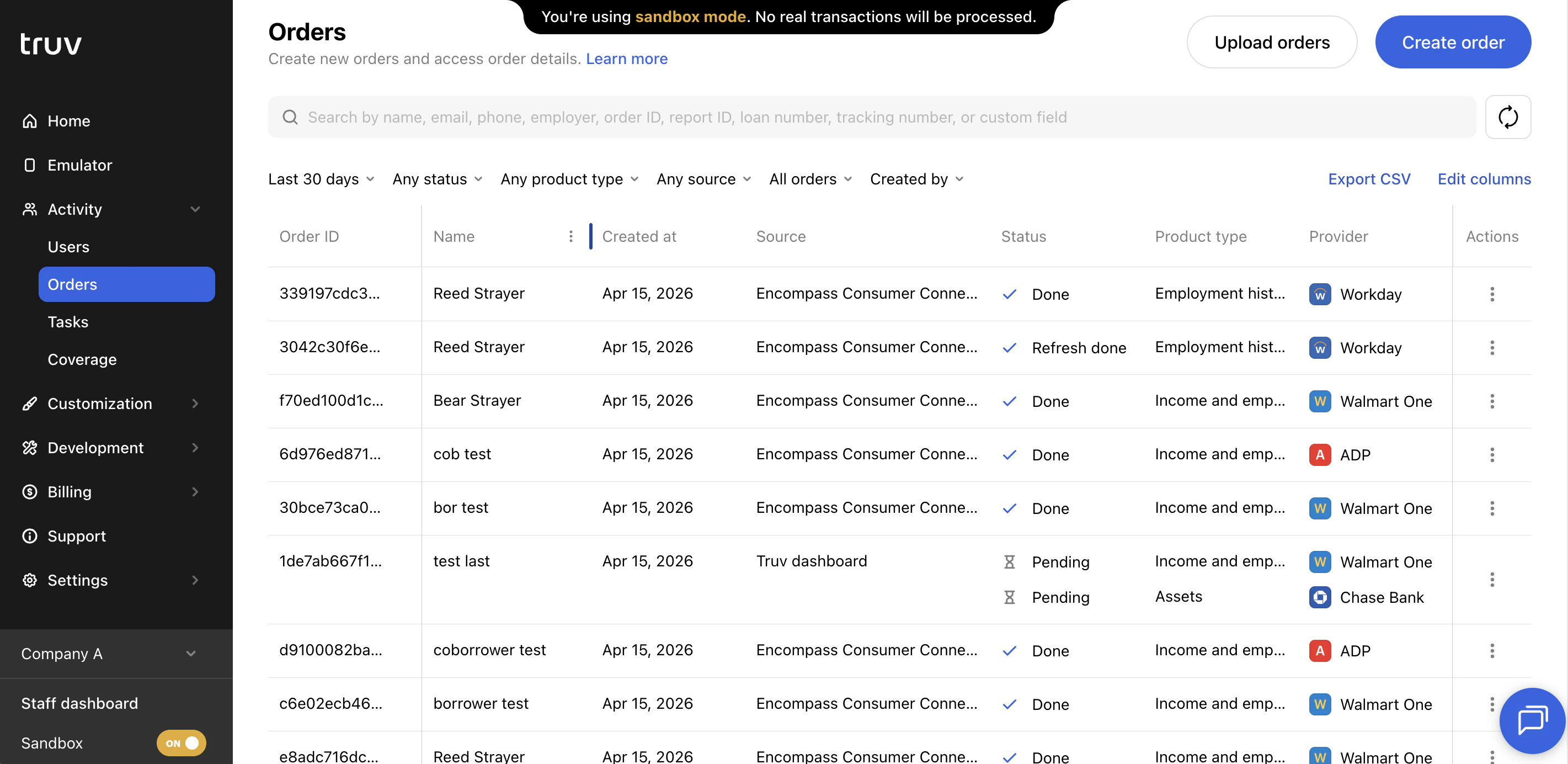
Table columns
| Column | Description |
|---|---|
| Name | Applicant’s full name |
| Applicant’s email address. Shows a warning if email delivery failed. | |
| Phone number | Applicant’s phone number. Shows a warning if SMS delivery failed. |
| Created at | Date the order was created |
| Refreshed at | Date a data refresh was completed on this order |
| Source | Where the order originated (Dashboard, API, Encompass, etc.) |
| Created by | Name of the order manager who created the order |
| Created by email | Email of the order manager who created the order |
| Template ID | ID of the template applied to this order |
| Template name | Name of the template applied to this order |
| Loan number | Loan number associated with this order |
| Tracking number | Internal tracking number for the order |
| Loan processor name | Name of the loan processor from the loan object |
| Loan processor email | Email of the loan processor from the loan object |
| Loan originator name | Name of the loan originator from the loan object |
| Loan originator email | Email of the loan originator from the loan object |
| Custom field | Custom field value specified during order creation |
| AIM check report ID | Report ID for an AIM Check (Freddie Mac) verification |
| VOA report ID | Report ID for a Verification of Assets report |
| VOIE report ID | Report ID for a Verification of Income and Employment report |
| User ID | ID of the applicant user associated with this order |
| Order ID | Unique identifier for this order |
| Refresh order ID | ID of the refresh order, if a refresh has been initiated |
| Order link | Shareable verification link sent to the applicant |
| Status updates | Email addresses receiving status update notifications for this order |
| External user ID | Your system’s identifier for the applicant |
| Product type | The verification product(s) requested for this order |
| Data source | The data source used to complete the verification |
| Provider | The specific provider the applicant connected to |
| Status | Current order status (completed, pending, expired, canceled, etc.) |
| Was attempted | Whether the applicant opened the verification link and attempted to connect |
| Suspicious | Flags orders where the SSN doesn’t match the provider, or uploaded documents may contain fraudulent data |
| Notes | Internal notes added to the order |
Column customization is per-user and does not affect other team members’ views.
Search and filters
| Name | Description |
|---|---|
| Search | Search by name, email, phone, employer, order ID, report ID, loan number, tracking number, or custom field |
| Date period | Filter by when the order was created. Presets: Last 24 hours, Last 7 days, This week, Last 30 days (default), Last 90 days, or a custom date range |
| Status | Filter by order status: Done, Pending, Expired, Canceled, Error, Skipped by user, or No data |
| Product type | Filter by the verification product requested for the order |
| Source | Filter by where the order originated: Dashboard, API, Encompass, and other integrated platforms |
| Order type | Filter between All orders, Initial orders, or Refresh orders |
| Order managers | Filter by the team member who created the order. Supports multi-select with search. |
Open an order
Click any order to see all associated reports. Reports can be downloaded as PDFs or viewed in the Dashboard UI. Paystubs, W-2s, and order invoices can be downloaded directly from the report view. End-user interaction can be viewed in the timeline and additional connection details or errors can be reviewed under the Connections tab. A new refresh order can also be triggered from the top right.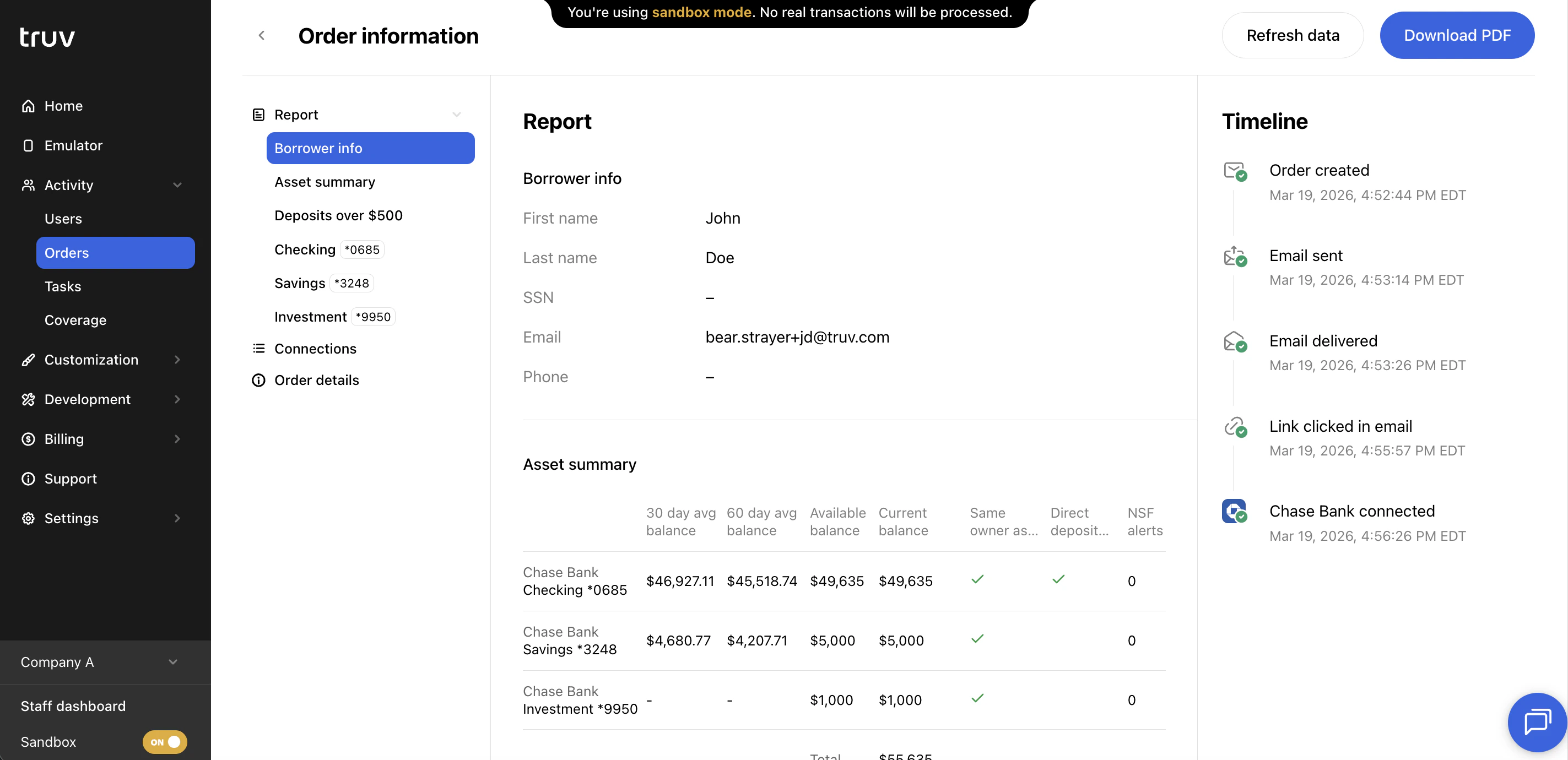
Create an order
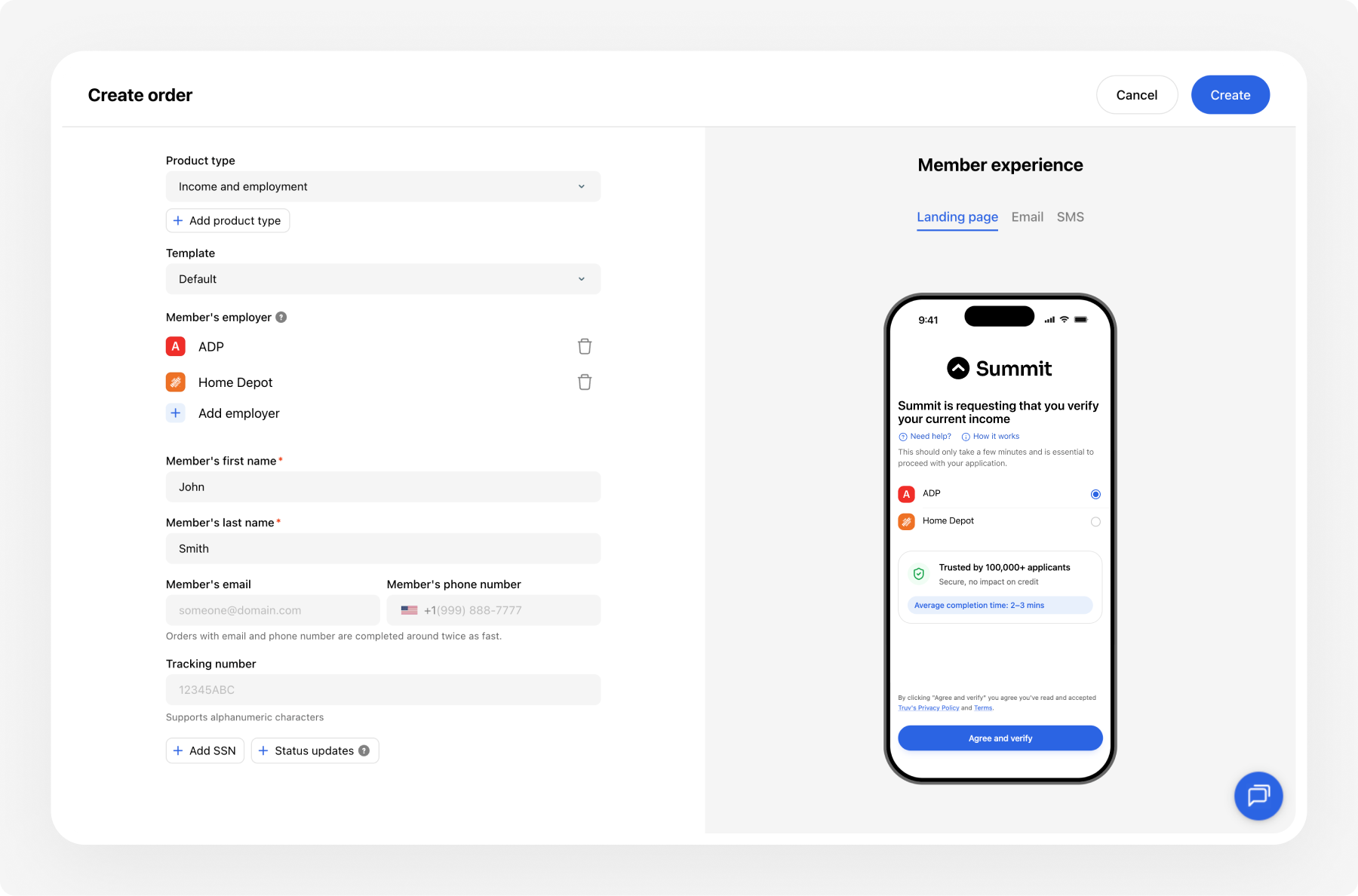
Log into the Dashboard
Go to dashboard.truv.com and sign in.
Configure webhooks to receive automatic notifications when an order completes, then fetch the data via API to sync results to your LOS or internal tools.
Export
Click Export CSV to download the current table with all active filters and selected columns applied.Tasks
The Tasks tab is the most granular view. Every time an applicant attempted to connect to a provider, it appears as a unique task row.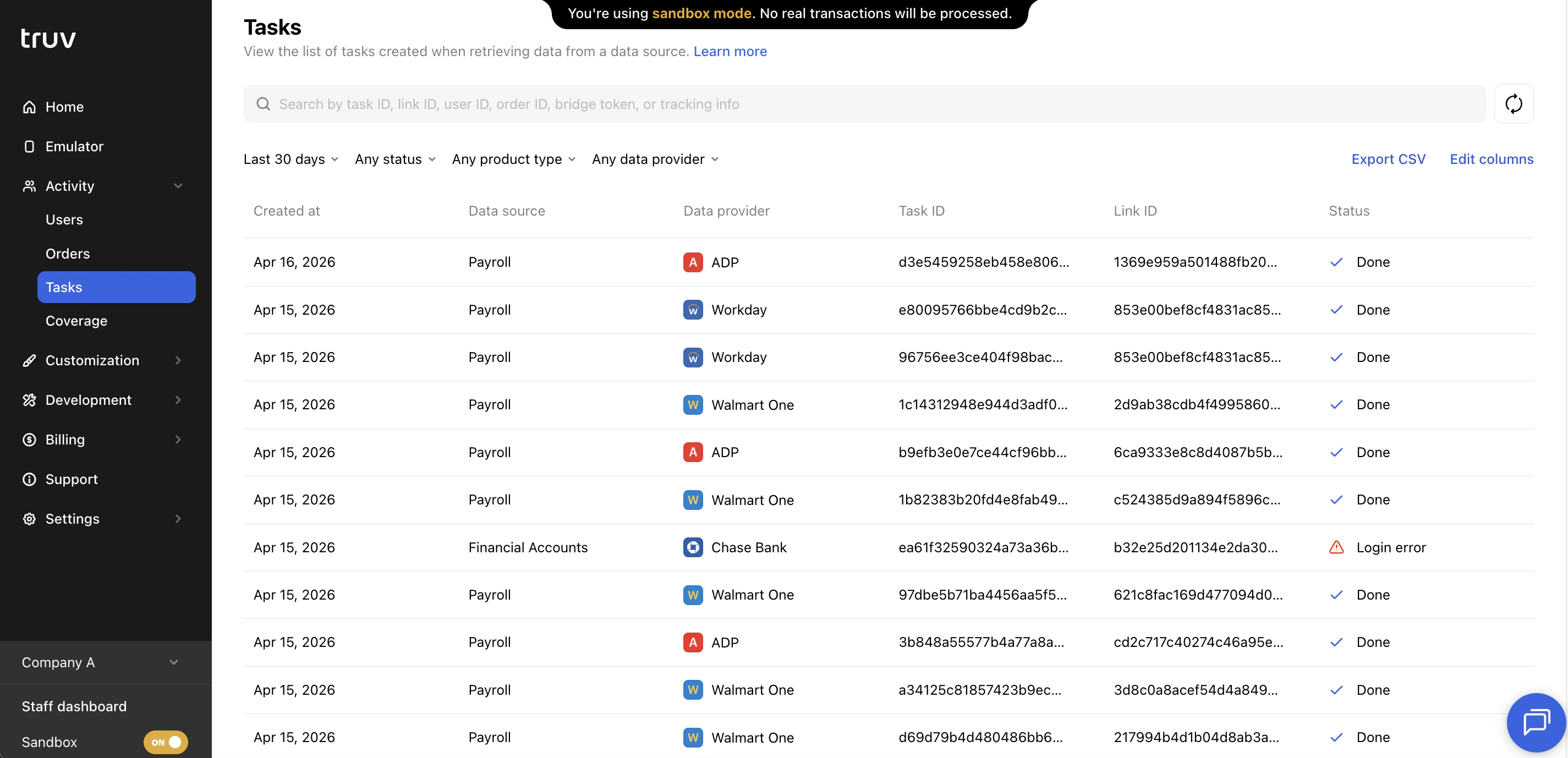
Table columns
| Column | Description |
|---|---|
| Created at | Date and time the connection attempt was made |
| Data source | The type of data source used (payroll, financial accounts, document upload, etc.) |
| Data provider | The specific provider the applicant attempted to connect to |
| Task ID | Unique identifier for this connection attempt |
| Link ID | ID of the link (account connection) this task belongs to |
| Status | Outcome of the connection attempt (done, login error, MFA error, etc.) |
| Suspicious | Flags tasks where the SSN doesn’t match the provider, or uploaded documents may contain fraudulent data |
| Product type | The verification product associated with this task |
| Tracking info | Tracking identifier passed through from the order or bridge token |
| Bridge token | The bridge token used to initialize this connection attempt |
| User ID | ID of the applicant user associated with this task |
Search and filters
| Name | Description |
|---|---|
| Search | Search by task ID, link ID, user ID, order ID, bridge token, or tracking info |
| Date period | Filter by when the task was created. Presets: Last 24 hours, Last 7 days, This week, Last 30 days (default), Last 90 days, or a custom date range |
| Status | Filter by task outcome: Done, Error, Login Error, Account Locked, MFA Error, Config Error, No Data, Unavailable, Unable to Reset, or Not Supported |
| Product type | Filter by the verification product associated with the task |
| Data provider | Filter by the specific provider the applicant attempted to connect to |
Open a task
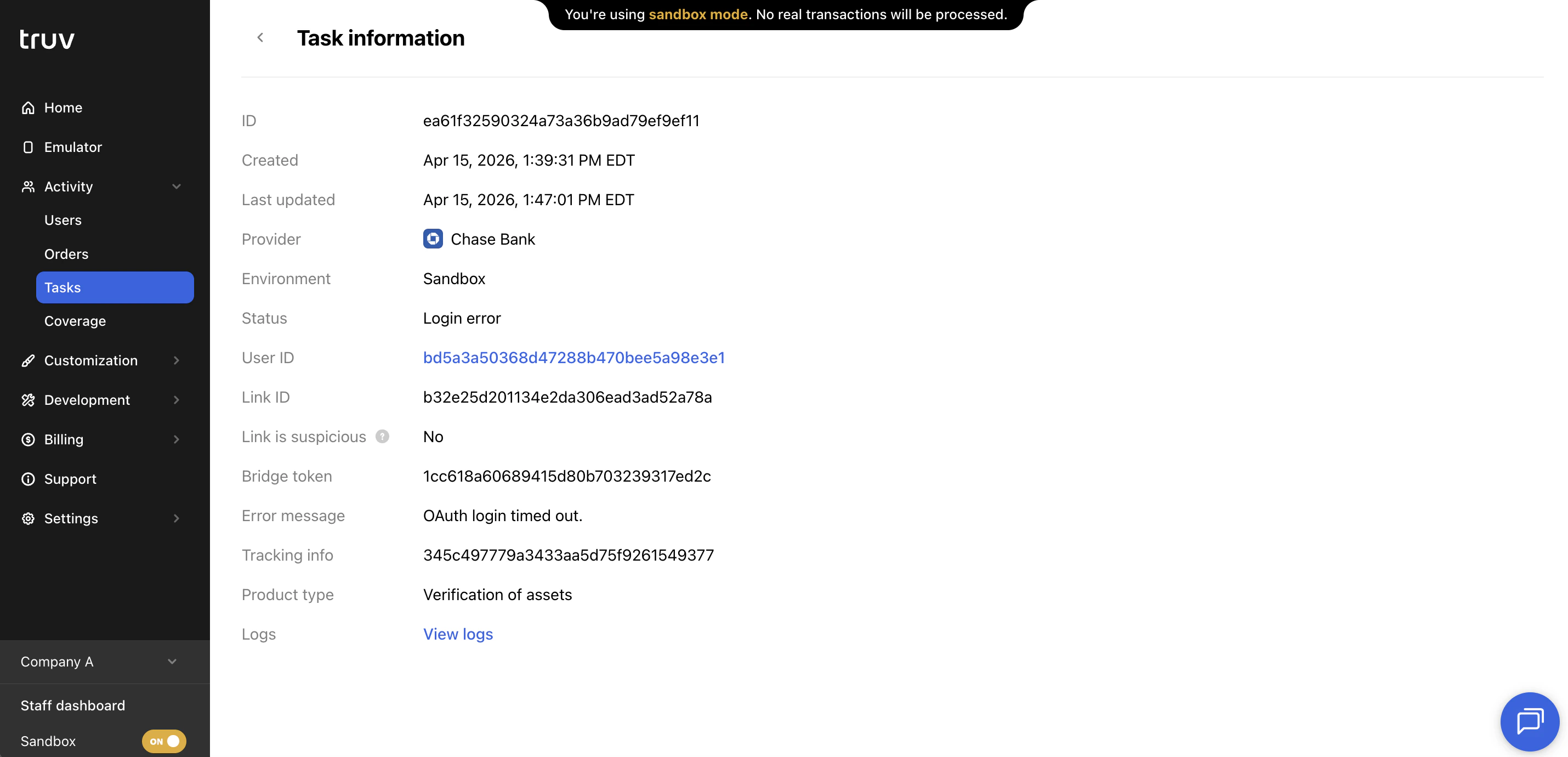
Click any task row to open the task detail. The detail view shows:| Field | Description |
|---|---|
| ID | Unique identifier for this task |
| Created | Timestamp when the connection attempt was initiated |
| Last updated | Timestamp when the task was last updated |
| Provider | The data provider the applicant attempted to connect to |
| Environment | Sandbox or Production |
| Status | Outcome of the connection attempt (e.g., Done, Login error) |
| User ID | Links to the associated user record |
| Link ID | ID of the link this task belongs to |
| Link is suspicious | Whether the link was flagged for potential fraud |
| Bridge token | The bridge token used to initialize this connection |
| Error message | Details about any error that occurred during the attempt |
| Tracking info | Tracking identifier passed through from the order or bridge token |
| Product type | The verification product associated with this task |
| Logs | Link to view raw connection logs for debugging |
Export
Like Users and Orders, the Tasks table can be exported as a CSV with all active filters and columns applied.Coverage
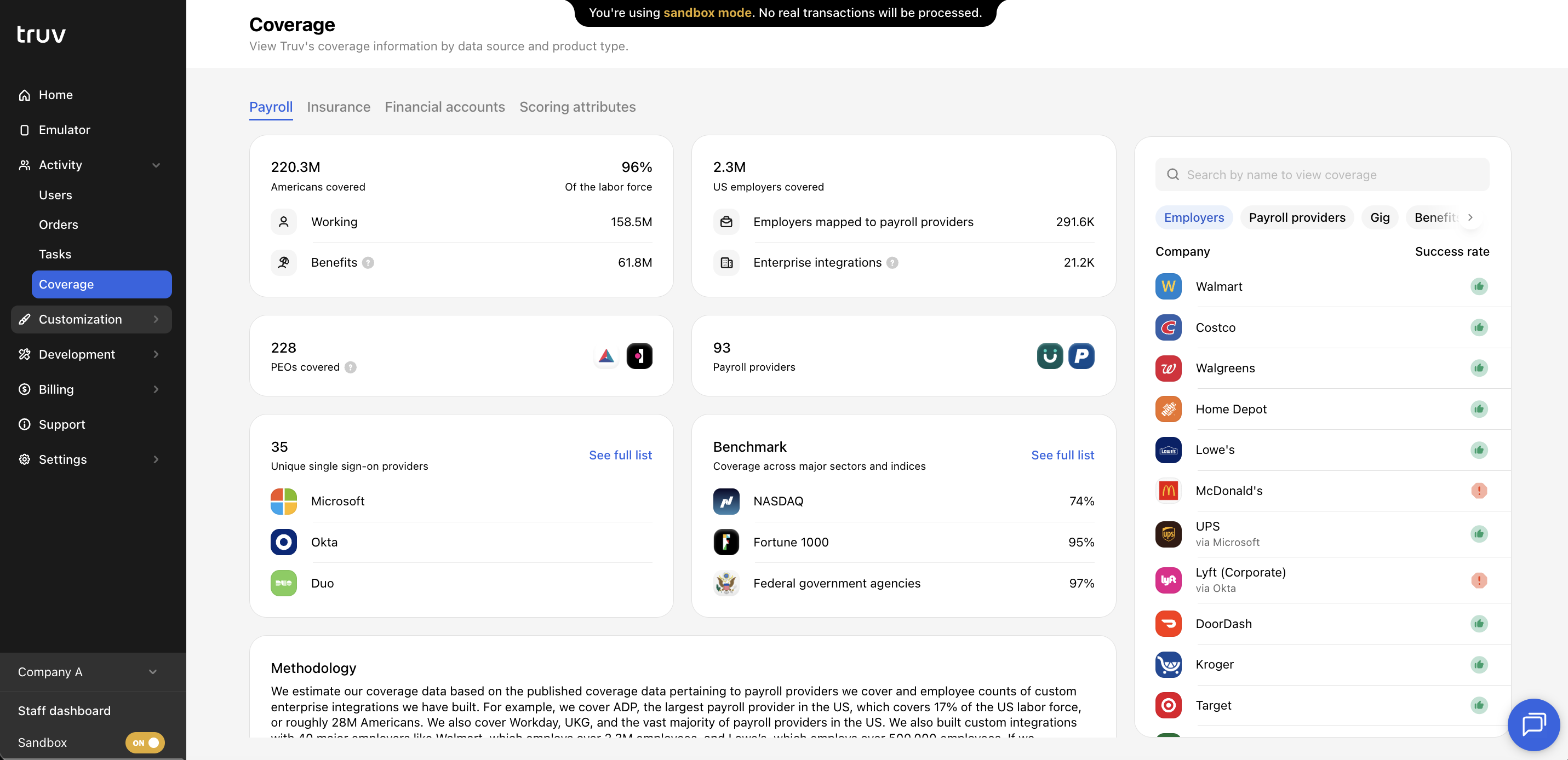
The Coverage tab shows Truv’s provider coverage across four product categories:- Payroll
- Insurance
- Financial Accounts
- Scoring Attributes
Provider search
In the Payroll and Financial Accounts categories, search for a specific employer, payroll provider, or financial institution to see:- Whether the provider is covered by Truv
- The historical connection success rate for that provider
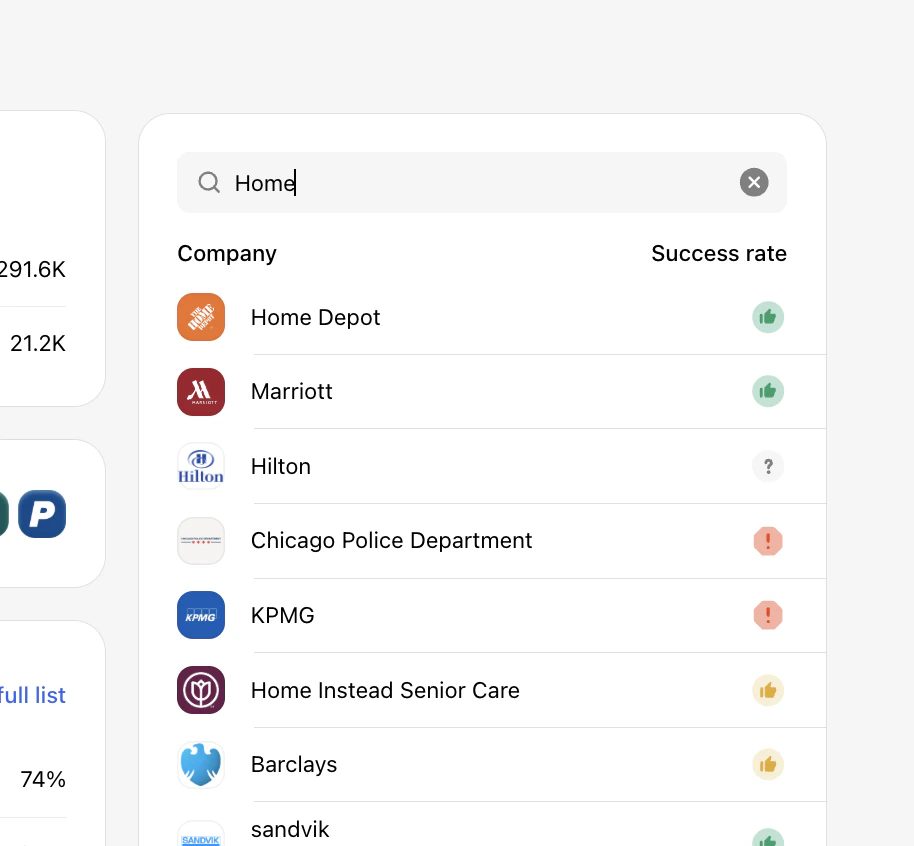
| Icon | Rating | Payroll | Financial accounts |
|---|---|---|---|
 | High | Expected to succeed, send the verification order. | Expected to succeed, send the verification order. |
 | Low | May succeed, send if the user knows their payroll provider and is confident. | May succeed, send if the user is confident and knows their login credentials. |
 | Unsupported | Verification via payroll is not feasible. Try Truv’s Document Upload solution or the next step in your waterfall as an alternative. | Verification with this financial institution is not supported, use an alternative method. |
 | Unknown | Not enough attempts to determine success. May succeed if the user knows their payroll provider and it’s supported by Truv. | Not enough attempts to determine success. Likely to succeed based on other financial institutions. |
Next steps
Orders API
Manage orders programmatically via the API
Tasks API
Retrieve task details and statuses
Coverage — Payroll
Full payroll provider coverage list
Coverage — Financial Accounts
Full financial institution coverage list