

API Keys
The API Keys tab is where you find and manage your Truv credentials.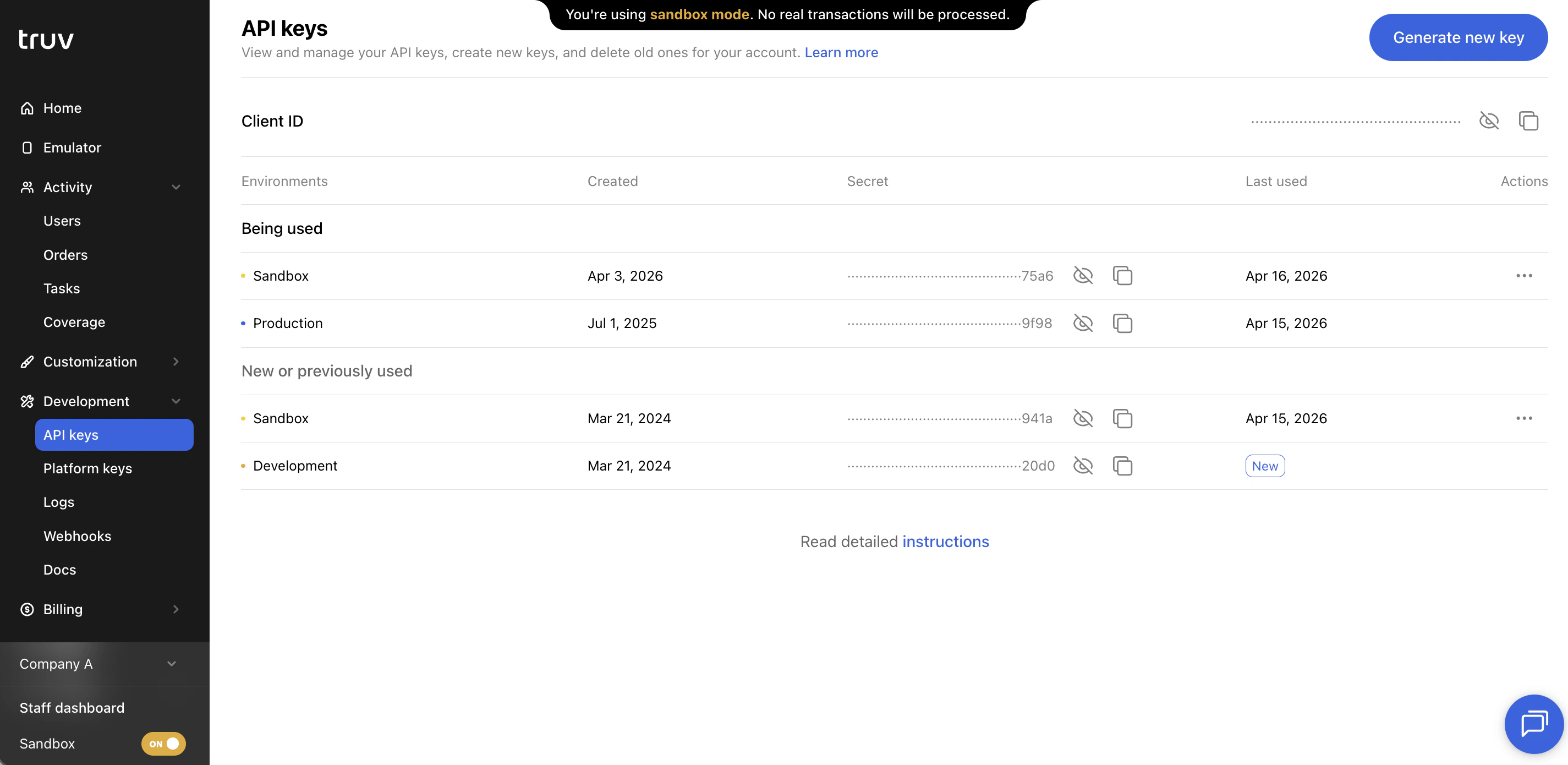
Client ID
Your Client ID is displayed at the top of the page. Pass it as theX-Access-Client-Id header on all API requests.
Keys table
The table shows all API keys for your account, grouped by environment (Sandbox, Development, Production):| Column | Description |
|---|---|
| Environment | Sandbox, Development, or Production |
| Created date | When the key was generated |
| Secret | Masked except for the last four characters |
| Last used | Most recent API call authenticated with this key |
Actions
- Reveal — Show the full key value on screen
- Copy — Copy to clipboard without revealing
- Delete — Permanently remove the key (irreversible)
- Generate new key — Create a new key for an environment
Rotate API keys
To rotate keys without downtime:- Generate a new key
- Update your integration to use the new key
- Test to confirm the new key works
- Delete the old key only after confirming the new key is live
Logs
The Logs tab shows a record of all API requests associated with your account.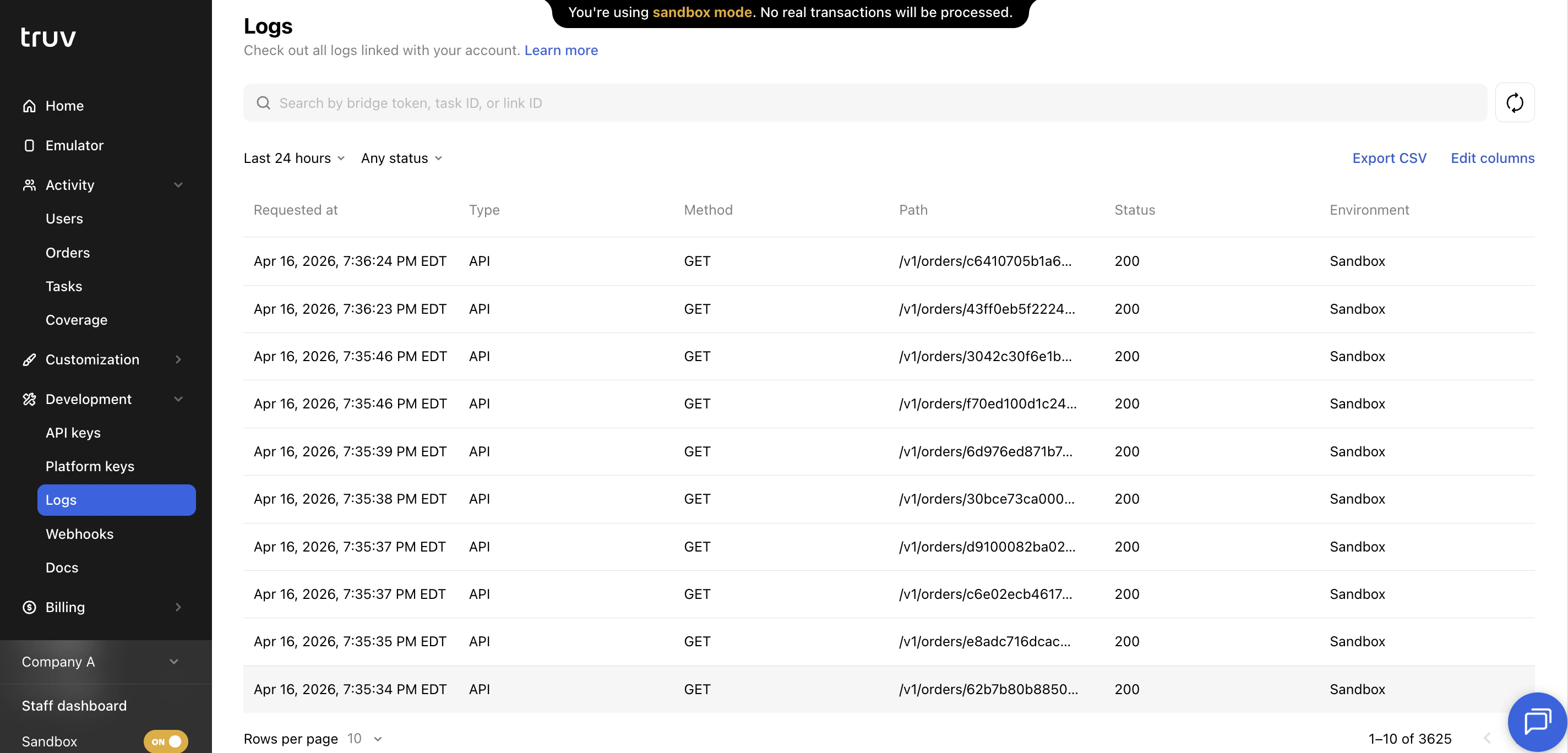
Filters
| Filter | Description |
|---|---|
| Date range | Narrow to a specific time window |
| Status | HTTP response status: 200, 400, 500, etc. |
| Brand | Filter by a specific sub-company or brand |
Webhooks
The Webhooks tab lets you configure endpoints where Truv sends event notifications.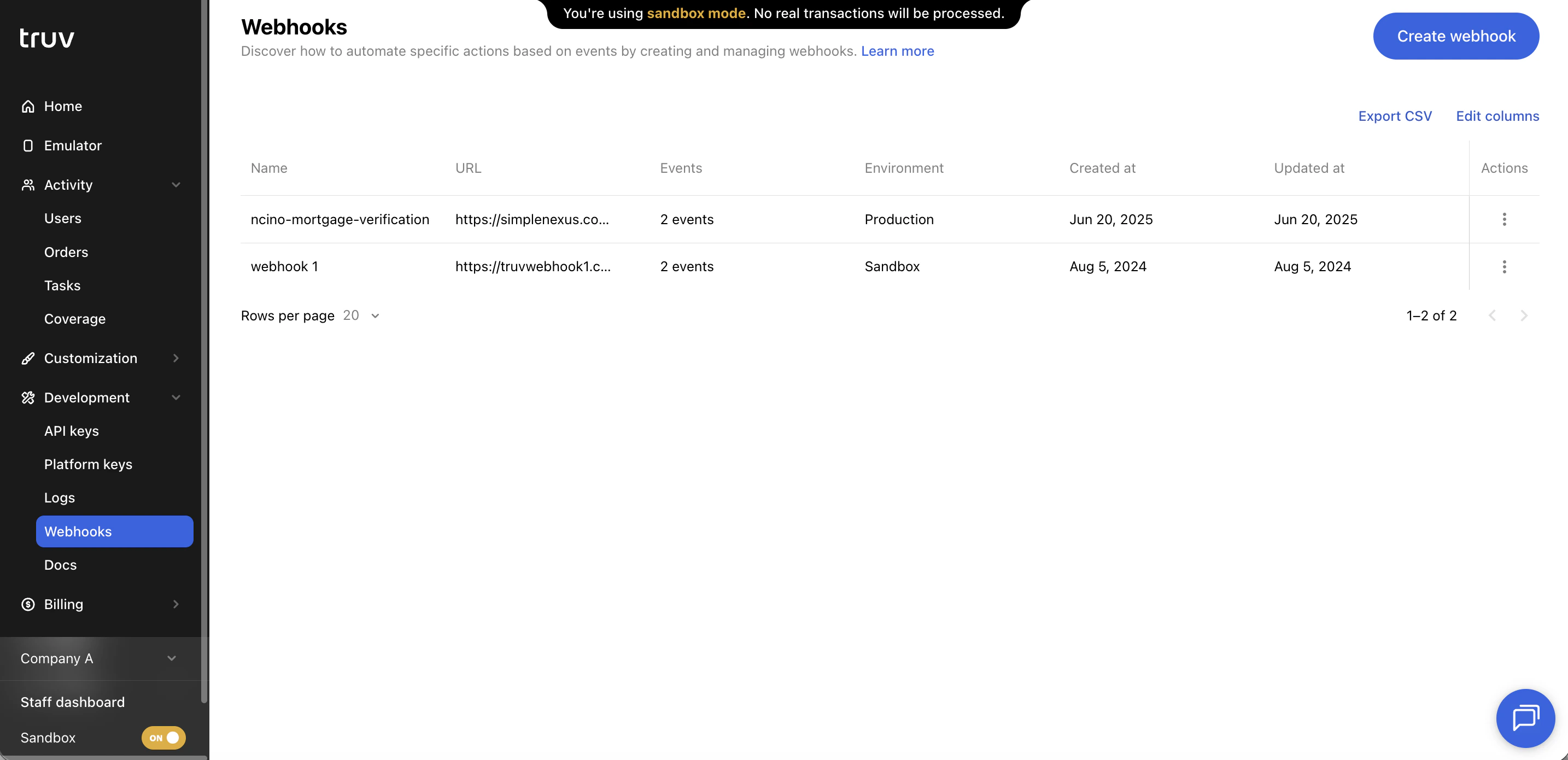
Create a webhook
| Field | Description |
|---|---|
| Name | A label to identify this webhook |
| URL | The HTTPS endpoint where Truv sends POST requests |
| Environment | Production, Development, or Sandbox |
| Events | The event types that trigger this webhook |
Next steps
Authentication
API authentication reference
Webhook Events
Full list of webhook event types
API Keys Rotation
Step-by-step key rotation guide
Security
Webhook signature verification