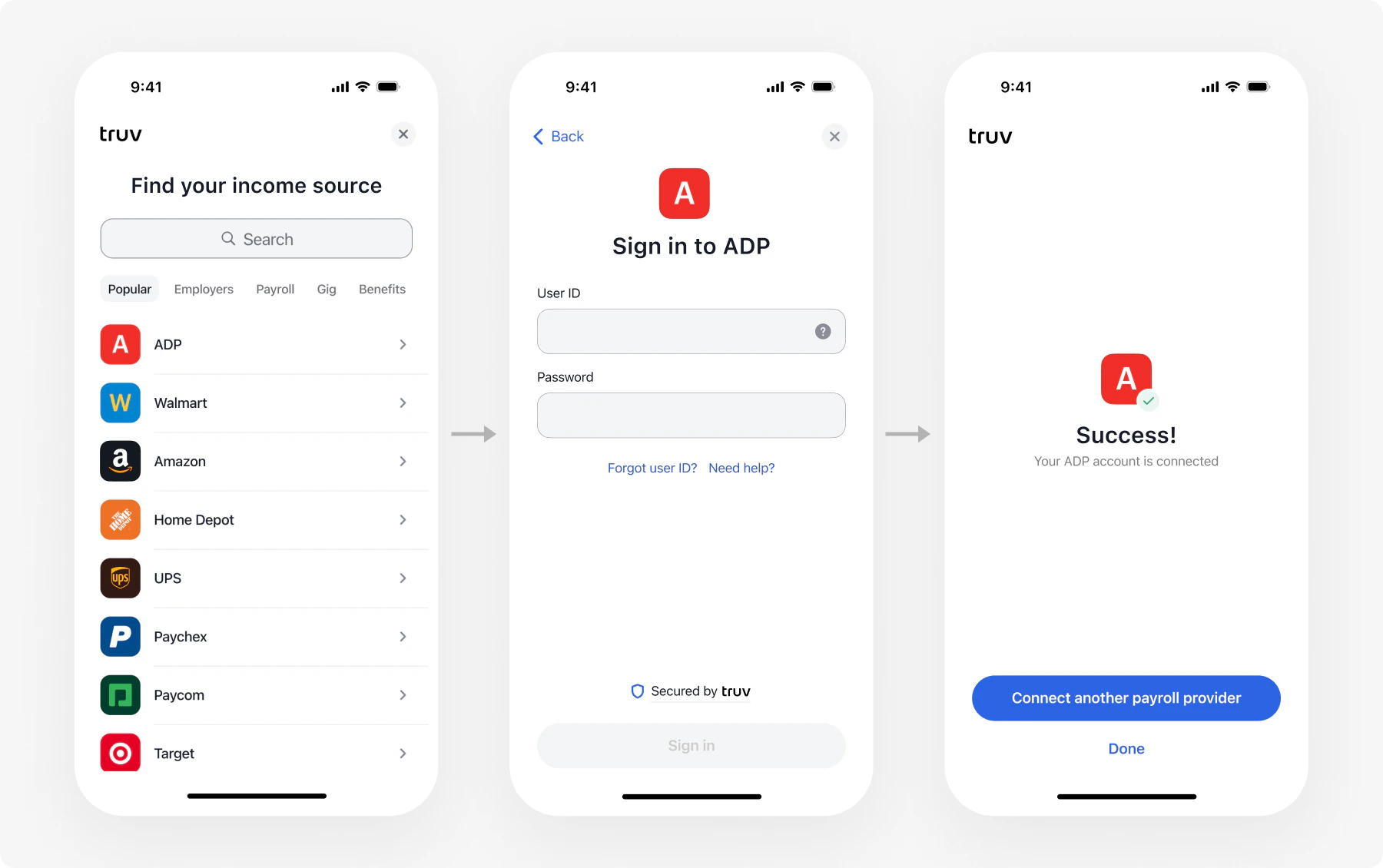
Widget - income verification Truv Bridge is a drop-in client-side widget that handles the entire account connection flow: employer/bank search, credential entry, multi-factor authentication, and error handling. You embed it in your frontend; Truv manages the UI. Bridge is used in two ways:
IntegrationUse caseHow Bridge gets a token
Embedded OrdersIncome, employment, assets (multi-connection)Order API returns bridge_token
Bridge WidgetDirect Deposit Switch (DDS), Paycheck Linked Lending (PLL) (single connection)Bridge Token API returns bridge_token

Platform support

PlatformPackage
Web<script src="https://cdn.truv.com/bridge.js">
iOSNative SDK
AndroidNative SDK
React NativeSDK package
FlutterSDK package
ExpoSDK package
See SDK documentation for installation guides and code samples.

Token exchange flow

The Bridge Widget uses a token exchange pattern to keep credentials secure. Your backend handles all secret-bearing API calls; your frontend only touches the bridge_token and public_token.

Embed Bridge in your page

Add the Bridge script and initialize it with a bridge_token from your backend.
<!DOCTYPE html>
<html>
<head>
  <meta charset="utf-8" />
  <title>Truv Bridge</title>
  <script src="https://cdn.truv.com/bridge.js"></script>
</head>
<body>
  <button id="connect-btn">Connect account</button>

  <script>
    const button = document.getElementById('connect-btn');

    // Fetch bridge_token from your backend
    async function getBridgeToken() {
      const response = await fetch('/api/bridge-token');
      const data = await response.json();
      return data.bridge_token;
    }

    button.addEventListener('click', async () => {
      const bridgeToken = await getBridgeToken();

      const bridge = TruvBridge.init({
        bridgeToken: bridgeToken,
        onLoad: function () {
          console.log('Bridge loaded');
        },
        onSuccess: function (publicToken, metadata) {
          console.log('public_token:', publicToken);
          // Send publicToken to your backend for exchange
          fetch('/api/exchange-token', {
            method: 'POST',
            headers: { 'Content-Type': 'application/json' },
            body: JSON.stringify({ public_token: publicToken }),
          });
        },
        onEvent: function (eventType, payload) {
          console.log('Event:', eventType, payload);
        },
        onClose: function () {
          console.log('Bridge closed');
        },
      });

      bridge.open();
    });
  </script>
</body>
</html>

Parameters

ParameterRequiredDescription
bridgeTokenYesThe bridge_token value returned by Create Bridge Token.
positionNoDisplay mode configuration. Default is dialog. See Set the position.

Set the position

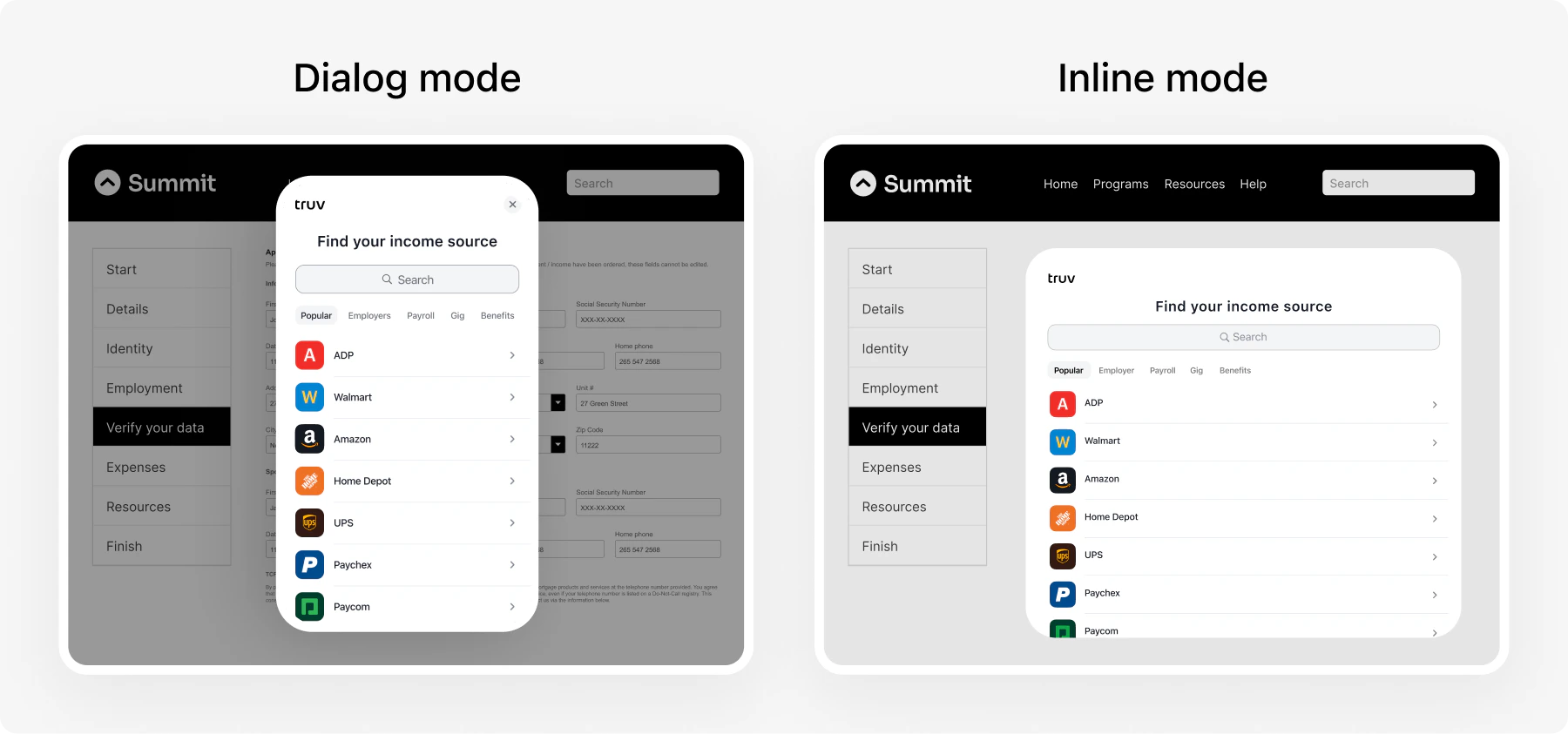
The position parameter controls how Bridge renders on the page. Bridge: Dialog mode vs. Inline mode

Dialog (default)

Bridge opens as a centered overlay and disables page scrolling.
const bridge = TruvBridge.init({
  bridgeToken: bridgeToken,
  position: { type: 'dialog' },
  // callbacks...
});

Inline

Bridge embeds inside an existing DOM element. Use this for seamless page layouts.
const container = document.getElementById('bridge-container');

const bridge = TruvBridge.init({
  bridgeToken: bridgeToken,
  position: { type: 'inline', container: container },
  // callbacks...
});
Inline mode requires the container element to exist in the DOM before calling TruvBridge.init.

Close Bridge programmatically

Call bridge.close() to dismiss the widget from your code.
const bridge = TruvBridge.init({
  bridgeToken: bridgeToken,
  // callbacks...
});

// Close the widget after a timeout or user action
bridge.close();

Callbacks

CallbackWhen it fires
onSuccessUser successfully connected an account
onLoadBridge widget finished loading
onCloseUser closed the widget
onEventAny interaction event, including errors
Errors surface through onEvent with type=ERROR and an ErrorData payload — there is no separate onError callback. See Bridge events for the full list of event types and payloads.

Customize the widget

Customize Bridge appearance through Customization Templates in the Dashboard: company branding, search experience, success pages, document upload settings, and privacy agreements.

Next steps

Embedded Orders

Multi-connection verification (VOIE, VOA, VOE)

Bridge Widget

Single-connection flow (DDS, PLL)

Consumer Credit Demo

Bundle income, deposit switch, and PLL in one Bridge session

SDKs

Platform-specific installation guides