

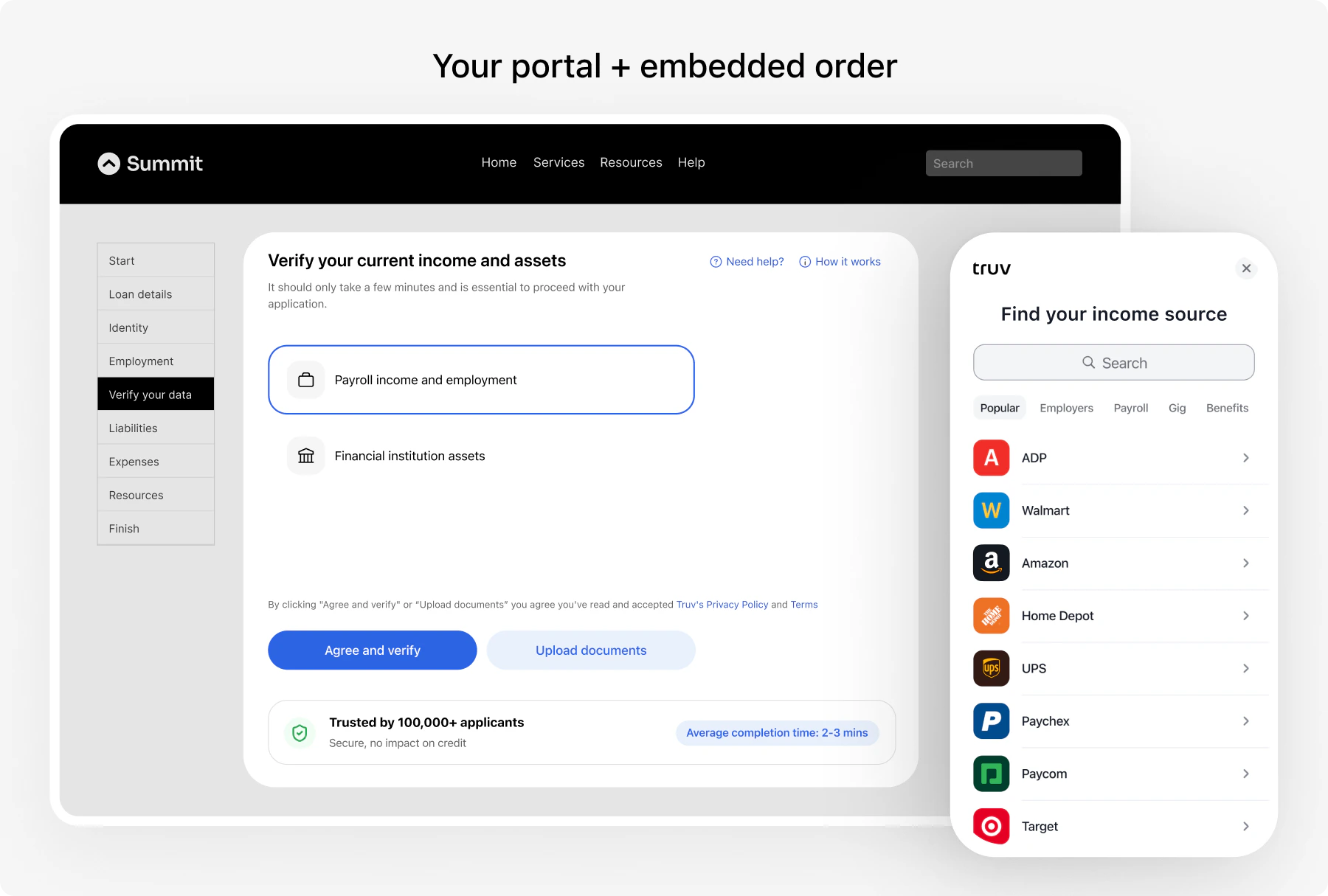
| Data source | Products | Use case |
|---|---|---|
| Payroll | income, employment | Income verification, employment history. Note: income auto-includes employment data. You don’t need to request both. |
| Bank | transactions, assets | Asset verification, transaction history |
| Documents | income, employment | Document upload verification (pay stubs, W-2s, tax forms) |
| Tax | income | Tax return verification |
How it works
- Create an order via API with desired products
- User opens the widget using the bridge token
- User connects accounts (payroll, banks)
- Receive data via webhook notifications
- Retrieve results using the order ID
Implement
Step 1: Create an order [Server-side]
Create an Order to link different data providers. The response includes abridge_token to initialize Truv Bridge.
- Income
- Assets
- Income & Assets
When you include
income in the products array, employment data is automatically included. You do not need to pass both income and employment.Optional request fields
Optional request fields
The create order endpoint accepts additional fields to customize the verification:
Explore the full request schema →
| Field | Description |
|---|---|
employers | Pre-populate the employer in Bridge so the user doesn’t have to search. Pass company_name and optionally company_address. |
notification_settings | Suppress emails/SMS to the user with suppress_user_notifications: true, or delay the first notification with first_notification_delay_hours. |
loan | Attach loan metadata: loan_number (required), originator_name, originator_email, loan_processor_name, loan_processor_email. |
external_user_id | Your internal identifier for the user. |
order_number | Your internal reference number for this order. |
ssn | Last 4 or full 9 digits. Enables SSN matching on the verification. |
email / phone | Contact info for sending the order link via email or SMS. |
template_id | Customization template to apply. |
Open vs closed order configuration
Open vs closed order configuration
Orders can be configured in two modes that control how users interact with pre-populated employers:
Within open orders, two skip behaviors are available:
| Mode | Behavior | Best for |
|---|---|---|
| Open order | User can skip pre-populated employers and add new ones not on the original order | Flexible flows where users may have changed jobs |
| Closed order | User must attempt all pre-populated employers. Cannot add new ones. | Strict verification where specific employers are required |
- Require attempt, then allow skip — User must try connecting before they can skip
- Allow skip without attempting — User can skip immediately
bridge_token from the response.
Step 2: Initialize widget [Client-side]
Load Truv Bridge and pass thebridge_token from Step 1.
Callbacks
| Callback | Description | Required |
|---|---|---|
onLoad | Bridge finished loading the order page | Optional |
onSuccess | User connected all accounts and clicked “I’m done” | Optional |
onClose | Bridge closed the order page | Optional |
onEvent | Receives events from the order page (source: "order") and the connection widget (source: "bridge"). See Bridge Events for all types. | Optional |
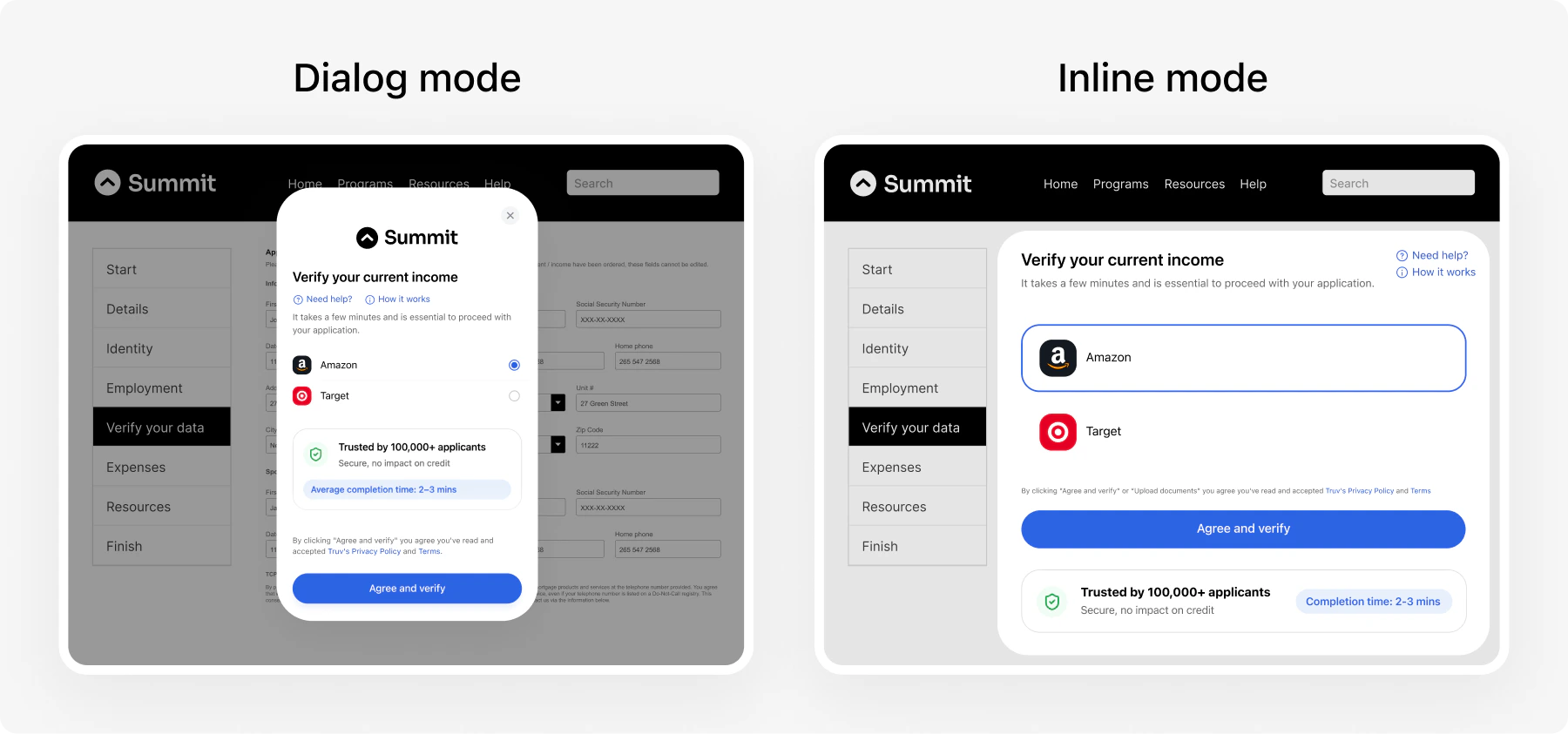
Display modes
Control how the widget appears using theposition property.
Step 3: Test in sandbox
Test your implementation with sandbox credentials.| Username | Password | Description |
|---|---|---|
goodlogin | goodpassword | Full-time current employment |
hourly.part-time | goodpassword | Hourly part-time worker |
multiple.employments | goodpassword | Multiple employers |
Step 4: Monitor webhooks [Server-side]
Webhooks notify you when task and order statuses change. Useuser_id to match events to a specific order.
Task-level webhook, fires as each connection progresses.
Step 5: Retrieve data [Server-side]
Fetch order details using theorder_id. The response includes employer data, employment history, income statements, and report IDs.
Content Security Policy (CSP)
If your application uses a Content Security Policy, you must allow these domains for the embedded widget to load and function correctly:| Domain | Purpose |
|---|---|
my.truv.com | Truv Bridge application |
cdn.truv.com | Truv Bridge JavaScript SDK |
Demo apps
Application Demo
Applicant verifies income, employment, or assets through Bridge in a single session.
Follow-up Demo
Applicant returns to complete multiple verification tasks tied to one file.
Next steps
Add Employer
Add additional employers to an existing order
Data Refresh
Pull updated data without user re-authentication
Deeplinking
Skip employer search for higher conversion