

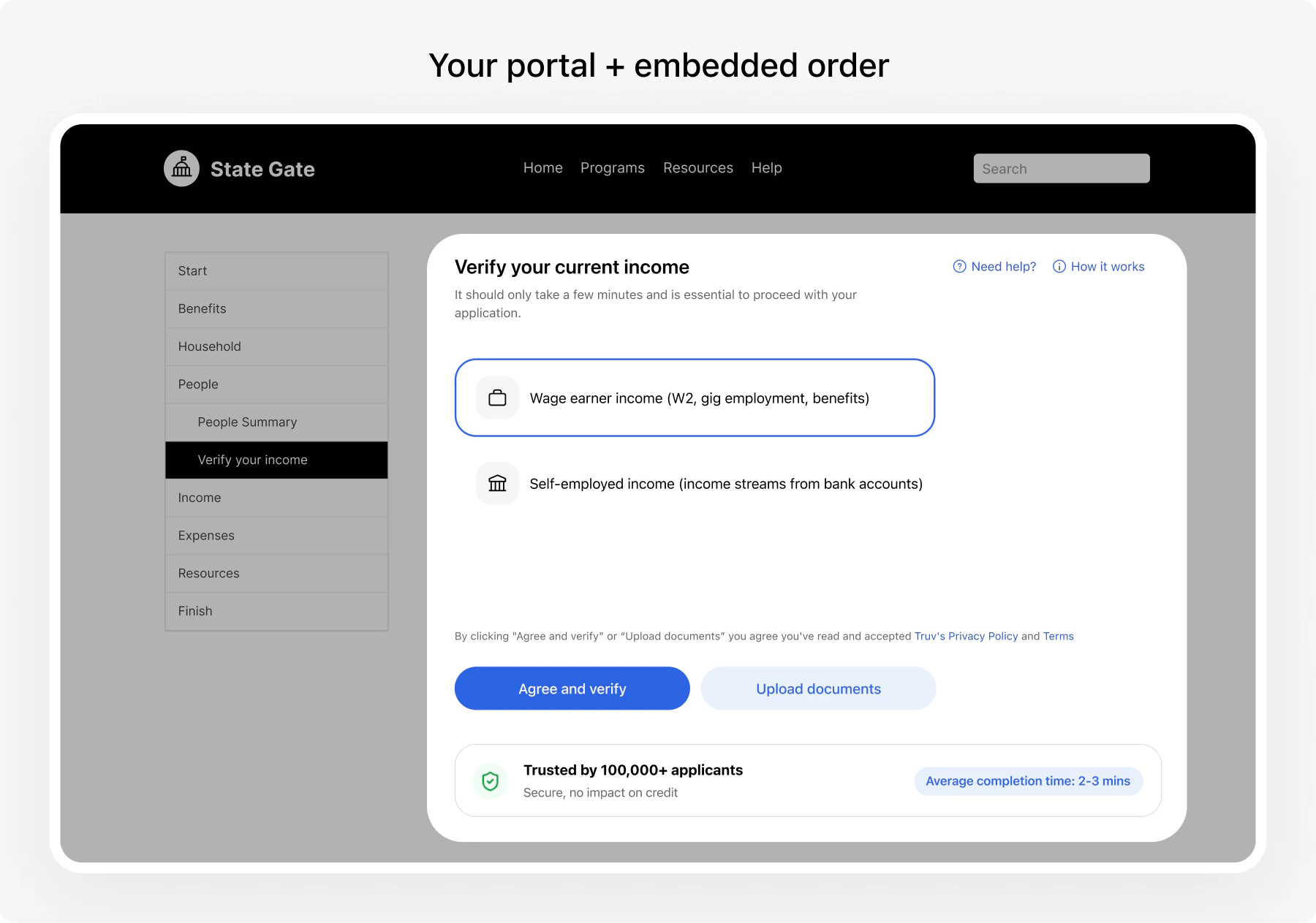
Integration pattern: Embedded Orders | Products: VOIE, VOE, VOA | Demo: Customer Portal
Get started
Run the demo
Clone and run the Customer Portal demo to see the full client self-service flow working locally.Open
http://localhost:5173, select Public Sector > Customer Portal, choose a product (income, employment, or assets), and walk through a verification using sandbox credentials (goodlogin / goodpassword).See full setup instructions for ngrok and environment configuration.Understand the API flow
The demo follows this sequence:
- Search for employer — Your server calls GET /v1/company-mappings-search/ to find the client’s employer by name. For asset verification, search financial institutions with GET /v1/providers/.
- Create an order — Your server sends client PII, case ID, and selected products to POST /v1/orders/. The response includes a
bridge_tokenanduser_id. - Initialize Bridge — Your frontend opens Truv Bridge with the
bridge_token. SetisOrder: trueand optionally passcompanyMappingIdto deeplink directly to the employer. - Receive webhooks — Truv sends an
order-status-updatedwebhook when verification completes. Verify the signature using theX-Webhook-Signheader with HMAC-SHA256. - Retrieve reports — Fetch the VOIE report with
POST /v1/users/{user_id}/reports/or the assets report withPOST /v1/users/{user_id}/assets/reports/.
Review the code
Each step maps to a specific file in the demo. Use these as reference when building your integration.
| Step | Demo file | API reference |
|---|---|---|
| Employer search | src/components/CompanySearch.jsx | Company Search |
| Order creation | server/routes/orders.js | POST /v1/orders/ |
| Bridge initialization | src/demos/CustomerPortal.jsx | Bridge SDK |
| Webhook verification | server/webhooks.js | Webhook events |
| Report retrieval | server/routes/user-reports.js | Income reports |
Public Sector-specific configuration
Case ID tracking
Useexternal_user_id to link orders to your agency’s case or application identifier. This enables data continuity across verifications, renewals, and household members.
template_id to apply your agency’s customized template (branding, messaging, landing page). Pass locale to set the client’s language — see threshold languages for all supported values.
Products
Request the products your eligibility determination requires:| Product | Use case | Report |
|---|---|---|
income | SNAP, TANF, Medicaid, housing assistance | VOIE (includes employment data) |
employment | Employment status confirmation, compliance checks | VOE |
assets | Means testing, housing assistance | VOA + Income Insights |
The
income product includes employment verification automatically. Do not pass both income and employment.Household members
Create separate orders for each household member who needs to verify income. Use the sameexternal_user_id (case ID) to group orders under one case.
| Approach | How it works | Best for |
|---|---|---|
| Portal tasks | Create a to-do item in the portal for each household member | Agencies with portal login for all members |
| Email / SMS | Create an order with contact info and let Truv send the link | Agencies that collect contact consent |
Content Security Policy
If your portal uses a Content Security Policy, allowmy.truv.com (frame-src) and cdn.truv.com (script-src) for Bridge to load.
Renewals and data refresh
When a client’s case is due for recertification, use the Order Refresh API to pull updated data from their existing payroll and bank connections. If the session is still active, the client does not need to do anything — Truv returns fresh data automatically.| Scenario | What happens | Client action |
|---|---|---|
| Session still active | Refresh succeeds. Your system receives updated income and employment data via webhook. Pre-fill the caseworker review screen. | None |
| Session expired | Refresh fails with login_error or mfa_error. The client needs to re-authenticate. | Complete verification through a new link |
- Attempt a refresh first. When a case is due for recertification, create a refresh order against the original order. This is a server-side call — no portal interaction needed.
- If the refresh succeeds, route the updated data to the caseworker review screen. The client’s portal can show a “Verification complete” status with no action required.
- If the refresh fails, display a verification task in the client’s portal. The client logs in, sees the pending task, and completes a new verification through Bridge.
Self-certification
Enable self-certification to let clients review and confirm retrieved income and employment data before submission. After verification, the client sees their data and marks it as representative or flags discrepancies. Self-certification is especially useful for:- Clients with multiple income sources or irregular pay
- Self-employed clients confirming bank transaction data
- Programs that require client attestation
What’s configurable on the certification screen
The certification screen is the final review step the client sees before submitting their verified data. Most layout and copy are fixed today — these specific elements are tunable per company:| Element | Configurable? | Notes |
|---|---|---|
| Hours display | Yes | Designed for Community Engagement verification (e.g., volunteer-hour requirements). Toggle on the company’s certification configuration. |
| Link expiration text | Yes | The “Expires in…” countdown copy is set on the Customization Template. |
| Income amounts and pay-period grouping | No | Driven by the parsed payroll data — not editable client-side. |
| Section labels (employer, pay period, gross pay) | No | Fixed on the screen. |
Email and SMS link delivery
For cases where the client verifies outside your portal (e.g., a caseworker sends a link during an office visit or phone call), you can embed the Truv verification link in your own communications:| Field | Use |
|---|---|
share_url | Full URL for email links |
short_share_url | Shortened URL for SMS messages |
suppress_user_notifications: true in the order’s notification_settings and deliver the share_url yourself.
Order links expire based on your template configuration. To configure link expiry, set the expiration in your template settings or pass it in the order request.
Follow-up tasks
When a client starts but doesn’t complete verification, configure follow-up notifications to bring them back. Truv sends email/SMS reminders automatically based on yournotification_settings.
| Setting | Description |
|---|---|
suppress_user_notifications | Set to false (default) to enable Truv-managed reminders |
first_notification_delay_hours | Hours to wait before the first reminder (default: 0) |
Next steps
Caseworker Portal
Send verification links and ingest data into caseworker screens
Deeplinking
Skip the employer search screen for higher completion rates
Sandbox Testing
Test with government-specific scenarios
Embedded Orders Guide
Full implementation guide for order creation, Bridge, callbacks, and data retrieval